Doodle Art: Magic Drawing App
- 701.00
- 4.4
- Installs
- 5.00M
- Price
- Free

Screenshots
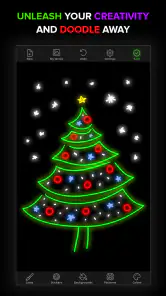
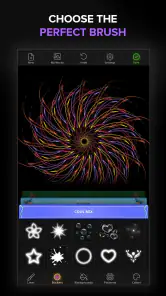
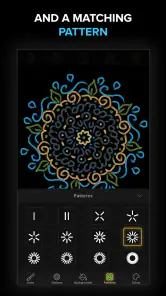
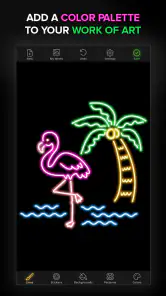
Analysis by Reviewed
I often reach for a drawing app when I want to make something playful without setting up paper, pens, or a full digital-art workspace. Doodle Art: Magic Drawing App is aimed at that lighter kind of creativity: quick patterns, colorful experiments, and designs that are fun to make even if you don’t think of yourself as an artist. It’s an art and design app from Peaksel Games, and its focus is on making doodling feel approachable rather than technical.
A simple workflow for getting started
My best advice is to begin with a small idea instead of trying to plan a finished illustration. Open a blank drawing, choose a color that catches your eye, and see what happens when you build a pattern from repeated curves or shapes. The magic drawing tool gives simple strokes a more decorative feel, which is especially satisfying when you want an attractive result without carefully drawing every detail.
Templates and backgrounds offer another starting point when a blank canvas feels too open. I’d use them as a prompt, not a constraint: add a few marks, pause to see how the composition is developing, then decide whether it needs more. That habit helps keep a quick doodle from becoming a crowded one. The app is free to install and intended for everyone; optional in-app purchases range from $0.99 to $49.99 per item, so it’s sensible to check purchase choices before handing a device to a child.
Unleashing Creativity with Ease
From the moment I opened the Doodle Art: Magic Drawing App, I was greeted with an intuitive interface that made me feel like Picasso with a digital canvas. The app is designed to be user-friendly, allowing both kids and adults to dive right into the world of doodling without any technical hiccups. You’ll find a plethora of tools at your disposal, from brushes that mimic real-life textures to an array of colors that would make a rainbow blush.
Features That Stand Out
One of the standout features is the magical drawing tool, which transforms ordinary doodles into mesmerizing works of art. With just a swipe of your finger, you can create intricate patterns that seem to dance on the screen. The app also offers a variety of templates and backgrounds, so whether you're in the mood for something abstract or a bit more structured, there's something for everyone.
Another feature I absolutely loved was the layering option. It gives you the freedom to experiment with different elements of your doodle without the fear of ruining your masterpiece. Just think of it as having multiple sheets of tracing paper to perfect your design.
Making creative time fit a busy day
A realistic use for this app is a short break between errands or while waiting for a meal: I can open a template, try a limited palette, and spend a few minutes making a small design rather than committing to a polished illustration. For a child, it can be a low-pressure way to explore color and repeated shapes with a grown-up nearby. For an experienced illustrator, it is better treated as a playful sketchbook than as a replacement for a precision-focused drawing program.
More From Our News Desk

Weather by Xiaomi Review: Clear at a Glance, Less Clear Up Close

X Under Pressure: Can It Recover When Posting Goes Wrong?

Clash of Clans Is Won Between the Battles

Android Auto Makes the Case for Quieter Car Software

MobiOffice: Transforming Mobile Productivity with Seamless Integration

EA SPORTS FC™ Mobile Soccer: Redefining Mobile Sports Gaming
To work faster, I’d keep a simple repeatable routine: choose the background first, settle on a few colors, then make one type of mark consistently before adding a contrasting detail. That makes the result feel intentional and also avoids endlessly switching tools. Layers are useful when testing a new motif; keeping a decorative element separate makes it easier to adjust the composition without rebuilding the entire drawing.
Where it fits among drawing apps
Compared with a general-purpose painting app, this one is more inviting when the goal is decorative doodling rather than detailed illustration. Its templates and magic-style drawing approach can help a beginner get past the blank-page problem, while a broader art app is the better choice for someone who needs meticulous control, a complex production workflow, or highly specific editing tools. The trade-off is clear: a focused, approachable experience can feel limiting once your ambitions move beyond playful patterns.
If you want to save time, start with a template and limit yourself to a small set of colors; if you want to learn by experimenting, begin with a blank canvas and use layers to test alternatives. I would not choose it for work that depends on fine control or a highly structured professional process. The main question is whether you want a relaxing way to make decorative art or a full digital studio; this app is much more suited to the first.
Building a repeatable doodling habit
Experienced users can get more consistent results by treating each session as a tiny design exercise instead of reaching for every tool at once. I like to decide on a visual rule before drawing: perhaps repeat one curved mark, keep the background quiet, or let one accent color carry the whole piece. The point is not to impose strict artistic discipline on a relaxing app; it is to give the playful marks enough structure to look deliberate.
A useful workflow is to make a rough composition first, then use a separate layer for details that might need changing. That is a practical way to test whether a pattern works without losing the simpler shapes underneath. If the picture starts to feel busy, I would hide or remove one decorative layer before adding anything else. This small pause is often more effective than trying to rescue an overworked design with extra color.
For a series of small pieces, consistency can come from reusing the same personal rules rather than expecting a formal project system. Pick a limited palette, repeat a motif, and vary one element at a time. That makes it easier to compare experiments and notice which combinations feel balanced. It is also a good approach for a parent and child drawing together: agree on a simple theme, then let each person interpret it with their own marks.
Settings and small choices that matter
I would spend a moment exploring the controls before settling into a longer session. A drawing app can feel frustrating when a tool behaves differently from what your hand expects, so trying a few strokes on a test canvas is a better first move than learning while making a piece you want to keep. Check the available preferences and drawing options, then choose a setup that feels comfortable on your device. I would not assume that settings work exactly like those in another art program.
Screen space also affects how I approach the artwork. On a smaller phone display, bold shapes and uncomplicated patterns are easier to manage than tiny, densely packed details. I would zoom out mentally, so to speak, and work with clear forms that still read well at a glance. On a larger screen, there may be more room to balance several elements, but the same rule applies: a decorative tool can make marks visually rich very quickly, so restraint is part of the workflow.
Before starting something I care about, I’d also make a quick test drawing and check how the app handles the basic actions I expect to use, such as changing a color or adjusting a layer. This is not busywork; it prevents an avoidable interruption halfway through a design. If you are setting it up for a child, explore the interface together and make sure purchase prompts are understood before handing over the device.
Choosing the right moment and the right user
This is a particularly good fit for people who want a creative activity with a low barrier to entry: beginners who freeze at a blank page, casual doodlers who like decorative patterns, or families looking for a simple shared activity. It can also suit someone who already draws but wants a separate space for loose, low-stakes experiments. The app does not need to replace a sketchbook; it can be the digital equivalent of the page you fill while waiting for a call to start.
Imagine having a few minutes before meeting a friend. Rather than trying to create a complete illustration, I’d choose a background, make a small repeating motif, and stop when the composition feels finished. A limited time window encourages simpler decisions, and the result can still feel personal. If a design is meant to become a card or a larger project, I would use this session to explore color and pattern ideas, then move to a tool better suited to precise finishing if needed.
On the other hand, I would steer away from it if the main goal is technical drawing, careful line correction, or a production-ready illustration with a specialized workflow. A focused doodling app is not automatically the best fit for every person who likes art. Someone who wants detailed control over every mark, complex editing, or a workspace built around professional output will likely be more comfortable in a full-featured painting application. The choice depends on whether quick visual play is the destination or only the first step.
Sharing, saving, and managing expectations
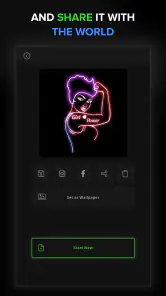
Once you've completed your artwork, sharing it with friends and family is a breeze. The app integrates seamlessly with social media platforms, allowing you to showcase your creations and perhaps even inspire others to pick up digital doodling. Who knows, you might just start a doodling revolution!
For me, sharing works best after I have taken a moment to look at the image as a whole rather than posting the instant I finish drawing. A small pattern can look striking on the canvas but lose its impact if the composition is too crowded, so I would check the balance first. If you are making art for a particular purpose, such as a note or a personal post, think about where it will be viewed and keep the main shapes clear.
I also recommend testing the app’s own saving and sharing steps with an unimportant drawing before relying on them for a piece you cannot easily recreate. That is a sensible habit with any creative app, especially when you are learning its interface. It gives you a feel for the path from making a doodle to showing it elsewhere without assuming that every app handles finished work in the same way.
A few practical details before you begin
The app has an average rating of 4.4 from around 33 thousand ratings, and it has been installed over 5 million times. It was released on November 13, 2017; the current version is 6.1.5, and it requires Android 9 or later. Those figures give a useful sense of its established audience, while the practical decision is still whether its doodle-first style suits the way you like to create.
Peaksel Games has kept the experience centered on quick, accessible art-making. I’d check the available settings when you first open it, especially any choices that affect how you prefer to draw or present a finished piece, then settle on a routine that feels comfortable. I wouldn’t assume every drawing app handles tools or saved work the same way, so take a moment to learn the app’s own controls before starting a piece you care about.
The Everyone age rating makes the app approachable for a broad audience, but it does not remove the need for sensible supervision when a child is using a device with purchase options. The free starting point lowers the commitment, while the optional purchases mean I would review the on-screen choices together rather than treating every prompt as part of the drawing process. For adults, the same check is useful if you prefer to avoid unexpected interruptions while experimenting.
It is also worth thinking about the kind of result you want before choosing this over paper or another art app. Paper remains the simplest option when you want to draw without a screen, while a general painting program is a stronger choice for detailed control. This app sits between those options: it gives you a convenient digital place to play with colors, templates, and patterns, but its strongest appeal is the ease of starting, not a promise to replace every creative tool.
Final Thoughts
All in all, the Doodle Art: Magic Drawing App is a delightful tool for anyone looking to express their creativity without the constraints of traditional art supplies. Whether you’re a seasoned artist or just someone who enjoys a good doodle during a coffee break, this app offers endless possibilities to explore and enjoy. So, why not give it a try? You might just find a new hobby that’s both relaxing and rewarding.
My recommendation is to approach it with modest, playful goals: try a few colors, let the drawing tool create visual rhythm, and use layers when you want to compare ideas. That is where its approachable design makes the most sense. If your priority is precise illustration, choose a more comprehensive art program; if you want a friendly way to turn a spare moment into a decorative experiment, this one is worth trying.
Doodle Art: Magic Drawing App Frequently Asked Questions
Does Doodle Art: Magic Drawing App require an account to start drawing?
If you want a casual place to doodle, Doodle Art: Magic Drawing App is designed around making drawings directly on a mobile screen. You can explore its creative tools and see whether its style suits you before deciding how you want to use your artwork. Keep in mind that sharing artwork through online services may involve using those services separately.
Can I save my drawings and share them with other people?
The app includes a gallery for saving artwork and supports sharing creations with friends or on social media platforms. This makes it possible to keep designs together and show them to others when you choose. Sharing through social platforms requires an internet connection, and the experience may depend on the sharing service you use.
Who publishes Doodle Art: Magic Drawing App, and what kind of app is it?
Doodle Art: Magic Drawing App is an art and design app published by Peaksel Games. It is focused on making doodle-style drawing accessible and enjoyable, whether you want to spend time experimenting with colors or create a more finished design. Its store summary invites users to create magic out of their drawings, giving the app a creative, informal feel.
Which devices can run Doodle Art: Magic Drawing App?
Doodle Art: Magic Drawing App runs on Android devices using Android 9 or later. Before downloading, check the operating system version on your device to make sure it meets that requirement. The app is also available for iOS, so users can look for it in the relevant app store for their device. The experience is centered on drawing and doodling on a mobile screen.
What is Doodle Art: Magic Drawing App?
Doodle Art: Magic Drawing App is an innovative application designed to unleash your creativity through drawing and doodling. It offers a variety of tools and features that allow users to create intricate and beautiful doodle art effortlessly. Whether you're an experienced artist or just looking to explore your creative side, this app provides a platform for both relaxation and artistic expression. With its user-friendly interface and vibrant color options, users can enjoy creating unique designs anytime and anywhere.
Pros
- Intuitive interface for easy navigation
- Variety of brushes and colors
- Offline mode available
- Regular updates with new features
- Supports high-resolution exports
Cons
- Ads can be intrusive at times
- Limited free features
- Occasional lags on older devices
- In-app purchases needed for advanced tools
- No social media sharing integration
- Category
- Art & Design
- Version
- 6.1.5