Cut Paste Photos
- 6.21K
- 3.8
- Installs
- 50.00M
- Price
- Free

Screenshots


Analysis by Reviewed
I find Cut Paste Photos most useful when I need to solve a very specific photo problem quickly: remove a person from one picture, isolate an object, place it into another image, or assemble several pictures without opening a full desktop editor. It is a free photography app from Dexati, and its focus is much narrower than a general camera or social media editor. That narrow focus is also its appeal. Instead of making me search through dozens of filters, it puts the basic cut-and-paste idea at the center.
After using it, my impression is of a practical utility rather than a polished creative studio. The app combines photo cutting, image pasting, collage creation, slideshow building, and retouching, so it can cover several small jobs in one place. I would recommend it to someone who wants quick visual edits on an Android phone, especially if the alternative is installing several separate tools. I would not choose it for professional compositing, precise masking, or a carefully managed photography workflow.
What Cut Paste Photos is really designed to do
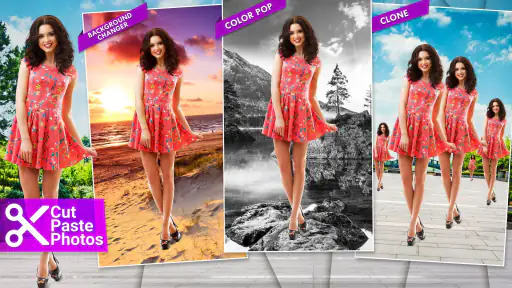
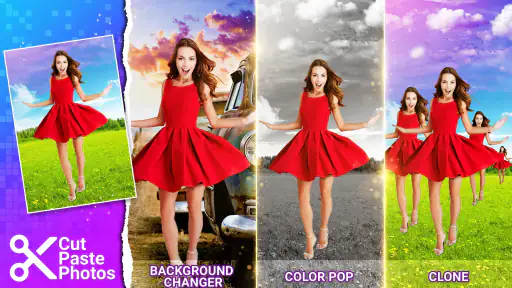
The name describes the main workflow better than a long feature list could. I start with a photo, mark the part I want to keep, and place that cutout over another image. That can be useful for a playful composite, a simple product comparison, a greeting image, or a quick social post. The result depends heavily on how carefully the subject is selected, so the app is more rewarding when the object has a clear outline and a contrasting background.
The cutout tool is not only for jokes or novelty pictures. I can imagine using it to move a person into a cleaner background, combine a pet with a holiday scene, or prepare a small image for a marketplace listing. It also works as a rough planning tool: before spending time in a more advanced editor, I can test whether two images look convincing together. That makes the app handy for decisions, not just final artwork.
Its other tools broaden the audience. A collage editor is useful when I want several family photos in one frame, while a slideshow maker gives a simple way to turn a group of images into a sequence. Retouching is helpful for small corrections, although I would treat it as a convenience feature rather than a substitute for a dedicated portrait editor. The app’s strength is putting these related tasks under one roof.
Cut Paste Photos has been available since September 12, 2014, and the current version is 11.1.0. It runs on Android 6.0 or later. Those details matter if I am using an older phone, because compatibility is less restrictive than with many newer editing apps. The app is free to install, although it includes in-app purchases ranging from $1.99 to $99.99 per item. I would check the purchase screen carefully before confirming anything, especially if I only want the basic tools.
How the cutting workflow feels in everyday use
The most important practical lesson is to choose the source image before thinking about the background. A sharply separated subject gives me a much better starting point than a person wearing colors that blend into the wall behind them. Hair, plant leaves, bicycle spokes, and transparent objects are difficult because their edges are irregular or partly invisible. If I need a clean result, I spend more time on the outline instead of expecting the automatic selection to solve every edge.
I also find it helpful to work from a high-resolution original and crop only after the cutout is ready. Starting with a tiny image makes the edge look acceptable while editing but noticeably rough once it is placed into a larger background. Conversely, an enormous image can make the process slower on an older device. A balanced source photo gives the app enough detail without turning a simple edit into a patience test.
One less obvious use is creating a reusable subject for several backgrounds. I can cut out a product, pet, or person once, save the result, and then experiment with different scenes. This is more efficient than repeating the selection each time. It also makes the app useful for a small business owner preparing several informal promotional images, provided the final work does not require exact commercial retouching.
Placement is where a quick edit either becomes believable or remains obviously pasted. I pay attention to scale, direction, and empty space. A person facing left usually looks more natural when there is room on the left side of the new background. Matching the apparent light direction also helps. The app can place the subject, but it cannot make a badly matched source and background look like they were photographed together.
Collages and slideshows are useful, but intentionally simple
For collages, I prefer to decide the story first and then choose the layout. A family event may work better with one large image and a few supporting pictures, while a travel recap can use a more even arrangement. The app is convenient when I want a finished image without learning a complicated design program. It is less suitable when I need exact spacing, custom typography, or detailed control over every border and alignment.
The slideshow maker fits a different moment: I can gather photos from a birthday, trip, or school event and turn them into something easier to watch than a folder of images. Before exporting or sharing, I would review the order carefully because a slideshow feels much more personal when the sequence has a beginning, middle, and ending. I would also avoid including private images simply because they happen to be in the same phone album.
That point is important for trust. A photo editor may feel harmless because it deals with pictures rather than messages or banking information, but personal photos can reveal faces, homes, locations, documents, and children. I do not assume that convenience automatically means privacy. I use the app selectively, avoid importing images that contain sensitive paperwork, and remove temporary copies from the phone when I no longer need them.
Trust depends on what I can see and control
My approach to this app is cautious rather than suspicious. It is a free photography tool developed by Dexati, with an Everyone content rating, and it has reached over 50 million installs. Its average rating is 3.8 from around 278 thousand ratings, with roughly 6.2 thousand written reviews. That level of use suggests that many people find a purpose for it, but popularity alone does not tell me how an individual edit handles personal data.
When I install or update it, I pay attention to the permission prompts shown by my device and to any explanation presented before granting access. I prefer selecting only the images needed for a particular edit instead of giving an editor broad access to my entire library when Android offers a narrower choice. If a permission request appears unrelated to cutting, collaging, or saving images, I pause rather than accepting automatically.
I also look for visible choices around advertising, purchases, and sharing. The free model can be convenient, but in-app purchase ranges mean I should not tap through a confirmation screen without reading it. I keep purchase authentication enabled on my device, particularly when children may use the phone. That is a small control, but it prevents a creative app from becoming an accidental shopping channel.
Account control is another practical consideration. I prefer using an editor without signing in when the task does not require an account, and I do not connect unrelated services merely to try one feature. If the app presents a sign-in or sharing option, I treat it as a decision rather than part of the editing process. I also review the Android app settings later, where I can adjust permissions or remove access that I no longer consider necessary.
Where the app can save time, and where it can waste it
A realistic example is preparing a quick birthday image for a family group chat. I could cut a child from a portrait, place the subject over a colorful background, add a few related photos in a collage, and create a short slideshow from the celebration. Cut Paste Photos can bring those steps together without making me switch between a background remover, a collage tool, and a slideshow app. For a casual result, that convenience is meaningful.
The trade-off appears when the image matters more than the speed. If I am producing a wedding album, a client advertisement, or a portfolio piece, I want non-destructive editing, precise edge refinement, color matching, layer control, and dependable export settings. A dedicated professional editor is a better choice there. Even a more focused background-removal app may be preferable when the only goal is a clean subject extraction.
I would also skip it if I mainly want camera controls, raw-photo development, or advanced color grading. This is not the app I would open to correct lens issues, manage a large catalog, or build a repeatable professional workflow. Its value comes from quick manipulation of existing images, not from replacing the entire photography process.
Performance can vary with image size and phone age, so I keep my workflow modest on older hardware. I close other demanding apps, avoid loading many large pictures at once, and save intermediate work when an edit is important. These habits are not glamorous, but they reduce the frustration of losing a nearly finished composition or waiting through repeated processing.
Small techniques that improve the final result
First, I make the initial cut slightly inside the subject’s edge when the background is strongly different in color. A thin halo from the old background is usually more distracting than a tiny amount of missing edge. For hair or soft fabric, I accept that a perfect outline may not be worth the time and choose a background that hides minor imperfections.
Second, I use a plain temporary background while checking the cutout. A white or dark backdrop makes leftover pixels easier to spot than a busy landscape. Once the edge looks acceptable, I move the subject to the intended scene. This simple check prevents me from discovering an obvious outline only after sharing the finished image.
Third, I match visual weight before adding decoration. If the pasted person is too large, no amount of collage styling will make the composition feel natural. I set the scale and position first, then consider retouching or presentation elements. For slideshows, I similarly choose the image order before worrying about the overall mood.
Finally, I keep an untouched original in the gallery and edit a copy. This matters because quick mobile tools encourage experimentation, and an accidental crop or retouch can be difficult to reverse later. It also gives me freedom to try a more aggressive cutout without risking the only version of an important photo.
Who should install it and who should look elsewhere
I think the app suits casual Android users who want a straightforward way to cut subjects from pictures, build collages, make slideshows, or perform small retouching jobs. It is especially appealing to people who do not want to learn a full desktop editor and who value having several related tools in one free app. The Everyone rating also makes its general audience broad, although parents should still supervise purchases and photo sharing on a shared device.
I would be more hesitant to recommend it to someone who is sensitive to interruptions, expects a completely premium experience, or needs exact control over every pixel. The purchase range may also make the app feel less simple if the features I want are placed behind payment prompts. I would decide based on the actual workflow I need, not merely on the fact that installation costs nothing.
Compared with a general-purpose social editor, Cut Paste Photos is more directly focused on separating and combining images. Compared with a professional editor, it is easier to approach but far less suited to detailed finishing. Compared with a single-purpose collage app, it offers a wider set of image tasks but may not provide the same depth in layout design. That middle position explains both its usefulness and its limitations.
My cautious verdict
Cut Paste Photos is a practical free option for quick image combinations, casual collages, simple slideshows, and basic retouching. I like it most when the job is concrete and time-sensitive: isolate one subject, try a new background, arrange a few memories, and move on. Its broad install base and long availability make it an established choice, but I still judge each edit by the quality of the source image and by the controls I can see on my own phone.
The best reason to use it is convenience, not professional precision. I would install it for everyday creative tasks, keep permissions and purchase prompts under my control, and avoid importing sensitive photos unnecessarily. If I needed advanced masking, careful color work, or a privacy-focused professional workflow, I would choose a more specialized alternative. For quick Android editing with realistic expectations, however, it earns a place in my toolkit.
Pros
- Quickly removes backgrounds for clean
- creative cutouts.
- Simple interface makes basic edits easy for beginners.
- Supports combining subjects from multiple photos.
- Useful for collages
- stickers
- memes
- and social media posts.
- Lets you create personalized images without advanced editing skills.
Cons
- Precise cutting can be difficult around hair and fine details.
- Some features or export options may require in-app purchases.
- Results depend heavily on image quality and lighting.
- May include ads that interrupt the editing process.
- Large projects can feel slower on older phones.

- Category
- Photography
- Version
- 11.1.0