Beauty Camera - Selfie Camera
- 171.00
- 4.7
- Installs
- 5.00M
- Price
- Free
Screenshots
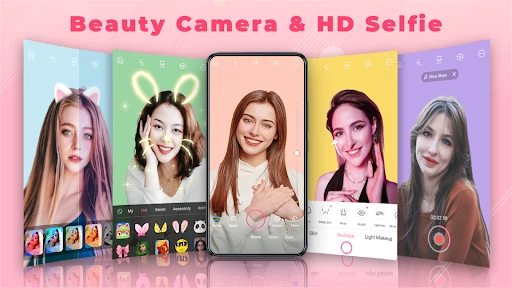
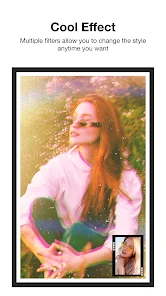
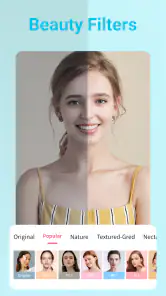
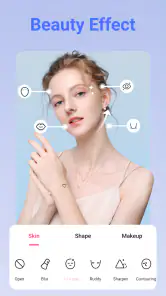
Analysis by Reviewed
When I want a selfie to look a little more polished without opening a full photo-editing suite, Beauty Camera - Selfie Camera is the kind of app I reach for. It is a free beauty app from Mobile Minds Dev, built around taking and editing selfies with visual effects. The appeal is immediacy: make a portrait, try a different look, and decide whether the result feels right before sharing or saving it. That straightforward purpose is useful, but it also means this is best approached as a quick creative tool rather than a complete photo studio.
A useful fit for an everyday portrait
The app makes most sense when there is a specific photo in mind, not when you are looking for an all-purpose image library. I might use it before sending a casual selfie to a friend, or when an ordinary front-camera shot needs a little more personality for a social profile. If the image is already clear and the lighting is reasonable, a small stylistic change can be enough. Starting with a usable photo matters more than trying to transform a poor one.
From a quick selfie to a finished image
I find the best results come from deciding where a selfie is going before I start editing: a profile picture calls for a different finish than a playful message to a friend. That small choice helps me judge effects and stickers by whether they serve the image, rather than by how eye-catching they look on their own. Next, I look at how to shape the edit without letting the tools take over.
Start with the photo you actually have
A good place to begin is with a familiar, ordinary situation: you are getting ready to send a portrait to a friend, update a profile picture, or keep a nice shot from a day out. You may have decent light and a clear face, but the image feels a little plain. This app is aimed at that moment, when you want to experiment with a more finished look without turning the task into a long editing session.
I would start by taking a fresh selfie or choosing a photo to work on, then make one change at a time. Try an effect or filter first, and look at the whole image rather than judging only the face. A filter can alter the mood of the background and clothing as well as the skin, so a setting that looks appealing in a close crop may feel too strong when you view the portrait as a whole.
The app’s identity is clear from its name and focus: it is a selfie camera and beauty editor, not a general-purpose image manager. That focus makes the first decision easy. If you want playful visual treatments or a more styled portrait, it is worth exploring. If you mainly need precise cropping, detailed color correction, or a carefully controlled retouch, a traditional photo editor may be a better starting point.
Build the look in small steps
Once you have a usable image, the practical workflow is to test the available effects, filters, and stickers without committing to the first attractive option. I find it helpful to compare a subtle treatment with a more noticeable one before adding anything else. This is especially useful for profile photos: a restrained finish tends to remain recognizable at small sizes, while several bold decorations can compete with the face.
More From Our News Desk

Weather by Xiaomi Review: Clear at a Glance, Less Clear Up Close

X Under Pressure: Can It Recover When Posting Goes Wrong?

Clash of Clans Is Won Between the Battles

Android Auto Makes the Case for Quieter Car Software

MobiOffice: Transforming Mobile Productivity with Seamless Integration

EA SPORTS FC™ Mobile Soccer: Redefining Mobile Sports Gaming
Stickers are better treated as accents than as a rescue for a weak photo. A small playful element can give a casual selfie a clear personality, but it cannot fix poor lighting or an awkward expression. If the photo already has a strong background or patterned clothes, I would keep the additions simple. That restraint is one of the most useful ways to get a result that feels intentional rather than crowded.
There is also a practical order to the work. I would settle on the overall color and mood before placing stickers, because a later filter change may make a decoration look out of place. Then I would inspect the edges and corners of the frame: embellishments that look balanced on a phone screen can become distracting when the image is cropped for a profile or shared in a feed. This small final check can save a second editing pass.
From editing to sharing
For a realistic quick workflow, I would take a selfie near a window, choose the clearest frame, and test a filter before adding anything decorative. If the image is meant for a profile, I would preview the crop I expect to use and keep the face easy to recognize. For a message to a friend, I might choose a more playful finish. Thinking about the destination first makes it easier to stop editing at the right point.
One useful trade-off is that a single app can make experimentation feel convenient, while a separate editor may be better when the task becomes precise. Beauty Camera is geared toward a styled portrait; a phone’s built-in camera is usually less fussy for quick, natural snapshots, and a manual editor is a better fit when I need fine control over color or framing. The right choice depends on whether I want to create a look or simply preserve the moment.
Make the handoff fit the destination
The finished image is only useful if it works where you plan to use it. For a private message, a more playful edit may be perfectly fine. For a work profile or a family photo, I would favor a natural-looking treatment and avoid decorations that could date the picture quickly. The app’s creative tools encourage experimentation, but the best choice depends on the audience and the image’s purpose.
Before leaving the editing flow, take a moment to compare the result with the original if that option is available in the editing experience. The key question is not whether the edited version looks more dramatic; it is whether it still looks like you and suits the place you intend to share it. When I am unsure, I lean toward the less processed version. A modest adjustment often holds up better across different screens and lighting conditions.
People often want to know whether this can replace a regular camera app. I would not treat it as a universal replacement. Its appeal is the beauty-oriented creative workflow, while a standard camera app is usually the simpler choice when you just want to capture an unembellished moment. Likewise, someone who already has a preferred editor for detailed adjustments may find this more useful for quick styling than for every photo task.
What it does well—and where it asks for patience
The strongest part of Beauty Camera is the low-effort route from portrait to styled image. Effects, filters, and stickers give you several ways to change the character of a selfie without requiring professional editing knowledge. For a casual user, that can make a routine portrait feel more personal. The app has a 4.7 average from around 25,000 ratings, and it has been installed over 5 million times, suggesting that this kind of accessible selfie editing has found a broad audience.
There are trade-offs. A large selection of visual treatments can make it easy to over-edit, especially when several elements are layered in one image. The most flattering result is not always the most heavily altered one, and filters that suit one skin tone or lighting setup may not work as well in another. I recommend checking the image at normal viewing size, not only zoomed in, because the overall balance matters more than tiny details.
Another point to consider is cost. The app is free to install, with in-app purchases ranging from $1.99 to $19.99 per item. That gives you a way to try its basic appeal before spending, but I would first decide how often you genuinely use the extra creative options before buying anything. If you only edit an occasional selfie, the free experience may be enough; if a particular paid item matters to your routine, weigh that against how frequently you will use it.
Who will enjoy it, and who may prefer another tool
I would recommend this app to people who take selfies often and enjoy trying different visual moods, especially anyone who wants quick edits without learning a complex editor. It can also suit someone preparing a casual profile image or making a fun portrait to send to friends. The age rating is Everyone, so it is presented for a broad audience, though younger users should still make sensible choices about what they share and with whom.
It is less suitable if your priority is faithful, natural photography with minimal processing, or if you need a detailed workflow for retouching a full album. In those cases, the phone’s regular camera and a more manual editor may give you better control and a cleaner handoff. I would also skip it if you dislike decorative effects or prefer to keep every image close to its original appearance; the app’s central attraction is precisely the opportunity to add a styled finish.
Practical expectations before you install
Beauty Camera is an Android app from Mobile Minds Dev, currently at version 5.2.9 and compatible with Android 6.0 or later. It first appeared on March 25, 2022, and its core idea remains easy to understand: take or work with a selfie, test a look, and finish with an image that feels more expressive. Those details make it accessible to many Android users, though the overall experience is still most compelling for people who actively want beauty-focused editing rather than a plain camera utility.
If you are deciding whether to try it, the simplest question is whether you enjoy adjusting a portrait after taking it. The app is free to install, so it is easy to explore its basic style before deciding whether it belongs in your regular routine. Since individual in-app purchases are available, I would avoid buying anything just to see whether I like the general idea; first find out whether the free editing choices already cover the looks I actually use.
My final take on the finished result
For me, the best way to use Beauty Camera - Selfie Camera is as a quick styling stop between taking a portrait and sharing it. Start with decent light, choose one main treatment, add a sticker only if it supports the mood, and check the image at the size where people will actually see it. That workflow keeps the editing purposeful and avoids turning a simple selfie into a pile of effects.
Mobile Minds Dev has made an approachable option for casual selfie editing, and I can see why its focused tools appeal to a large audience. It is not the app I would choose for every photograph, nor would I assume that every effect will suit every face or occasion. But if you like experimenting and want an easy way to give a portrait more character, it is worth trying. I would keep expectations grounded, edit lightly when the image matters, and spend only if a paid item fits a habit you already have.
Beauty Camera - Selfie Camera Frequently Asked Questions
What is Beauty Camera - Selfie Camera used for?
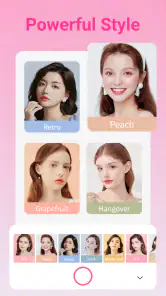
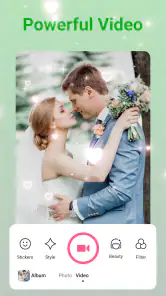
Beauty Camera - Selfie Camera is designed for taking selfies and editing photos with beauty-focused tools. Depending on the version available on your device, it may include features such as skin smoothing, makeup effects, filters, and basic adjustments for brightness or color. Check the app’s current listing and screenshots to confirm which tools are included, since features can change between updates and may differ by device.
Does Beauty Camera - Selfie Camera work without an internet connection?
You can generally take and edit photos offline when the app’s core camera and editing tools are available on your device. However, an internet connection may be needed to download the app, access online content, view advertisements, or use cloud-based features, if offered. Before relying on it while traveling or away from Wi-Fi, try the features you need and check whether the app requests a connection.
Is Beauty Camera - Selfie Camera free to download and use?
The app may be available as a free download, but that does not necessarily mean every feature is free. Some versions of camera apps include advertisements, optional in-app purchases, or paid subscriptions for additional filters and editing tools. Review the store listing and payment details before installing, and check the app’s settings for any trial or recurring subscription terms so you understand potential costs.
What permissions does Beauty Camera - Selfie Camera need?
A selfie camera app normally needs camera access to capture photos and, if you choose, microphone access for video recording. It may also request permission to view or save images in your photo library. Grant only the permissions needed for the features you intend to use, and review the developer’s privacy information in the app store to learn how photo data and other information may be handled.
How can I save or share photos edited with Beauty Camera - Selfie Camera?
After taking or editing a picture, look for a save, download, or export option; the finished image may be stored in your device’s Photos or Gallery app. You can then share it using your phone’s usual sharing menu, if the app supports that workflow. If an image does not appear in your library, check the app’s photo permissions, available storage, and export settings.
Pros
- Quick filters make it easy to enhance selfies before sharing.
- Beauty adjustments help soften skin and refine facial features.
- Simple controls are approachable for first-time users.
- Built-in effects offer variety without needing another editing app.
- Useful for taking and retouching selfies in one place.
Cons
- Heavy beauty effects can make photos look unnatural.
- Some filters may not suit every lighting condition or skin tone.
- Editing options may feel limited compared with full-featured photo editors.
- Ads or in-app promotions may interrupt the experience.
- Camera results can vary depending on your device and lighting.
- Category
- Beauty
- Version
- 5.2.9