Navigate360 Student
- 391.00
- 3.7
- Installs
- 500.00K
- Price
- Free

Screenshots
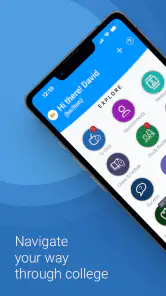

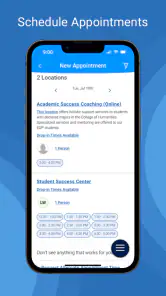
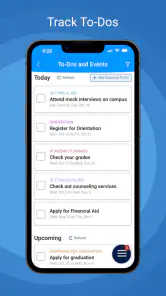
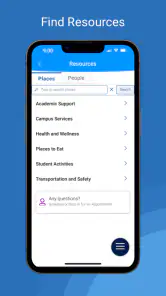
Analysis by Reviewed
When I first opened Navigate360 Student, I approached it less like a typical study app and more like a digital starting point for the messy parts of college life. Students rarely struggle because they have no information at all; the harder problem is knowing what to do next, which campus resource fits the situation, and how to turn a vague concern into an actual action. That is the space this education app is meant to address.
Developed by EAB Global, the app is designed to help students move through their college experience with more direction. It is free to use and rated for Everyone, which makes it approachable for a broad student audience. Its current version is 26.16.8, and it requires at least iOS or Android 12. That operating-system requirement is worth checking before downloading, especially if you are using an older phone.
My overall impression is positive but practical: this is most useful when your college has connected its student-support process to the app and you are willing to act on the guidance it presents. It is not a replacement for a learning platform, a calendar, a note-taking tool, or direct contact with an adviser. Instead, it works as a navigation layer between a student’s problem and the people or campus steps that may help solve it.
Starting with a real student problem
The clearest way to understand the app is to begin with a realistic situation. Imagine that I am halfway through a difficult term. I have missed an assignment, I am unsure whether I am meeting course expectations, and I also need to clarify an academic requirement. None of those questions is complicated in isolation, but together they create the familiar feeling of being behind without knowing whom to contact first.
In that situation, opening a general search engine is not always helpful. Search results may point to a college webpage, but they do not necessarily tell me which office applies to my case or what order I should follow. A traditional campus portal may contain the same information, yet bury it among registration pages, account details, announcements, and administrative forms. Navigate360 Student is more focused on the student-support journey itself.
The app’s value therefore depends on context. If your institution has configured it around its own services, terminology, and support routes, it can make the first decision easier. If you expect a universal college guide that works independently of your school, you may find the experience less useful. This is an important distinction before you treat it as your main academic companion.
One practical tip is to open it before you are in crisis. When everything is urgent, students tend to choose the first visible option or postpone the task entirely. Exploring the app during a calm week lets you understand where academic guidance, support information, and next steps are organized. That small investment can reduce hesitation later, particularly for students who are new to campus systems or uncomfortable asking for help in person.
More From Our News Desk

Clash of Clans Is Won Between the Battles

Android Auto Makes the Case for Quieter Car Software

MobiOffice: Transforming Mobile Productivity with Seamless Integration

EA SPORTS FC™ Mobile Soccer: Redefining Mobile Sports Gaming

How Microsoft OneDrive Became a Mobile Productivity Giant

How Google Translate Breaks Language Barriers Effortlessly
What the app is and what it is not
I would describe Navigate360 Student as a student-success and campus-navigation app rather than a classroom tool. It should not be confused with a course-management service where you complete quizzes, submit assignments, or watch lectures. It also should not be treated as a full personal organizer that replaces every deadline reminder and calendar entry.
That narrower role is actually one of its strengths. A focused support app can answer a different question from a learning platform. Instead of asking, “What work is due?” I might be asking, “Which person or service can help me get back on track?” Those questions often appear together, but they require different kinds of information.
The app has built a sizeable audience, with more than half a million installs and an average rating of 3.7 from roughly a thousand ratings. I read that as a sign of useful but uneven experiences rather than a universal recommendation. The rating suggests that the app can be valuable, while also reminding me that the quality of the experience may depend heavily on how a particular institution uses it.
Following the workflow from concern to next action
Step one: turn a vague concern into a specific need
The first meaningful step is not tapping through menus; it is naming the problem accurately. “College is going badly” is too broad to guide a useful action. “I need help understanding an academic requirement,” “I am worried about falling behind,” or “I do not know which support office handles this issue” gives the app a more workable starting point.
This is where I find the idea behind the app most helpful. Students often know that support exists but do not know how to classify their situation. A structured student-success experience can reduce that mental load by presenting campus help as a sequence of decisions rather than a large directory. The advantage is not simply finding a name; it is reducing the number of wrong turns before reaching the right channel.
For a first-year student, that distinction matters. Someone who has never dealt with advising, academic support, or campus procedures may not know the difference between an adviser, an instructor, a student-services office, and a specialist resource. A guided route can make the process feel less intimidating than independently searching through institutional pages.
Step two: read the guidance before choosing an action
My advice is to slow down at the point where the app presents a possible route. Students often skim, select the first option that sounds familiar, and then become frustrated when the handoff does not fit their situation. The better approach is to compare the wording with the actual problem, then choose the most specific path available.
This is also where the app should be used alongside personal judgment. A suggested route is a starting point, not a diagnosis of your academic or personal circumstances. If the issue involves an urgent safety concern, a formal deadline, or a situation requiring immediate human attention, I would contact the relevant campus service directly rather than waiting for an app workflow to resolve it.
A useful habit is to write down the question you want answered before opening the app. For example, I might note the course, the decision I need to make, and the deadline involved. That makes the eventual handoff more efficient because I am not trying to reconstruct the whole story after reaching a support contact.
Step three: prepare for the handoff
The handoff is the part many student apps overlook. Finding a support route is only valuable if I can continue the conversation without starting from zero. Before contacting anyone, I would gather the relevant course information, the action already taken, and the exact point of confusion. Even when the app helps me identify where to go, the quality of the next interaction still depends on how clearly I explain the situation.
This is one of the less obvious ways to get more from the app: use it as a preparation tool, not merely a directory. After identifying a likely resource, I can turn the app’s guidance into a short checklist for the conversation. What am I asking? What have I already tried? What decision do I need to make? What deadline should the staff member know about? That preparation can save time for both sides.
The app is especially useful here for students who tend to delay contact because they fear asking the wrong person. A clear route lowers that emotional barrier. It does not remove the need to communicate, but it can make the first message, appointment, or conversation feel more manageable.
Step four: complete the action outside the app when necessary
The real outcome usually depends on what happens after the guidance. I may need to attend an appointment, speak with an adviser, contact an instructor, or follow an institutional process. Navigate360 Student can help me reach that point, but the app should not be judged as though it alone completes every part of the solution.
This is a key trade-off compared with a conventional productivity app. A task manager gives me direct control over a checklist, while this kind of student-success tool connects me to an institutional process. The task manager is better for remembering what I personally must do. Navigate360 Student is potentially better for understanding which campus route belongs before that task.
I would record the resulting action in my usual calendar or notes system rather than assuming that viewing guidance equals completion. For instance, if the app points me toward an advising conversation, I would separately note the appointment time, documents to bring, and follow-up decision. That simple separation between “found the route” and “finished the task” prevents a common mistake: feeling productive without actually moving the issue forward.
Step five: close the loop
After the handoff, I would return to the original concern and ask whether it has genuinely been resolved. Did I receive an answer, or only another referral? Do I now know the next deadline? Is there a further action I must take? This closing step is important because campus support can involve several offices, and a student may otherwise assume that the first contact is the final one.
Navigate360 Student is most effective when I treat it as part of a loop: identify the obstacle, find the appropriate route, make contact, complete the required action, and check the result. That workflow is more realistic than expecting one tap to solve an academic problem.
Where the handoffs feel useful and where they become difficult
The strength of institutional context
The strongest reason to choose this app over general web searching is institutional context. A search engine can find information, but it cannot always distinguish between a broad explanation and the path your college expects you to follow. A campus-oriented app can place the student’s situation closer to the institution’s own support structure.
That can be particularly helpful during transitions. New students may need help understanding where to begin. Returning students may benefit when a familiar problem changes because of a new academic stage. Students who are considering whether to ask for assistance can also use a guided route as a low-pressure first step before speaking with staff.
I also see value for students who are not naturally organized. Someone may remember that they need help but forget the office name, the process, or the order of actions. A structured experience can act as a bridge between intention and behavior. It does not create motivation by itself, but it can make the next move more visible.
The cost of depending on the college setup
The same institutional connection that makes the app relevant can also create friction. The experience is not identical for every student because the usefulness of the available routes depends on how the college has implemented its support information. If the guidance feels incomplete, outdated, or too general for a particular case, the app may send me back to a website or a human contact anyway.
That does not make the app pointless, but it changes the standard I use to judge it. I would not expect it to replace the college’s official systems. Instead, I would see it as a front door that may or may not lead smoothly into the rest of the institution. When the front door is well organized, it saves effort. When it is not, I still need patience and possibly a direct search.
Another limitation is that a digital route can make a personal problem feel more administrative than it really is. Academic difficulty may involve stress, financial pressure, disability support, family responsibilities, or uncertainty about belonging. A menu can help identify a resource, but it cannot provide the empathy and flexibility of a skilled staff member. I would use the app to reach people, not to avoid people when the situation needs conversation.
How it compares with familiar alternatives
Compared with a college website, Navigate360 Student can be easier when I do not know the right department or search phrase. The website remains better for detailed official documents, policies, forms, and information I need to verify carefully. My preferred approach is to use the app for orientation and the official page for final confirmation when the decision has consequences.
Compared with a learning-management system, the app serves a different purpose. The learning platform is where course activity usually lives; this app is more concerned with the student’s broader path through college support. Using one in place of the other would create confusion, so I would keep both roles separate.
Compared with a general task manager, the app offers more institutional direction but less personal flexibility. A task manager lets me break a goal into exactly the steps I want, attach my own reminders, and combine school with work or family responsibilities. Navigate360 Student is better at helping me identify the appropriate college route in the first place.
Compared with asking a friend, the app offers a more consistent starting point, but a friend may understand my emotional context better. In practice, I would combine them: use the app to find the likely next step, then ask a trusted person to help me think through how to approach it if the situation feels complicated.
Who benefits most from using it
I think this app is a strong fit for students who are new to a college’s support structure, students who hesitate because they do not know whom to contact, and students who have several small concerns that are beginning to affect their progress. It can also help someone prepare for an advising conversation instead of arriving with only the feeling that something is wrong.
It is less suitable as a primary tool for students who only want assignment tracking, study timers, flashcards, or detailed personal planning. Those needs are better served by specialized apps. I would also be cautious about relying on it alone if I already know the exact office I need and the issue is time-sensitive; in that case, direct contact may be faster.
Students using an older device should check the operating-system requirement before planning around the app. The minimum is Android or iOS 12, so compatibility is not something I would leave until the moment I urgently need support. Since the app is free, the main cost is not money but attention: learning where it fits and following through after it points me toward a resource.
The Everyone age rating makes it broadly accessible, though accessibility in practice also depends on whether the interface and institutional content work well for an individual student’s needs. If I require specialized accommodations or personal assistance, I would use the app as one route to support while still communicating directly with the appropriate campus service.
My final assessment after following the whole journey
Navigate360 Student makes the most sense when I start with uncertainty and need help converting it into a campus-specific next action. Its central benefit is not entertainment or productivity in the usual sense. It is the reduction of friction between “I need help” and “I know where to begin.” That is a meaningful problem to solve, especially during the moments when students are least confident about navigating college systems.
The app’s developer, EAB Global, has positioned it in the education space as a student-success companion, and that description matches how I would use it. I would open it early, identify the most specific version of my concern, prepare the information needed for a handoff, and then complete the real-world action outside the app. Used that way, it can support a sensible workflow rather than creating the illusion that guidance alone is progress.
My recommendation is therefore conditional but clear. If your college supports the experience and you often wonder which campus resource to approach, it is worth trying because it is free and focused on a problem that general apps handle poorly. If you need a full academic planner, a classroom workspace, or an all-purpose organizer, choose a different tool and keep this one in a supporting role.
The average rating of 3.7 reflects that balanced picture: useful for many students, but not equally smooth in every institutional setting. I would not install it expecting a universal solution. I would install it as a practical front door, test whether its routes match my college, and judge it by one simple result: after using it, do I understand my next step better than I did before?
My bottom line: this is a worthwhile student-support app when the problem is finding the right campus path, provided I remember that the final outcome still depends on completing the handoff and speaking with the people behind the service.
Navigate360 Student Frequently Asked Questions
Is Navigate360 Student free, and which devices can run it?
Navigate360 Student is a free education app from EAB Global, so there is no purchase price to download it. It is intended for compatible mobile devices running iOS 12 or later. Check your device’s operating-system version before installing, and remember that downloading the app alone does not guarantee access to your school’s features; your institution must use the platform and provide a way to sign in.
What is Navigate360 Student used for?
Navigate360 Student is a school safety and communication app designed to help students stay informed and connected with their educational community. Depending on how a school configures it, the app may provide safety alerts, emergency resources, incident reporting, check-in features, important announcements, and access to support services. Available tools can vary by institution, so students should review their school’s instructions after signing in.
Who can use Navigate360 Student, and how do I sign in?
The app is generally intended for students whose school, district, or educational organization uses the Navigate360 platform. Access usually depends on an institution-provided account, invitation, or login method rather than creating a completely independent profile. Before downloading, confirm that your school supports the app and ask its administration or technology department which credentials, activation steps, and permissions are required.
Does Navigate360 Student provide emergency alerts and safety notifications?
Navigate360 Student may deliver safety-related notifications, announcements, and emergency information configured by the school or district. To receive time-sensitive alerts reliably, users may need to allow push notifications, location access, or other permissions requested by their institution. The app should not be treated as a replacement for calling local emergency services, following official instructions, or contacting school security during an immediate danger.
Can students report concerns or request help through the app?
Many Navigate360 Student deployments include tools for reporting safety concerns, requesting assistance, or connecting with school support resources. The exact reporting categories and response process depend on the organization managing the account. Before submitting sensitive information, students should read the on-screen guidance and understand whether reports are monitored continuously, reviewed during business hours, or handled confidentially according to school policy.
Pros
- Provides safety alerts and updates from participating schools.
- Offers access to school-approved safety resources in one place.
- Can help students report concerns discreetly when supported by the school.
- Useful for receiving emergency instructions during campus incidents.
- Available on mobile devices for quick access while away from a computer.
Cons
- Features depend heavily on the school’s Navigate360 configuration.
- Requires school credentials or an invitation to access most tools.
- Frequent alerts may feel overwhelming during busy school periods.
- Location-related features can raise privacy concerns for some students.
- Limited usefulness if the school rarely updates or uses the platform.
- Category
- Education
- Version
- 26.16.8