MSB Parent, USA
- 3.60K
- 3.3
- Installs
- 1.00M
- Price
- Free

Screenshots




Analysis by Reviewed
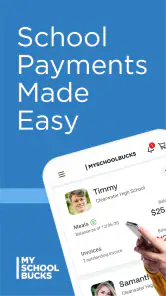
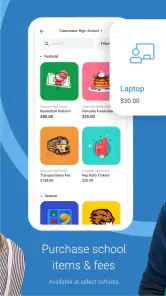
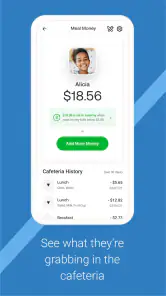
Paying for school meals is one of those small family tasks that becomes surprisingly stressful when it is left until the last minute. MSB Parent is an education app from Global Payments Inc. designed to put that task on a phone, so parents can handle school meal payments while away from a computer. I found the idea useful because it focuses on a very specific routine rather than trying to become a general school-management app.
The app is free and available for Everyone, which makes it approachable for households that simply need a mobile way to manage meal payments. It has passed the one-million-install mark, although its average rating sits at 3.3 from roughly fourteen thousand ratings. That combination tells me the app is widely used but not universally loved. My experience matches that mixed impression: the purpose is clear, and the basic workflow can be convenient, but the first setup deserves patience.
What to expect before using MSB Parent
The most important thing to understand is that this is not a full classroom, homework, attendance, or communication platform. Its role is narrower: it is the mobile experience for parents using the MySchoolBucks service for school meal payments. If you are looking for grades, assignments, teacher messages, or a complete family dashboard, this is the wrong place to start.
That narrower focus is also its main strength. I do not have to search through unrelated school information to find the payment task I opened the app to complete. For a parent who already uses MySchoolBucks through a browser, the app is best viewed as a more convenient companion for checking the account and taking care of the same kind of routine from a phone.
Before installing it, I would make sure I know which email address or login details are associated with the family’s school meal account. I would also keep the child’s school information nearby. This sounds obvious, but school payment systems often depend on matching the correct student profile, and confusion at that stage can make the app feel broken when the real issue is account selection.
The current version is 26.7.0.917, and the listed minimum operating-system requirement is version 11. That means older phones may not be suitable even though the app itself is aimed at a very ordinary family task. On a supported device, I would still allow a few minutes for the initial account work rather than trying to complete it while rushing out the door.
One useful way to think about the app is as a “maintenance” tool. It is not something most parents will explore for entertainment or use continuously throughout the day. I would open it when I need to check whether a meal account needs attention, make a payment, or confirm that I have finished the task. That makes speed and clarity more important than a large collection of extra features.
Who will get the most value from it
MSB Parent makes the most sense for parents whose children’s school already uses MySchoolBucks and who prefer handling school expenses on a phone. It is especially practical for people who are often away from a desktop: commuting parents, caregivers managing several children, or anyone who remembers a low balance while standing in a grocery line or waiting for pickup.
It can also help families divide responsibilities. One adult may be the person who normally manages school accounts, while another may need a quick way to check or complete a payment. Having a mobile app can make that handoff less dependent on one computer or one person’s browser history.
I would be more cautious if you only need to make a single payment and already find the web version straightforward. Installing a separate app may not be worth it for that situation. Likewise, families whose school does not use the MySchoolBucks service should not expect the app to replace their school’s chosen payment system.
Getting through the first setup
After installing the app, I would begin by signing in with the account connected to the school meal service rather than creating a new identity casually. The goal is to reach the correct family account, not merely to get past the opening screen. If the app presents more than one student or account-related choice, I would slow down and verify names and school details before continuing.
This is the first place where a little organization saves time. If you manage more than one child, check each profile carefully instead of assuming that the first visible student is the only one attached to the account. A payment made for the wrong student is exactly the kind of avoidable mistake that makes a simple app feel unreliable.
I also recommend treating the first login as an account-verification session. Look at the student information, review what the app shows about the meal account, and make sure the displayed school relationship makes sense. Do not jump directly into a payment just because the app opens successfully. The meaningful first milestone is seeing the right child and the right school account together.
If the sign-in process does not go smoothly, I would first check the basics: the account details, the phone’s operating-system compatibility, and whether I am using the same account information used for the school payment service. Repeatedly retrying a password without checking those details usually wastes more time than it saves.
Another practical tip is to avoid doing setup during a moment when you cannot afford a delay. A parent trying to pay while a child is waiting in the car has less patience for account matching, loading screens, or an unexpected sign-in problem. The first setup is better done at home, when you can read every screen and confirm the student information calmly.
Making the first successful payment
Once the correct account is visible, I would use a deliberately small, careful workflow for the first transaction. First confirm the student profile. Then review the payment details shown on screen. Before submitting, pause and read the final confirmation area rather than tapping through automatically. This habit matters more than speed because the main risk is not understanding what account the payment is being applied to.
After completing the action, I would remain in the app long enough to look for a clear indication that the task went through. I would not immediately close the app or assume success simply because the button responded. Checking the resulting account view gives me a better record of what happened and reduces the chance of repeating a payment unnecessarily.
This is one of the app’s most useful everyday roles: it can turn a forgotten school-meal task into a short maintenance check. Imagine noticing on a Sunday evening that the account needs attention before the school week begins. Instead of finding a computer, opening a browser, remembering the service address, and navigating through the website, I can try to handle the job from the phone already in my hand.
That convenience is strongest when I have already completed setup. The first payment may involve account checking and careful reading, but later visits should feel more purposeful because I know which student profile to select and where the relevant payment action belongs. My advice is to make the first session about accuracy, not speed; speed comes naturally after the account structure is familiar.
For families with multiple children, I would create a personal routine: select one student, verify the name, complete or review that student’s payment, and only then move to the next profile. Doing everything in one rushed sequence makes it easier to confuse accounts. Separating the steps is a small discipline, but it is more valuable than trying to navigate as quickly as possible.
Where new users may get confused
The app’s limited scope can cause an expectation problem. A parent may install it expecting a complete school app and then wonder where academic information has gone. That is not what MSB Parent is trying to do. Its usefulness depends on whether the school meal-payment service is the specific problem you want to solve.
Account identity is another likely source of friction. Families sometimes use several email addresses, and a phone may already remember credentials for a different service. If the app opens but does not show the expected student, I would not immediately assume that the school has lost the account. I would first verify that I signed in with the account connected to the meal-payment profile.
Multiple children can create a second layer of confusion. A parent may see a familiar name and continue without checking the school or student details. My strongest practical recommendation is to treat every payment as student-specific: read the profile, confirm the school context, then proceed. This is particularly important when siblings attend different schools or when one child has recently changed schools.
Another mistake is judging the app only by how quickly it opens. Payment tasks involve more than launching a screen. A better test is whether I can identify the correct account, complete the intended action, and verify the result without needing to switch repeatedly to a browser. In my view, that is the standard that matters.
The 3.3 average rating is worth keeping in perspective. It suggests that plenty of users encounter friction, but it does not automatically mean the app is unusable. Payment apps are often judged during stressful moments, such as when a balance needs attention immediately or a login does not work on the first attempt. My own recommendation is to test the app before an urgent school-day situation, not during one.
If the app is not cooperating, the browser version of the same service may be a sensible backup rather than a sign that the entire account is inaccessible. A website can sometimes be easier for carefully reviewing account information on a larger screen. On the other hand, a phone is more convenient for quick checks and routine actions. The right choice depends on whether the issue is the account itself or simply the mobile interface.
Using it as part of a dependable family routine
I would not wait for a problem before opening MSB Parent for the first time. A better routine is to check the account at a calm moment, learn which student profile appears, and understand how the payment flow is presented. That preparation gives the app a chance to be useful when the task becomes time-sensitive.
For a busy household, the app works best when paired with a simple reminder habit. I might choose one regular day to review school meal accounts, then use the app only when action is needed. The point is not to stare at the account every day; it is to avoid discovering a problem at the school entrance or after a child has already gone through the lunch line.
Families should also decide who is responsible for the final check. If two adults both assume the other person handled the payment, the app cannot solve the communication gap. A quick message or shared household routine can be more important than any navigation shortcut. The app handles the transaction task, while the family still needs a clear agreement about responsibility.
For children in different schools, I would keep a short note of which profile belongs to which school, especially during the first few weeks of using the service. This is not a feature of the app; it is a practical way to reduce mistakes when the account contains several student records. The more complex the household, the more valuable deliberate profile checking becomes.
Privacy-conscious parents may also prefer to avoid leaving the app open on a shared device after finishing. I would close the session or otherwise return the phone to a neutral screen when another family member regularly uses the device. That is a sensible habit for any app connected to household financial activity, even when the task itself is routine.
How it compares with the usual alternatives
The most obvious alternative is using MySchoolBucks in a mobile browser or on a computer. A browser can be preferable when I need a larger view, when I am already managing several school-related tabs, or when the app’s mobile flow becomes confusing. It may also be the better choice for a one-time user who does not want another installed app.
The dedicated app has a different advantage: it keeps the school meal-payment task closer at hand. I do not have to remember which browser tab contains the service, and the experience is shaped around mobile use rather than a general website layout. For a parent who performs this task repeatedly, that reduced searching can justify the installation.
It is not a replacement for a school’s broader parent portal. A school portal may be better for grades, messages, calendars, attendance, or forms, while MSB Parent is better suited to the meal-payment part of family administration. I would use each tool for its intended job rather than expecting one app to consolidate everything.
The free price also lowers the barrier to trying it, but “free” does not remove the need to check the account carefully. The value is measured in saved time and fewer forgotten payment tasks, not in the number of screens or options available. If your school’s system is already easy to reach through a browser, the app may offer convenience rather than a dramatic change.
Who should skip it and who should keep it
I would skip MSB Parent if my school does not use the connected MySchoolBucks service, if I only need academic information, or if my phone cannot meet the minimum operating-system requirement. In those cases, installing it will not solve the actual problem. A school-specific portal or a browser-based payment route may be more appropriate.
I would keep it installed if I regularly manage school meal payments, use a supported phone, and value being able to handle the task away from a desktop. The app is also worth considering for parents who tend to remember administrative jobs at inconvenient times. Its best quality is not complexity; it is having a focused place to deal with one recurring responsibility.
The developer, Global Payments Inc., gives the app a recognizable focus on payment handling, but I still judge the experience by practical reliability. The mixed rating means I would not promise a perfectly smooth setup for every family. I would recommend trying it early, confirming the correct student account, and keeping the browser option available until the mobile workflow proves dependable for your household.
My final take after using the workflow
MSB Parent is a focused education app that can make school meal payments less dependent on a computer. I like it most as a quick, repeat-use tool: open it, identify the correct student, review the account, complete the needed action, and verify the result. That path is simple once the initial account setup is understood.
Its limitations are equally clear. It is not a complete school companion, and the average rating shows that the experience may include enough friction to frustrate some users. Families with several student profiles need to be especially careful, and anyone facing an urgent payment should avoid making the first-ever attempt under pressure.
My practical recommendation is to install it only when your school already relies on the MySchoolBucks service, then use the first session as a controlled test rather than an emergency fix. Confirm the account, check the student profile, complete one meaningful action, and make sure the result is visible. For parents who need a mobile-first way to stay on top of school meal payments, that preparation can turn MSB Parent into a genuinely useful everyday tool.
Pros
- Keeps parents informed about school notices
- events
- and important updates.
- Offers convenient access to student-related information from a mobile device.
- Can reduce reliance on printed notices and scattered communication channels.
- Useful for families managing multiple school-related responsibilities.
- Provides a centralized place for parent-school communication and resources.
Cons
- Features and available information may vary between participating school districts.
- Requires reliable internet access for timely updates and content loading.
- Some notifications may be easy to miss if phone alerts are disabled.
- Parents may need separate accounts or permissions for different students.
- The app’s usefulness depends heavily on how actively the school updates it.

- Category
- Education
- Version
- 26.7.0.917