Hype Text - Animated Text & In
- 2.87K
- 4.6
- Installs
- 1.00M
- Price
- Free

Screenshots
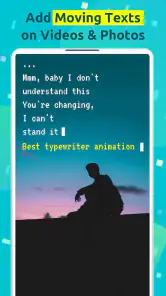
Analysis by Reviewed
When I want to turn a plain photo or short video into something that feels ready for social media, I usually do not need a full editing suite. I need a quick way to make the words on screen look alive. That is where Hype Text makes its case. It is a free video and photo editing app from cerdillac, focused on animated text, short intros, and text-led visual posts rather than complicated timeline work.
After spending time with it, my main impression is that its strongest idea is also its clearest limitation: it puts animated typography first. You are not opening it to perform detailed color grading, advanced sound mixing, or professional compositing. You are opening it because a message, title, announcement, or caption needs movement without demanding a long editing session.
The app has built a sizeable audience, with a 4.6 average from around 73 thousand ratings and more than 1 million installs. That makes sense to me. The appeal is easy to understand: start with a picture or video, add words, choose a motion style, and create a more noticeable result than a static caption can provide.
Animated words are the real reason to use it
I find that the experience is most satisfying when I plan the text before opening the editor, because that keeps the creative work focused on timing and readability. The next section looks at a practical workflow for turning a photo or short clip into a clear, finished post without letting the animation take over.
One focused capability instead of a crowded editor
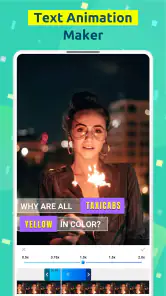
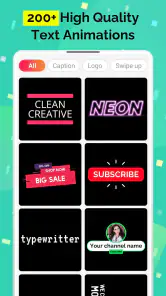
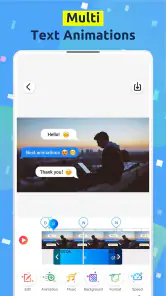
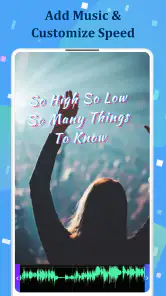
The defining capability here is animated text placed over video or pictures. That sounds simple, but it changes the way a viewer reads a short clip. A static sentence can disappear into the background, especially when the image is busy. Moving text creates an entry point for the eye and gives the post a sense of timing, even when the underlying media is very basic.
I find this particularly useful for short announcements, mood posts, quotes, event reminders, product teasers, and personal updates. The app is less about making every part of a video elaborate and more about giving one message a visual rhythm. If the words are the most important part of the post, that focus is helpful rather than restrictive.
The store summary presents it as a text animation and intro-making tool for video and pictures, and that description matches the way I would position it. It is not trying to replace a complete mobile editor. Instead, it sits between a basic caption tool and a more demanding animation workflow.
More From Our News Desk

Weather by Xiaomi Review: Clear at a Glance, Less Clear Up Close

X Under Pressure: Can It Recover When Posting Goes Wrong?

Clash of Clans Is Won Between the Battles

Android Auto Makes the Case for Quieter Car Software

MobiOffice: Transforming Mobile Productivity with Seamless Integration

EA SPORTS FC™ Mobile Soccer: Redefining Mobile Sports Gaming
Why motion can improve a simple post
The practical benefit is not merely that the letters move. Animation can control when information appears, which line gets attention first, and how long a viewer stays with the image. For example, a short title appearing before a supporting phrase can make a still photograph feel more deliberate. A few words arriving in sequence can also prevent the screen from looking like a block of text.
There is a trade-off, though. Animated text can easily become decoration that competes with the message. I had better results when I treated motion as emphasis rather than as the main attraction. One strong phrase usually works better than filling the screen with several competing lines and effects.
What the app is best at producing
I would use it for a vertical social post, a quick birthday greeting, a travel clip with a location title, or a short introduction before a personal video. It also makes sense for someone who wants to add a recognizable text style to a sequence of posts without learning desktop-style editing software.
It is especially approachable for casual creators because the goal is visible from the beginning. You are not expected to understand keyframes, layers, or a complex editing timeline before getting a result. That makes it a reasonable first step for someone who has ideas for text-based videos but finds traditional editors intimidating.
How I use it in practice
For me, the useful test is whether the result still communicates when watched casually on a phone, with the sound off and attention split. That makes source choice, concise wording, and sensible placement more important than trying every visual treatment. I’ll also consider how this focused tool compares with the broader editors people may already have installed.
Starting with the right source material
The quality of the final result depends heavily on the image or clip selected before the text is added. A busy background, tiny subject, or constantly changing scene can make even attractive typography difficult to read. I get more consistent results when the background has a clear area where the words can sit without covering the main subject.
For a photo, I first decide what the viewer should notice: the person, the location, or the sentence. For a video, I look for a moment with enough visual stability for the text to remain legible. This small decision saves more time than repeatedly changing animation styles later.
Writing shorter text than you expect
The app encourages visual text, but that does not mean it is a good place for a full paragraph. I prefer a short headline followed by a brief supporting line. If I need to explain something in detail, I would put the longer information in the post caption or use a different editor designed for more structured layouts.
A useful workflow is to write the message outside the app first, then remove every word that does not help the viewer understand the point. Animated type gives each word more presence, so unnecessary wording becomes more noticeable. This is one of the app's less obvious lessons: the editing tool works best when the writing has already been simplified.
Choosing movement that supports the message
I do not choose an animation simply because it looks energetic. A calm travel image benefits from restrained movement, while a celebratory announcement can tolerate something more lively. The right choice depends on the mood of the source media and the speed at which someone will watch it.
For an announcement, I would make the essential information appear first and leave secondary details for later. For a quote, I would keep the sentence visually unified instead of splitting it into too many fragments. For an intro, I would keep the title brief enough that it feels like an opening rather than an interruption.
The most useful habit is to edit for reading speed, not just visual style. Watch the finished clip without pausing and ask whether the message can be understood on the first viewing. If the words arrive too quickly, the animation is failing its main job. If they remain on screen long after they have been read, the post can feel slow.
A realistic everyday example
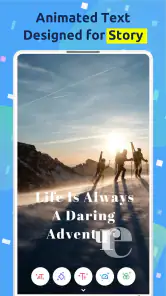
Imagine I have taken a few photos at a small weekend market and want to share one as a quick story-style post. Instead of writing a long explanation over the image, I can use a short opening phrase, add the market name or theme, and finish with a simple invitation such as “save this spot.” The animated words give the still image a beginning and an end, while the photo remains the focus.
For a short cooking clip, I might use one line to identify the dish and another to show the key step. I would avoid covering the pan or the person’s hands, and I would place the words where the background is least distracting. In this situation, the app is valuable because it helps me turn an ordinary recording into a clearer piece of communication without spending time building a complicated sequence.
Keeping the workflow repeatable
If I were creating several posts for the same personal project, I would decide on a small set of rules before editing: similar wording length, a consistent placement area, and a limited visual mood. Even when the app makes animated text easy, consistency still has to come from the person using it.
This approach also reduces the temptation to try every available style. A post series feels more intentional when the text treatment supports the subject instead of changing dramatically from one clip to the next. The app can supply the movement, but the editorial decisions remain mine.
Where it fits among mobile editing alternatives
That comparison matters because convenience is only an advantage when it matches the job: a quick title can be easier here, while a project with detailed edits calls for a different tool. I’ll weigh those boundaries alongside the practical compromises that tend to show up once the app becomes part of a regular posting routine.
Quicker than a full editor
Compared with a traditional mobile video editor, Hype Text feels more approachable when the job is mainly typography. A full editor is better when I need several video layers, detailed trimming, transitions, audio adjustments, or precise control over a longer project. Those tools offer more room to grow, but they also ask me to manage more controls before the text looks right.
For a ten-second announcement or a photo with a moving title, that extra complexity can be unnecessary. I would rather use a focused tool and finish the idea than open a large editor and spend most of the session searching through options.
More expressive than a basic caption overlay
On the other hand, a basic caption feature inside a social network is faster when I only need a plain label. The advantage of this app appears when I want the words to feel designed rather than simply placed on top of the media. Animated typography can make a post look more considered, particularly when the source image itself is simple.
The compromise is that a specialized text tool may not be the best final stop for a project that grows in scope. I would start here for a text-led concept, then move to a broader editor if I decided I needed advanced audio, multiple visual elements, or more exact timing. That is not a failure of the app; it is a sensible boundary for a focused editor.
When a different option is the better choice
I would skip this app if my priority were cinematic video editing, detailed sound work, or a long sequence with many independent elements. I would also choose something else if I wanted a highly controlled brand system with exact typography rules and repeatable production settings. In those cases, a more comprehensive editor or design platform would give me better control.
I would also avoid relying on animated text when the audience needs to read a lot of information quickly. A still graphic, a document-style layout, or a properly captioned video may be clearer. Movement is not automatically more accessible or more useful; it has to serve the content.
Trade-offs that become clear after regular use
The clearest trade-off is that animated text can make a simple post feel intentional, but it also makes poor contrast, crowded wording, or mismatched style harder to ignore. I’ll look at how those choices affect the finished result and who is likely to find the app’s focused approach worthwhile.
The free starting point is appealing, but extras matter
The app is free to download, which makes it easy to test without committing money at the start. It includes in-app purchases ranging from $1.99 to $9.99 per item, so I would check which creative elements or options are included in the version I plan to use before building a whole workflow around them.
My advice is to create a small test project first. Try the kind of text animation you actually need, export or review the result, and then decide whether the free experience is enough. This is more useful than judging the app from a single attractive template or assuming every style will be available without a purchase.
Fast results still require visual judgment
The app can shorten the technical process, but it cannot decide whether text is readable against a particular background. Contrast, placement, line length, and timing remain important. A creator who ignores those details may end up with a polished-looking animation that communicates poorly.
I pay special attention to the first moment of the clip. If the opening frame is too empty, viewers may not understand why they should keep watching. If the title appears immediately but blocks the subject, the post feels careless. A short preview before sharing is worth the extra moment.
Animation can date a post quickly
Typography styles carry a strong mood. A playful treatment may work perfectly for a birthday message but feel wrong for a serious announcement. Because animated text is so visible, the style can dominate the entire post. I would rather choose a modest effect that remains readable than use a dramatic effect that makes the content feel tied to a passing trend.
This is also why I would not treat every available style as interchangeable. The best result comes from matching movement to the subject, not from selecting the most noticeable option. The app gives me a convenient way to experiment, but restraint is still part of good editing.
Device compatibility and audience fit
The app runs on Android devices using version 5.0 or later, which covers a broad range of phones. Its content rating is Everyone, so it is positioned as a general-purpose creative app rather than something intended for a narrow age group.
That broad accessibility does not mean every user will enjoy the same workflow. Someone who likes visual experimentation and short-form posts will probably understand the appeal quickly. Someone who wants a precise, professional editing environment may find the focused design too limited, even if the app is easy to start with.
Who gets the most value from Hype Text
The right fit depends less on editing experience than on what someone wants to make: brief, text-led posts suit this app better than elaborate video projects. I’ll close by identifying the people I would recommend it to, as well as the situations where a simpler caption tool or a fuller editor would serve them better.
Casual creators and social storytellers
I think the strongest audience is people who regularly share photos and short videos but do not want to learn a full editing system. The app gives them a way to add personality and structure to a post through words. It is also a good fit for anyone whose content begins with a sentence, title, or announcement rather than with elaborate footage.
Small creators can use it to establish a recognizable rhythm across posts. A consistent text position and writing style can make simple content feel connected. The app does not create that identity by itself, but it makes one visible part of the identity easier to repeat.
People making intros and simple announcements
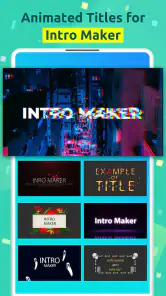
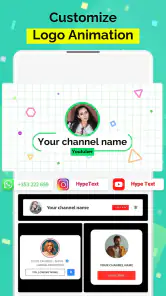
Its intro-making angle is useful when a video needs a brief opening title before the main content. I would use it for a personal channel introduction, a short event notice, or a themed collection of clips. The key is to keep the intro short. If it becomes longer than the content it introduces, it stops being an intro and starts delaying the viewer.
For local groups, hobby pages, and personal projects, animated text can also make an announcement more noticeable without requiring a separate designer. I would still proofread every word carefully because movement can make a spelling mistake more prominent, not less.
Who should look elsewhere
Professional editors, filmmakers, and creators working on complex multi-layer projects will probably outgrow this app quickly. They may prefer a tool with deeper timeline control, more detailed audio handling, and a broader set of visual adjustments. Likewise, people who only want to add a plain caption to a photo may find the specialized approach unnecessary.
My final view is that Hype Text succeeds when I judge it by its central purpose: making text on videos and pictures feel more active and intentional. It is free to begin with, has a 4.6 average from roughly 73 thousand ratings, and the current version is 4.7.3. More importantly, it gives casual creators a focused way to turn a message into a visual moment.
I would recommend it to a friend who says, “I have the photo or clip, but it needs something.” I would not recommend it as a replacement for a complete editor. Used selectively, with short writing and careful timing, it can make ordinary content more engaging. Used with too many effects or too much text, it can distract from the very message it was meant to highlight.
Hype Text - Animated Text & In Frequently Asked Questions
Is Hype Text suitable for making content for social media?
Hype Text is aimed at making animated text and visual content that can suit social media posts, stories, and short videos. You can use it to give a phrase, announcement, or quote more movement and emphasis than plain text. Before building a project around a particular platform, consider its preferred layout and whether the app’s available export options fit your intended post.
Does Hype Text make animated intros as well as text graphics?
Yes. Hype Text’s focus includes animated text and intro creation, so it can be considered for short opening visuals as well as text-based designs for pictures and videos. It is most relevant when you want words to stand out through motion and styling. The app is a mobile editor rather than a general-purpose desktop design suite, so its appeal depends on the kinds of projects you want to create.
Who develops Hype Text, and what kind of app is it?
Hype Text is a mobile app from cerdillac in the video editing category. Its focus is animated text and intro creation, making it relevant if you want to add movement and visual emphasis to words in videos or pictures. It is rated for Everyone, so its content rating is suitable for a broad audience.
What is Hype Text - Animated Text & In used for?
Hype Text - Animated Text & In is designed for creating animated typography and eye-catching text-based visuals for social media posts, stories, videos, and digital invitations. After testing its editing workflow, I found it especially useful for users who want to turn a short phrase, announcement, or quote into a more dynamic graphic without using complex desktop design software or advanced animation skills.
Is Hype Text - Animated Text & In free to download and use?
The app is free to download, but some features may be restricted behind in-app purchases. Depending on the version and platform, premium fonts, templates, effects, export options, or removal of branding may require payment. In-app purchases range from $1.99 to $9.99 per item. Before downloading, check the current store listing and purchase terms carefully, especially if you only need basic animated text tools.
Pros
- Offers many animated text styles for eye-catching social media posts.
- Simple interface makes creating short text videos quick and accessible.
- Useful for Stories
- Reels
- status updates
- and promotional content.
- Lets users preview animations before exporting their finished design.
- Supports creative combinations of fonts
- colors
- backgrounds
- and effects.
Cons
- Many attractive templates and effects may require a premium subscription.
- Exported videos may include watermarks or quality limits in the free version.
- Animation controls can feel limited for users wanting precise timing adjustments.
- Some effects may look repetitive when creating multiple posts.
- Performance can vary on older devices
- especially with complex animations.
- Category
- Video Players & Editors
- Version
- 4.7.3