Piclux: AI Photo Studio
- 25.00
- 3.9
- Installs
- 5.00M
- Price
- Free

Screenshots
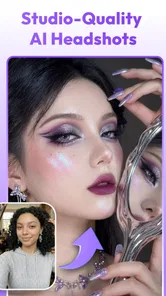
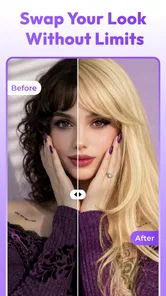
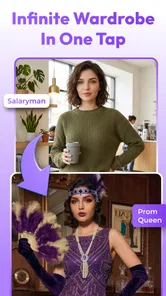




Analysis by Reviewed
If you want a polished profile photo but don’t want to learn a full editing app, Piclux: AI Photo Studio is aimed at a useful middle ground: make a portrait look more intentional with AI-assisted edits, then decide whether the result feels like you. I’d approach it as a quick creative tool, not a substitute for a photographer or a detailed image editor. Its appeal is the low-effort starting point; the important part is choosing a good source photo and checking the finished image closely.
What to expect from Piclux
Piclux is an art and design app from ATQ - AI Lab. Its focus is portrait transformation: it can help create a more professional-looking headshot, alter clothing in a photo, and turn a still image into an AI video. Those options make it broader than a basic filter app, though they also mean results can vary depending on the original picture and the kind of change you ask for.
I’d start with the headshot use case. It has a clear purpose and a simple way to judge success: does the image look suitable for a work profile, portfolio, or application while still looking recognisably like you? Clothing changes are more experimental, and animation is best treated as a short creative flourish rather than a replacement for video recorded in real life.
The app is free to install, with optional in-app purchases priced from $6.99 to $89.99 per item. That wide range makes it sensible to explore the basic experience before paying for anything. A free download does not mean every edit or output will necessarily be available without a purchase, so I would check the specific option and its cost before committing.
It has a 3.9 average from around 7,200 ratings, and has passed 5 million installs. Those figures suggest plenty of people have tried it, but they are not a guarantee that every portrait will come out well. The app is rated for Everyone, runs on Android 8.0 or later, and its current version is 2.7.0. It was released on April 8, 2026.
Who will get the most from it
Piclux makes the most sense for someone who needs a presentable portrait quickly and is comfortable reviewing an AI-generated result rather than expecting a perfect, one-tap match. A freelancer updating a profile, a student preparing an application, or someone refreshing a staff-directory picture may find that a few guided edits are easier than learning layers and retouching tools.
It is less suitable if you need strict control over every pixel, exact colour matching, or a photo that must meet formal identity-document rules. In those cases, a conventional editor or a proper camera setup is a safer choice. AI changes can make small visual decisions on your behalf, and those decisions may be precisely what a careful user wants to control.
More From Our News Desk

 Gmail
GmailGmail in a Busy Inbox: Who Benefits Most?
From first account to crowded workday, Gmail earns its place through dependable search and flexible sorting—but its best fit depends on how much inbox maintenance you can tolerate.

 Prime Video
Switching to Prime Video: What Changes in Your Viewing Routine
Prime Video can make a compelling second home for streaming, but switching means learning a different catalog, rental layer, and route from browsing to playback.

 Universal TV Remote Control
Universal TV Remote Control Works Best as a Reliable Backup
A phone remote earns its place through quick setup and reliable habits. Here is how to get more from Universal TV Remote Control—and where its limits show.

 Weather - By Xiaomi
Weather by Xiaomi Review: Clear at a Glance, Less Clear Up Close
Xiaomi’s weather app makes everyday forecasts quick to scan, but its calm surface can leave useful details and recovery paths harder to find than they should be.

 X
XX Under Pressure: Can It Recover When Posting Goes Wrong?
A resilience-focused review of X, examining setup, mistaken posts, interruptions, weak connections, and the gaps that matter when recovery needs to be dependable.

 Clash of Clans
Clash of Clans Is Won Between the Battles
Its raids are quick; its community is a long-term project of coordination, teaching, rivalry, and shared responsibility—with all the friction that entails.
Latest News



Start with a photo that gives the AI a fair chance
For a first attempt, choose a clear, recent portrait with your face visible and not heavily obscured. A simple background and even light give the app less visual clutter to interpret. This is practical rather than magical: if the source has a deep shadow across one eye, a turned-away face, or several people close together, an automated edit has more room to make an odd guess.
Before editing, decide what the image is for. A friendly profile picture can tolerate a little creative polish; a professional headshot usually benefits from restraint. That decision helps you judge whether a clothing change or a stronger studio-style treatment is useful, rather than accepting an edit simply because it looks more dramatic.
I would also keep the original photo untouched. Save or retain it separately before trying a transformation, so you can compare the result and return to the natural image if the edit changes something important. This is especially useful when the output looks attractive at a glance but subtly shifts facial details, hair, or clothing edges.
Your first useful result: make one headshot
For a first meaningful success, pick one source portrait and work toward one specific outcome: a clean, credible profile image. Avoid changing several things at once. If you try a new outfit, a different visual style, and an animated version in one session, it becomes harder to tell which choice improved the picture and which introduced a distracting detail.
When the result is ready, inspect it at normal viewing size and then zoom in around the face, hairline, shoulders, and clothing boundaries. AI edits can look convincing in a small preview yet reveal strange texture or soft edges when examined closely. I would pay particular attention to glasses, earrings, patterned fabric, and hair against a busy background, because fine details are easy to distort in portrait transformations.
A realistic everyday workflow might be a person updating a professional profile during a lunch break. They choose a recent, well-lit portrait, try a restrained headshot treatment, and compare it with the original before using it. If the face still looks natural and the clothing sits convincingly, that may be enough. If the image feels unlike them, starting over with a better source is often more productive than piling on extra edits.
The key tip is to judge likeness before polish. A crisp, studio-like finish is not a win if the eyes, expression, or face shape no longer feel right. For a public-facing work profile, I would rather use a slightly less polished result that looks authentic than a striking image that colleagues might not recognise.
Clothing edits and AI video need different expectations
Changing clothes can be handy when the original portrait is good but the outfit does not suit the intended setting. It is a creative shortcut, not a reliable way to preview a real garment. Fabric folds, collars, jewellery, and the area where clothing meets hair or skin deserve a close look. For a casual social post, a minor oddity may be acceptable; for a résumé or business page, it can undermine the professional impression.
Turning a photo into an AI video is a different kind of output from a headshot. I’d use it when the goal is a playful or eye-catching post, not when I need a faithful recording of an event or a precise performance. A still portrait can be a convenient starting point, but the animated result should be treated as an interpretation of the image rather than evidence of real movement.
These distinctions are worth making before spending time or money. A headshot is judged mainly on resemblance and credibility, a clothing edit on whether the outfit looks plausible, and a video on whether its motion feels appealing rather than unsettling. One source image can serve all three experiments, but success in one does not mean the others will be equally convincing.
Where first-time users can get confused
The most common misunderstanding with AI portrait apps is expecting an edit to behave like a precise manual adjustment. Piclux is useful for trying a transformation, but the output may make choices you did not explicitly intend. If a result changes a small feature or adds an artificial-looking detail, that does not necessarily mean you chose the wrong setting; it may simply be a limitation of the generated image.
Another point to keep in mind is that “professional” is not one universal look. A formal outfit or a highly polished portrait may work for one role and feel out of place for another. A creative portfolio, a friendly team page, and a conservative application call for different levels of styling. I would use the least transformation needed to fit the context.
It is also easy to confuse an attractive preview with a finished image. Look at the complete frame, not only the face. An edit can improve the subject while making the background, shoulders, or clothing look inconsistent. If the image is destined for a profile, check how it appears when cropped to a small square as well as at full size; a detail that seems minor on a large screen may become conspicuous in a thumbnail.
Finally, treat purchases as a deliberate choice rather than a necessary first step. The app offers in-app items across a substantial price range, so confirm what an option costs and what it provides before proceeding. If your immediate need is one ordinary profile photo, first see whether the available free experience gets you a result you are happy to use.
How it compares with ordinary photo editors
Compared with a traditional photo editor, Piclux is more appealing when you want the app to generate a portrait transformation instead of manually adjusting exposure, colour, and small blemishes. That can save effort for a casual user, but it trades fine control for convenience. Someone who already knows how to use layers or retouching tools may prefer a conventional editor when exact clothing edges, skin texture, or background details matter.
Compared with a standard filter app, Piclux reaches further into the image by changing the presentation of a portrait and offering still-to-video creation. That makes it more interesting for experimentation, but also raises the stakes of checking the result: a colour filter rarely changes what you are wearing, while a generated outfit or altered portrait can affect whether the image feels believable.
If you need a dependable, natural photograph for an official purpose, take a properly lit photo or ask someone to help you capture one, then use a conventional editor only for modest corrections. If you want a quick creative variation or a more polished profile candidate, Piclux is the more convenient experiment. The right choice depends on whether speed or precise authenticity matters more.
A sensible next step after the first edit
Once you have one result you like, compare it side by side with the source and ask three questions: does it still look like me, does it fit where I plan to use it, and do the edges and details hold up at full size? If all three answers are yes, you have a practical reason to keep it. If not, try a clearer original or a more restrained direction rather than assuming that a stronger transformation will fix the problem.
For a second experiment, change only one variable. If the headshot looks right but the outfit feels wrong, focus on the clothing option; if the portrait works but you want something lively for social sharing, try the photo-to-video direction separately. This makes it easier to learn what Piclux does well without confusing a useful result with an entertaining one.
When a different approach is wiser
I would skip an AI transformation when the image has to prove exactly how someone looked, such as a documentary record, a formal ID photo, or a portfolio where clients expect an unaltered likeness. A phone camera, careful lighting, and a modest conventional edit are better suited to those jobs. Piclux is more valuable when a creative interpretation is acceptable and saving time matters more than controlling each retouching decision.
For a small practical test, use a portrait you already have permission to edit and try one intended use rather than exploring every option at once. Keep a note of which source image produced the most natural result; that helps distinguish a weak starting photo from an edit that simply does not suit your purpose. If the first output misses the mark, there is no need to pay just to chase a better-looking version—first reconsider the photo and how much transformation the situation can tolerate.
Overall, I’d recommend Piclux to first-time users who want an accessible way to explore AI portrait edits and are willing to inspect what the app produces. Its strongest use is getting from an ordinary portrait to a plausible profile-photo candidate with little manual editing. Its weak point is the uncertainty inherent in generated details, especially when realism and exact likeness are essential. Start with a good photo, keep the original, and let authenticity matter more than a dramatic transformation; that is the approach most likely to make the app useful rather than merely novel.
Piclux: AI Photo Studio Frequently Asked Questions
What is Piclux: AI Photo Studio?
Piclux: AI Photo Studio is a photo-editing app designed to use artificial intelligence to transform and enhance images. Depending on the tools available in your version, you may be able to apply creative effects, adjust a portrait, or generate an alternate look from a photo. Features and results can vary by device, app version, and subscription, so check the current listing before downloading.
Is Piclux: AI Photo Studio free to use?
The app may be available to download without an upfront charge, but some editing tools, image generations, or exports may require in-app purchases or a subscription. Review the price details and trial terms shown in the app store and inside Piclux before confirming a payment. If you start a trial, check its renewal date and cancellation instructions to avoid an unexpected charge.
How do I use Piclux to edit a photo?
A typical workflow is to choose an image from your device or take a new one, select an available AI or editing tool, and wait for the app to process the result. You can then review the output and save or share it if those options are provided. Follow any image or prompt guidelines shown in the app, and keep an original copy in case you want to compare or restore the unedited photo.
Does Piclux: AI Photo Studio upload or store my photos?
AI photo tools may process images on your device or send them to a server, depending on how a particular feature works. The app’s privacy policy and store listing are the best sources for details about uploads, retention, sharing, and deletion. Before selecting a sensitive image, review those terms and the permissions requested. Avoid uploading photos you do not have permission to use or share.
Is Piclux: AI Photo Studio available for Android and iOS, and what should I check before downloading?
Availability can differ by country, device, and operating-system version, so search for Piclux: AI Photo Studio in the official Google Play Store or Apple App Store to confirm compatibility. Check the developer name, recent update date, user reviews, required permissions, and any subscription information. Downloading from an official store also helps reduce the risk of installing an altered or unsafe copy.
Pros
- Quickly creates polished portraits from uploaded photos.
- Offers a creative alternative to arranging a professional photo shoot.
- AI-generated styles make it easy to experiment with different looks.
- Simple workflow is approachable for users without photo-editing skills.
- Useful for producing distinctive images for social profiles and sharing.
Cons
- Results can vary depending on the quality and angle of source photos.
- Some generated details may look artificial or inconsistent.
- The most appealing styles or features may require payment.
- Uploading personal photos may raise privacy concerns for some users.
- AI processing can take time
- especially during busy periods.