

AI Collage Maker & Photo Frame
- 5.00
- 4.3
- Installs
- 1.00M
- Price
- Free

Screenshots


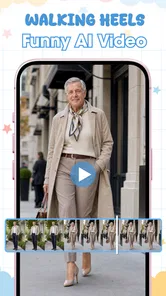
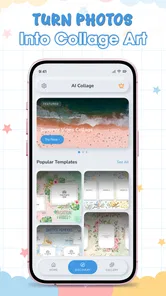
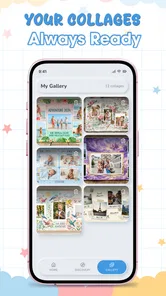

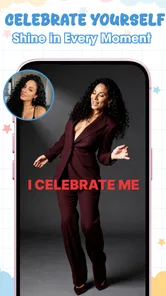
Analysis by Reviewed
I tried AI Collage Maker & Photo Frame as a quick way to turn ordinary pictures into something ready to share, and my first impression was straightforward: it is aimed at people who want a finished-looking collage without spending time learning a full photo editor. The app belongs to the photography category, comes from ATQ - AI Lab, and focuses on combining images with AI-assisted layouts and decorative frames rather than asking you to build every element manually.
That distinction matters. I would not open it when I need detailed retouching, precise masking, or complete control over typography. I would open it when I have several photos from a day out, a family moment, a product idea, or a social post and want them arranged attractively with as little friction as possible. The experience is closer to choosing a visual direction and refining it than to editing a picture pixel by pixel.
How the app feels in everyday use
The practical appeal is the speed of the workflow. Instead of starting with a blank canvas, I can think in terms of a small set of photos and a mood: clean, playful, seasonal, or more decorative. The template-and-frame approach gives the result a sense of structure immediately. That is useful for anyone who tends to collect photos but rarely turns them into an actual composition because traditional editors feel like too much work.
A realistic example is a weekend trip. I might select a few landscape shots, one food photo, and a casual portrait. A conventional editor would make me decide on canvas dimensions, spacing, borders, image order, and perhaps background treatment before the collage looks coherent. Here, the AI-focused concept is more helpful at the beginning because it reduces the number of design decisions I have to make. I can judge the overall arrangement first, then decide whether it feels balanced enough to keep.
The strongest part of this style of app is not necessarily a single dramatic effect. It is the reduction of small tasks. Choosing a frame, fitting images into a layout, and making a group of unrelated photos look intentional can take longer than expected in a general-purpose editor. A dedicated collage tool keeps those decisions together, which makes it more approachable for casual users and for anyone working from a phone.
I also found that the app makes more sense when I start with a clear purpose. A collage for a birthday message needs a different visual balance from a small product mood board or a travel recap. If I simply select random images and accept the first attractive arrangement, the result can look busy. The app can accelerate composition, but it cannot replace judgment about which photos belong together.
What the current version tells me
The current release is version 1.3.0, and it supports devices running Android 7.0 or later. That gives the app a broad practical reach for Android users, including people who are not using a recent phone. In my view, compatibility is valuable here because collage making is often something people want to do on the device that already contains their photos, not after moving everything to a newer handset or computer.
More From Our News Desk

 Gmail
GmailGmail in a Busy Inbox: Who Benefits Most?
From first account to crowded workday, Gmail earns its place through dependable search and flexible sorting—but its best fit depends on how much inbox maintenance you can tolerate.

 Prime Video
Switching to Prime Video: What Changes in Your Viewing Routine
Prime Video can make a compelling second home for streaming, but switching means learning a different catalog, rental layer, and route from browsing to playback.

 Universal TV Remote Control
Universal TV Remote Control Works Best as a Reliable Backup
A phone remote earns its place through quick setup and reliable habits. Here is how to get more from Universal TV Remote Control—and where its limits show.

 Weather - By Xiaomi
Weather by Xiaomi Review: Clear at a Glance, Less Clear Up Close
Xiaomi’s weather app makes everyday forecasts quick to scan, but its calm surface can leave useful details and recovery paths harder to find than they should be.

 X
XX Under Pressure: Can It Recover When Posting Goes Wrong?
A resilience-focused review of X, examining setup, mistaken posts, interruptions, weak connections, and the gaps that matter when recovery needs to be dependable.

 Clash of Clans
Clash of Clans Is Won Between the Battles
Its raids are quick; its community is a long-term project of coordination, teaching, rivalry, and shared responsibility—with all the friction that entails.
Latest News



The app is free to install, with optional in-app purchases ranging from $4.99 to $22.99 per item. I would treat the free entry as a chance to test the workflow rather than assume every creative option is included. Before committing to a particular project, I would check which templates, frames, or export choices are available without payment. That is especially important if you want a consistent style for repeated posts and do not want to discover halfway through that your preferred design requires an upgrade.
Its audience rating is Everyone, which fits the basic use case: arranging personal images in a photography tool. The app has reached over a million installs and holds a 4.4 average from around 3.8 thousand ratings. Those figures suggest that the concept has found a sizeable audience, but they do not tell me whether it will suit a particular visual taste. I still judge the app by the quality of its layouts, the amount of control it gives me, and how comfortably it fits my own photo routine.
What has changed and what that means
The release date is March 19, 2026, so version 1.3.0 represents an early stage in the product’s public life rather than a long-established editing platform. That changes how I interpret the experience. I see a focused tool with room to mature, not a replacement for every established photo application. The current version is useful when its narrow purpose matches my need, while expectations should remain realistic about how much depth a newer specialist app can provide.
Because the product is built around AI collage creation and frames, its evolution is likely to matter most in the quality and variety of the starting points it offers. For existing users, a newer version can be meaningful even without a completely different interface if it makes layouts more dependable, handles mixed photo shapes more gracefully, or gives better ways to refine a generated composition. Those are the areas I would pay attention to when deciding whether an update improves my day-to-day results rather than merely changing the appearance of the app.
I would also separate confirmed present value from future expectations. The current release gives me a convenient collage workflow, but I would not choose it on the promise of features that may arrive later. If ATQ - AI Lab continues developing it, the most useful progress would be practical: clearer control over image order, more predictable cropping, stronger options for spacing, and export results that remain sharp when shared or printed. Those improvements would help frequent users more than a larger collection of flashy decorations.
For someone already using an older version, the sensible approach is to compare a few of the same projects before and after updating. Use similar photos, try the same kind of frame, and notice whether the app saves time or simply changes the visual style. A version number alone does not guarantee a better result for every person. What matters is whether the current workflow reduces the little frustrations that made you abandon previous collages.
Where it is genuinely useful
I think the app is particularly suitable for casual social content. A small set of portrait photos can become a single shareable image without requiring a separate design program. It also fits personal memory keeping: a monthly collection, a short trip, a celebration, or a simple before-and-after comparison. The frame option gives these projects a more finished edge than placing photos side by side with no visual separation.
It can also help small sellers and hobby creators who need a quick visual arrangement but do not want to build a full brand system. For example, someone photographing handmade items could combine detail shots into one image for a message or informal post. I would still use a more controlled design tool for a professional catalog, but for a quick preview the collage workflow can be enough.
One less obvious use is selecting photos. I use the app as a way to test whether a group of images actually belongs together. If the arrangement feels crowded, the problem may not be the template; it may be that two photos compete for attention or that the colors do not sit well beside each other. Trying a few combinations turns the collage process into a lightweight editing decision, helping me identify the strongest images before I publish anything.
Another useful habit is to choose the main image before adding the supporting ones. A collage becomes easier to read when one photo has a clear role and the others provide context. If every image is equally busy, even a good template can feel noisy. I get better results by using a visually calm image in one position and reserving the stronger details for smaller spaces.
Control, convenience, and the trade-off
The convenience comes from letting the app handle much of the arrangement. The trade-off is that automated or template-based design can make different projects feel similar. If you care about an unmistakably personal layout, you may eventually want more control than this kind of focused tool provides. I would compare it with a general photo editor when I need exact alignment, custom canvas sizes, layered text, detailed color work, or a design that must follow strict brand rules.
There is also a difference between a collage that looks attractive in the editor and one that communicates clearly after sharing. Decorative frames can help separate images, but too much ornament can distract from the photos themselves. I recommend checking the composition at a smaller viewing size before saving it. If faces, product details, or important text become difficult to recognize, a simpler frame is probably the better choice.
Users who want advanced retouching should probably skip this app as their main editor. It is not the right starting point for removing complex objects, making precise selections, or building a detailed composite. Likewise, photographers who need dependable control over resolution and color should use a more specialized workflow. The app is strongest as a fast presentation layer after the photos are already good enough to use.
On the other hand, people who find conventional editors intimidating may appreciate exactly what the app leaves out. Fewer technical decisions can mean more finished work. I would recommend it to a friend who repeatedly says, “I have the photos, but I never make anything with them.” The focused format lowers that barrier without requiring knowledge of design terminology.
Practical ways to get better results
My first tip is to prepare a small, related selection instead of importing every possible image. Similar lighting and a shared subject give the layout a stronger starting point. The app can arrange photos, but it cannot fully hide mismatched exposure, unrelated colors, or several competing focal points. A little selection discipline makes the AI-assisted part much more effective.
My second tip is to treat frames as part of the message, not as an automatic finishing touch. A playful border may suit a celebration but weaken a clean product presentation. I test the same photos with a restrained frame and a more expressive one, then choose based on whether the border supports the story. This is a small decision, yet it often changes whether the result feels polished or overloaded.
Third, I save an uncluttered version before experimenting with more decoration. That gives me a safe baseline and makes it easier to compare changes. If a later design adds visual interest but reduces readability, I can return to the simpler composition instead of starting over. This workflow is especially useful when the app offers several attractive options and it becomes easy to keep adding elements without noticing the loss of focus.
For portraits, I pay attention to where faces land in the layout. A frame may look balanced with landscapes but place a face too close to an edge or under a decorative element. I would try more than one arrangement and inspect the preview at normal phone size. The best template is the one that protects the important parts of the image, not simply the one that looks most elaborate in the selection screen.
Questions I would consider before installing
If you are wondering whether it is suitable for a child or family device, the Everyone rating makes the intended audience broad, but normal photo-app judgment still applies. The important question is less about technical difficulty and more about whether the person using it understands which images they want to combine and whether optional purchases are acceptable. I would let a younger user explore the free workflow first before considering any paid item.
If you are asking whether it replaces a full photo editor, my answer is no. It can be the faster choice for collages and framed compositions, while a broader editor remains better for detailed corrections and custom layouts. I see the two types of apps as complementary: improve individual photos elsewhere when necessary, then use this app when the goal is to assemble them into a quick visual story.
If payment is a concern, the free installation lets you assess whether the basic experience is worthwhile, but the listed optional items mean I would review the available choices before planning a project around a particular design. A person who only makes occasional collages may find the free level sufficient; someone creating repeated themed posts should decide whether the paid options justify the convenience.
If you are using an older Android phone, the minimum requirement of Android 7.0 is reassuring, although the smoothness of any image workflow can still depend on the device and the size of the selected photos. I would avoid importing a huge, unfocused library all at once. Working with a deliberate group is better for organization and usually makes the creative decision easier too.
What I would watch as it develops
Since this is an early product with a current version of 1.3.0, I would watch how it handles refinement after the initial template choice. The first arrangement is only half the job. The long-term value will depend on whether I can make small corrections without losing the convenience that brought me to the app in the first place.
I would also look for a better balance between novelty and consistency. More frames are not automatically more useful if they make it harder to find a clean option. The strongest updates would help me create a recognizable personal style, reuse a successful approach, and understand what will happen before I spend time adjusting every photo.
My conclusion is positive but specific: this is a good free photography app for quick, attractive collages and framed photo compositions, not an all-purpose replacement for serious editing software. I like the way it turns a potentially fiddly task into a guided creative step, and I think it will suit casual sharers, families, travelers, and small creators who value speed. I would skip it if precise control is the main reason I edit photos. For everyone else, the best reason to try it is that it helps turn a forgotten group of images into something finished, while still leaving me enough choice to decide whether the final design actually feels like mine.
AI Collage Maker & Photo Frame Frequently Asked Questions
What devices and operating systems can run AI Collage Maker & Photo Frame?
AI Collage Maker & Photo Frame is a photography app for Android, and its current version is 1.3.0. It requires Android 7.0 or later, so check your device’s software version before downloading. If your phone or tablet meets that requirement, you can use it to create AI photo collages and frames with templates. Availability and compatibility can differ between Android and iOS stores.
Who makes AI Collage Maker & Photo Frame, and is it suitable for all ages?
The app is developed by ATQ - AI Lab and is rated Everyone, making it suitable for a general audience. Its focus is on arranging photos into collages and decorating them with frames and templates, rather than on age-specific content. As with any photo app, parents may still want to guide younger users when they select personal pictures or share finished images through other services.
What is AI Collage Maker & Photo Frame, and what can I use it for?
AI Collage Maker & Photo Frame is a photo-editing app designed for creating collages, framed pictures, themed layouts, and social-media-ready images. After selecting photos from your gallery, you can arrange them in different templates, add borders, apply filters, insert text or stickers, and choose decorative frames. It is useful for albums, celebrations, profile images, invitations, and sharing creative photo compositions.
Does AI Collage Maker & Photo Frame use artificial intelligence to edit photos automatically?
The app’s AI-related tools may help simplify parts of the editing process, such as suggesting layouts, enhancing images, applying effects, or creating stylized compositions, depending on the version and device. However, it should not be treated as a complete professional photo editor. Results can vary according to image quality, lighting, and the selected effect, so manual adjustments may still be necessary for a polished final collage.
Is AI Collage Maker & Photo Frame free to download and use?
The application is free to download, but some features may be limited behind advertisements, in-app purchases, or a premium subscription. Advanced templates, exclusive frames, special effects, high-resolution exports, or an ad-free experience may require payment. In-app purchases range from $4.99 to $22.99 per item. Before confirming a purchase, review the app’s pricing, subscription terms, renewal conditions, and cancellation options shown in the relevant store.
Pros
- Combines multiple photos into collages quickly with simple controls.
- Includes templates for birthdays
- travel
- weddings
- and other occasions.
- Offers decorative frames
- stickers
- text
- and background options.
- Supports creative layouts for social media posts and personal albums.
- Lets you preview edits before saving or sharing the finished collage.
Cons
- Some premium templates and decorations may require a subscription.
- Export quality can vary depending on the selected layout and device.
- Advertisements may interrupt editing
- especially in the free version.
- Automatic collage suggestions may need manual adjustments for better results.
- Advanced editing tools are more limited than those in full photo editors.











