

AI Photo Beauty Editor Studio
- 83.00
- 4.2
- Installs
- 1.00M
- Price
- Free

Screenshots
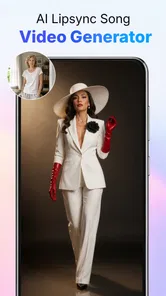
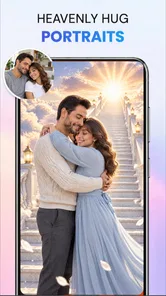
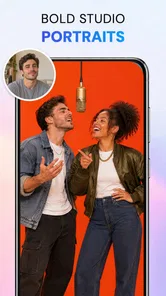

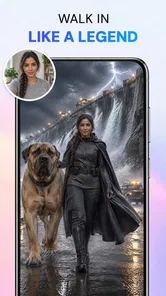
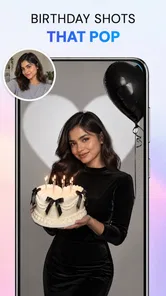
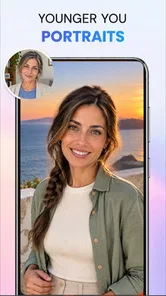
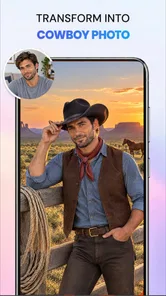
Analysis by Reviewed
I approached AI Photo Beauty Editor Studio as a practical photography tool rather than a one-tap magic button. Its main appeal is the chance to describe an edit in ordinary language and let AI handle jobs such as portrait retouching, background removal, object cleanup, and image enhancement. That makes it interesting for people who want a quick result without learning a full desktop editor, but it also creates a few points where expectations need to be realistic.
The app is free to install, carries an Everyone age rating, and comes from ATQ - AI Lab. It has reached over a million installs and holds a 4.0 average from around 1.7 thousand ratings, which suggests a useful but not universally perfect experience. I found the concept most convincing when I treated it as a fast finishing tool for everyday photos, not as a replacement for careful manual editing.
Getting past the first points of friction
The first place many users are likely to hesitate is the prompt itself. “Make this photo better” is understandable, but it gives an AI editor too much freedom. A more useful instruction identifies the subject and the desired restraint: soften minor skin distractions, keep facial features natural, brighten the face, and leave the background unchanged. This kind of wording helps avoid the overly polished appearance that can make a casual portrait look artificial.
Background removal brings a different challenge. Hair, glasses, plant leaves, and objects with similar colors to the background are difficult edges for any automated editor. If the cutout looks rough, I would not immediately assume the app has failed. Try a clearer image with the subject separated from the background, and describe the intended result more precisely. A prompt such as “remove the background and preserve the loose hair around the head” communicates a better priority than simply asking for a clean cutout.
Object removal also benefits from a careful selection of words. If a distracting item overlaps the person, the surrounding area is harder to reconstruct than an isolated object on a plain wall or floor. I would first try the edit on a copy, especially when the unwanted item touches important details. That simple habit makes experimentation less stressful and gives me an untouched original if the generated result is not convincing.
Another common sticking point is expecting every photo to respond equally well to enhancement. A dark, heavily compressed image gives the editor less visual information to work with. Enhancement may improve clarity, but it cannot reliably restore details that were never captured. I get better results by starting with the sharpest original available instead of a screenshot or a file that has already passed through several messaging apps.
What I check before editing
Before blaming the editor, I check the basics: whether the intended image is actually selected, whether the crop includes the complete subject, and whether the instruction describes one main task. Combining background removal, dramatic lighting, facial reshaping, and object replacement in one request makes it harder to judge what went wrong. A short, focused edit is easier to evaluate and easier to repeat.
More From Our News Desk

 Gmail
GmailGmail in a Busy Inbox: Who Benefits Most?
From first account to crowded workday, Gmail earns its place through dependable search and flexible sorting—but its best fit depends on how much inbox maintenance you can tolerate.

 Prime Video
Switching to Prime Video: What Changes in Your Viewing Routine
Prime Video can make a compelling second home for streaming, but switching means learning a different catalog, rental layer, and route from browsing to playback.

 Universal TV Remote Control
Universal TV Remote Control Works Best as a Reliable Backup
A phone remote earns its place through quick setup and reliable habits. Here is how to get more from Universal TV Remote Control—and where its limits show.

 Weather - By Xiaomi
Weather by Xiaomi Review: Clear at a Glance, Less Clear Up Close
Xiaomi’s weather app makes everyday forecasts quick to scan, but its calm surface can leave useful details and recovery paths harder to find than they should be.

 X
XX Under Pressure: Can It Recover When Posting Goes Wrong?
A resilience-focused review of X, examining setup, mistaken posts, interruptions, weak connections, and the gaps that matter when recovery needs to be dependable.

 Clash of Clans
Clash of Clans Is Won Between the Battles
Its raids are quick; its community is a long-term project of coordination, teaching, rivalry, and shared responsibility—with all the friction that entails.
Latest News



I also look at the source image’s composition. A portrait with the face partly hidden, a moving subject, or a busy foreground can produce less dependable retouching. That is not a reason to avoid the app; it simply changes how much supervision the result needs. For a quick social post, an imperfect edge may be acceptable. For a profile image or printed picture, I would inspect the face and silhouette closely before sharing it.
Storage and connectivity are practical considerations for any AI-based workflow. I keep the original image available and avoid starting an important edit when the phone is nearly full or the connection is unstable. If a result takes longer than expected, repeatedly tapping the same action is rarely helpful. Waiting briefly, returning to the project, or restarting the task in a clean session is a more sensible recovery path than creating several duplicate requests.
The current release is version 1.2.1 and supports Android 7.0 or later. That broad compatibility is useful for people with older phones, although performance can still vary between devices. A newer phone may handle image processing more comfortably than an older one, while a large, detailed photo can be more demanding than a small picture intended for messaging.
A workflow that keeps mistakes manageable
My preferred workflow starts with a duplicate of the original, followed by one clearly defined task. I first decide whether the priority is a natural portrait, a clean cutout, removal of a distraction, or general improvement. Then I use a prompt that states what should change and what should remain untouched. The second part matters: “keep the face natural” or “preserve the original colors” places a boundary around the AI’s creativity.
For beauty edits, I would begin with subtle language rather than asking for a flawless appearance. Small corrections are easier to accept than a heavy transformation, and they preserve the identity of the person in the photo. If the result is too strong, I would simplify the instruction and try again instead of stacking more requests on top of an already altered image.
For a background edit, I separate the task into stages. First I concentrate on the cutout. Only after the subject is separated convincingly would I consider asking for another change. This staged approach is one of the most useful ways to reduce confusion: if an image becomes strange after several edits, I can identify the stage that introduced the problem and return to the clean copy.
Object removal works best when I describe the item by its role and location. “Remove the bright sign behind the person on the right” is more useful than “clean this up,” because it gives the editor a specific target. I then inspect repeated patterns, straight lines, and shadows around the repaired area. These are the places where an automated fill can look unnatural even when the overall photo seems improved.
Enhancement should be judged at the size where the image will actually be used. A result that looks impressive when zoomed in may not make a meaningful difference in a small profile picture. Conversely, a subtle improvement can be valuable in a larger image. I avoid judging only by the most dramatic preview and instead ask whether the final image communicates better than the original.
Recovering when an edit goes wrong
When a generated result is poor, my first recovery step is to return to the untouched file rather than repeatedly editing the damaged version. AI changes can become harder to diagnose when each attempt modifies the previous output. Starting fresh also lets me rewrite the prompt with one clear objective.
If the app appears not to respond, I check whether the image itself opens normally in the phone’s gallery. I then try a smaller copy or a different image to distinguish a problem with one file from a broader issue. This is safe, general troubleshooting: it avoids assuming that the editor, the phone, or the network is responsible before comparing a simple test case.
A useful test is to use an uncomplicated photo with a single subject and a plain background. If that works while a crowded scene does not, the limitation is probably related to image complexity rather than the basic workflow. If no image behaves normally, I would close and reopen the app, check available storage, and retry later rather than repeatedly submitting the same request.
Prompts can also be recovered by removing decorative language. I get more predictable instructions from “remove the cup from the table and preserve the wood texture” than from a long description of the mood I want. Once the basic edit succeeds, I can attempt a second creative change. This is slower than asking for everything at once, but it provides much better control.
There is also a quality trade-off between speed and precision. The attraction of this app is convenience, so it makes sense for quick corrections. However, if an image has a complicated reflection, detailed jewelry, transparent fabric, or a subject blending into the background, I would expect to review the result carefully. A fast automated correction is not automatically a finished image.
Separating app problems from photo and phone problems
It is easy to blame the app when the real issue is the source picture. A low-light portrait may contain noise that becomes more visible after enhancement. A beauty edit may appear excessive because the original lighting already has strong shadows. A background cutout may seem inaccurate because the subject and surroundings share the same color. Recognizing these cases helps me choose a better source instead of endlessly changing instructions.
The phone can matter too. Older hardware may take longer to process an image, and limited free storage can interfere with saving or handling new files. I would close other demanding apps, make room for the working image, and keep the phone connected to a stable network when the task depends on remote AI processing. These steps do not promise a perfect result, but they remove avoidable obstacles.
It is also worth checking the intended output before editing. If I only need a small image for a chat profile, a modest correction is enough. If I plan to print the picture, I need to be more critical about texture, edges, and facial detail. The app is strongest when the requested result matches the level of precision that an automated mobile workflow can reasonably provide.
People who want complete manual control may prefer a conventional editor. Traditional tools are slower, but they let me adjust a mask, undo one brush stroke, tune a specific color, or preserve a complicated edge by hand. AI Photo Beauty Editor Studio is more appealing when the goal is to describe a result quickly. It is less suitable when every pixel, layer, or adjustment must be controlled directly.
Compared with a basic phone gallery editor, this app offers a more conversational route to edits such as removing an object or changing a background. A gallery editor may be faster for cropping, rotation, exposure, and simple filters because those controls are familiar and immediate. I would use the gallery for tiny corrections and turn to this app when the requested change is more specialized.
Compared with a professional desktop application, the advantage here is accessibility. I do not need to understand masks or complex selections before attempting a portrait cleanup. The trade-off is predictability: a manual editor gives me a clearer explanation of each change, while an AI result may require several attempts and close inspection. That difference matters most for work images, client material, or anything where a mistake is costly.
Who will get the most from it
I think the app suits casual photographers, social media users, students preparing images for a presentation, and anyone who wants to rescue an otherwise good picture without learning a full editing system. It is particularly handy for a realistic everyday situation: I might take a group photo at a café, notice a stray object behind one person, and use a focused removal request before sharing the image. That is a clear, limited job with an obvious way to judge success.
It can also help someone prepare a simple profile image. I would use a well-lit portrait, ask for restrained retouching, and request that facial features and the background remain natural. The important point is to treat the AI as an assistant for cleanup, not as a reason to erase every mark or reshape the person beyond recognition.
People who regularly edit product photos, require repeatable brand consistency, or need detailed layer-based control should probably choose a more specialized tool. The same applies to photographers who enjoy making every adjustment themselves. The convenience of prompts will not compensate for the lack of direct control when precision is the main requirement.
Parents and younger users may appreciate the Everyone rating, but I would still encourage sensible photo habits. Before uploading a personal image to any editing service, think about whether it is appropriate to process that picture and whether the final result is being shared responsibly. The age rating describes suitability; it does not replace good judgment about private photos.
Cost, expectations, and the final decision
The app is free to download, while in-app purchases range from around four dollars to around forty dollars per item. I would begin with the free experience and test the exact tasks I care about before considering any purchase. The value depends less on the number of available editing ideas and more on whether the results save me time compared with my usual gallery editor or manual app.
That pricing range also makes it important to avoid paying simply because one difficult image failed. A challenging photo may remain challenging after another attempt. I would first test a clean portrait, a simple background, and an isolated object. If those basic cases produce results I would genuinely use, then the app has demonstrated practical value for me. If not, extra spending is unlikely to solve the underlying mismatch.
My overall impression is positive but measured. ATQ - AI Lab has built a photography app around a genuinely convenient idea: explain the change you want instead of navigating a complicated editing interface. The strongest results come from focused prompts, suitable source images, and a willingness to review the output rather than accepting the first version blindly.
The key trade-off is convenience versus fine control. For quick beauty adjustments, background cleanup, object removal, and general enhancement, this can be a friendly starting point. For demanding retouching, complex edges, professional consistency, or detailed manual work, a conventional editor remains the safer choice.
With its free entry point, broad Android compatibility, and straightforward AI-focused purpose, I would recommend trying it for everyday photos before deciding whether it belongs in a regular editing routine. I would keep the original files, make one change at a time, and judge each result at its intended sharing size. Used that way, AI Photo Beauty Editor Studio feels less like an automatic replacement for an editor and more like a practical shortcut for the edits I do not want to perform by hand.
AI Photo Beauty Editor Studio Frequently Asked Questions
Which devices and operating systems can run AI Photo Beauty Editor Studio?
AI Photo Beauty Editor Studio is a photography app from ATQ - AI Lab, and its listed minimum Android requirement is version 7.0. Before downloading, check that your device meets this requirement and has enough available storage for the app and the photos you plan to edit. The app is free to download, though some optional features may involve in-app purchases.
What is AI Photo Beauty Editor Studio used for?
AI Photo Beauty Editor Studio is designed for enhancing and retouching photos with automated beauty tools. Its store description highlights edits made with AI prompts, including retouching, background removal, object removal, and image enhancement. It can suit users preparing selfies, social media posts, profile pictures, or personal photo collections, including people who want to make edits without advanced editing experience.
Does AI Photo Beauty Editor Studio work well for beginners?
Yes. The app is generally built around simple controls and guided editing tools, making it accessible to beginners. Most adjustments can be applied with sliders, presets, or one-tap AI enhancements instead of complicated manual selections. However, users should apply effects carefully because high beauty settings may make faces look unnatural. Previewing the result before saving is recommended, especially when combining several filters.
Is AI Photo Beauty Editor Studio free to download and use?
The app is free to download, but it also offers in-app purchases, with listed prices ranging from $3.99 to $39.99 per item. What you can use without paying may depend on which tools or content are available in the version you install. Review any purchase prompt carefully before confirming, and check the current app-store details for the specific offer and its terms.
Does the app require an internet connection to edit photos?
Basic editing functions may work offline after the application and its required resources have been installed, but certain AI-powered tools can depend on an internet connection. Cloud-based processing, online effects, advertisements, account synchronization, and premium content may not be available without connectivity. If offline access is important, test the main enhancement tools in airplane mode before relying on the app while traveling.
Pros
- AI tools quickly enhance portraits with little editing experience.
- Offers creative filters and beauty effects for social media photos.
- Simple interface makes core editing features easy to find.
- Useful retouching options can improve lighting
- skin tone
- and facial details.
- Convenient for creating polished profile pictures and selfies on mobile.
Cons
- Some advanced effects may require a subscription or in-app purchases.
- AI retouching can look unnatural when applied too strongly.
- Results may vary depending on image quality and lighting conditions.
- Beauty edits may promote unrealistic expectations about appearance.
- Processing certain effects can be slow on older phones.











