

AI Photo Restore With Music
- 18.00
- 4.6
- Installs
- 1.00M
- Price
- Free

Screenshots
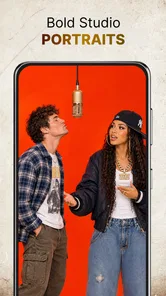

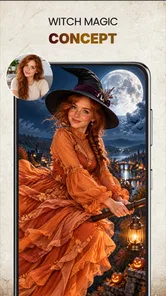

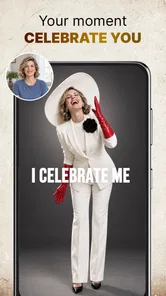

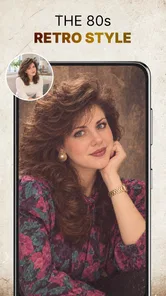
Analysis by Reviewed
I’d consider AI Photo Restore With Music when I want to make an old family picture easier to enjoy again, rather than when I need precise, hands-on photo editing. It is a free photography app from ATQ - AI Lab, and its focus is restoring photos with AI while adding music to help turn a still image into a keepsake. That combination gives it a more personal purpose than a conventional filter app, though it also means I would judge the result by how well it handles a particular photograph—not by expecting every faded or damaged image to come back perfectly.
What to expect when restoring a picture
Restoration apps are most useful when they reduce the work between finding an old photo and having something worth sharing. With this one, I’d start by choosing a single image that matters to me, then inspect the finished result closely before using it in a family post or making a print. AI enhancement can make details look clearer, but it can also interpret unclear features rather than recover information that was never captured. For portraits, I’d pay particular attention to eyes, hair, and the edges of faces.
The music element makes the app feel aimed at memories and presentation, not just repair. It may suit someone preparing a sentimental image to share with relatives, especially if a simple audiovisual treatment feels more meaningful than sending a cleaned-up photo alone. I’d still keep an untouched copy of the original. That gives me a reliable reference if the enhanced version looks too smooth or changes a small detail that matters to the family.
The most useful way to judge an AI restoration is to compare it with the original at the same size, not just admire the sharper-looking version on a phone screen. A result can seem impressive at a glance but reveal artificial texture or softened features when enlarged. For a picture with personal significance, I’d ask another relative to check whether the people still look like themselves before treating the edit as a faithful restoration.
How quickly it fits into a real-life task
I wouldn’t plan a restoration session around a guaranteed turnaround time. The app’s stated details don’t establish how long a particular image takes, and processing can depend on the picture and the device. A practical approach is to try one photo first, especially if I’m preparing something for a particular moment. If the image is large, badly faded, or packed with fine detail, I’d allow extra time to review the result rather than assuming the first pass will be ready to share.
A realistic use case is finding an old printed portrait while sorting a drawer before a family visit. I could photograph or select the image, try the enhancement, and then decide whether the music treatment suits the occasion. The important step is not rushing straight from processing to sharing: check for changes to facial expression, clothing patterns, and the background. Those are places where automated cleanup can produce a neat-looking but less authentic result.
Compared with a standard photo editor, the appeal here is a more guided, restoration-centered task rather than a toolkit built around manual sliders and detailed retouching. That convenience is valuable if I don’t know how to adjust contrast or repair fading myself. If I do want control over every tonal change, however, a conventional editor may be the better choice; it lets me make deliberate corrections instead of accepting an AI interpretation.
More From Our News Desk

 Gmail
GmailGmail in a Busy Inbox: Who Benefits Most?
From first account to crowded workday, Gmail earns its place through dependable search and flexible sorting—but its best fit depends on how much inbox maintenance you can tolerate.

 Prime Video
Switching to Prime Video: What Changes in Your Viewing Routine
Prime Video can make a compelling second home for streaming, but switching means learning a different catalog, rental layer, and route from browsing to playback.

 Universal TV Remote Control
Universal TV Remote Control Works Best as a Reliable Backup
A phone remote earns its place through quick setup and reliable habits. Here is how to get more from Universal TV Remote Control—and where its limits show.

 Weather - By Xiaomi
Weather by Xiaomi Review: Clear at a Glance, Less Clear Up Close
Xiaomi’s weather app makes everyday forecasts quick to scan, but its calm surface can leave useful details and recovery paths harder to find than they should be.

 X
XX Under Pressure: Can It Recover When Posting Goes Wrong?
A resilience-focused review of X, examining setup, mistaken posts, interruptions, weak connections, and the gaps that matter when recovery needs to be dependable.

 Clash of Clans
Clash of Clans Is Won Between the Battles
Its raids are quick; its community is a long-term project of coordination, teaching, rivalry, and shared responsibility—with all the friction that entails.
Latest News



When a photo session becomes demanding
One image at a time is a sensible way to use any restoration tool, and it is especially helpful when the photos have different problems. A scratched print, a blurry portrait, and a faded group shot don’t necessarily need the same treatment. I’d separate them into small batches and inspect each result before continuing. That workflow makes it easier to spot when the enhancement is helping and when it is inventing detail or making several people look unnaturally alike.
For a family album project, I’d prioritize pictures rather than trying to process everything in one sitting. Begin with the most important image, save or otherwise preserve a copy of the original, and note which versions feel natural. Then move on to less critical photos. This is a useful trade-off: a slower, selective workflow takes more attention, but it avoids filling a shared album with polished images that no longer resemble the originals.
Adding music can also shift the task from simple repair toward preparing a presentation. I’d use it when the image is meant to evoke a memory or accompany a personal message, not as a necessary step for every restored photograph. A clean still image may be more appropriate for printing, archiving, or sending to someone who wants the picture without extra presentation. Keeping those purposes separate helps me choose the output that suits the moment.
Reliability means checking the result, not just the process
I treat AI restoration as assistance, not archival repair. It can make a photo more legible and visually appealing, but an attractive result is not proof that every detail is historically accurate. If I’m restoring a picture of a relative, I’d compare it with other photographs from the same period or ask someone who remembers the person. That extra check is worthwhile when the app’s interpretation affects identity, clothing, or a distinctive background detail.
For important images, I’d avoid making the enhanced file my only copy. Keep the original alongside the edited version, and use the restored one as a viewing or sharing copy. This is a simple safeguard against overprocessing and gives future editors a cleaner starting point. It also means I can choose a different restoration method later without having to recover the image from an already altered version.
The app is rated 4.6 on average from around 7,100 ratings, and it has more than a million installs. Those figures suggest that many people have tried it, but they can’t predict how it will handle my particular photograph. The practical test remains a representative image: if faces retain their character and the texture looks plausible, I’d continue with similar pictures. If the result feels waxy or invents detail, I’d stop and use a manual editing approach instead.
Device fit, cost, and who should choose it
The app is free to install and is marked for everyone, while optional in-app purchases range from $7.99 to $39.99 per item. I’d begin with a photo I can afford to experiment on before considering a purchase. That way I can decide whether the quality and workflow match my needs first. Since restoration is highly image-dependent, paying before testing a meaningful example would be a poor way to judge value.
It is listed as version 2.5.0 and supports Android 7.0 or later. Those compatibility details can help narrow the decision, but they don’t tell me how quickly it will run on a particular phone or how much storage and memory a session will use. If my device is older or already short on space, I’d keep the first test modest and close other demanding apps. That is a cautious general practice, not a guarantee about this app’s resource use.
ATQ - AI Lab is the developer, and the release date is March 3, 2026. I’d be most likely to recommend AI Photo Restore With Music to someone who wants a straightforward way to give treasured pictures a visual refresh and likes the idea of pairing an image with music. It is less suited to professional retouching, precise archival work, or anyone who wants full manual control over every adjustment. In those cases, a traditional editor or a specialist restoration service may be a better fit.
My performance verdict
I see this as a focused convenience tool, not a substitute for a careful photo editor or a promise that damaged images can be reconstructed perfectly. Its strongest case is a personal one: make an old picture easier to view, then decide whether a musical presentation adds something to the memory. I’d keep expectations measured, review faces and fine details, and preserve the source image before sharing the result.
If I were choosing an app for a quick family-photo refresh, I’d give it a try with one low-risk picture and judge the output on my own device. If the process feels smooth and the image still looks authentic, it could earn a place in my occasional photo toolkit. If I need predictable fidelity or detailed corrections, I’d switch to manual editing. That distinction is what makes the app worth considering without treating AI enhancement as magic.
Choosing the right photos for a first test
I’d pick a picture with a clear subject and a known reference rather than beginning with the most damaged photograph in the box. A family portrait that relatives recognize makes it easier to judge whether the enhancement preserved someone’s features. Once I understand how the app treats a straightforward image, I can decide whether it is worth trying on harder cases such as faded group shots or prints with visible wear. This staged approach avoids confusing an ambitious repair with a poor first impression.
There is also a practical distinction between improving a scan and photographing a print. If I’m capturing a paper photo with my phone, I’d first try to avoid glare, shadows, and a tilted angle; an AI tool cannot reliably restore information hidden by reflections or a blurry capture. A clean starting image gives the enhancement a better chance, and it helps me tell whether an odd-looking result came from the source or the processing. For a photograph with major physical damage, a hands-on restoration workflow may be a wiser route.
Where the music treatment makes sense
I’d reserve the music-led presentation for a particular purpose instead of assuming every restored image needs it. For example, a single portrait shared in a family message may feel more considered with an audio element, while a folder of scans meant for a family archive is easier to browse as ordinary images. Keeping a plain restored copy for practical use and a presentation-oriented version for sharing helps avoid making the music treatment part of the only version I keep.
That distinction is useful when choosing between this app and the usual alternatives. A basic editor is often better for a quick crop, exposure correction, or a precise adjustment to one area. A specialist restoration service can be preferable when a photo is irreplaceable or badly damaged and accuracy matters more than convenience. I’d choose this app for an accessible first pass and a personal keepsake, not as the final authority on how an old image should look.
What I would check before relying on it
Before moving a whole collection into any restoration workflow, I’d check how the finished image can be saved and whether it suits the way I plan to use it. A version that looks pleasant on a phone may not be the one I want for a print or a long-term archive. I’d also inspect the result at a larger size and compare it with the untouched source, especially around small faces, patterned clothing, and fine lines. Those checks turn a quick visual impression into a more dependable decision.
For anyone weighing a purchase, I’d first work out whether the app’s style solves a repeated need or only one sentimental project. Optional purchases are a meaningful consideration when a single image is the goal; I would not spend until I had tested a photo similar to the one I actually want to restore. If I mainly need reliable edits across many images, a conventional editor may offer a more useful everyday workflow. If I want a simple, personal refresh and accept that each image can turn out differently, this is a more natural fit.
Who will get the most from it
I think the best match is someone who has a modest number of meaningful pictures, wants a guided process, and is comfortable treating the result as an interpretation rather than a historical record. It may also suit a family member who wants to prepare a small tribute or share a refreshed portrait without learning detailed editing controls. The less suitable user is someone cataloguing a large archive, correcting images to strict standards, or needing consistent output across a professional set; control and repeatability matter more in those situations.
My recommendation is to start small, keep the originals safe, and judge the image for likeness as well as apparent sharpness. The app’s appeal is the approachable combination of enhancement and presentation, but its usefulness depends on the source photo and the purpose of the finished version. For a personal memory, that can be enough. For a faithful restoration where every mark and feature matters, I’d choose a more controlled method and use AI only as a starting point.
AI Photo Restore With Music Frequently Asked Questions
What does AI Photo Restore With Music do?
AI Photo Restore With Music is designed to help users enhance or restore photos with AI-powered tools and add music to create more engaging visual content. Depending on the version available on your device, its features may include improving the appearance of old or damaged images, applying effects, and turning photos into short videos or slideshows. Check the app listing for the exact tools currently offered.
Can AI Photo Restore With Music restore every old or damaged photo?
No restoration app can reliably recover details that are completely missing or too blurred to identify. AI Photo Restore With Music may improve the appearance of some faded, scratched, or low-quality pictures, but results depend on the original image and the features provided in your version. Keep an untouched copy of important photos, and review the result before saving or sharing it.
Is AI Photo Restore With Music free to download and use?
The app may be available to download without an upfront charge, but that does not necessarily mean every feature is free. Some versions of photo-editing apps offer in-app purchases, subscriptions, advertisements, or limits on exports and premium tools. Review the current store listing and payment details before subscribing, and check any trial terms so you know when charges may begin.
Does AI Photo Restore With Music need an internet connection?
Some editing tasks may work directly on your device, while AI processing, music libraries, or other online features may require an internet connection. Requirements can vary by app version and by the tool you choose. If you plan to edit while travelling or have limited data, check the app’s permissions and try the relevant feature on Wi-Fi before relying on it offline.
How does AI Photo Restore With Music handle my photos and personal data?
Before importing private images, review the app’s privacy policy and the data disclosures on its Google Play or App Store listing. These explain what information may be collected, whether images are processed locally or uploaded for cloud-based tools, and how data may be used or shared. Grant access only to the photos and permissions needed, and avoid uploading sensitive images unless you are comfortable with the stated practices.
Pros
- Simple workflow makes it easy to restore photos without advanced editing skills.
- Music can add atmosphere to restored images shared as videos or slideshows.
- Useful for bringing old family pictures into a more presentable condition.
- Combines photo restoration and music features in one app.
- Can help make still images more engaging for social sharing.
Cons
- Restoration results may vary
- especially with severely damaged or blurry photos.
- AI processing can introduce unnatural details or alter faces.
- Adding music may require extra steps to create a finished video.
- Some features may be limited to paid plans or require in-app purchases.
- Uploading personal photos may raise privacy concerns; review the app's data practices.











