Google Pixel Watch
- 4.84K
- 4.7
- Installs
- 10.00M
- Price
- Free

Screenshots
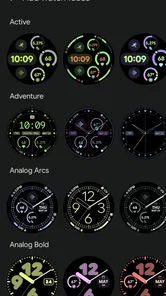
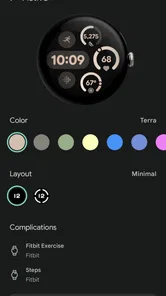
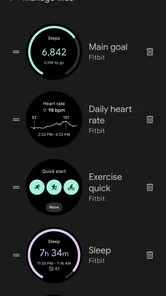
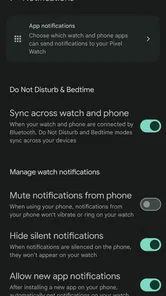
Analysis by Reviewed
If you’re new to the Google Pixel Watch app, it helps to think of it as the phone-side starting point for setting up and managing a Pixel Watch, rather than a general smartwatch app for every brand. I’d approach it with one simple goal: get the watch connected, then make one useful task—such as checking a notification or finding your way with a watch app—work before exploring everything else. That first small success makes the rest feel much less daunting.
What to expect from the phone app
Published by Google LLC, this free communication app is intended for Pixel Watch owners. Its audience is clear: it is most useful when you have the watch it supports, and much less compelling if you only want a place to manage a different wearable. The app is rated for Everyone, and its 4.8 average across about 128,000 ratings, alongside more than 10 million installs, suggests that many people use it as part of their watch setup.
For a first-time owner, the key distinction is between the app and the watch. The app helps you get started and manage the connection; the watch is where wrist-based interactions happen. I wouldn’t expect the phone app alone to replace a fitness app, a messaging service, or a general smartwatch manager. Its value is in making the Pixel Watch usable as part of your everyday phone-and-watch routine.
Make setup feel manageable
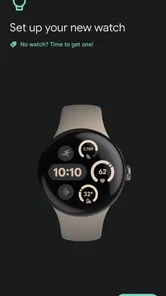
When you open the app, take the setup in order instead of trying to personalize everything at once. Keep the phone and watch nearby, follow the prompts shown on screen, and pause to read each choice before moving on. If something doesn’t look right, first check that you are working with the intended Pixel Watch and that the watch is ready to pair; repeatedly tapping through prompts rarely makes a confusing step clearer.
Once setup is complete, choose one everyday task to test. For example, send yourself a message or wait for a routine notification, then see whether it reaches the watch in the way you expect. This is a better first check than opening every setting: it confirms that the connection is useful in your real routine and gives you a concrete reason to adjust notification choices later.
From first connection to a useful routine
I’d use this section to turn the initial connection into a routine that earns its place in your day, rather than adding settings just for the sake of exploring. Once one alert works, try a single wrist-based task during a real commute or walk; that gives you a clearer sense of what should stay on the watch and what is more comfortable on your phone.
Design that Speaks Elegance
First off, let’s talk about the design. The Google Pixel Watch boasts a minimalist look with a round dial that feels sophisticated and modern. The vibrant display is easy on the eyes, and the interface is intuitive, which means you won’t be fumbling around trying to find your way. It’s like having a little piece of art wrapped around your wrist.
More From Our News Desk

Weather by Xiaomi Review: Clear at a Glance, Less Clear Up Close

X Under Pressure: Can It Recover When Posting Goes Wrong?

Clash of Clans Is Won Between the Battles

Android Auto Makes the Case for Quieter Car Software

MobiOffice: Transforming Mobile Productivity with Seamless Integration

EA SPORTS FC™ Mobile Soccer: Redefining Mobile Sports Gaming
Performance that Packs a Punch
But it’s not just about looks. This watch is powered by Google’s Wear OS, which means it’s got the brains to match its beauty. Whether you’re an Android enthusiast or an iOS user, the Pixel Watch syncs seamlessly. It offers a range of apps and services right on your wrist—from Google Assistant to Maps and even Spotify, it’s all there.
And the fitness features? Oh, they’re top-notch. With built-in GPS, a heart rate monitor, and various workout modes, it’s like having a personal trainer available 24/7. Plus, it’s water-resistant, so you can take it for a swim without worries.
Battery Life: The Real Deal
Now, here comes the part that usually makes or breaks a smartwatch for me—the battery life. The Pixel Watch does not disappoint. You can easily go a full day with heavy usage, and if you’re more conservative, stretching it to two days isn’t out of the question. Charging is a breeze too, thanks to its fast-charging capability.
The watch also supports wireless charging, which is a nifty feature if you're already invested in the Google ecosystem with a Pixel phone or other compatible devices.
Getting past the usual setup snags
A common source of confusion is expecting every alert on the phone to appear on the wrist exactly as it does on the screen. I’d start with only the notifications you genuinely want to notice while away from your phone. That keeps a wrist glance useful rather than turning it into a steady stream of interruptions. If an alert doesn’t arrive, check the relevant app and notification choices on both devices before assuming the watch itself is at fault.
For a practical day, imagine leaving your phone in a bag during a commute. A quick look at the watch can help you decide whether a notification needs attention now or can wait until you stop. Later, you could use a watch app for a short walk or consult Maps when navigating. The trade-off is that a small display is best for brief checks, not for reading long messages or handling detailed tasks; I’d keep the phone close for anything that needs more than a glance.
Who will get the most from it
I’d recommend the app to someone who already owns, or is preparing to use, a Pixel Watch and wants a straightforward route into its connected features. It makes less sense for someone comparing wearable apps before choosing a watch, or for anyone who wants one companion app to manage several brands. In that situation, a platform-neutral option may be a better fit, though it won’t serve as the dedicated setup path for a Pixel Watch.
One useful way to avoid setup fatigue is to treat customization as a second visit, not part of the initial hurdle. First confirm that the watch connects and that one notification or watch function behaves as expected. Then adjust what reaches your wrist and explore other uses in small batches. This also makes troubleshooting easier: changing one setting at a time gives you a better idea of what actually fixed a problem.
Choosing what belongs on your wrist
After that first successful check, I’d review notifications with a specific question in mind: which ones are worth interrupting what I’m doing? Messages from people you need to hear from may deserve a wrist alert, while low-priority app updates can stay on the phone. This isn’t just a tidiness preference. A watch is always within sight, so a crowded alert stream can make it harder to notice the one thing you actually care about.
A helpful test is to leave the current choices alone for a normal day, then remove alerts that felt distracting. Make one change at a time and observe the result. If you disable several categories together, it’s easy to forget which change solved the problem—or which one hid something useful. The app’s role is not to decide your priorities for you; it gives you a place to shape how the watch fits your habits.
There’s also a practical difference between a notification arriving and a task being comfortable to finish on the watch. A brief glance may be enough to decide whether to respond later, but typing or working through a longer exchange is often better on the phone. I’d treat the watch as a filter and a prompt, not as a smaller replacement for every phone activity. That expectation makes the connection feel more useful and reduces the temptation to judge it by tasks it isn’t suited to.
A realistic first day with the watch
Imagine setting it up before a workday. Once the connection is established, you check that a message notification appears, then put the phone away during a meeting or commute. At a glance, you can decide whether something needs immediate attention without pulling out the phone. At lunch, you might start a walk on the watch or use a navigation app for a route. Each action is simple, but together they show whether the watch is earning a place in your routine.
That small sequence is a better trial than spending the first hour browsing settings. It gives you a few different kinds of feedback: whether alerts are useful, whether a wrist interaction is convenient, and whether you’re comfortable relying on a small screen. If the watch feels distracting, reduce the alerts before writing off the whole setup. If you still reach for your phone for every task, that may simply mean your routine doesn’t benefit much from wrist access.
For someone who exercises, the same gradual approach applies. Start with one walk or workout rather than expecting the watch to replace every health or training tool. Its GPS, heart-rate monitoring, and workout modes can make it useful during activity, while a dedicated fitness service may still be preferable if you want a particular training plan or a more specialized way to review progress. The right balance depends on whether you value quick access or detailed analysis most.
How it compares with other wearable apps
Compared with a companion app designed to support several wearable brands, this one has a narrower purpose. That focus is an advantage if you have a Pixel Watch: setup and watch management are centered on the device you intend to use, rather than on a broad catalog of unrelated products. It is a poor match if you want to switch between different manufacturers or manage a household’s mix of watches from one place.
It also differs from using only the phone’s usual apps. Messaging, maps, music, and fitness services still have their own jobs; the watch and its phone-side app connect those activities to your wrist rather than replacing them. I’d choose the dedicated app to get a Pixel Watch configured, then keep using the services that already suit me. Someone who only wants to manage notifications on a phone, with no interest in a supported watch, has little reason to install it.
When comparing options, consider the device first, not just the companion app’s features. A generic wearable manager may sound more flexible, but flexibility does not help if it cannot provide the setup path for the watch you own. Conversely, if you have not chosen a watch yet and want the freedom to change brands later, deciding on a device-specific ecosystem may be premature. The app makes most sense as part of a deliberate Pixel Watch choice.
Small habits that make troubleshooting easier
If something feels unreliable, narrow down where the issue sits before changing everything. Check whether the watch is connected, whether the relevant phone app is allowed to send the alert you expect, and whether the watch is set to show it. Then test one notification again. This simple sequence helps separate a connection issue from a notification preference, and it is less frustrating than resetting choices without knowing what went wrong.
I’d also avoid changing settings while you are in a hurry. If you are heading out, use the setup that already works and make adjustments later when you can test them. For example, if a message fails to appear, note which app sent it and check that specific path rather than turning on every alert. The more controlled the test, the easier it is to make the watch feel predictable.
Keep the phone available for tasks that need a full screen, too. The watch is convenient precisely because it can reduce unnecessary phone checks, but it does not make the phone irrelevant. Navigation, longer conversations, and detailed reading are natural moments to switch back. Treating that handoff as normal—not as a failure—makes the two devices work together more comfortably.
When another choice may suit you better
I wouldn’t recommend this app as a reason on its own to buy a smartwatch. Its usefulness depends on having the watch it is built to support, and the value of wrist notifications or workout access depends on your own day. If you prefer to keep your phone out of sight and don’t need glanceable updates, the added connection may not change much. Likewise, if your priority is a single app for multiple brands, look at broader alternatives before settling on a device-specific setup.
People who want a dedicated training platform should also be realistic about the difference between useful watch-based fitness tools and a specialist coaching experience. The built-in GPS, heart-rate monitor, and workout modes cover familiar activity needs, but they don’t automatically make the watch the best choice for every athlete. I’d compare the activity features with the exact way you train, rather than assuming that a list of sensors guarantees the analysis or guidance you want.
For a first-time owner, the reassuring part is that the first useful result does not require mastering every option. Pair the devices, test one alert, and use the watch for a brief check during an ordinary day. From there, you can decide whether to explore Maps, a workout, or other watch apps. That steady path is more practical than trying to configure a perfect routine before you know what you’ll actually use.
The Verdict
So, is the Google Pixel Watch worth it? In my opinion, absolutely. It’s not just a watch; it’s a full-fledged companion that can help streamline your day-to-day life. Whether you’re looking for a device to keep you connected or a tool to help you stay fit, this watch covers all bases. It’s like having a little assistant that’s always got your back.
If you’re in the market for a smartwatch that combines style, functionality, and impressive features, the Google Pixel Watch should definitely be on your radar. Trust me, you’ll wonder how you ever got along without it.
My advice for a new user is to judge the experience by one dependable routine rather than by how many options you can find. If a notification check, a walk, or a navigation glance genuinely saves you a phone pickup, the setup is doing its job. If you mainly want long-form communication, detailed fitness analysis, or a wearable that works across different watch brands, another tool may suit you better. For Pixel Watch owners, though, this app is a sensible first stop: free to install, focused on getting the watch into daily use, and easiest to appreciate when you start with a clear, modest goal.
Google Pixel Watch Frequently Asked Questions
Do I need a Google Pixel Watch to use the Google Pixel Watch app?
The Google Pixel Watch app is the device app for a Google Pixel Watch, so its main purpose is to help you set up and manage that wearable. If you do not own or plan to use a Pixel Watch, the app is unlikely to offer much practical value on its own. It is designed as a companion rather than a general-purpose communication app.
Is the Google Pixel Watch app a watch face or a standalone smartwatch app?
It is a device companion app, not a watch face or a replacement for the watch itself. The app helps you connect with and manage a Google Pixel Watch from a phone, while the watch provides the on-wrist experience. If you are looking for a watch face or an app that works independently of the wearable, this is not the app’s primary role.
What does the Google Pixel Watch app do?
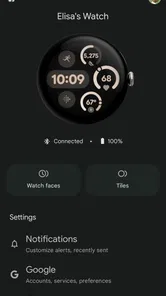
Google Pixel Watch is a device app from Google LLC for setting up and managing a Google Pixel Watch. It provides a place to connect with the watch and adjust its settings, making it useful for people who want to manage their wearable from a phone. The app is free to download and is intended for everyone.
Who publishes the Google Pixel Watch app, and when was it released?
The app is published by Google LLC and was released on September 30, 2022. It is listed in the Communication category, and its simple store description is “Google Pixel Watch.” Those details can help you identify the app when searching for the official companion app, rather than a similarly named third-party download. It is free and rated for everyone.
What features does the Google Pixel Watch offer?
The Google Pixel Watch offers a range of features including fitness tracking, heart rate monitoring, sleep analysis, and integration with Google Assistant. It also provides notifications for calls, messages, and apps directly on your wrist. The watch is equipped with GPS for outdoor activities and supports various third-party apps to enhance its functionality.
Pros
- Elegant and minimalist design
- Seamless integration with Google services
- Accurate fitness tracking
- Customizable watch faces
- Supports Google Assistant
Cons
- Limited app selection
- Battery life could be better
- No LTE option available
- Expensive compared to competitors
- Lacks advanced health sensors