Fake GPS Location-GPS JoyStick
- 3.69K
- 4.1
- Installs
- 5.00M
- Price
- Free

Screenshots
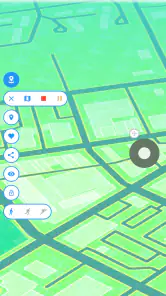
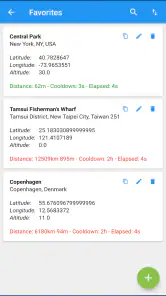
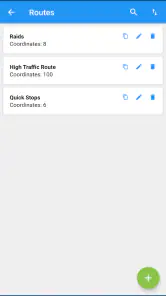

Analysis by Reviewed
Fake GPS Location-GPS JoyStick is most appealing when you first try it: moving a phone’s reported position with an on-screen control is an unusual kind of hands-on experiment. I found the idea easy to grasp, but its lasting value depends less on the novelty and more on whether you have a regular, legitimate reason to test how an app responds to different locations. It is a location simulator, not a replacement for navigation, and that distinction matters from the start.
The first-week appeal
As a Maps & Navigation app from The App Ninjas, it offers a different purpose from the usual map apps, which focus on finding real routes and helping you reach a destination. Here, the central appeal is changing the location your phone reports. The app is free, rated for Everyone, and runs on Android 4.4 or later. Its current version is 4.3.5; the app was released on February 21, 2019. It has a 4.1 average from around 105,000 ratings, with over 5 million installs.
My first practical suggestion is to begin with a modest test rather than immediately trying a complicated route. Pick a nearby point, check how the app you are testing reacts, then reset your location before relying on your phone for anything real. That small routine helps separate the simulator’s effect from the behavior of the other app, and makes it easier to tell whether a problem comes from the location change or from the app you are testing.
Setting Up the Teleportation
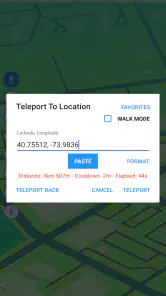
Getting started with Fake GPS Location-GPS JoyStick is as easy as pie. Once you’ve downloaded it, you’re greeted with an intuitive interface that even a tech novice could navigate. You’ll need to enable "mock locations" in your device settings, but fret not, the app guides you through the process with simple, clear instructions.
Exploring the Features
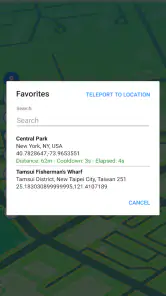
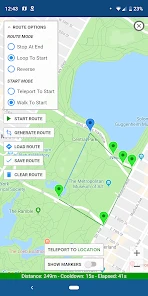
This app doesn’t just let you pick a spot on the map and call it a day. Oh no, it’s got a whole arsenal of features to make your experience as immersive as possible. You can set movement speeds, create routes to simulate walking, driving, or cycling, and even save your favorite spots for quick access. It’s like having a little piece of sci-fi magic in your pocket.
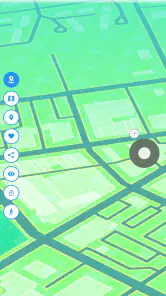
One of the standout features for me was the joystick mode. It allows you to control your location in real-time with a virtual joystick. This is particularly useful for those augmented reality games where staying in one spot just doesn’t cut it.
Why You’ll Love It
The app is a game-changer for anyone who dabbles in location-based apps, whether it’s for gaming or social media. It offers a level of flexibility and control that’s hard to beat, and it does so with a user-friendly interface that doesn’t require a degree in computer science to understand.
More From Our News Desk

Weather by Xiaomi Review: Clear at a Glance, Less Clear Up Close

X Under Pressure: Can It Recover When Posting Goes Wrong?

Clash of Clans Is Won Between the Battles

Android Auto Makes the Case for Quieter Car Software

MobiOffice: Transforming Mobile Productivity with Seamless Integration

EA SPORTS FC™ Mobile Soccer: Redefining Mobile Sports Gaming
Not to mention, it’s a fun way to get creative with your device. You can trick your friends into thinking you’re on vacation in the Bahamas or use it to access location-specific content that’s usually out of reach. The possibilities are endless!
Useful habits and trade-offs
For a developer testing a location-aware app, a saved point can make repeat checks less fiddly: return to the same place, observe the same screen, and compare what changes after an app update or a settings adjustment. A simulated route can also help reveal whether an app reacts differently while moving than while stationary. I’d treat those as controlled tests, though, not proof that a service will behave the same way in real travel conditions.
There is a meaningful trade-off between the joystick and a planned route. The joystick gives direct control when you want to make small adjustments and watch an app respond; a route is more useful when you want to observe behavior over a longer sequence without steering every moment. Neither makes this a dependable way to navigate a real trip. For that, I would use an ordinary map app that works with the phone’s actual position.
A realistic testing routine
Imagine you are building or checking an app that displays nearby places. Instead of walking around just to see whether its screen changes, you can set a test point, open the app, and note what it shows. Then you can try a second location or use a route to see whether movement affects the experience. Keeping the test small and changing one thing at a time makes the result easier to interpret; changing the simulated position, route, and app settings together can leave you unsure which change mattered.
This is also useful for someone who wants to preview how their own location-based content appears elsewhere, provided the service being tested permits that kind of testing. I would keep the exercise separate from accounts or activities where a false position could affect other people. Simulating a location can help with development and exploration, but it does not make a service’s rules disappear, and some apps may reject or ignore simulated coordinates.
Where it differs from ordinary map apps
Compared with conventional navigation tools, this app solves a narrower and almost opposite problem. A navigation app tries to tell you where you are and how to get somewhere using your real position. This simulator lets you change the position reported by the phone, so it is more relevant to testing and experimentation than to commuting, walking directions, or finding a nearby shop. If your routine is simply entering an address and following a route, switching to a location simulator adds steps without improving the trip.
Compared with manually selecting a different point whenever you want to test something, the joystick and saved places are more convenient when you repeat the same kind of check. A planned route suits a different task: watching how an app responds across movement rather than repeatedly steering a point by hand. That convenience is real, but it should not be mistaken for a guarantee that another app will accept the simulated movement or treat it like a genuine journey.
When the novelty fades
The setup step is also the main maintenance friction: mock-location settings have to be enabled, and you need to remember that the phone is reporting a simulated position while you test. I would make resetting the location part of the same routine as ending a session, especially before opening apps that depend on where you really are. If a location-based app does not respond as expected, check the setup and the target app’s behavior before assuming the joystick itself is at fault.
A simple habit can prevent avoidable confusion: decide what you want to test before starting, use one location or route for that test, and finish by switching back before returning to everyday phone use. If you share a device, make the handoff especially clear so someone else does not mistake a simulated position for the real one. This is less about mastering a complicated workflow than avoiding a small but consequential oversight: forgetting which location the phone is currently reporting.
There are also good reasons to skip this tool. If you only need directions, a conventional navigation app is simpler and better suited to the job. If you want a real-world location to be accurate for safety, travel, or meeting someone, a simulator is the wrong choice. And if your interest is only a one-off prank, the setup and the need to switch back may feel like more effort than the joke is worth. I would avoid using a false location to mislead people or get around a service’s rules.
Who is likely to keep using it?
The strongest long-term fit is someone with a recurring reason to test an app that responds to location: a developer checking a feature, a tester comparing screens at different points, or a curious user exploring how location changes affect an app they are allowed to test. For these people, returning to saved places and choosing between joystick control and a route can give the app a repeatable role. It is not just a novelty if the same kind of test comes up regularly.
Someone who only wants to explore the idea once may have a different experience. The first session is intriguing, but once you understand that the phone can report a chosen location, there may be little reason to revisit the tool unless a practical task appears. That makes it a poor choice as a general-purpose app to keep opening every day. I would install it for a clear testing purpose, rather than expecting it to become part of an ordinary navigation routine.
Questions worth settling before a session
Will every app respond to the changed position? I would not assume so. The simulator changes the phone’s reported location, but the app you are testing decides how it handles that information. If a screen does not change, check that the setup is active and consider that the target app may not respond to simulated locations in the way you expect.
Is joystick movement better than a route? It depends on the question. Use the joystick when you need to make careful, immediate adjustments and observe a reaction. Use a route when you want to watch behavior over a sequence of movement without continuously steering. For a simple check of one location, neither is necessary; selecting a point is the more direct approach.
Can it stand in for a real-world test? Not completely. A simulated point can help you check how an app displays or responds to different locations, but it cannot tell you how the phone will behave during an actual trip or prove that every part of a location-based service works outdoors. I see it as one testing tool, not a substitute for real-world checks when those matter.
Long-term verdict
Fake GPS Location-GPS JoyStick makes most sense for people who repeatedly test location-based apps, experiment with simulated movement, or enjoy exploring how their phone responds to a changed position. For those users, saved places and joystick control can make repeated sessions more convenient than changing a point manually each time. For casual users, its appeal may fade once the initial novelty wears off, because its value depends on having a reason to revisit it.
In a world where location is everything, the ability to manipulate it can be a powerful tool. This app offers an accessible and entertaining way to explore that possibility. Whether you’re using it for practical purposes or just for a bit of fun, I think it is worth considering when you have a specific, appropriate use for it.
If you’re looking for a way to spice up your mobile experience, or if you just want to have a little fun with your friends, it may be worth checking out. Just remember, with great power comes great responsibility—use it wisely. My lasting recommendation is practical rather than enthusiastic: keep it if repeatable location testing saves you time, and leave it aside if what you really need is reliable guidance from your actual position.
Fake GPS Location-GPS JoyStick Frequently Asked Questions
Is Fake GPS Location-GPS JoyStick available for Android, and what device requirements should I check?
Fake GPS Location-GPS JoyStick is an Android app in the Maps & Navigation category. It supports devices running Android 4.4 or later, so check your device’s Android version before downloading. It is free to download, and its Everyone content rating makes it suitable for a broad audience. As with any app, make sure your device has enough available storage for installation.
Can I use Fake GPS Location-GPS JoyStick to test my own location-based app?
Yes. A common use for a GPS simulator is testing how an app responds to different locations without physically traveling there. Fake GPS Location-GPS JoyStick lets you set a virtual location and provides a joystick for interactive movement. If you are testing software, use it only in ways that comply with the rules and permissions governing the app or service you are testing.
Does the joystick let me move gradually, or can I only teleport to a location?
The app is described as a GPS simulator with a joystick, so it offers both the idea of choosing a location and a more interactive way to move the simulated position. That can be useful when you want to explore how location-aware apps react as a position changes. How another app responds can depend on its own behavior and rules.
What Android version do I need to use Fake GPS Location - GPS JoyStick?
Fake GPS Location - GPS JoyStick is an Android app in the Maps & Navigation category, and it supports devices running Android 4.4 or later. Before downloading, check your device’s Android version and make sure you have enough storage available. The app is free, so you can try its location-simulation features without paying for the download.
What is Fake GPS Location - GPS JoyStick and how does it work?
Fake GPS Location - GPS JoyStick is an application that allows users to manually set their device's GPS location to any place in the world. It works by creating a virtual location on your device, which can be used for various purposes like testing location-based apps, accessing geo-restricted content, or tricking applications into thinking you are somewhere else. The app provides a joystick feature to make location movement more interactive and precise.
Pros
- User-friendly interface for easy navigation.
- Allows location spoofing without rooting.
- Customizable location settings and speeds.
- Works on both Android and iOS platforms.
- Regular updates ensure app reliability.
Cons
- May drain battery faster than usual.
- Can interfere with location-based apps.
- Some features require in-app purchases.
- Not available in all countries.
- Potential risks if misused for illegal purposes.
- Category
- Maps & Navigation
- Version
- 4.3.5