Bluetooth - Auto Connect
- 1.12K
- 4.2
- Installs
- 1.00M
- Price
- Free

Screenshots
Analysis by Reviewed
If Bluetooth connections keep turning into a small daily chore, Bluetooth - Auto Connect is the kind of Tools app that is worth trying before you start changing phones, headphones, or car accessories. I approached it as a first-time user would: install it, look for the simplest useful result, and see whether it makes returning to familiar Bluetooth devices less annoying. Its purpose is straightforward, but the practical value depends on how many Bluetooth accessories you use and how predictable your routine is.
Developed by Devolutionapps, the app is free to install and is rated for Everyone. It has reached more than a million installs, with an average rating of 4.2 from roughly eleven thousand ratings. Those figures suggest that it has found a real audience among Android users who want a more convenient way to deal with Bluetooth, although they should not be read as a promise that every phone and accessory will behave exactly the same way.
The most important thing to understand before installing it is that this is not a replacement for Android’s Bluetooth system. It works around the everyday inconvenience of reconnecting with devices you already own. That makes it more useful for repeated routines than for solving a broken pairing process. If your headphones have never paired successfully, the first job is still to pair them through the phone’s normal Bluetooth settings.
What to expect from Bluetooth - Auto Connect
On my first look, I would describe Bluetooth - Auto Connect as a convenience layer rather than a complete Bluetooth control center. The store presents it as a useful mobile Bluetooth tool for Bluetooth devices, and that description fits the basic idea: the app is aimed at helping connections happen with less manual attention. Its strongest appeal is not discovering some hidden capability in your hardware, but reducing the number of taps involved in a familiar connection.
That distinction matters. Bluetooth behavior is shared between the app, Android, and the accessory itself. A phone may remember a speaker perfectly but still wait for the speaker to wake up. A car system may take a moment to become available after the engine starts. Wireless earbuds may connect one side first and then complete their own internal connection. An auto-connect utility can make the process more convenient, but it cannot remove every delay caused by the device being asleep, out of range, busy with another phone, or not ready to accept a connection.
I also found the app easier to judge when I focused on one repeatable task. For example, if I use the same earbuds during a morning walk, the meaningful question is not whether the app can manage every Bluetooth product in the house. The question is whether those earbuds are easier to reconnect when I need them. This narrower test gives a much more honest impression than trying to make it a universal solution.
The app runs on Android devices using at least version 7.0, which makes it relevant to a broad range of phones. Its current version is 93.0, so I would still check that your phone’s Android version and manufacturer interface are compatible before relying on it for an important routine. Android brands handle background behavior differently, and battery-saving settings can affect utilities that need to remain available.
More From Our News Desk

Weather by Xiaomi Review: Clear at a Glance, Less Clear Up Close

X Under Pressure: Can It Recover When Posting Goes Wrong?

Clash of Clans Is Won Between the Battles

Android Auto Makes the Case for Quieter Car Software

MobiOffice: Transforming Mobile Productivity with Seamless Integration

EA SPORTS FC™ Mobile Soccer: Redefining Mobile Sports Gaming
Getting through the first setup
I recommend starting with a device that already works normally. Open the phone’s Bluetooth settings and confirm that your headphones, speaker, car system, or other accessory appears as a saved device and can connect without the app. This simple check prevents a common mistake: blaming Bluetooth - Auto Connect for a pairing problem that existed before the app was installed.
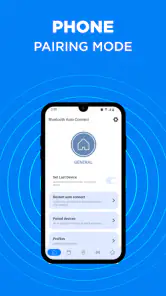
After installing, take a moment to look through the app rather than immediately enabling every available option. The cleanest first setup is based on one known accessory. Choose the device you use most often, then test the connection while the accessory is close to the phone and ready to pair. A single-device test gives you a clear baseline and makes it easier to identify whether a later change helps or causes confusion.
One practical tip is to avoid testing while several nearby Bluetooth devices are active. If your phone can see earbuds, a watch, a car system, and a speaker at the same time, it becomes difficult to tell which connection the app is trying to prioritize. For a first meaningful result, temporarily keep the setup simple. Once the intended accessory connects reliably, add other devices one at a time.
Another useful habit is to keep the accessory’s own behavior in mind. Many headphones connect automatically when removed from their case, while some speakers require a press of the power or pairing button. If the accessory is not awake, an app cannot create a stable connection from nothing. The best first test is therefore: wake the device, keep it nearby, open the app if needed, and see whether the saved Bluetooth relationship is handled more smoothly.
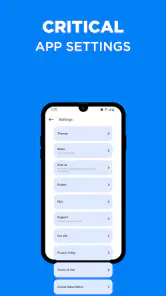
Android’s battery controls are also worth checking if the app seems inconsistent. Aggressive background restrictions can interrupt utilities that are expected to react when a device becomes available. I would not change several phone settings at once, though. First test the app normally, then adjust one battery-related setting only if the behavior clearly suggests that Android is stopping it. This approach avoids trading a small Bluetooth convenience for unnecessary battery or privacy concerns.
The first successful action should be simple
For a first success, I would use a familiar pair of wireless headphones. Start with the headphones disconnected and close to the phone. Wake them, let the phone recognize them, and use Bluetooth - Auto Connect as the helper for returning to that saved connection. Then play a short audio clip or make a brief test call. This confirms more than a connection icon: it shows that the useful audio route is actually working.
That distinction is important with Bluetooth audio. A phone can show that headphones are connected while sound still comes from the handset, or while the accessory is connected for calls but not media. A successful test should include the activity you care about most. If you mainly use a speaker for music, test music. If you rely on a car system for calls, test the call path rather than assuming the result from a status message.
Once the first connection works, repeat the same routine later instead of immediately adding complexity. Turn the accessory off, move it away briefly, or let it sleep naturally, then bring it back near the phone. The goal is to learn whether the app helps with your real routine, not an idealized one-time demonstration. In my experience with Bluetooth tools, repeatability is more valuable than a fast first connection.
A useful workflow is to keep a mental order for your devices. If you leave home with earbuds, use those first. When you return to the car, let the car system become available before trying to connect to a portable speaker. This is not a glamorous feature, but it is an important trade-off: automatic behavior works best when your Bluetooth environment is organized. The more devices compete at the same moment, the more likely you are to need a manual choice.
Where first-time users can get confused
The word “automatic” can create unrealistic expectations. It does not necessarily mean that every device will connect instantly after Bluetooth is switched on. The accessory may be connected to another phone, the battery may be low, the device may still be in pairing mode, or Android may be handling a different saved connection first. When the result is inconsistent, I would check those ordinary causes before deciding that the app has failed.
Another source of confusion is confusing pairing with connecting. Pairing is the initial trust relationship between the phone and the accessory. Connecting is what happens when that relationship is used again. Bluetooth - Auto Connect is most useful after the first relationship is already established. If you deleted the device from Android’s saved list, reset the headphones, or changed phones, you may need to complete the normal pairing process again.
Multiple accessories can also make behavior look random. Some phones remember several devices but prefer the one that became available first. A car system may take priority over earbuds because it is waking up at the same time as the phone. If you want predictable results, disconnect unused accessories during testing and avoid leaving old devices powered on nearby. This is one of the less obvious limitations of any auto-connection approach: convenience depends partly on the order in which hardware announces itself.
There is also a difference between Bluetooth profiles. A speaker, keyboard, car kit, and fitness accessory do not all use Bluetooth in the same way. A connection that works for audio does not tell you everything about a keyboard or another type of device. I would judge the app against the exact accessory and task I care about, rather than expecting identical behavior across every Bluetooth product.
If a connection loops, drops repeatedly, or refuses to settle, I would stop trying to force it through the app. Turn Bluetooth off and on, check the accessory’s own pairing state, and use Android’s standard settings to forget and pair the device again if necessary. Repeated automatic attempts can make troubleshooting harder because they hide the original problem. The app is most helpful when it simplifies a healthy connection, not when it masks a damaged pairing record.
Everyday situations where it makes sense
The clearest use case is a person who repeatedly returns to the same Bluetooth accessory. Imagine leaving home with earbuds, putting them away at work, and taking them out again on the way home. If the phone and earbuds already know each other, reducing manual reconnection steps can make that routine feel less interruptive. The same applies to a personal speaker used in one room or a car system used for most commutes.
It can also help people who are uncomfortable navigating Android’s Bluetooth menus. The standard settings are perfectly adequate for occasional pairing, but they can feel tedious when used several times a day. A dedicated utility gives the task a more focused place, which may be reassuring for someone who wants to manage a familiar accessory without searching through the full settings screen.
A less obvious benefit is troubleshooting discipline. By testing one saved accessory at a time, I can separate an app problem from a crowded Bluetooth environment. That makes the app useful as a practical experiment even when the final result is mixed. If the headphones reconnect consistently but the car system does not, I have learned something about the specific hardware combination rather than concluding that Bluetooth itself is unreliable.
There are situations where I would skip it. If you pair a Bluetooth device only once every few months, the standard Android settings are probably simpler. If your phone already reconnects to everything reliably, adding another utility may not improve your experience. I would also be cautious about depending on it for a safety-critical workflow, such as assuming a car connection will always be ready before a call. Always confirm the connection manually when the consequence of failure matters.
How it compares with the usual alternatives
The obvious alternative is Android’s built-in Bluetooth panel. That option has the advantage of being familiar, integrated, and usually sufficient for initial pairing. It is the better choice when you want the fewest installed tools or when you are diagnosing a connection that has never worked. Bluetooth - Auto Connect becomes more attractive when the same manual steps repeat often and you want a dedicated convenience layer.
Phone-brand Bluetooth tools can be another alternative. Some manufacturers include device routines, automation, or accessory management in their own software. Those tools may fit the phone more closely, but their behavior varies by brand and model. A dedicated app can be easier to try across compatible Android phones, while the built-in option may be more deeply integrated. I would choose the built-in route first if it already handles your routine well.
Automation apps offer a third path. They can sometimes trigger actions based on a connected device, location, time, or other conditions. That flexibility is useful for advanced users, but it also brings more setup and more opportunities for a rule to fail. Bluetooth - Auto Connect is the more focused experiment if your only goal is improving Bluetooth reconnection. I would move to broader automation only when I needed actions beyond the connection itself.
Dedicated manufacturer apps for earbuds, speakers, or car accessories may still be better for firmware, equalizer controls, button customization, or device-specific diagnostics. Bluetooth - Auto Connect should not be judged as a replacement for those companion apps. Its value is in the connection workflow. If your main problem is sound tuning or updating the accessory, use the manufacturer’s software instead.
What the free app means in practice
Bluetooth - Auto Connect is free to install, which makes it easy to test with one accessory before deciding whether it earns a permanent place on your phone. In-app purchases range from $5.99 to $59.99 per item, so I would pay attention to any purchase screen and make sure the free experience already addresses your need before spending money. For a basic reconnection problem, testing first is especially important because the benefit depends heavily on your phone and hardware combination.
The app’s Everyone content rating makes it approachable for general household use. Still, I would treat Bluetooth access as something to understand rather than approve automatically. Bluetooth devices can include headphones, cars, keyboards, and other personal accessories, so I prefer to review what the app asks to access and keep only the devices I actually use. Good device organization also improves the app’s chances of behaving predictably.
With a rating of 4.2 and about eleven thousand ratings, the overall response is encouraging without suggesting universal perfection. I read that kind of result as “worth a practical trial,” not “guaranteed on every phone.” The app has more than a million installs, which gives it enough visibility to be a credible option in this small utility category, but your own repeat test remains more useful than popularity alone.
My next-step recommendation
After the first successful connection, I would not immediately hand the app control of every accessory. Keep the setup focused on the device that causes the most daily friction. Use it for several normal routines, including leaving and returning to the Bluetooth range, waking the accessory from sleep, and switching between two common environments such as home and car. These tests reveal whether it genuinely saves effort or simply adds another place to check.
If it works well, add a second device carefully and observe which one connects when both are nearby. That experiment exposes the main trade-off of automatic Bluetooth management: fewer taps can come with less certainty when several saved devices compete. If the result becomes unpredictable, simplify the device list or return to Android’s manual controls for that situation.
My final view is favorable but measured. Bluetooth - Auto Connect is best for repeat Bluetooth routines, not for repairing every wireless problem. I would recommend it to someone who frequently reconnects to the same earbuds, speaker, or car system and wants a more convenient starting point than the standard settings screen. I would skip it if Bluetooth already works smoothly, if I need deep accessory controls, or if I cannot tolerate occasional troubleshooting.
For a first-time user, the safest path is clear: begin with one already-paired accessory, test a real activity such as music or a call, keep competing devices out of the way, and change only one phone setting at a time. That process gives the app a fair test and gives you useful information even if your particular hardware combination is not a perfect match. As a free Tools app from Devolutionapps, it is easy enough to try, provided you judge it by the small daily problem it is meant to solve.
Bluetooth - Auto Connect Frequently Asked Questions
Is Bluetooth - Auto Connect free to download, and are there in-app purchases?
Bluetooth - Auto Connect is free to download, so you can install it without paying upfront. The app also offers in-app purchases, which are listed at prices ranging from $5.99 to $59.99 per item. You can review any purchase options inside the app and decide whether they are relevant to the features you want to use before spending money.
Is Bluetooth - Auto Connect suitable for all ages, and which phones can run it?
The app has an Everyone content rating and is intended for Android devices running version 7.0 or later. Before downloading, check your phone’s Android version and make sure you are comfortable granting the Bluetooth permissions needed for the features you plan to use. Its category is Tools, and the developer is Devolutionapps.
What is Bluetooth - Auto Connect, and what does it do?
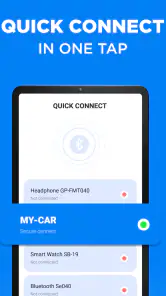
Bluetooth - Auto Connect is designed to simplify connections between your Android device and previously paired Bluetooth accessories, such as headphones, speakers, car systems, keyboards, or smartwatches. Instead of opening Bluetooth settings and selecting a device manually each time, the app can help reconnect to chosen accessories automatically when they become available. Its usefulness depends on your phone model, Android version, Bluetooth permissions, and the accessory itself.
How do I set up automatic connections with my Bluetooth devices?
Before using automatic connection features, pair your accessory with your phone through the standard Android Bluetooth settings. After that, open Bluetooth - Auto Connect and select the devices you want the app to prioritize or reconnect automatically. You may also need to enable required permissions, allow background activity, and exclude the app from battery optimization. Keep in mind that some manufacturers restrict background processes, so setup can vary between phones.
Does Bluetooth - Auto Connect work with every Bluetooth accessory?
The app can generally work with many common Bluetooth accessories, including audio devices, vehicles, speakers, and wearable products, provided they have already been paired correctly with your phone. However, compatibility is not guaranteed for every device. Some accessories use proprietary connection procedures, support only one active connection, or enter deep sleep when idle. Results may also differ depending on Android’s Bluetooth implementation and the phone manufacturer’s software.
Pros
- Automatically reconnects to selected Bluetooth devices.
- Saves time by reducing repeated manual pairing steps.
- Useful for cars
- headphones
- speakers
- and smart accessories.
- Simple interface with device-specific connection settings.
- Can help maintain stable connections after interruptions.
Cons
- May not work consistently with every phone or Bluetooth accessory.
- Automatic connections can drain battery when scanning frequently.
- Some features may require accessibility or background permissions.
- Unexpected reconnections can interrupt other active Bluetooth devices.
- Compatibility and reliability may vary across Android versions.
- Category
- Tools
- Version
- 93.0