TV Cast | Ultimate Edition
- 539.00
- 4.0
- Installs
- 100.00K
- Price
- $9.99

Screenshots
Analysis by Reviewed
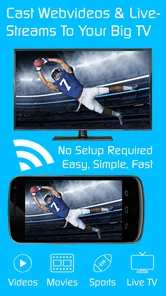
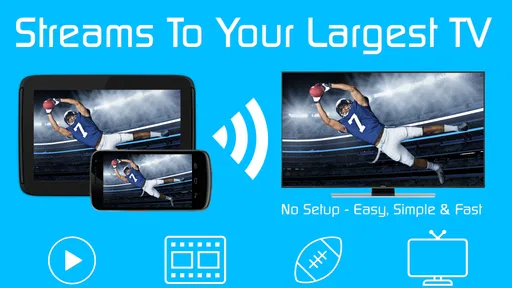
I usually notice the difference between a useful casting tool and a frustrating one during an ordinary evening: I find a video on my phone, want it on the television, and do not want to spend several minutes searching for the right app or fighting with a remote. TV Cast | Ultimate Edition is built for that exact handoff. Developed by 2kit consulting, it sits in the video player and editing category, but its real purpose is simpler: moving web video from a mobile device to a larger screen.
After using it, my impression is that this is a practical utility rather than a full entertainment platform. It does not try to replace every streaming service, and it is not an editor for cutting clips or adding effects. Instead, it acts as a bridge between a browser-based video and a television or receiver. That focus makes it appealing when the source is a website, but it also means the experience depends heavily on the page, the receiver, and the way the video is delivered.
The important question is not whether it casts video in general, but whether it fits the way you watch. If you often discover clips, lectures, independent videos, or other web content on a phone and want to continue watching on a compatible television, this app has a clear purpose. If nearly everything you watch already lives inside dedicated television apps, its extra step may not justify the purchase.
From finding a web video to watching it on the television
When I move from locating a web video to watching it on the television, I find it helps to treat the handoff as a short sequence rather than a single cast button. I first make sure the video plays on the phone, then check that the receiver is ready before settling in. That little bit of preparation makes the next part—judging how quickly the experience feels—much easier.
The starting point: a video that is stuck on the small screen
My typical starting condition is a web page open on a phone. The video may play perfectly on the handset, yet the small display is uncomfortable for a longer session. Rather than mirror the entire phone screen, I want the television to receive the video while the phone remains available for browsing or control. That distinction is where TV Cast | Ultimate Edition becomes useful.
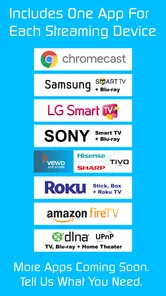
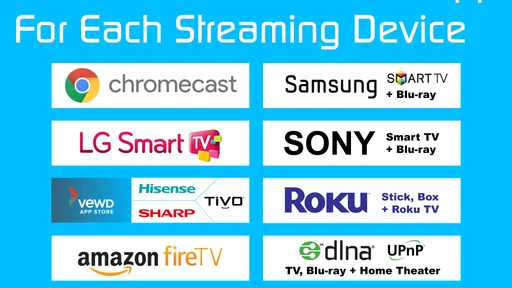
The app is designed to work with a broad range of receiving hardware. Its store summary names Chromecast, Samsung, LG, Sony, Roku, Fire TV, DLNA devices, and additional compatible targets. That range is helpful for households with mixed equipment, especially when one person uses a Chromecast and another television relies on a built-in casting system or a media receiver.
Compatibility should still be treated as a practical test, not a guarantee that every web page will behave identically. A television brand can support casting while a particular website uses a video player that does not hand off cleanly. I found it more sensible to judge the app by the sources I actually use rather than by the number of receiver types listed around it.
More From Our News Desk
 Instagram
Instagram’s Power Comes From Its Place in Your Phone
A close look at how Instagram turns Meta’s reach, recommendation systems and everyday camera habits into durable platform power—and what that costs users.

 Gmail
GmailGmail in a Busy Inbox: Who Benefits Most?
From first account to crowded workday, Gmail earns its place through dependable search and flexible sorting—but its best fit depends on how much inbox maintenance you can tolerate.

 Prime Video
Switching to Prime Video: What Changes in Your Viewing Routine
Prime Video can make a compelling second home for streaming, but switching means learning a different catalog, rental layer, and route from browsing to playback.

 Universal TV Remote Control
Universal TV Remote Control Works Best as a Reliable Backup
A phone remote earns its place through quick setup and reliable habits. Here is how to get more from Universal TV Remote Control—and where its limits show.

 Weather - By Xiaomi
Weather by Xiaomi Review: Clear at a Glance, Less Clear Up Close
Xiaomi’s weather app makes everyday forecasts quick to scan, but its calm surface can leave useful details and recovery paths harder to find than they should be.

 X
XX Under Pressure: Can It Recover When Posting Goes Wrong?
A resilience-focused review of X, examining setup, mistaken posts, interruptions, weak connections, and the gaps that matter when recovery needs to be dependable.
Latest News



Choosing the source before pressing cast
The first useful habit is to start with the video page itself, not with the television. I open the page, let the content load, and check that the video plays normally on the phone. This small check prevents a common mistake: assuming the casting app can repair a source that already fails in the mobile browser.
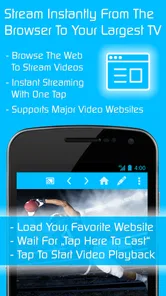
Once the page is ready, the app’s job is to identify the playable web video and send it toward the selected receiver. In practice, this is different from opening a native streaming service. A service such as YouTube or a major subscription platform usually controls both the mobile app and the television application. Here, the source is a web page, so the handoff has more variables.
That makes the app particularly interesting for content that has no convenient television app. I can imagine using it for a local organization’s recorded talk, a course page, a news clip embedded in an article, or a video shared by a friend through a browser link. The value appears when the content exists on the web but the living-room setup does not offer a direct route to it.
Connecting to the receiver
The next step is selecting the screen or receiver. This is where the home network matters. The phone and receiving device need to be discoverable to one another, and the television must be awake and ready to accept the connection. When that foundation is already in place, the process feels much lighter than plugging in a cable or starting full-screen mirroring.
I prefer this approach for situations where I want to keep using the phone independently. With mirroring, notifications, accidental taps, and changes between apps can become part of what appears on the television. A casting workflow is cleaner because the phone is used to initiate and manage playback rather than becoming the entire video source on the big screen.
There is a trade-off, though. A cable connection is often predictable once the correct adapter is available, while wireless casting introduces discovery and network variables. If the receiver does not appear, I would first check that both devices are on the same home network, that the television is switched to the correct input, and that the video still plays in the original page. Those checks are more useful than repeatedly tapping the cast control.
Sending playback and keeping control nearby
After the receiver is chosen, the desired outcome is straightforward: the television plays the web video while the phone remains the convenient control point. This is a better fit than mirroring when I want to browse for the next item without displaying every action on the television.
One of the less obvious strengths of this arrangement is how it handles casual group viewing. At home, one person can find a clip on a phone and put it on the shared screen without passing the remote around. For a short video, that can be faster than launching a television app, navigating its search interface, and typing with an on-screen keyboard.
The same workflow can help with presentations that are informal rather than corporate. If I am showing a web-hosted demonstration or a reference clip during a discussion, casting can keep the audience focused on the television instead of gathering around a phone. I would still test the exact page beforehand when timing matters, because web playback is less controlled than a downloaded file.
What happens when the handoff is successful
The successful result is not merely a larger copy of the phone display. It is a more comfortable viewing path from web page to television. The phone becomes the starting point and control surface, while the receiver handles the visible playback. That separation is the reason I see this app as a useful specialist tool rather than another general video player.
It also changes how I think about the app’s category. Although it appears among video players and editors, I would not install it expecting trimming, filters, subtitles creation, or a media library. Its strength is delivery. The app helps move existing web video to a compatible screen; it does not turn an ordinary web page into a fully managed streaming service.
Handoffs between devices: where convenience depends on preparation
The workflow includes several handoffs: from the web page to the app, from the app to the receiver, and from the phone’s controls to the television’s playback. Each one can succeed independently, which is helpful when troubleshooting. If the page will not play on the phone, the source is the likely issue. If the page plays but the receiver is unavailable, the network or device connection deserves attention. If the television starts but playback stops, the web player or receiver compatibility may be involved.
This separation is one of the most useful practical insights. Instead of treating “casting” as a single button that either works or fails, I would diagnose the chain in order. First confirm local playback, then receiver visibility, then the actual transfer. That approach saves time and makes the app easier to use in a household where several televisions or receivers are available.
A second useful insight is to choose the receiver before beginning a long browsing session. If I wait until everyone is ready to watch, a missing device or sleeping television can interrupt the moment. Connecting early, then searching for the video, creates a smoother handoff and makes the app feel more dependable.
Handling different kinds of web video
Not all web video is packaged the same way. A simple page with a standard player is a more natural match than a page filled with layered advertising, unusual playback controls, login gates, or a player designed only for a specific browser environment. I would not interpret a difficult page as proof that the whole app is broken; it may be the source refusing to expose a stream in a way the receiver can use.
This is also why the app should not be compared directly with a native television application. A native app usually knows the service’s catalog, account system, and playback rules. TV Cast | Ultimate Edition works at the web-video layer, which gives it broader potential reach but less control over the content it encounters.
For reliable viewing, I would favor pages that already play cleanly without special browser actions. If a video requires several pop-ups to be closed, changes quality unpredictably, or starts only after a complicated interaction, I would expect more friction during casting. That is a realistic limitation of the workflow, not something a receiver list can eliminate.
The everyday scenario where it makes the most sense
Imagine finding a forty-minute talk on a website while sitting at the kitchen table. On the phone, the speaker is understandable but the screen is tiring. I would open the page, verify that the talk plays, select the living-room receiver, and let the television handle the viewing. The phone can then stay nearby for pausing, returning to the page, or finding related material.
This scenario shows the app’s strongest balance: the content is too inconvenient for a phone but not important enough to justify a complicated setup. It is also a good example of why a broad receiver range matters. The best casting tool is the one that works with the television already in the room, not the one that forces a household to buy another device.
Where the flow breaks
The main weakness is that the app sits between several systems it does not fully control. A website can change its player, a receiver can disappear from the network, or a television can handle one type of stream better than another. These interruptions make the experience less consistent than launching a dedicated app on the television.
I would also be cautious with content that depends on protected playback or a service’s own application. Some platforms intentionally restrict how their videos can be sent to external receivers. In those cases, the official television app is usually the better route, assuming one exists. Trying to force every source through a web-casting utility is likely to create disappointment.
Another point is the cost. At $9.99, this is not an impulse download for someone who only casts occasionally. The purchase makes more sense for a person who regularly watches web video on a television and wants one tool that can work across several receiver families. Someone who owns one streaming box and mainly uses its official apps may get more value from staying within that ecosystem.
The app has an Everyone content rating, which fits its role as a general viewing utility. It was released on November 15, 2016, and the current version is 1.6, with a minimum operating-system requirement of 4.4W. Those details suggest that device compatibility should be checked carefully on older or unusual hardware before relying on it for a specific setup.
How it compares with the usual alternatives
Compared with ordinary screen mirroring, this app offers a more focused viewing handoff. Mirroring is easier to understand because everything on the phone appears on the television, but that is also its drawback. The phone must remain active as the visible source, and unrelated activity can interrupt the session. Casting a web video is cleaner when the source can be recognized and transferred.
Compared with a cable, the app is more convenient for a casual session and avoids physical adapters. The cable still has an advantage when reliability is more important than flexibility, such as a long presentation or a video that must play without depending on wireless discovery. I would choose the cable when I cannot afford to troubleshoot a receiver at the last minute.
Compared with official television apps, TV Cast | Ultimate Edition wins on web reach. It can be relevant when a service, publisher, or personal source does not offer a suitable television application. Official apps win on consistency, account integration, search, and content designed specifically for the television interface. The best choice depends on whether the starting point is an open web page or a known streaming catalog.
Compared with free casting tools, the paid edition needs to earn its place through regular use and broader device coverage. I would not buy it simply because the phrase “cast video” sounds useful. I would buy it after identifying a repeated problem: web videos I watch often, a receiver I already own, and a preference for avoiding full-screen mirroring.
Who should use it and who should skip it
I think the app is a good match for people who discover video through mobile browsers, live in a home with several kinds of television hardware, and want a direct path from web content to the big screen. It is also suitable for users who dislike mirroring the entire phone and prefer to keep browsing separate from playback.
I would be more hesitant to recommend it to someone whose viewing is limited to major services with excellent native television apps. That person may gain nothing from adding a browser-to-receiver step. I would also suggest skipping it if a wired connection is essential, if the home network is unreliable, or if the intended videos regularly require special logins and protected playback.
The app’s average rating is 4.0 from around 2.9 thousand ratings, with roughly 539 written reviews, and it has passed 100 thousand installs. I read that overall reception as consistent with a useful but situation-dependent tool: valuable when the workflow matches, less compelling when the source or receiver does not cooperate.
My final take on the complete workflow
TV Cast | Ultimate Edition succeeds when I treat it as a bridge, not as a replacement for every video app. The complete path is easy to understand: begin with a web video that plays on the phone, select a compatible receiver, send the playback to the television, and use the phone as the nearby control. When each handoff works, the result is comfortable and pleasantly direct.
Its limitations are equally clear. Web pages vary, wireless devices sometimes need preparation, and official television apps remain better for services built around their own ecosystems. The $9.99 price is reasonable only if web casting is a recurring need rather than a rare experiment.
My recommendation is therefore specific: choose it if your real problem is “this video is on a website, but I want it on my television.” Before purchasing, think through the exact receiver and the pages you watch most. If those two parts fit, TV Cast | Ultimate Edition is a practical way to turn a phone-first discovery habit into a larger-screen viewing routine. If they do not, mirroring, a cable, or the official television app will probably be the less frustrating answer.
TV Cast | Ultimate Edition Frequently Asked Questions
Can I use TV Cast | Ultimate Edition on my phone or tablet?
TV Cast | Ultimate Edition is an app in the Video Players & Editors category, developed by 2kit consulting. It is available for Android and iOS devices, and the Android version requires Android 4.4W or later. Check your device’s operating-system version before downloading, and make sure you choose the edition offered for your platform.
How much does TV Cast | Ultimate Edition cost, and is it suitable for all ages?
The app is listed at $9.99, so it is worth checking the price shown for your device and region before completing a purchase. Its content rating is Everyone. TV Cast | Ultimate Edition is a mobile casting app designed to send online videos, photos, and other supported media from your Android or iOS device to a compatible smart TV or streaming receiver. Actual compatibility can vary depending on the television, receiver, website, and media format.
What is TV Cast | Ultimate Edition, and what can I use it for?
TV Cast | Ultimate Edition is a mobile casting app designed to send online videos, photos, and other supported media from your Android or iOS device to a compatible smart TV or streaming receiver. It is particularly useful when you want to watch web-based content on a larger screen without handling everything through the TV’s remote control. Actual compatibility can vary depending on the television, receiver, website, and media format.
Which TVs and streaming devices are compatible with TV Cast | Ultimate Edition?
Compatibility depends on the platform and the receiving device. The app’s description lists Chromecast, Samsung, LG, Sony, Roku, Fire TV, DLNA, and more, but not every television model or streaming stick behaves in the same way. Before downloading, check that your phone and TV can connect to the same Wi-Fi network. Some features may require a specific receiver or built-in casting support.
Does TV Cast | Ultimate Edition mirror my entire phone screen?
The app is mainly intended for casting supported online media rather than providing unrestricted, system-wide screen mirroring. In practice, you generally select a video or other compatible content inside the app and send it to the television while using your phone as a remote control. Websites with unusual players, protected streams, pop-ups, or unsupported formats may not cast correctly, so results can differ from one source to another.
Pros
- Casts web videos directly to compatible TVs and streaming devices.
- Supports popular platforms including Chromecast
- Roku
- Fire TV
- and Apple TV.
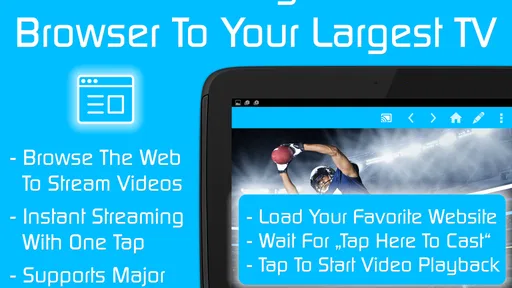
- Built-in browser makes finding and playing online videos convenient.
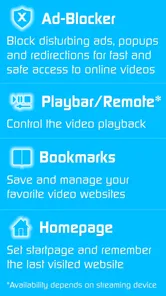
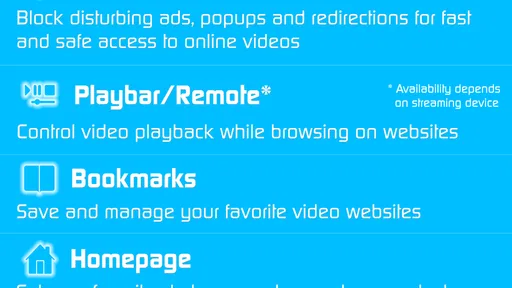
- Playback controls remain simple and easy to use during casting.
- Useful companion for viewing web content on a larger screen.
Cons
- Some casting features may require a separate premium purchase.
- Compatibility can vary depending on the TV model and network setup.
- Certain websites block casting or fail to load videos correctly.
- The app depends on a stable Wi-Fi connection for smooth playback.
- Ads or upgrade prompts may interrupt the experience in the free version.