Turbo Cleaner - Junk Clean
- 66.00
- 3.8
- Installs
- 1.00M
- Price
- Free

Screenshots
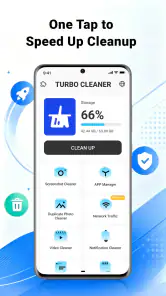
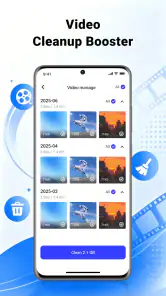
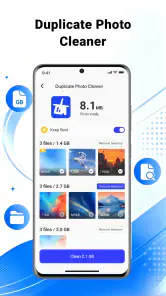
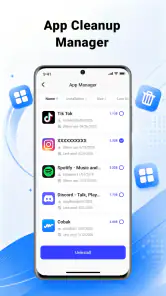

Analysis by Reviewed
When my phone starts feeling cluttered, I don’t want a complicated cleanup routine or an app that makes decisions on my behalf without a clear reason. Turbo Cleaner - Junk Clean is aimed at a simpler job: helping me deal with unwanted clutter and sort photos, videos, and files. It is a free tools app from CN CodeHub, and its focus makes sense for people who want to tidy a device without turning storage management into a project.
My practical take is that this is best approached as a helper for periodic housekeeping, not as a magic speed button. The useful question is not whether a cleaner promises to make a phone feel new, but whether it helps me find things I’m comfortable reviewing and removing. Used that way, Turbo Cleaner can support a repeatable routine while leaving the important decisions with me.
A sensible cleanup routine starts with review
Begin with the clutter you recognize
I would start by opening Turbo Cleaner when I have a few minutes to spare, rather than tapping through cleanup prompts in a rush. The app’s purpose covers junk, photos, videos, and files, so a careful first pass means treating those as separate kinds of clutter. I’d review likely disposable items first, then move to personal media and documents only when I can identify what each item is.
That distinction matters. A temporary file and a video from a family event may both take up space, but they are not equally safe to remove. A cleaner can help surface material worth considering; it cannot know which blurry photo is a treasured memory or whether a downloaded document is still needed. My rule is simple: if I cannot tell what something is or why it is there, I leave it alone until I can check.
For a realistic example, imagine I’ve recorded several clips during a weekend trip and then downloaded maps, tickets, and a few shared files. Before clearing anything, I’d look through the large videos and decide which clips are duplicates or failed recordings. I’d handle the tickets and maps separately, since a file that seems disposable after the trip might still be useful for a receipt or reimbursement. This slower first pass is safer than treating every suggested item as junk.
Make photo and file cleanup a deliberate task
Media cleanup works better when I have a goal. If I’m trying to reclaim space before recording more video, I’d focus on clips I can identify and no longer need. If I’m trying to make the gallery easier to browse, I’d look for obvious duplicates or screenshots that have already served their purpose. Those are different tasks: one is about storage, the other about reducing visual noise.
I would also avoid turning a cleanup session into an all-or-nothing purge. Sorting a small, recognizable group at a time makes it easier to notice mistakes and keep items that matter. A useful habit is to review screenshots, downloads, and old recordings in separate passes, rather than mixing them into one long session. That approach takes more attention, but it reduces the chance that an important file disappears among unrelated clutter.
More From Our News Desk

Clash of Clans Is Won Between the Battles

Android Auto Makes the Case for Quieter Car Software

MobiOffice: Transforming Mobile Productivity with Seamless Integration

EA SPORTS FC™ Mobile Soccer: Redefining Mobile Sports Gaming

How Microsoft OneDrive Became a Mobile Productivity Giant

How Google Translate Breaks Language Barriers Effortlessly
The app is rated for Everyone, which makes its intended audience broad, but that does not make every cleanup decision suitable for every user. If a device is shared with family or used for work, I’d be especially cautious with files that belong to someone else or support a current task. The person holding the phone may not be the person who knows what every file is for.
Check the outcome, not just the cleanup prompt
After reviewing and removing anything I’m sure I no longer need, I’d return to the phone’s storage view or the relevant folder and make sure the result matches my intention. This is a small but useful check: it confirms that I removed the clutter I meant to remove and helps me notice if I was expecting a different result. I wouldn’t assume that every cleanup action will solve a slow-phone problem, because storage tidiness and performance are not the same thing.
This is also why I prefer a measured routine over frequent, automatic-feeling purges. If I can’t explain what I’m deleting, the right next step is to pause, not to clear more. Turbo Cleaner is most useful when it helps me organize a decision, not when I use it to avoid making one.
Settings and habits that make cleanup safer
Check the choices before building a routine
Before using any cleaner repeatedly, I’d inspect its available settings and the way its cleanup suggestions are presented. I’m looking for practical details: whether I can review items before removing them, whether categories can be handled separately, and whether an action is clearly described. These checks help me decide how much trust to place in a routine. I would not assume a feature exists until I can see it in the app.
On an older Android device, it is also worth confirming that the app can run on the installed system. Turbo Cleaner lists Android 7.0 as its minimum operating system, so users on an earlier version should not plan around it. If I’m helping someone else set it up, I’d check their device version first instead of treating installation as a given.
I’d keep the app’s role narrow: use it when I want to review clutter, then rely on the phone’s own file or photo tools when I need more direct control. That division is especially sensible for work documents, cloud-synced media, or shared folders. Before deleting anything that may sync across devices, I’d check where it is stored and whether removing the local copy could affect access elsewhere.
Turn cleanup into a repeatable, low-risk habit
Experienced users get more value from consistency than from aggressive clearing. I’d pick a natural moment—perhaps after a trip, a large recording session, or a batch of downloads—and review only the relevant material. The point is not to chase an arbitrary amount of freed space; it is to stop avoidable clutter from accumulating until the phone becomes difficult to navigate.
A practical workflow is to handle one category at a time: inspect media, sort downloads, and then consider any junk-cleaning suggestions. I’d finish each pass before moving to the next. This makes it easier to understand what changed and leaves less room for a mistaken tap. If I’m short on time, I’d postpone the sensitive categories rather than make hurried decisions about personal files.
I also wouldn’t install a cleaner simply because I expect it to improve battery life, network speed, or every kind of slowdown. Turbo Cleaner’s stated purpose is organization and cleanup. When an app freezes or a phone behaves oddly, I’d first investigate the specific cause using the device’s own settings and support tools. A cluttered gallery is a different problem from a failing app, and treating them as interchangeable can waste time.
Where it differs from built-in tools
Android’s built-in storage and file tools are often the better choice when I need detailed control, want to inspect a particular folder, or already know what is taking up space. They keep the task close to the operating system and may be enough for someone who only cleans up occasionally. A dedicated cleaner is more appealing when I want a single place to think about unwanted clutter alongside photos, videos, and files.
That convenience has a trade-off: a combined view can make cleanup feel easier, but it can also encourage me to move too quickly across different kinds of content. I’d use Turbo Cleaner for guided housekeeping and switch to the phone’s own tools whenever a file’s location, sync status, or purpose needs a closer look. That is not a flaw unique to this app; it is a sensible boundary for any tool that helps manage personal files.
What to expect from Turbo Cleaner over time
Popularity is context, not a guarantee
Turbo Cleaner has a 3.8 average from around 2,300 ratings, with 66 written reviews, and more than a million installs. Those figures tell me that many people have tried it, but they don’t answer whether it fits my habits or whether I’ll like its approach to reviewing clutter. I’d treat the rating as a reason to investigate, not as proof that every device or cleanup session will feel the same.
The app is currently at version V1.0.3. For a tool I may use around personal media, I’d keep an eye on how clearly it explains actions and whether the current experience feels predictable. My trust would come from understanding each step and checking the result, rather than from a version label or a broad promise.
Who should choose it—and who should not
I’d recommend giving Turbo Cleaner a look if you want a free, straightforward way to bring junk cleanup and media organization into one routine. It is a reasonable fit for someone who regularly accumulates screenshots, recordings, and downloads, but is willing to review before deleting. Its appeal is less about elaborate control and more about having a focused prompt to deal with everyday clutter.
I would skip it if I’m already comfortable managing storage through Android’s built-in tools, or if I want a highly detailed file manager with a specific folder-by-folder workflow. I’d also be cautious if I expect a cleaner to diagnose every performance issue or to make deletion decisions safely without my attention. For sensitive work files, family-shared devices, or cloud-synced libraries, direct inspection in the relevant system or service is the better choice.
My verdict: useful when I stay in control
For me, the strongest way to use Turbo Cleaner - Junk Clean is as a nudge toward regular, careful housekeeping. I’d open it with a particular goal, review one kind of clutter at a time, and leave anything uncertain for a closer look elsewhere. That routine is slower than tapping through everything, but it is much more likely to preserve the photos and files I actually care about.
As a free tools app for Everyone, it has a clear everyday role, especially for people who want help keeping media and downloads manageable. Its limits are just as important: it should complement, not replace, informed decisions and the phone’s own storage controls. If that balance suits you, Turbo Cleaner is worth considering; if you want hands-off deletion or deep file-management control, another approach will fit better.
A practical pause before deleting
One habit I’d add is to use a quick “recognize, verify, remove” check for anything personal. First, I make sure I can identify the item; next, I check whether it exists somewhere else I can still access; only then do I decide whether it should go. This is particularly useful for downloaded files, where a familiar filename may hide an invoice, a travel document, or a work attachment I still need.
If I am cleaning up just before leaving home, I would avoid making decisions about unfamiliar files on the way out. A few minutes saved is not worth losing something I need later, and the app is more useful when I can give each category proper attention. For a routine cleanup, I’d choose a calm moment and treat uncertain items as a separate follow-up task rather than letting them derail the whole session.
Choosing the right tool for the job
The usual alternatives each have a place. Android’s own storage controls suit someone who wants a direct view of what is using space, while a file manager is better for deliberate folder-by-folder work. Photo apps are often the natural place to review personal images because that is where I already recognize the context. Turbo Cleaner makes more sense when I want one focused housekeeping stop across several kinds of clutter, without expecting it to replace those more specialized tools.
That difference matters most when the goal is unclear. If I know a particular folder is full of old downloads, I can go straight there with a file tool. If I only know that my phone feels untidy and want to survey several categories, a cleaner can provide a useful starting point. I would still make the final call in context, especially for files connected to backups or cloud services.
Who benefits most from a steady routine
I see the best fit as someone who takes lots of casual photos and short videos, saves files for temporary tasks, and prefers a gentle reminder to deal with clutter before it becomes annoying. A parent sorting a shared device, a student clearing old class downloads, or a traveler reviewing trip media could all use the same basic approach: handle recognizable items first and keep other people’s files out of a rushed cleanup.
By contrast, a user who wants full control over every folder may find a dedicated file manager more comfortable, and someone who rarely runs short on space may not need another routine at all. I would also avoid making this the main tool on a device where deletion requires strict workplace or family rules. In those cases, the relevant owner or administrator should guide what can be removed.
Mastery means knowing when to stop
For me, becoming efficient with a cleaner is not about finishing every category in one sitting. It is about knowing when a suggestion is obvious, when I need another tool, and when the safest choice is to stop. That judgment keeps a quick maintenance task from turning into a risky sweep through personal data.
Used with that restraint, Turbo Cleaner can fit into a simple cycle: review a relevant category, verify the items that matter, remove only what I understand, and check the result. I would keep the phone’s built-in controls close for anything that needs more context. The app is most convincing as a practical organizer for people who want a prompt to stay on top of clutter, not as a substitute for attention.
Turbo Cleaner - Junk Clean Frequently Asked Questions
What does Turbo Cleaner - Junk Clean do?
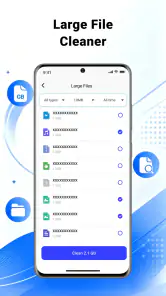
Turbo Cleaner - Junk Clean is designed to help identify files that may be taking up unnecessary storage, such as cached data, temporary files, and leftover items. Depending on the Android version and permissions available, it may also offer tools for reviewing large files or managing apps. Check each cleanup suggestion before approving it, since a file that appears expendable could still be useful to an app or to you.
Can Turbo Cleaner - Junk Clean speed up my phone?
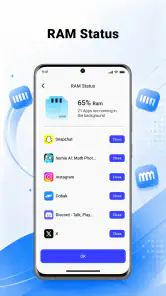
The app may help free storage by locating removable files, which can be useful if your device is nearly full. However, a cleaner cannot reliably make every phone faster, and Android already manages many background tasks automatically. Closing apps repeatedly or deleting data indiscriminately may cause apps to reload or lose saved preferences. Treat performance claims as possibilities rather than guarantees, and test whether the suggested cleanup addresses a problem you actually have.
Is it safe to delete everything the app finds?
It is better not to approve every suggested deletion without reviewing the categories and file details. Cached files are generally recreated when needed, but app data, downloads, photos, and other personal files may be important or difficult to restore. Read confirmation screens carefully, and avoid clearing an app’s storage if you do not understand the consequences. Back up valuable content before using any tool that can remove files.
Does Turbo Cleaner - Junk Clean require special permissions?
A cleaner may request access to storage so it can scan files and present cleanup options. The exact permissions can vary by app version and Android release, so review the permission prompts and the app’s listing before proceeding. Grant only access that makes sense for the feature you want to use. If a request seems unrelated, decline it and consider whether the app can still meet your needs.
Is Turbo Cleaner - Junk Clean free, and does it contain ads or in-app purchases?
Pricing, advertising, and optional purchases can change over time and may differ by region or app version. Before installing, check the current store listing for purchase details, subscription terms, and whether particular features are restricted to a paid tier. If you start a trial or subscription, note the renewal date and cancellation steps. Review the developer’s privacy information as well, especially before granting access to device files.
Pros
- Quick scans make it easy to check for unnecessary files.
- Simple interface is approachable for first-time cleaner users.
- Can help free up storage by identifying junk files.
- Useful for spotting apps that take up substantial space.
- Cleaning options let users review items before removal.
Cons
- Some detected files may be useful
- so review them before deleting.
- Cleaning apps cannot necessarily improve performance on every device.
- Frequent ads or upgrade prompts may interrupt use.
- Deep scans can take longer when a device has many files.
- Results depend on Android access permissions and available features.

- Category
- Tools
- Version
- V1.0.3