Status Saver: Video Downloader
- 861.00
- 4.8
- Installs
- 50.00M
- Price
- Free

Screenshots


Analysis by Reviewed
I first noticed Status Saver: Video Downloader as a practical answer to a small, familiar problem: someone shares a funny or useful moment in a WhatsApp status, and I want to keep it before it disappears. The idea is simple, but it helps to know what the app does—and where its limits are—before making it part of your routine.
What to expect from a focused status saver
This is a social app with a specific job: helping me keep viewed status photos and videos. I would not approach it as a general downloader or a tool for browsing people’s posts. Its usefulness depends on the everyday WhatsApp habit it supports: see a status first, then decide whether it is worth keeping as a local copy.
The app is free to install and is developed by BlueLine. Tech. It has an Everyone age rating, and its current version is 4.5.5. A 4.8 average from around 162,000 ratings and over 50 million installs show that many people use it for this narrow task, though those figures cannot promise that every item will appear on every device.
Getting from install to a saved status
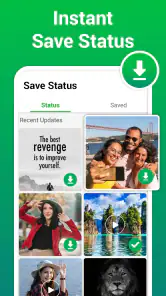
For a first-time user, the path is meant to be direct: install the app, view the status you care about in WhatsApp, then open the saver and look for the item you want to keep. The key is viewing the status in WhatsApp first; if it has not appeared there, there may be nothing ready for the saver to show. I find that order more reassuring than searching through menus or setting up an account before trying the main task.
What the simple workflow does well
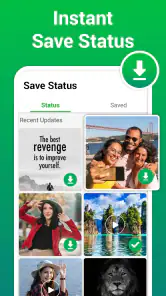
The appeal is its narrow focus: it is designed to save status media, including videos and photos, rather than act as a general file manager or social network. In my experience, that makes the main task easier to understand. Once an item appears in the app, I can choose what I want to keep instead of digging through unrelated content.
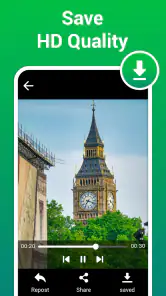
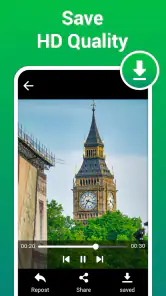
One useful habit is to save only the items I genuinely want to revisit. That keeps the phone’s gallery or downloads area from becoming a pile of near-identical clips. For something I may want to share later, I also check the saved file before forwarding it; a quick preview helps me avoid passing along the wrong moment or an incomplete download.
Where it fits—and where it does not
Compared with taking a screenshot or recording the screen, a dedicated status saver is a cleaner route when the goal is to keep a status as a media file. Those built-in workarounds can be handy in a pinch, but they may capture interface elements or require extra trimming. On the other hand, if I only need to remember a short text status, a screenshot may be quicker than opening another app.
More From Our News Desk

Weather by Xiaomi Review: Clear at a Glance, Less Clear Up Close

X Under Pressure: Can It Recover When Posting Goes Wrong?

Clash of Clans Is Won Between the Battles

Android Auto Makes the Case for Quieter Car Software

MobiOffice: Transforming Mobile Productivity with Seamless Integration

EA SPORTS FC™ Mobile Soccer: Redefining Mobile Sports Gaming
This tool is best for people who regularly save friends’ status photos or videos and want a simple, separate place to find them. It is less useful if I rarely keep status updates, want a broad media-organizing system, or expect a downloader to retrieve content I have not viewed in WhatsApp. It also cannot make a private or unavailable item accessible just because I have installed a saver.
A realistic first use
Imagine a friend posts a short clip from a family gathering, and I want to show it to someone later who was not online when it appeared. I view the status in WhatsApp, open the saver, locate the clip, and save it. Before sharing, I preview it and consider whether the person who posted it would be comfortable with that. The practical benefit is easy access; the important trade-off is remembering that saving a status does not automatically make it appropriate to redistribute.
If a status does not show up, I would first return to WhatsApp and make sure I have actually viewed it, then reopen the saver and check again. I would also avoid assuming that a missing item means the app has lost it: the source status may no longer be available, or the app may need another moment to refresh. That simple check can save unnecessary repeated downloads or app reinstalls.
Making the first save less confusing
The most useful way to test the app is with a status I can easily recognize, rather than opening it after viewing several posts and trying to guess which thumbnail belongs to which person. I would view one photo or clip, switch to the saver, and look for that specific item. This small, controlled first try makes it easier to tell whether the workflow is working and reduces the chance of saving something by mistake.
If the status is a video, I would let it finish loading in WhatsApp before switching apps. That is a practical troubleshooting step, not a guarantee: status availability can change, and a saver can only work with content that is accessible to it. When an item seems absent, I would check the source first and give the app a fresh look before repeating the whole process.
Choosing what deserves a copy
A status can feel temporary precisely because it is meant for a limited audience and a short-lived moment. I find it helpful to ask myself whether I want the file for a real reason—perhaps to revisit a family memory or keep a useful reference—before saving it. That personal filter keeps the workflow purposeful and also makes it easier to manage the media later.
For a clip someone shared in a group or among friends, I would separate keeping it for myself from sending it on to another person. The first may be a simple way to remember something; the second widens its audience. If the context is personal, I would ask before forwarding rather than assuming that a status post is an invitation to redistribute it.
Everyday trade-offs to consider
Saving several items in one sitting can be convenient, but it is worth choosing selectively. A short review of the saved media after a status-heavy day helps me keep useful clips without letting temporary posts take over storage. If I am saving something for a specific conversation, I give it a recognizable place in my normal photo workflow rather than relying on memory to find it later.
There is also a distinction between saving and backing up. A copy on the phone is handy for viewing or sharing, but I would not treat it as a permanent archive without including it in whatever backup routine I already use. If the main goal is long-term preservation of personal videos, saving directly from the original source or using a deliberate backup process is usually a better fit.
Who will get the most from it
I would recommend this kind of focused tool to someone who regularly sees status posts they genuinely want to revisit and prefers keeping those files on the phone. It suits a simple habit: view a post, save a selected photo or video, and later find it among personal media. That is different from wanting a library that automatically sorts every social post or manages a large collection across devices.
I would skip it if status updates are only an occasional part of my day. A screenshot is often enough for a quick text reminder, while a phone’s existing media tools may already cover the few photos I want to keep. It is also the wrong choice if my expectation is to retrieve statuses I have not viewed or to bypass the original poster’s privacy choices.
How it compares with familiar alternatives
The usual alternatives are manual capture and doing nothing. Screen recording can preserve a moving moment when a dedicated saver is not available, but it is a more hands-on approach and may include parts of the interface that I do not want. A screenshot is simpler for a still image or text, although it is not the same as keeping the original status media as a file.
Compared with those workarounds, a status-specific saver makes sense when I expect to repeat the task. The trade-off is adding another app to a process that might otherwise be occasional. If I only need one item once in a while, built-in capture tools are probably more convenient; if I save status media often, a dedicated place to find the item can be worth that extra step.
Easy Peasy Setup
First things first, let's talk about getting started with Status Saver: Video Downloader. Downloading and setting it up is as easy as pie. Just a quick hop to your app store, a couple of taps, and boom! It's ready to roll. The app doesn’t bombard you with annoying sign-up processes. You dive straight into action, which I absolutely love.
Sleek and User-Friendly Interface
Once you're in, the interface is super intuitive. No clutter, no unnecessary frills—just pure functionality. The app seamlessly integrates with WhatsApp, meaning all those statuses you view are just a tap away from being saved. I find the layout quite refreshing; it’s straightforward and gets the job done without overcomplicating things.
Features That Stand Out
What really makes this app shine are its nifty features. Apart from saving videos, you can also download photos from statuses, which is a nice bonus. The download speed is surprisingly fast—I mean, blink and you’ll miss it kind of fast. And get this, it supports multiple downloads at once. So, if you find yourself in a status-binge situation, fear not, this app can handle it!
Privacy Concerns? No Worries!
I know what you're thinking: "What about my privacy?" Well, the developers have got you covered. The app doesn’t require any invasive permissions. It respects your privacy while letting you enjoy its full functionality. It's like having your cake and eating it too. How cool is that?
Checking the practical details
The app is free to install, though it offers in-app purchases priced from $29.99 to $44.99 per item. I would check the purchase screen carefully before confirming anything, especially if I only want the basic status-saving task. For device compatibility, the listed minimum is Android 6.0, so I would check my phone’s operating system before trying to install it.
For a first attempt, I would keep the goal modest: view one status in WhatsApp, open the saver, and confirm that the item I intended to keep is the one I saved. If that works, I can decide whether the app belongs in my regular routine. If it does not, I would check the original status and the phone’s compatibility before assuming that reinstalling will solve the issue.
Final Thoughts
In a nutshell, Status Saver: Video Downloader is a must-have for anyone who loves collecting memories from WhatsApp statuses. It's hassle-free, efficient, and respectful of your privacy. If you're as obsessed with saving video snippets as I am, trust me, this app is worth every megabyte. So why wait? Go ahead, download it, and start saving those epic moments!
My recommendation comes with one simple condition: use it for statuses you have a good reason to keep, and be thoughtful about sharing someone else’s post beyond its original audience. If you want a focused way to keep viewed status photos and clips, it is a convenient option. If you rarely save this kind of content, your phone’s built-in screenshot tools may be all you need.
Status Saver: Video Downloader Frequently Asked Questions
Does Status Saver: Video Downloader need internet access to save or view statuses?
An internet connection is generally needed to load social media statuses in the source app before you save them. Once media has been saved to your device, you can revisit that local copy without relying on the original status remaining online. Keep in mind that the saved file’s availability and playback can also depend on your device and how the content was shared.
Where can I find media saved with Status Saver: Video Downloader?
Saved media is intended to be kept on your device so you can revisit it after downloading. Check the app’s own saved-media area first, then look through your device’s gallery or file manager if you want to locate a particular image or video. The exact folder and display method can vary with device settings and the way the app handles saved files.
Can I share a status after saving it with Status Saver: Video Downloader?
The app’s focus is tapping, saving, and sharing status media, so sharing a saved item may be useful when you want to pass it along. Before doing so, consider whether the original creator has agreed to that use. A download does not transfer ownership or remove someone’s privacy rights, and a private conversation with the creator is a sensible first step.
Is Status Saver: Video Downloader available for iPhone as well as Android?
The app is listed as an Android app, with Android 6.0 as its minimum operating-system requirement. If you use an iPhone, check the iOS app store for an official version before downloading anything, and verify the developer name to avoid confusing it with an unrelated app. The Android version’s availability does not by itself confirm iPhone compatibility.
Will Status Saver: Video Downloader work without changing my social media account settings?
Status Saver: Video Downloader is intended to save status media, but the source app’s privacy controls still determine which statuses you can see. You should not change account settings or try to bypass another person’s audience restrictions just to obtain content. If a status is not visible to you in the social app, respect that boundary rather than looking for another way to access it.
Pros
- Easy to use interface for quick downloads.
- Supports multiple social media platforms.
- High-speed video downloading capabilities.
- Allows offline viewing of saved videos.
- No login required for downloading.
Cons
- Contains advertisements that can be intrusive.
- Limited editing options for downloaded videos.
- Requires storage permissions on your device.
- Occasional bugs during downloads.
- No built-in video player for previews.
- Category
- Social
- Version
- 4.5.5