SMS Backup, Print & Restore
- 3.68K
- 4.4
- Installs
- 500.00K
- Price
- Free

Screenshots




Analysis by Reviewed
Keeping old text messages can feel unnecessary until the one conversation you suddenly need is gone. That is where SMS Backup, Print & Restore becomes useful. I see it as a practical tools app from GilApps for people who want a more deliberate way to protect message history, rather than trusting a phone migration to handle everything automatically.
In everyday use, the appeal is straightforward: you can preserve SMS conversations, bring them back when needed, and prepare them for printing. The app is free to install, suitable for Everyone, and has built a sizeable audience, with more than 500,000 installs. Its 4.4 average from roughly 14,000 ratings suggests that many users find the basic job dependable, although the experience is not completely frictionless.
My main advice is to treat it as a backup workflow rather than a magic recovery button. The safest results come from checking what you are saving, keeping the backup somewhere you can actually find later, and testing the process before your old phone is wiped. That small change in attitude avoids most of the disappointment people associate with message-recovery apps.
Where people usually get stuck
The first obstacle is often not the backup itself but the user’s expectation of what “restore” means. A saved message history is useful only if it can be located, read, and imported at the right moment. If someone creates a file and immediately changes phones without checking it, the problem may be the workflow rather than the application.
I would begin with a small, intentional backup instead of trying to preserve every conversation at once. Choose a few important threads, complete the operation, and then confirm that the result is accessible. This gives you a simple test of the whole chain: selection, saving, finding the file, and restoring it. It is also easier to troubleshoot than a large, unverified archive.
Printing creates another point of confusion. Saving messages and producing a useful paper copy are related tasks, but they are not identical. A long conversation may need some preparation before it is comfortable to read on paper. If you are preserving messages for a record, decide whether you need the complete thread or only selected exchanges. That decision affects how manageable the final result will be.
There is also a practical distinction between an app that stores message history and a service that continuously synchronizes everything in the background. This product is better suited to a deliberate backup routine: make a copy before changing phones, keep an archive for personal records, or preserve a conversation before deleting it from the device.
One useful habit is to give each backup a clear place and purpose. A file saved somewhere vague is technically a backup but not a dependable one. I would keep the archive in a location you can recognize later and avoid assuming that the phone’s internal storage will remain available after a reset or replacement.
What to check before starting
Before tapping through the process, make sure the messages you care about are still visible in the phone’s messaging app. If a conversation has already disappeared, a backup tool cannot recreate information that is no longer available to copy. This sounds obvious, but it is an easy mistake when someone installs the app only after noticing a missing thread.
Next, check that the phone has enough available storage for the material you intend to preserve. Text messages are generally compact, but a large history still deserves a little planning. A nearly full device can turn a simple operation into a confusing failure, especially when the user assumes the app has completed successfully.
It is also worth checking the destination immediately after creating a backup. Do not wait until the old phone is gone. Open the saved result if the device allows it, confirm that the expected conversations are represented, and make sure you know how to identify that copy later. A backup is only useful when you can retrieve it without guessing.
People often ask whether they can move the saved history directly to a new phone. The practical answer depends on whether the backup can be made available to that second device and whether the new phone permits the restore process to complete. I would transfer the backup before resetting the old phone, then perform a small restore test on the replacement device while the original messages are still available as a reference.
Another sensible check is the messaging environment on the new phone. Android versions, default messaging applications, and system behavior can affect how restored SMS content appears. If the restored messages do not immediately look exactly like the originals, compare a few known conversations before assuming that the archive is damaged.
A reliable setup routine
My preferred routine is simple. First, identify the conversations that matter and remove uncertainty about what should be included. Second, create the backup. Third, locate the saved result outside the app’s main screen. Finally, keep a copy in a place that will survive a phone reset or hardware change.
That last step is especially important for anyone changing phones. Leaving the only copy on the old handset defeats the purpose of making it. I would transfer it while both devices are available, and I would not erase the original phone until the new one has successfully completed a small restoration check.
If your goal is printing, I would separate the preservation step from the presentation step. Keep the original backup intact, then work from a copy or a selected portion when preparing something for paper. This protects the complete archive if you later decide that you need additional messages.
The app is free, which makes this cautious approach easy to try without committing money at the start. Optional purchases are listed between about fourteen and twenty dollars per item, so I would first establish that the basic workflow matches your needs before considering anything extra. The free starting point is useful for testing compatibility with your phone and your personal backup habits.
Since the app has been available since July 2017, it is not a brand-new utility built around a temporary trend. That longevity is reassuring for a basic archival task, but it does not remove the need to verify the result on your particular device. Phone software changes, and a workflow that feels obvious on one handset can require more attention on another.
Recovering a useful workflow when something goes wrong
When a restore does not behave as expected, I would avoid repeating the same action blindly. Start by checking whether the backup file is present and whether it is the copy you intended to use. Users sometimes create several archives during testing and then select an older or incomplete one without realizing it.
If the file is in the right place, check the target phone before trying again. Make sure the device still has room, that the messaging application is functioning normally, and that the phone is not in the middle of a system migration or setup process. A clean, stable starting point is more useful than repeated attempts made while several other changes are happening.
For a large archive, patience matters. A restore can feel stalled when the user expects an immediate visual change. I would give the process time, avoid opening several competing tools, and then inspect a few conversations rather than judging success from a single screen. The important question is whether the expected messages are present and readable.
A small test is the best troubleshooting tool. Preserve one short conversation, move that backup to the destination phone, and restore it before attempting the complete history. This reveals whether the issue is the file, the transfer, the target device, or the scale of the archive. It also prevents a full collection from becoming the first experiment.
Users may also wonder whether restoring messages will automatically recreate every detail of the old phone experience. I would not assume that. The core value is the message history itself. The way conversations are displayed, grouped, or integrated with the phone’s current messaging setup can vary, so compare the restored result with the original before deleting anything.
Printing deserves the same staged approach. Try a short conversation first and look at the result as a reader, not just as a technical output. Check whether the order is understandable and whether the selected material is enough for your purpose. If the paper copy is meant for a personal record, a concise selection can be more useful than an unwieldy complete thread.
When the app is not the real cause
It is tempting to blame the backup tool whenever messages are missing, but several outside conditions can produce the same symptom. The original SMS may already have been deleted, the wrong archive may have been transferred, or the new phone may not be ready to handle the restored content. Separating those possibilities saves time.
Phone storage is one of the first things I would inspect. A device with very little free space may appear to accept an operation without giving you a clear, useful result. Clearing enough room for the backup and the restore is a basic but worthwhile check.
The transfer route can also be responsible. If the saved archive is moved through a method that changes its location or leaves behind an incomplete copy, the restore attempt is working with the wrong input. I recommend comparing the original and transferred copies by their names and locations, and keeping the original untouched until the new phone is confirmed.
System restrictions are another variable. A newer Android phone may handle messaging differently from an older device, and the default messaging app may not present imported history in precisely the same way. That does not automatically mean that the archive failed. Look for the actual messages and test a few known examples before drawing a conclusion.
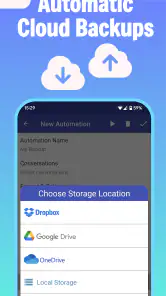
For people who need automatic, continuous synchronization across several devices, this may not be the best fit. A cloud-centered service or a phone maker’s migration system may be more convenient when the priority is effortless transfer during every device change. Those alternatives can also bring their own account, storage, and privacy trade-offs, so convenience should not be confused with a universally better solution.
On the other hand, users who want control over when an archive is made may prefer this app to a background service. A manual backup can be easier to understand: you choose the moment, preserve the history, and keep the result where you want it. That is particularly useful before deleting a conversation, resetting a phone, or handing an old device to someone else.
Who will get the most from it
I think it is a strong match for someone who has years of SMS history and wants a direct safety net before replacing a phone. It also makes sense for people who occasionally need a printed conversation, whether for personal organization or a record they want to read away from the screen.
Families can benefit from a simple pre-reset routine. Before an older phone is cleaned up, one person can create the archive, move it to the replacement device, and check a few important threads. The value here is not excitement; it is reducing the chance of discovering a missing conversation after the old handset has already been erased.
It is less appealing for someone who never uses SMS, expects automatic syncing without any manual steps, or wants a complete multi-device communication archive that includes every kind of chat platform. The app’s focus is narrow, and that focus is a strength only when SMS history is the actual problem you are trying to solve.
Privacy-conscious users should also think about where they keep the saved material. A backup can be convenient and still deserve the same care as the messages themselves. I would avoid leaving personal conversations in an obvious shared location, and I would consider who can access the device or storage area where the archive is kept.
The Everyone age rating makes it broadly approachable, but that should not be confused with every workflow being equally simple. A first-time user may still need to understand storage, file locations, phone migration, and the difference between preserving a complete archive and preparing a printable selection.
My practical verdict
After looking at the way this tool fits into real phone maintenance, I would recommend it to a friend who wants a hands-on SMS safety copy rather than an invisible synchronization service. GilApps has kept the purpose clear: preserve message history, make it recoverable, and support a print-oriented use case when a screen is not enough.
The strongest feature is the control it gives you over a deliberate workflow. You can make a backup before a risky change, keep the archive for later, and test recovery while the original phone is still available. That is more valuable than a polished first impression because it addresses the moment when message history is most vulnerable.
The main weakness is that the app cannot remove every responsibility from the user. You still need to confirm the backup, protect the saved copy, prepare the destination phone, and investigate storage or system issues when a restore looks incomplete. Someone seeking a completely automatic experience may find that effort irritating.
Its free availability makes experimentation reasonable, while the optional purchases mean I would not pay for anything until the basic process works on your own handset. With a 4.4 average and thousands of ratings, it has clear user traction, but my recommendation is still based on fit: it is most useful when you value a controlled SMS archive and are willing to verify it.
My final suggestion is to create a small test backup today, move it somewhere safe, and practice restoring it before you urgently need it. If that short exercise feels clear and the messages return as expected, this app can become a dependable part of your phone-change routine. If you want automatic, account-based synchronization with no manual file handling, choose a different kind of solution instead.
Pros
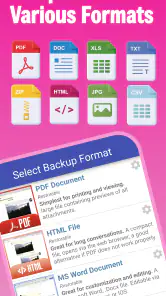
- Backs up messages in multiple formats for flexible storage and sharing.
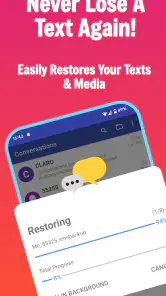
- Restore tools make it easy to recover conversations after changing phones.
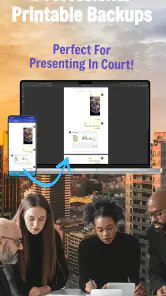
- Print feature is useful for keeping physical copies of important messages.
- Simple interface makes core backup tasks easy to find and use.
- Can help preserve SMS records before resetting or replacing a device.
Cons
- Some features may require extra permissions to access messages and storage.
- Large message archives can take considerable time to process or export.
- Restored messages may not retain every original attachment or formatting detail.
- Compatibility can vary between Android versions and messaging apps.
- Printed conversations may require additional setup with a compatible printer.

- Category
- Tools
- Version
- Varies with device











