Smart Watch App: Wearable Sync
- 130.00
- 4.1
- Installs
- 1.00M
- Price
- Free
Screenshots


Analysis by Reviewed
Smart Watch App: Wearable Sync is the kind of tools app I would try when my wearable is not communicating properly with my phone and I want a straightforward place to start. Its purpose is clear: connect a compatible wearable with a smartwatch-focused app and make the everyday relationship between the two devices easier to manage. I found that simplicity appealing, especially for someone who does not want to sort through a large health platform just to get a watch connected.
The app is free to install and is aimed at Everyone, which makes it approachable for casual users as well as people who are buying their first wearable. It comes from Mission to improve your app, and its current version is 58.0. The app has passed the early-experiment stage in a practical sense, with more than a million installs and an average rating of 4.1 from roughly three thousand ratings. Those figures suggest that it has found a real audience, although they should not be treated as a guarantee that every watch or phone combination will behave identically.
Starting with a dependable connection
My recommended first step is to treat the app as part of a repeatable setup rather than something to open only when a problem appears. Install it on a phone running Android 8.0 or newer, keep the wearable charged, and place the two devices close together during the first connection. A calm setup is much easier than trying to pair a watch while walking out the door or while several other Bluetooth devices are competing nearby.
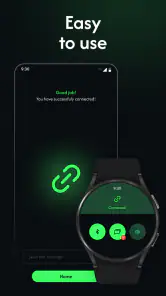
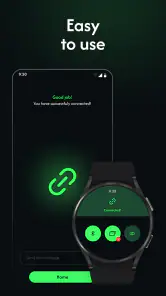
The basic workflow is simple in principle. Open the app, follow its connection prompts, and give the watch enough time to complete the pairing process before switching between screens. If the wearable does not appear immediately, I would first check that Bluetooth is enabled and that the watch is not still connected to another phone. Repeatedly tapping a connection button usually creates more confusion than progress.
One useful habit is to decide which phone will be the main phone before pairing. A watch that has recently been used with a different device may need to be disconnected or reset through its own controls before a new connection works cleanly. That is not a flaw unique to this app; it is a common complication with wearable ecosystems. The important point is that the app can only manage a connection that the phone and watch are ready to establish.
Once the pairing succeeds, I would close and reopen the app once, then check whether the connection remains visible. This small test catches a surprisingly common mistake: assuming that a temporary discovery screen means the wearable is fully linked. A stable setup should survive leaving the app and returning to it later.
For daily use, I would keep the first few sessions modest. Connect the watch, confirm that the app recognizes it, and only then explore additional controls. This makes it easier to identify whether a problem comes from the wearable, the phone’s Bluetooth system, or a setting inside the application. It also avoids changing several things at once, which makes troubleshooting unnecessarily difficult.
What I would check before blaming the app
Wearable connections are affected by more than the visible pairing screen. If the watch is powered down, out of range, already attached to another phone, or waiting for confirmation on its display, the app may look unhelpful even though the underlying issue is elsewhere. I would check those basics before uninstalling anything.
Phone battery controls can also interfere with apps that need to maintain communication with a wearable. If the connection disappears after the phone has been idle, I would inspect the phone’s battery-management options for the app and avoid overly aggressive restrictions where the system allows that choice. I would not assume this will solve every disconnection, but it is a sensible place to look when pairing works initially and then becomes unreliable.
Another practical step is to keep the phone’s Bluetooth list tidy. Old entries for the same watch can make it unclear which connection is active. Removing a stale entry can be more effective than repeatedly attempting a new pairing. I would only do this carefully, since deleting the wrong device can create extra setup work.
Settings that deserve attention
After the first connection, experienced users should resist the temptation to change everything immediately. The best settings to review are the ones that affect reliability, visibility, and how often the app needs attention. A wearable companion should fit into a routine, not become another source of constant notifications.
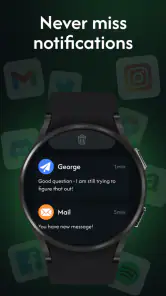
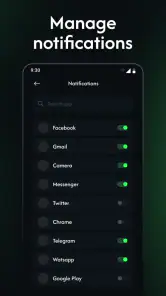
I would begin with notification behavior. If the app sends connection or status alerts, decide whether those messages are useful or merely distracting. A notification that tells me a watch has disconnected can be valuable when I rely on the device during the day. The same message becomes noise if it appears every time I briefly leave the phone behind. Finding that balance is more useful than simply enabling every alert.
Next, I would review the app’s access requests as they appear during setup. Approve what is needed for the connection you actually want, but read each prompt instead of tapping through automatically. The most comfortable setup is not necessarily the one with every possible permission enabled. It is the one where the user understands what the app is being allowed to do and why that matters for the wearable.
I would also check whether the phone is allowed to display the app normally in the background. A smartwatch connection often depends on communication continuing when the app is not open in front of you. If the app works only while its screen is visible, that points to a phone-level restriction worth investigating.
A less obvious but useful practice is to keep the app and the wearable’s own software in step when updates are available. I would not update both devices during an important trip or immediately before needing the watch for something time-sensitive. Instead, update when I have time to test the connection afterward. This is especially sensible for a tool whose main job is dependable communication rather than entertainment.
The app is free, but it includes in-app purchases priced from $16.99 to $51.99 per item. That makes it important to pause before confirming any purchase and to distinguish the basic connection experience from optional paid elements. I would not pay simply because pairing feels difficult; first I would confirm that the watch is compatible and that phone settings are not blocking the connection.
A routine that reduces repeated troubleshooting
My preferred routine would be to check the connection once in the morning, especially if the watch was charged overnight or the phone restarted. If it is active, I would leave it alone rather than repeatedly opening the app. If it is inactive, I would use a short sequence: wake the watch, verify Bluetooth, open the app, and wait for the connection to settle.
This approach has a real advantage. It separates a temporary delay from a genuine failure. Opening and closing the app many times can make a user feel that something is happening when the watch is simply taking a moment to respond. A consistent sequence gives clearer feedback and makes it easier to remember what worked.
I would also avoid pairing the watch from several different places at once. If the app provides the intended setup path, use that path rather than beginning in the phone’s Bluetooth menu and then jumping into the app halfway through. The phone’s system menu can be useful for checking status, but mixing workflows can leave a device technically visible without completing the app’s own setup.
Faster patterns for everyday use
The biggest improvement comes from turning connection tasks into habits. For example, if I take the watch off to charge at night, I would place it near the phone and reconnect it as part of the same morning routine. If the watch is used only during exercise, I would connect it before leaving home rather than waiting until I am already outside.
Shortcuts are most useful when they reduce decision-making. Keep the app easy to find, avoid burying it in a rarely used folder, and use the same order of checks whenever the watch stops responding. The goal is not to create a complicated automation system; it is to make the few actions that matter easy to repeat.
A realistic example is a commute. I might put on the watch, notice that it is not showing the expected connection, and have only a minute before leaving. Instead of resetting anything immediately, I would wake the watch, bring it close to the phone, open Smart Watch App: Wearable Sync, and wait briefly. If that fails, I would check whether the watch is still linked to another phone before making a larger change. This preserves the existing setup and avoids turning a small delay into a full re-pairing session.
Another useful pattern is to test after making one change. If I adjust a battery setting, I would use the watch normally for a while before changing notification options as well. That creates a simple cause-and-effect record. It may sound basic, but it is one of the best ways to prevent endless troubleshooting loops.
I would use the app most confidently for connection-focused tasks rather than expecting it to replace every feature of a manufacturer’s companion platform. If I need detailed health history, advanced exercise analysis, device-specific controls, or a broad account ecosystem, the watch maker’s official app may be the better center of my routine. This app makes more sense when the priority is a focused wearable link and a less crowded interface.
That comparison is important. General Bluetooth tools may show whether a device is visible, but they are often too bare to guide a normal user through a wearable setup. Manufacturer apps usually understand one product family deeply, while a broader smartwatch utility may be more convenient for people who want a simpler connection layer. The trade-off is that a focused utility cannot automatically provide every specialized feature found in a full official ecosystem.
Who benefits most from this approach
I see the strongest fit for people who want a practical starting point for smartwatch connectivity, users who are uncomfortable with complicated setup screens, and anyone who prefers to keep connection checks separate from a larger fitness or health dashboard. The Everyone age rating also makes it suitable for a wide range of household users, provided the wearable itself is compatible with the phone and app.
It is less convincing for a person who already has a reliable official companion app with all the controls they need. Adding another connection utility in that situation could create duplicate notifications or make it unclear which app should manage the watch. I would also hesitate to recommend it as the only solution for someone who needs professional-grade health records or highly specialized watch functions.
Where the experience becomes less certain
The central limitation is compatibility. A smartwatch app can be well designed and still fail to connect with a particular combination of phone, wearable, Bluetooth state, and manufacturer software. I would therefore check the app’s current compatibility details before buying a watch specifically for it. A free installation makes testing easier, but it does not remove the need to confirm that the hardware belongs in the intended setup.
Connection tools also depend on the phone’s behavior outside the app. Battery saving, Bluetooth instability, system updates, and interference from other paired devices can all affect the experience. When a connection repeatedly drops, the correct answer may be a phone setting or a watch reset rather than a new in-app option.
The paid items deserve a cautious approach as well. Since individual purchases range from $16.99 to $51.99, I would read the purchase screen carefully and consider whether the added value matches my actual need. Someone who only wants a basic wearable connection should not assume that paying will fix an unsupported device or a weak Bluetooth signal.
There is also a difference between convenience and control. A focused app can make a common task feel easier, but it may not expose every setting available through a manufacturer’s own software. If I regularly change watch faces, manage detailed activity data, or configure brand-specific functions, I would keep the official app available and use this one only if it genuinely simplifies my connection workflow.
Privacy and permissions should be handled with the same care as any other utility. I would read the prompts, enable only what is relevant to the functions I intend to use, and revisit the phone’s app settings if the behavior seems broader than expected. That is not a reason to avoid the app, but it is a reason to remain deliberate during setup.
How I would decide after a week
After several days, I would judge the app by three practical questions. Does the watch reconnect without repeated effort? Does the app remain quiet when everything is working? And when a problem appears, does its workflow help me identify the next sensible step? Those questions matter more to me than a long feature list because a wearable companion earns its place through dependable routine use.
If the answer is yes, the app can become a useful part of a simple setup. I would keep the same phone as the primary host, avoid unnecessary re-pairing, and make connection checks part of charging or morning preparation. That combination of settings and habits is likely to deliver more benefit than constantly searching for a hidden shortcut.
If the answer is no, I would move to the official companion app or the phone’s built-in Bluetooth tools, depending on the problem. The official option is usually preferable when the issue involves brand-specific functions. The system Bluetooth screen is better for confirming whether the phone can see the watch at all. Using the right tool for the right layer prevents this app from being blamed for a hardware or operating-system problem.
In my experience, the app’s value is strongest when expectations stay realistic. It is not a magic repair button, and it should not be treated as a replacement for every smartwatch service. It is a focused helper for people who want a manageable connection workflow and are willing to spend a few minutes setting up the phone correctly.
My verdict after settling into the workflow
Smart Watch App: Wearable Sync is worth trying when your main concern is getting a wearable connected and keeping that connection understandable. I like its focused role, free entry point, and suitability for ordinary users. The rating of 4.1 from around three thousand ratings and its audience of over a million installs show that it is not an obscure experiment, although neither figure removes the need to check device compatibility.
The best results come from combining the app with a few disciplined habits: pair from one consistent path, keep the watch near the phone during setup, review battery and notification behavior, and change one setting at a time. Those steps are more valuable than repeatedly pressing reconnect or paying for an option before identifying the real cause of a failure.
I would recommend it to a friend who wants a focused smartwatch connection tool and does not need a complete health-management ecosystem. I would point that friend toward the manufacturer’s official app instead if detailed device controls or long-term fitness records were the priority. For everyone else, this is a sensible free starting point, with the main cautions being compatibility, phone-level restrictions, and the cost of optional in-app purchases.
My final view is favorable but practical: use it as a dependable bridge, not as the entire smartwatch experience. When paired with a repeatable setup routine, it can remove some of the friction from wearable use. When the problem is deeper than pairing, knowing when to switch to the official app or system Bluetooth controls will save more time than forcing this utility to do a job it was not designed to handle.
Pros
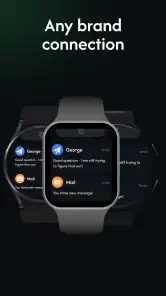
- Supports syncing with many popular smartwatch models.
- Keeps health
- activity
- and notification data in one place.
- Offers customizable watch faces and display settings.
- Useful alerts for calls
- messages
- and other app notifications.
- Simple setup makes it accessible for first-time smartwatch users.
Cons
- Some features may require extra permissions to work correctly.
- Compatibility can vary between phone and smartwatch combinations.
- Background syncing may increase battery consumption on both devices.
- Advanced health features depend on the connected watch’s sensors.
- Occasional connection drops may require restarting Bluetooth or the app.
- Category
- Tools
- Version
- 58.0











