Smart Transfer: Copy My Data
- 26.00
- 3.4
- Installs
- 500.00K
- Price
- Free
Screenshots
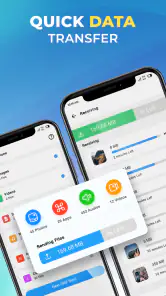
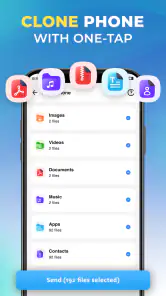
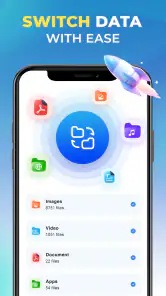
Analysis by Reviewed
Moving to a new phone is rarely difficult because of the handset itself. The annoying part is rebuilding your digital life: contacts, photos, videos, messages, and other personal files are often scattered across different tools, and the process can feel like a checklist that never ends. Smart Transfer: Copy My Data is designed for that specific headache. It is a free data-transfer utility from Tools for Daily Use that focuses on moving information from one phone to another instead of making you sort everything manually.
I found the app most useful when I treated it as a focused migration tool rather than a complete backup system. That distinction matters. A phone clone app can make a changeover more organized, but it does not automatically replace every service used by your old phone. Its value is in bringing a transfer workflow into one place, helping you think about what should move before you start using the new device.
What Smart Transfer: Copy My Data is really for
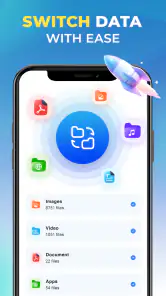
The app belongs to the Tools category, and its purpose is easy to understand: transfer personal data between phones through a guided phone-cloning process. The developer, Tools for Daily Use, has kept the central idea straightforward. You begin with the old device, prepare the receiving phone, and use the transfer process to move the selected information rather than relying only on separate manual methods.
That approach is especially helpful for people who do not want to spend an evening opening individual apps, exporting files, and checking whether everything arrived. It can also be useful for a family member who is not comfortable with cloud storage or computer-based transfers. Instead of explaining several unrelated procedures, you can walk through one phone-to-phone utility and keep the changeover focused.
There is also a practical emotional benefit. When a phone contains years of photos and conversations, the fear is not only losing files; it is forgetting something important. A dedicated transfer screen gives the process a beginning and an end. I still recommend checking the result, but the app makes the job feel more like a planned move than a collection of emergency fixes.
The app is free to install and is suitable for Everyone. It has passed the half-million-install mark, while its average rating is 3.4 from roughly eight hundred ratings. Those figures suggest that many people find the concept useful, but the experience is not universally smooth. I would read that as a reason to plan the transfer carefully, not as a reason to dismiss the app outright.
Starting with the right preparation
The best first step is not pressing the transfer button. I would charge both phones, remove unnecessary clutter from the old device, and decide whether the new phone has enough room for what you want to copy. A transfer is much less stressful when you already know whether you want everything or only the essentials.
For a clean migration, I would begin with contacts, then photos and videos, and finally the files that are easy to overlook. This order gives you a useful safety net: even if you decide not to move every large video, your core address book is already part of the new phone. It also prevents a huge media collection from dominating the process before you have confirmed that the connection is working.
Keep both phones close together and avoid switching away repeatedly during the transfer. The less you interrupt the workflow, the easier it is to understand whether the process is progressing normally. If the app presents choices about categories or files, I would use them deliberately rather than selecting everything automatically. Selective copying is one of the simplest ways to save storage and reduce cleanup later.
One useful habit is to make a short inventory before starting. Count the important albums mentally, check a few recent contacts, and note any documents stored outside the usual camera folder. After the transfer, compare those reference points. This is more reliable than assuming that a completion message means every item is useful, readable, and in the place you expected.
The current version is 2.9.7 and it runs on Android 8.0 or later. That makes it accessible on many older Android phones, which is helpful when the old handset is not a recent model. Still, compatibility with the app does not guarantee that every type of content behaves identically across different phone brands or Android versions. I would treat the app as a transfer assistant, not as a promise that two unrelated devices will have identical results.
A realistic move from an old phone to a new one
Imagine replacing a phone after several years of use. The old device contains family photos, saved contacts, short videos, and assorted documents downloaded over time. The new phone is ready, but starting from an empty screen makes the upgrade feel like work. This is where Smart Transfer: Copy My Data earns its place: it gives you a single migration task to organize instead of forcing you to remember every category separately.
I would first move the information that affects communication, then the media that has personal value, and only afterward review miscellaneous files. That order avoids a common mistake: filling the new phone with forgotten downloads while still missing the contacts you actually need. It also makes it easier to stop early if the new device has less storage than the old one.
For a family member, the same workflow can be even more valuable. You can prepare both phones, explain which one is the source and which one is the destination, and use the transfer as a visible handover point. The person receiving the phone still needs to sign in to services and arrange their home screen, but the most personal files are no longer trapped on the old device.
A second scenario is temporary replacement. If your main phone needs repair, a transfer utility can help you place the most important information on another handset without manually hunting through folders. I would not use this as the only protection for irreplaceable data, but it can shorten the time needed to create a workable temporary setup.
Where it saves time and where it does not
The biggest time saving comes from reducing context switching. Without a tool like this, you may move contacts through one method, photos through another, documents through a cable or computer, and app-specific information through each app’s own account system. Smart Transfer: Copy My Data brings the phone-to-phone part into a single purpose-built workflow, which is easier to follow when you are already dealing with a new device.
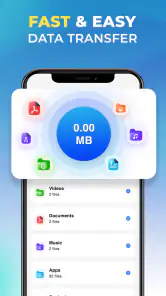
It also removes some of the guesswork around what to do first. A dedicated transfer utility encourages you to think in categories rather than individual files. That is valuable when the old phone has years of accumulated content and you do not want to inspect every folder by hand.
However, it does not remove the need for verification. After copying, I would open several recent photos, an older photo, a video, a few contacts, and any documents that matter. Check that the files open correctly and that the new phone can locate them. This small inspection is the difference between “the transfer finished” and “the new phone is genuinely ready.”
Another friction point is storage discipline. A phone clone can make it tempting to copy everything simply because the option is available. That can recreate the old phone’s clutter on the new one. I prefer a two-pass approach: transfer essential personal content first, then move less important files only after checking available space. This turns the app into a migration filter rather than a machine for duplicating every forgotten download.
The app should also be judged against the usual alternatives. Built-in phone migration tools are often the better choice when moving between phones from the same manufacturer, because they may understand that brand’s settings and account structure more deeply. Cloud backup is better when you want an ongoing safety net or need to restore after losing a phone. A computer and cable are preferable when you want a local copy that you can inspect manually.
Smart Transfer: Copy My Data is most appealing when you want a direct, phone-to-phone workflow and do not want to assemble those alternatives yourself. It is less compelling if your main goal is long-term backup, a full system image, or a perfect recreation of every app setting. In those situations, the phone maker’s migration system, a trusted cloud service, or a computer-based backup may be the stronger option.
Small decisions that improve the result
One non-obvious advantage of using a dedicated transfer screen is that it can expose the difference between personal data and app data. Photos and contacts are easy to recognize, but many apps store information inside their own accounts or protected areas. I would never assume that copying visible files also copies logins, saved games, banking records, or private app databases. Open each important app on the new phone and use its normal sign-in or restore process where necessary.
A second useful tactic is to transfer in stages instead of treating the move as one enormous event. Start with a small, important group, verify it, and then continue with larger media categories. If something goes wrong, you will have a clearer idea of which stage caused the problem. This is particularly sensible when the two devices are older or when the media library is much larger than the new phone’s free space.
Third, keep the old phone untouched until the new one has been checked for the information you care about. Do not factory-reset it immediately after the app reports completion. Look through contacts, recent images, older albums, and essential documents first. The old handset is your fallback while you confirm the move, and that fallback is more valuable than a few minutes saved by erasing it too soon.
These habits are not flashy features, but they are what make a transfer utility dependable in real life. The application can organize the movement of data; the user still controls the quality check. I found that the best results came from combining the app’s convenience with a little patience rather than expecting a single tap to solve every part of a phone upgrade.
Costs, expectations, and everyday usability
The app is free, but it includes in-app purchases priced from $9.99 to $79.99 per item. That is important for anyone choosing a transfer tool mainly to avoid spending money. I would install it with the free experience in mind and pay close attention to any purchase screen before confirming anything. A paid option may be reasonable for someone who values convenience, but it changes the comparison with tools already included with a phone or cloud account.
The Everyone content rating makes it approachable for general household use. Even so, I would supervise the first transfer for someone who is not confident with phone settings, because the consequences of selecting the wrong source or destination can be confusing. The safest workflow is to identify the old phone clearly, identify the new phone clearly, and confirm the categories before allowing a large transfer to begin.
Its rating of 3.4 is a fair reminder to keep expectations realistic. A tool built around data movement is judged heavily by device combinations, storage conditions, connection stability, and user choices. Two people can have very different experiences even when using the same app. That does not make the app useless, but it does mean I would not rely on it without a backup plan for especially important files.
I also would not recommend it as the first choice for someone who changes phones frequently and already has a well-organized cloud backup. In that case, the existing backup and restore process may be faster and more repeatable. Likewise, users who need a complete settings migration, secure business records, or detailed control over file locations may prefer a computer-based method.
My verdict after weighing convenience against control
Smart Transfer: Copy My Data solves a recurring, specific problem: getting personal information from one phone to another without juggling several unrelated transfer methods. I like it most for a one-time upgrade, a family member’s phone replacement, or a temporary move where the priority is getting essential content onto another handset quickly.
Its strengths are organization and accessibility. It gives less technical users a clear place to begin, works on Android 8.0 and later, and can reduce the mental load of remembering every category that needs attention. The free entry point also makes it easy to test whether its workflow suits your two devices before committing to a different solution.
Its weaknesses are equally practical. It should not be mistaken for a complete backup, an app-account restoration system, or a guarantee that every piece of data will transfer perfectly between unrelated phones. The presence of in-app purchases also means that people comparing it with built-in migration tools should examine the full cost before deciding.
My recommendation is to use it with a checklist, staged transfers, and a careful post-transfer inspection. The real time saving comes from reducing confusion, not from skipping verification. If you want a focused phone-cloning helper and are prepared to check the result, this app is worth trying. If you need maximum control, permanent backup, or deep system migration, I would choose the phone manufacturer’s tool, cloud backup, or a computer instead.
Pros
- Transfers contacts
- photos
- videos
- and calendars between phones
- Simple guided process suitable for users with limited technical experience
- Works across Android and iOS devices without requiring cloud storage
- Useful when switching phones or setting up a replacement device
- Can save time compared with transferring files manually
Cons
- Both devices usually need the app installed and kept nearby during transfer
- Transfer speed depends heavily on Wi-Fi quality and the amount of data
- Some content may not transfer fully due to platform restrictions
- May request broad access to contacts
- photos
- calendars
- and device files
- Large transfers can consume significant battery on both phones
- Category
- Tools
- Version
- 2.9.7











