Smart PDF Reader & PDF Viewer
- 283.00
- 4.3
- Installs
- 1.00M
- Price
- Free
Screenshots
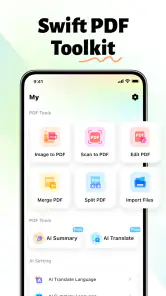
Analysis by Reviewed
I approached Smart PDF Reader & PDF Viewer as the sort of utility I would keep installed for ordinary document jobs rather than occasional experimentation. Its purpose is straightforward: open a PDF, read it comfortably, find information, and manage documents without turning a simple task into a complicated project. After using it in that role, I found the strongest appeal is its low learning curve. It feels aimed at people who want a practical PDF tool on an Android phone, not a full office suite.
The app comes from Olasmg Digital and is available free of charge. It is listed for Everyone and works with Android 8.0 or later, which makes it accessible on a broad range of phones. Its current version is 1.2.3, and the app has already passed the early-adoption stage with over a million installs. A 4.3 average from around eighteen thousand ratings suggests that many users find the basic experience dependable, although that number should not be mistaken for a promise that every PDF workflow will suit it.
How the everyday PDF workflow feels
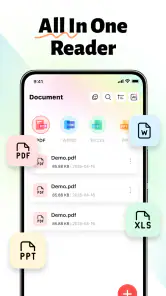
My normal starting point with a PDF reader is not a special feature; it is whether I can get from a downloaded document to the page I need with as little friction as possible. This app is well suited to that routine. I can open a document, browse through it, and return to the file when I need it again without feeling as though I am navigating a desktop program squeezed onto a small screen.
That simplicity matters when the document is something practical, such as a travel confirmation, an instruction manual, a school handout, or a form sent by email. On a phone, I usually want to check one detail rather than study a long file from beginning to end. A clean reader helps me zoom into the relevant section, move through pages, and close the document without losing sight of the broader file-management task.
I also like the distinction between reading and managing. A PDF app becomes frustrating when every opened file feels like a one-off preview, leaving me to search through unrelated downloads the next time. Smart PDF Reader & PDF Viewer is more useful when treated as a regular document shelf: open the app when I need a file, browse what is available, and use it as the central place for routine PDF access instead of repeatedly opening documents from separate messaging or browser apps.
A realistic example is preparing for an appointment. I might receive a multi-page document in a chat, save it to the phone, open it here, check the appointment details, and later revisit the same file to confirm a reference number. That sequence is more important to me than decorative interface touches. The app earns its place when it reduces the number of steps between “I have a PDF somewhere” and “I have found the information I need.”
Reading on a phone still has natural limitations. A large, densely designed document is harder to inspect on a small display than on a laptop, and no reader can completely remove that trade-off. I found the app most comfortable for short reading sessions, quick checks, and documents that I already know how to navigate. For extended study, side-by-side comparison, or detailed editing, a larger screen and a more specialized tool remain better choices.
What I check before making it my default reader
The first useful habit is to decide what I expect from a PDF application. If my needs are opening, browsing, and keeping track of ordinary documents, this app fits the brief. If I expect a complete document-production environment, I would look elsewhere before making it part of my daily system. A reader can be good at viewing without being the right answer for editing, signing, converting, or collaborating.
I also pay attention to how I receive files. Documents opened directly from an email, browser download, or messaging service often end up scattered across different folders. Rather than relying on the originating app to remember everything, I use the PDF reader as the place where I deliberately revisit saved files. That small change makes the utility more valuable: it becomes part of a repeatable habit instead of merely an emergency viewer.
Another practical check is screen comfort. I prefer to increase the display size when reading a document with small text, then return to a more compact view when scanning pages. The important point is not to use one zoom level for every file. A form, a magazine-style PDF, and a text-heavy report all need different handling. Treating zoom as a task-specific setting prevents unnecessary pinching and dragging.
File naming is equally important, even though it is not a glamorous part of PDF reading. When I save several documents with vague names, browsing becomes slower regardless of which reader I use. I get more from the app when I save files with recognizable titles, especially documents I expect to consult more than once. A clear filename turns the app’s browsing function into a useful retrieval system rather than a list of mysteries.
Settings and habits that make phone reading easier
I recommend spending a few minutes exploring the available viewing and browsing controls instead of accepting the first layout automatically. The best arrangement depends on whether I am reading continuously or jumping between pages. A page-by-page approach feels natural for a short letter, while a more deliberate browsing pattern is better when I need to locate a section inside a longer document.
Experienced use is less about finding a secret option and more about matching the reader to the document. Before opening a long file, I decide whether I am reading in order, searching visually for a heading, or returning to a known page. That decision changes how I move through the file and avoids wasting time scrolling without a target.
I also keep my phone’s general display behavior in mind. If I am reading for several minutes, automatic screen dimming can interrupt the experience. I prefer to adjust the device’s screen timeout temporarily when appropriate, then restore it afterward. This is not an app-exclusive feature, but it is the kind of surrounding habit that makes a lightweight PDF reader feel more reliable in real use.
For repeated work, I keep a small routine: save the document, open it in the reader, inspect the first page for context, and then move directly to the section I need. If I am finished with the file, I avoid leaving multiple copies in different folders. This reduces confusion later and makes browsing faster. The app is at its best when I give it an orderly collection of files to work with.
One trade-off is that a simple tool may feel less tailored than a heavyweight document suite. Advanced readers sometimes expect extensive customization, annotation systems, cloud connections, or productivity integrations. I would not choose this app solely because I want a deep settings panel. I choose it when predictable access and uncomplicated reading matter more than a long list of controls.
Faster patterns for repeat users
My fastest workflow starts outside the app. When I know a PDF will matter later, I save it with a useful name and place it where I can identify it quickly. Then I use Smart PDF Reader & PDF Viewer to browse deliberately rather than opening every file in sequence. This is faster than treating the download folder as a permanent archive.
For a long document, I use a two-pass method. First, I skim the opening pages and headings to understand the structure. Second, I return to the relevant section for careful reading. On a phone, this is usually more efficient than trying to read every page linearly when my actual goal is one clause, instruction, or figure.
Another helpful pattern is separating “read now” from “keep for later.” A document I need for a single task should not be allowed to clutter the collection indefinitely. A document I will reference repeatedly deserves a clear filename and a known location. This simple distinction makes the app’s management side more useful and prevents the reader from becoming a digital junk drawer.
When I share a phone with family members or use it for both personal and work documents, I am more careful about the file I open before sending or showing it. Browsing by recognizable names and checking the first page avoids an embarrassing but common mistake: presenting the wrong attachment because several PDFs look similar in a generic list.
I would also avoid opening a sensitive document casually on a crowded train or in a public waiting room. A PDF reader can make access convenient, but convenience does not replace awareness of the screen around me. For private forms, financial paperwork, or personal records, I use the same basic caution I would apply to any file opened on a phone.
Where the app stops being the right tool
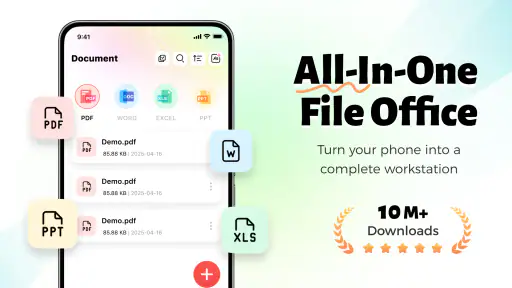
The biggest limitation is scope. Smart PDF Reader & PDF Viewer is a tools app focused on PDF access and handling, not a replacement for every document application. If I need to rewrite paragraphs, build a spreadsheet, prepare a presentation, or coordinate edits with several people, I would move to a dedicated office or collaboration service.
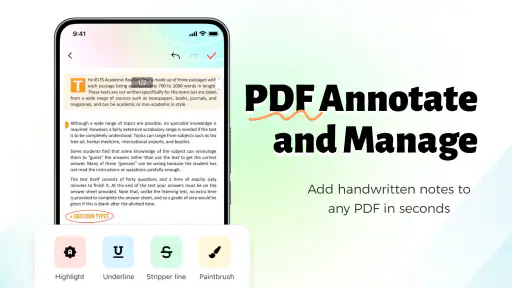
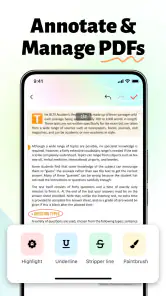
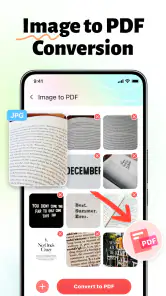
I would also be cautious about choosing it for workflows that depend on complex annotations, professional signatures, document conversion, or detailed form preparation. Those tasks require more than comfortable browsing. A specialized PDF editor may justify its extra complexity when the document itself is part of a formal process.
Large or visually complicated PDFs can expose the limits of phone-based reading. Even when the app opens a file successfully, navigating intricate layouts on a small display can remain awkward. For architectural drawings, wide tables, technical diagrams, or documents that must be compared page by page, a tablet or computer is a better environment. The app is not at fault for the physical limits of a phone, but it is important to choose it with those limits in mind.
There is also a difference between managing PDFs and managing all documents. If most of my files are images, word-processing documents, scans, or cloud-based files that I rarely download, a broader file manager may be more useful as the main hub. This reader makes the most sense when PDFs are a regular part of my mobile routine.
Compared with opening a file in a browser, a dedicated reader feels more intentional. A browser is convenient for a quick preview, but it is not always the best place to build a repeatable document habit. Compared with a full office suite, this app feels lighter and less distracting, but it also offers a narrower workspace. The right choice depends on whether I value focused PDF access or a larger set of document-creation tools.
Who will get the most from it
I think this app is a good match for students checking course files, travelers keeping confirmations available, families opening manuals and forms, and workers who need a straightforward way to inspect PDFs away from a desk. It is also suitable for someone replacing a confusing collection of preview tools with one dedicated reader.
It is especially appealing to people using older Android phones because the minimum requirement is Android 8.0 or later. That broad compatibility makes it easier to include the app in a mixed-device household, although the experience will still depend on the phone’s screen size, storage, and general performance.
Its Everyone content rating and free price remove two common barriers for casual users. I can recommend it to someone who needs a PDF reader without first asking them to commit to a subscription or learn a complicated professional interface. Still, free access should not be confused with unlimited capability. The value here is convenience for core PDF tasks, not a promise of a complete document office.
I would steer power users toward a more specialized option when their daily work involves editing, markup, signatures, or team review. I would also suggest a desktop or tablet workflow for long technical documents. The app is strongest when the question is “Can I open and manage this PDF comfortably on my phone?” rather than “Can this replace every document tool I use?”
My verdict after building a repeatable workflow
After using Smart PDF Reader & PDF Viewer with a few practical habits, I see it as a sensible, focused utility rather than an ambitious all-in-one platform. Its appeal comes from keeping the central job clear: open PDFs, browse them, and manage access without unnecessary ceremony. That focus makes it easy to recommend for everyday reading.
The most important lesson is that the app works better when paired with good file habits. Clear names, deliberate saving, task-specific zoom, and a two-pass approach to long documents do more for efficiency than endlessly searching for advanced controls. The real strength is the combination of a simple reader and a repeatable mobile workflow.
Olasmg Digital has positioned this as a practical Tools app, and the broad adoption reflected in its rating history gives it a reasonable starting point for new users. I would install it when I wanted a free PDF reader for ordinary Android use, especially on a device running Android 8.0 or newer. I would skip it only when my requirements clearly move beyond reading and management.
My final recommendation is straightforward: if PDFs regularly arrive on your phone and you want one uncomplicated place to open and revisit them, this is worth trying. If you need a professional editing desk, collaborative review system, or wide-screen document workspace, choose a tool designed for that job instead. For the everyday middle ground, Smart PDF Reader & PDF Viewer delivers a focused experience that is easy to understand and easy to fit into a real routine.
Pros
- Opens large PDF files smoothly on most modern phones.
- Supports dark mode for more comfortable nighttime reading.
- Remembers your last viewed page when reopening documents.
- Simple interface makes basic PDF navigation easy for beginners.
- Useful search tool helps locate words or phrases quickly.
Cons
- Some advanced tools may require a premium subscription.
- Ad-supported screens can interrupt the reading experience.
- Large documents may take time to load on older devices.
- Limited annotation options compared with full desktop PDF editors.
- Battery usage can increase during extended reading sessions.
- Category
- Tools
- Version
- 1.2.3











