Remote Control for RokuTV
- 4.53K
- 4.2
- Installs
- 5.00M
- Price
- Free
Screenshots
Analysis by Reviewed
I tried Remote Control for RokuTV as the kind of practical tool you install when the physical remote has disappeared under a sofa cushion, stopped responding, or simply feels less convenient than the phone already in your hand. Developed by EVOLLY.APP, this free Android app belongs to the tools category and is built around one focused job: controlling a Roku television from a mobile device. That narrow purpose is also its biggest strength. You are not opening it for entertainment or a large collection of extras; you are opening it because you want a usable remote on your screen.
My overall impression is positive, but not unconditional. The app can make everyday television control easier, especially for people who keep their phone nearby, have difficulty handling a small physical remote, or want a backup when the original controller is missing. At the same time, a phone is not automatically easier for everyone. Touch controls can be less reassuring than raised buttons, and the experience depends on the phone, the television, and the surrounding situation working together. I found that the most useful way to judge it is not simply to ask whether it replaces a remote, but whether it replaces one in a way that suits your habits and abilities.
How the interface feels to read and navigate
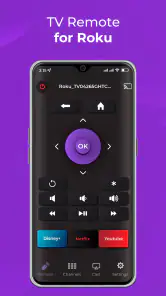
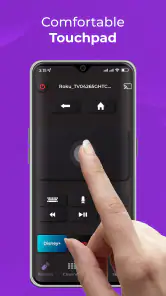
The first thing I noticed is that a phone-based Roku controller changes the visual scale of the remote. Instead of looking down at a compact physical device with closely packed buttons, you interact with a larger screen. That can help when the original remote is hard to see, especially in a dim room or when small labels and symbols are difficult to distinguish. The phone also gives you a familiar surface: most people already know how to wake it, swipe, and tap.
That familiarity matters for occasional users. A visitor who has never used your particular Roku remote may understand a phone interface more quickly than a collection of unfamiliar physical buttons. It is also easier to keep the controller visible on a bright screen than to search for a dark remote on a dark table. In my experience, the app makes the basic idea immediately understandable: open the controller, find the control you need, and tap it.
There is a trade-off, though. Physical remotes provide tactile landmarks. I can feel the edge of a button, locate the volume controls without looking, and build muscle memory around their positions. A touchscreen does not offer that same confirmation. If I am watching television in bed with the lights off, I may need to look at the phone for every action rather than relying on touch. That makes the app visually approachable but not necessarily faster for an experienced remote user.
People with reduced vision may appreciate the ability to enlarge the phone’s display or change the system’s text and contrast settings, but I would not treat those general phone settings as a guarantee that every part of the controller will adapt perfectly. The practical test is simple: open the app in the conditions where you normally watch television and check whether the labels, symbols, and spacing remain comfortable. A display that looks clear in daylight may feel very different at night.
Navigation is most comfortable when the phone is held steadily and the user can distinguish taps from accidental touches. Someone who has trouble with precise finger movements may find a large-screen phone easier than a tiny remote, while another person may prefer the firm click and fixed location of physical buttons. This is one of the app’s important nuances: a bigger touchscreen is not the same thing as a more accessible control surface.
What I would check before relying on it
I would install it while the original Roku remote is still available, rather than waiting until the remote is lost. That gives you time to open the app, see how its controls are arranged, and confirm that it suits your television setup. If you are setting it up for another family member, let that person try the main actions personally. Watching someone else use it does not reveal whether the tap targets, screen brightness, or navigation rhythm feel comfortable to them.
The app is free to install, which makes this trial relatively low-risk. It carries an Everyone content rating, so its purpose is suitable for a broad household audience. The developer is EVOLLY.APP, and the current version is 1.4.6. Those details are useful when checking that you are looking at the intended application rather than an unrelated remote-control tool with a similar name.
Its popularity also suggests that it has found a practical audience: the app has passed five million installs, with an average rating of 4.2 from roughly seventy-seven thousand ratings and about four and a half thousand written reviews. I see that as encouraging rather than conclusive. A remote app can work perfectly for one Roku television and feel awkward on another phone or network, so individual setup still matters more than a broad score.
Motor and sensory considerations in daily use
A phone controller can be helpful for users who find a thin remote difficult to grip. A smartphone is usually larger, easier to locate, and less likely to slide unnoticed between cushions. Someone with limited hand strength may prefer resting the phone on a table and tapping with one finger instead of pinching a small remote or pressing stiff buttons. The larger object can also be easier to pass between people without worrying that it will vanish into the furniture.
However, holding a phone for a long viewing session can create its own strain. The device may be heavier than a basic remote, and users with tremors or involuntary movements may trigger nearby controls accidentally. A stable surface helps, but it changes the angle at which the screen is viewed. I would place the phone somewhere visible and reachable rather than balancing it on an armrest, where a small movement could send it to the floor.
Touch interaction also removes the physical feedback that many people depend on. With a conventional remote, I know that I pressed a button even before the television reacts. On a screen, the user must rely more on visual confirmation and the television’s response. That can be tiring for someone with low vision, slower processing, or difficulty distinguishing similar controls. It can also be frustrating when a tap is missed and the user is unsure whether to try again.
For users with hearing loss, the app’s value is less about sound and more about direct control. A person does not need to hear a button click from the remote to know that they have tapped the screen, but they may still need visual confirmation from the television to understand whether the command worked. In a noisy room, a phone can be easier to monitor than a remote hidden among other objects. In a quiet room, the opposite may be true if the phone’s screen goes dark or the user cannot comfortably keep looking down.
People with light sensitivity should think about the phone itself. A bright display in a dark room can be distracting, and frequent screen activation may be unpleasant. I would lower the phone brightness to a comfortable level before starting a film and avoid placing the screen directly in my line of sight. This is not a special feature of the application; it is a practical consequence of using a glowing touchscreen as a remote.
Voice control is another area where expectations should stay realistic. A phone may offer voice tools at the operating-system level, but I would not assume that speaking a command automatically gives full control of this app. If hands-free operation is essential because tapping is difficult, test the exact workflow before making the app someone’s primary controller. For users who need reliable alternative input, a purpose-built physical remote or an established accessibility setup may be the safer choice.
Useful routines beyond the obvious replacement
One non-obvious benefit is consistency. If several people in the home keep moving the physical remote, a phone can serve as a personal backup that stays with its owner. I would use it for a household member who already carries a phone everywhere and regularly misplaces the shared controller. The important habit is to keep the phone charged and in a predictable place; a remote app is not helpful when the only device that can run it is switched off.
Another useful routine is preparing the controller before a viewing session. Rather than unlocking the phone only after the program starts, I would open the app first, put the phone beside my seat, and check that the television responds. This is especially helpful for someone who dislikes troubleshooting in the dark. It also prevents the common situation where a guest is handed a phone without knowing whether the controller is ready.
The app can be a practical bridge for shared viewing. A caregiver, partner, or family member can keep the controller nearby while another person watches, reducing the need to reach across a room for a small remote. That arrangement works best when both people agree on where the phone will stay and who will operate it. Otherwise, the phone becomes another object to search for rather than a solution.
Situational access: where a phone remote earns its place
The clearest everyday scenario is a missing physical remote. I have had the experience of wanting to pause a program while carrying food from the kitchen, only to discover that the remote was under a blanket or left in another room. A phone controller is useful when the phone is already in my pocket. It saves the search and lets me make a quick adjustment without interrupting what I am doing.
It is also valuable as a backup for households with children, pets, or frequent visitors. A physical remote can be moved, hidden, or damaged, while a phone may remain with its owner. For an older adult who has trouble finding small objects, keeping the app on a familiar phone can be easier than remembering where the shared remote was placed. I would still label the phone’s role clearly within the household, because confusion over whose device controls the television can create its own friction.
Travel and temporary living arrangements are another possible use. If you are staying somewhere with a Roku television and have access to the appropriate television setup, a phone-based controller may be more convenient than learning an unfamiliar remote. I would not depend on it blindly in a rental or hotel, though. Shared networks, restricted settings, and unfamiliar equipment can affect whether a phone controller is practical. The right approach is to treat it as a useful option, not as a guaranteed universal key for every Roku screen you encounter.
For people with limited mobility, the app may reduce the need to reach toward a television stand. A phone can stay on a lap tray, bedside table, or wheelchair-mounted surface, depending on the person’s routine. That can make simple adjustments less physically demanding. The benefit is greatest when the phone is already positioned well; if the user must constantly pick it up, unlock it, and orient it, the advantage becomes smaller.
Families should also consider privacy and ownership in a shared setting. A personal phone may contain notifications, calls, or other distractions that are not present on a basic remote. If the phone is handed to a child or guest, the owner may not want unrelated content visible. A separate inexpensive device could solve that problem, but then it needs charging and maintenance. This is a genuine trade-off between convenience and keeping the controller independent from a personal handset.
How it compares with the usual alternatives
The standard Roku remote remains the better choice for tactile certainty. Its buttons can be found without looking, it does not compete for phone battery, and it is immediately understood by people who already know the layout. If several family members use the television at night or someone has difficulty with touchscreens, the physical option may be more comfortable.
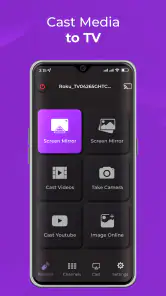
A generic universal remote can be better when one device needs to operate several kinds of equipment. If you want to control a television, sound system, and other hardware from a single physical controller, a dedicated universal remote may offer a more coherent setup. Remote Control for RokuTV is more focused: its appeal is having Roku control on a device you already carry, not replacing every controller in the living room.
The official Roku ecosystem may be the stronger choice for users who want a broader, platform-centered experience and are comfortable with its particular interface. This app is attractive when you want a straightforward tool specifically for controlling a RokuTV and do not need a larger collection of media features. I would choose the simpler route for a backup controller, but I would compare both options if the phone is going to become the household’s main remote.
There is also the option of continuing with the television’s own buttons. Those controls can be useful during setup or when no remote is available, but they are rarely convenient for normal viewing from a sofa. A phone app sits between that emergency method and a dedicated remote: more flexible than walking to the television, but less tactile than pressing a real button.
Remaining barriers before making it your main controller
The largest barrier is dependence on the phone. If the battery is low, the device is being used for a call, the screen is locked, or the phone is misplaced, the television controller disappears with it. That is why I recommend keeping the physical remote accessible even after installing the app. A backup works best when it does not create a new single point of failure.
Setup can also be a barrier for people who are not comfortable troubleshooting connections between a phone and a television. The app’s purpose is clear, but a smooth experience still depends on the devices being able to communicate in the user’s environment. If a family member needs assistance, set it up during the day and write down a short routine in plain language: where the phone is kept, how the app is opened, and what to do if the television does not respond.
Cost deserves a careful look as well. The app is free, but it includes in-app purchases ranging from $3.49 to $32.99 per item. I would not assume that installing it means every possible function is permanently free. Before paying for anything, decide whether the basic controller already solves your problem and whether a purchase offers a meaningful improvement for your particular household. For a simple backup, the free starting point may be enough; for a primary controller, compare the total value with a physical replacement.
Phone notifications are another distraction. A message arriving while you are trying to adjust the television can pull your attention away from the controls, and a shared phone may not be available when someone else wants to pause a program. A dedicated device avoids this problem, while the app inherits the interruptions of the phone it lives on. I consider this minor for occasional use but important for families that share one television throughout the day.
Finally, touch-based control can exclude users who need strong tactile feedback, dependable one-handed operation, or fully hands-free access. The app may still be useful as one part of a setup, but it should not be presented as a universal accessibility solution. The fairest test is personal and practical: can the intended user open it, identify the needed control, activate it without repeated mistakes, and recover when something goes wrong?
My inclusive verdict
I recommend Remote Control for RokuTV to people who want a convenient backup, regularly misplace the physical controller, or find a larger phone easier to see and hold than a small remote. Its free entry point makes it easy to try, and its focused purpose keeps the idea understandable. The app has also built a substantial audience, which gives me more confidence in its everyday usefulness than I would have with an obscure controller that few people have tested.
I would be more cautious about recommending it as the only remote. Users who rely on tactile buttons, people with limited tolerance for screen glare, households with one shared phone, and anyone who needs guaranteed hands-free operation may be happier with a physical or more specialized alternative. A phone controller can improve access in one context and reduce it in another, so the right decision depends on how the intended user interacts with screens.
My preferred setup is to keep both options available. I would install the app, test it in the actual viewing room, adjust the phone’s display for comfort, and establish a consistent place to keep the device. Then I would leave the physical remote somewhere known rather than discarding it. Used this way, the app does not need to replace every part of the television experience to be worthwhile. It simply removes a common point of frustration when the phone is the device that is already closest to me.
For a free tools app from EVOLLY.APP, that is a sensible result. Remote Control for RokuTV is not magic, and it cannot remove the differences between touch and physical controls. But when its screen-based interaction matches the user’s needs, it turns an ordinary phone into a practical Roku companion. I would try it as a backup first, then promote it to the main controller only after the person using it has confirmed that the visual layout, touch response, and daily routine genuinely work for them.
Pros
- Simple remote layout makes navigation quick and easy.
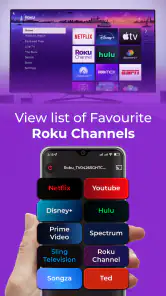
- Works well for launching channels and controlling playback.
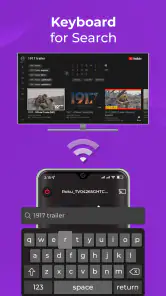
- Keyboard input can speed up searches on supported Roku devices.
- Useful replacement when the physical remote is misplaced.
- Supports convenient volume and power controls on compatible TVs.
Cons
- Requires the phone and Roku device to share the same Wi-Fi network.
- Some features may vary depending on the Roku model or TV brand.
- Advertisements may interrupt the remote experience in the free version.
- Typing with a phone keyboard can still feel slower than voice search.
- It cannot control a Roku device that is offline or disconnected.
- Category
- Tools
- Version
- 1.4.6











