Recovery Photo Ultra
- 142.00
- 4.1
- Installs
- 1.00M
- Price
- Free

Screenshots





Analysis by Reviewed
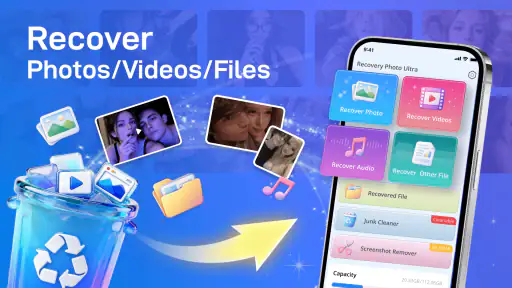
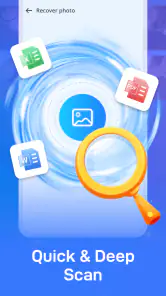
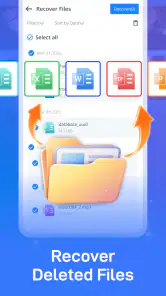
When a file vanishes, the first useful question is not which recovery app to install; it is whether the item was actually deleted and where it was stored. I’m cautious about any app that promises to bring back deleted files, because recovery depends as much on what happened to the device afterward as on the tool itself. Recovery Photo Ultra is a free Android tools app from hk3072072, presented as a simple way to look for photos, videos and other files. I’d treat it as a first place to check—not as a guarantee that every missing item can be restored.
When a recovery attempt gets stuck
The hardest part of file recovery is often knowing what to expect. A file may no longer appear in a gallery, yet its data could still be present somewhere the phone can access. On the other hand, if that storage space has been reused, a recovery app may have little or nothing to retrieve. A one-tap approach can make the first check feel straightforward, but it cannot reverse every kind of deletion or damage.
In my view, the app makes most sense when a photo or video has disappeared recently and the phone is otherwise working normally. I would start with the missing item in mind, run a careful search, and review anything the app presents before taking further action. If the item is important, I would avoid taking lots of new photos, downloading large files or installing several recovery tools first. Those activities can add new data to the device and may reduce the chance of finding older material.
It also helps to separate “missing” from “deleted.” A picture might have been moved, hidden, removed from a particular album, or become unavailable because of a storage or app issue. Recovery software is not always the right answer to those cases. Before scanning, I’d check the usual gallery views and any folders or storage locations where I normally keep the file. That small check can save time and avoid confusing a misplaced item with a recoverable one.
Start with a calm, targeted check
If you are trying to recover one specific image, write down what you remember about it: roughly when it was taken, whether it came from the camera or a messaging app, and where you usually save that kind of file. This is not a special feature of the app; it is a practical way to judge whether a result is likely to be the item you want. A vague search can leave you sorting through unrelated files, while a clear target makes it easier to decide whether a result is useful.
For a video, patience matters even more. Large files can take longer to inspect or handle than a single image, and an item that appears in a result list is not automatically a complete, playable recovery. I would verify a restored video by opening it and checking that it plays beyond the first moment. For photos, inspect the full image rather than relying only on a small preview. These checks help distinguish a usable recovery from a file that merely looks promising at first glance.
Before opening the scan
Recovery Photo Ultra is listed for Android 7.0 and later, so first make sure the phone meets that baseline and has enough battery to complete a careful attempt. Close unnecessary activity if the device is already under strain, and avoid interrupting the process just because it does not finish instantly. I would also keep the phone stable and refrain from clearing storage or using cleanup tools while investigating missing files.
More From Our News Desk

Clash of Clans Is Won Between the Battles

Android Auto Makes the Case for Quieter Car Software

MobiOffice: Transforming Mobile Productivity with Seamless Integration

EA SPORTS FC™ Mobile Soccer: Redefining Mobile Sports Gaming

How Microsoft OneDrive Became a Mobile Productivity Giant

How Google Translate Breaks Language Barriers Effortlessly
Think about where the lost item was stored. A photo kept on removable storage may present a different situation from one held in the phone’s internal storage, and an app cannot necessarily reach every location in the same way. If you know the file was on a memory card, avoid writing new content to that card. If the missing material was in a cloud service or another app’s private area, checking that original service may be more useful than repeatedly searching local storage.
Android may ask for access needed to examine files. I would read each request in context and grant only what is needed to carry out the recovery attempt. If the app cannot inspect the location containing the missing item, the search may be incomplete; if you are uncomfortable with an access request, pause rather than approving it blindly. This is sensible caution for any recovery utility, especially one handling personal photos and documents.
The developer is shown as hk3072072, and the app is currently at version 1.11. Its broad audience is reflected in an Everyone content rating, but that should not be mistaken for a promise about recovery results. The catalog shows an average of 4.1 from around 3,100 ratings, while about 1 million or more installs indicate that many Android users have tried it. Those figures can help you understand its reach, but they do not tell you whether a particular deleted file is still recoverable.
A careful recovery workflow
I’d approach the process in stages. First, stop any unnecessary activity that could write more data. Next, check whether the item is simply elsewhere on the phone or in the service where it was originally stored. Then use Recovery Photo Ultra for a focused attempt and review what it finds with care. If something useful turns up, save or copy it to a safe location without repeatedly moving it around. Keeping a separate copy is more valuable than assuming the recovered version will remain available in its current location.
One useful trade-off is to avoid launching multiple recovery apps one after another. Each installation and scan can involve more device activity, while switching tools makes it harder to tell what changed. I would try one sensible route, record which folders or file types I checked, and only move on if there is a clear reason. If the app finds nothing, that result does not prove the file never existed; it may mean the relevant storage is inaccessible, the data has been overwritten, or the item was held somewhere outside the app’s reach.
For a realistic everyday case, imagine accidentally deleting a picture after a family gathering and noticing the mistake the same day. I’d stop taking extra pictures, check the gallery’s other views and the original place the image was saved, then make one targeted recovery attempt. If I found a candidate, I’d open it at full size and preserve a copy. If it did not appear, I would avoid repeatedly scanning while continuing to use the phone heavily, because that combination is unlikely to improve the odds.
Documents need a slightly different kind of judgement. A recovered filename or preview may not be enough if the contents matter; open the file in an appropriate viewer and make sure it is complete. For work or legal material, I would not rely on a phone utility as the only recovery plan. Look for a backup or original copy as well, and consider professional help if the data is irreplaceable. The app is best viewed as a convenient first check, not a substitute for a dependable backup system.
When the phone or storage is the real problem
A recovery app cannot fix every cause of disappearance. If the phone has filesystem errors, physical damage, an unreliable memory card or a broader storage failure, repeated scans may not address the underlying issue. Watch for other symptoms, such as files failing to open or storage behaving inconsistently. In that situation, stop experimenting if the data is valuable; continued use can make a difficult recovery harder, and specialist assistance may be the safer choice.
There is also a difference between recovering a local file and restoring something held by an online account. If a photo was synchronized, check the relevant account or service and its own deleted-items area. If a messaging app supplied the media, the conversation or sender may provide another copy. Those routes are often better than a device scan because they go back to the source. I would use the recovery app when local storage is the likely location, not as a universal search across every service connected to the phone.
Compared with manual browsing, a recovery tool can save effort when the file is no longer visible in the places you normally look. Compared with a backup, though, it is less predictable: a backup is a deliberate copy, while recovery depends on the state and accessibility of the original storage. That is the key distinction I’d keep in mind. For important photos, periodic copies to another device or a trusted storage service are more dependable than waiting until something disappears.
Who should try it—and who should look elsewhere
I’d recommend giving Recovery Photo Ultra a try if you use Android 7.0 or newer, have recently lost a local photo, video or file, and want a free, straightforward first attempt. The app’s one-tap positioning suits someone who does not want to begin with a complicated technical process. Its reach—over 1 million installs—also suggests it is not an obscure tool, though popularity alone should not be treated as proof of a successful outcome for your device.
I would skip it as the main solution if you already know the item was stored in a cloud account, if the phone or card appears physically damaged, or if the files are too important to risk further experimentation. In those situations, the original service, a backup, or a professional recovery option is a better match. I’d also avoid expecting a tool to restore material that has been overwritten or to recover an intact file merely because a result with a familiar name appears.
The app’s free price makes a cautious first check easy to justify, but I would still keep expectations measured. A recovery attempt is worthwhile when the lost material is recent and the device has not been heavily used since. The more time and new activity there has been, the less confident I’d be. That is not a judgement on this particular app; it is a basic limitation of trying to retrieve data after deletion.
My practical verdict
Recovery Photo Ultra is most useful as an early, focused attempt—not a safety net. I like the low-friction idea of checking for missing photos, videos and files without starting with a technical workflow, and its free availability makes that first step accessible. The important part is how you use it: stop unnecessary writes, check the likely storage location, inspect any recovered item, and keep a separate copy if it is valuable.
For an ordinary accidental deletion, I’d try it before giving up, while also checking backups and the app or service that originally held the file. For damaged storage or irreplaceable material, I would not keep experimenting on the phone; I’d seek a safer route. Used with those boundaries, this is a reasonable Android utility to have in mind, provided you see recovery as a possibility rather than a promise.
A sensible point to stop
If your first focused check comes back empty, I would not treat that as a cue to keep changing settings or repeating the same search all afternoon. First reassess the likely source: was the image made with the camera, received in a chat, or kept in a synced account? That distinction can point to a more promising place to look without creating extra activity on the phone. If you cannot identify another likely location and the file is not critical, stopping may be the most practical choice.
For someone who takes photos casually and has no recent backup, the app is best approached as a low-cost attempt rather than a replacement for a routine. After resolving the immediate problem, I’d set a reminder to copy irreplaceable pictures somewhere separate from the phone. That habit changes the stakes of the next accidental deletion: recovery can remain a useful last try, but it no longer has to carry the whole burden of protecting your memories.
Recovery Photo Ultra Frequently Asked Questions
What is Recovery Photo Ultra, and what does it do?
Recovery Photo Ultra is presented as a tool for finding and restoring deleted photos on a mobile device. Its usefulness depends on how the files were removed, how long ago they disappeared, and whether new data has overwritten their storage space. Before installing, check the app’s store listing for supported file types and Android or iOS compatibility, since recovery features can differ between versions and devices.
Can Recovery Photo Ultra restore every deleted photo?
No recovery app can guarantee that every deleted image will be restored. A photo may remain recoverable if its data has not been overwritten, but recovery can be difficult or impossible after storage has been reused, a device has been reset, or files were permanently removed from a cloud backup. Stop saving new files to the affected device and review the app’s stated limitations before relying on it.
Does Recovery Photo Ultra require root access or special permissions?
Requirements may vary by operating system, device, and app version. Some recovery functions can work with ordinary permissions, while deeper scans on certain Android devices may require elevated access; iOS also restricts how apps can inspect device storage. Review the permissions requested during setup and the developer’s documentation. Be cautious if a permission seems unrelated to photo recovery, and do not root or jailbreak a device without understanding the risks.
Is Recovery Photo Ultra free, and are there in-app purchases or ads?
Pricing and access can change over time, so check the current Google Play or App Store listing before downloading. The basic download may not include every recovery feature, and the app could offer subscriptions, one-time purchases, or advertising. Confirm what is available at no cost, whether a payment is required to save recovered files, and the cancellation terms for any trial or subscription before proceeding.
Is it safe to use Recovery Photo Ultra, and what should I check before downloading?
Download the app only from an official app store or a verified developer source, then review its latest privacy policy, permissions, ratings, and update history. Deleted photos may be sensitive, so check whether scans or recovered files are processed locally or uploaded to a service. Avoid granting unnecessary access, and consider backing up your device before using recovery tools, especially if the app asks for advanced access.
Pros
- Simple interface makes photo recovery approachable for less experienced users.
- Can help find deleted images that are still present in device storage.
- Useful for checking recoverable photos before deciding what to restore.
- Focused on photo recovery rather than a broad set of unrelated tools.
- May save time compared with searching through folders manually.
Cons
- Recovery results depend on whether deleted files have been overwritten.
- Some recovered images may be incomplete
- damaged
- or lower quality.
- Scanning can take time
- especially on devices with large amounts of storage.
- May not recover photos removed from cloud backups or synced services.
- Recovery features or ad-free use may require payment
- depending on the version.

- Category
- Tools
- Version
- 1.11