Private Internet Access VPN
- 16.09K
- 4.5
- Installs
- 10.00M
- Price
- Free
Screenshots




Analysis by Reviewed
I found Private Internet Access VPN most useful when I treated it as a control panel rather than a simple on-and-off privacy switch. The Android app comes from PIA Private Internet Access, Inc and belongs in the tools category, but its real appeal is the amount of choice it gives you around DNS, port forwarding, and proxy settings. That flexibility can be valuable for people who need a VPN to fit a particular network, device, or routine. It can also make the first few sessions feel busier than expected.
My overall impression is that this is a capable mobile VPN for users who want to understand and adjust their connection instead of accepting one fixed setup. It is free to install, rated for Everyone, and has reached over ten million installs with a 4.5 average from around one hundred eight thousand ratings. Those figures suggest a well-established app, but they do not remove the need to decide whether its detailed controls actually suit the way you use your phone.
How clearly the app presents its controls
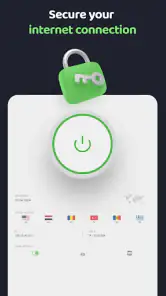
The main experience is easiest to understand when you begin with the basic connection workflow. I would start by connecting without changing anything, then return to the settings only when a real need appears. That approach keeps the app from turning a straightforward privacy task into a technical project. The central idea is simple: connect when you want the VPN active, disconnect when you do not, and use the additional menus for deliberate adjustments.
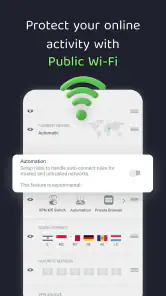
Where the app becomes more demanding is in the number of decisions it places near the ordinary VPN experience. DNS configuration, proxy choices, and port forwarding are not concepts every phone owner will recognize immediately. For an experienced user, that is a strength because the app does not hide useful networking options. For someone who only wants safer browsing on public Wi-Fi, the same depth can create uncertainty about which settings are safe to leave alone.
I would describe the navigation as practical rather than especially gentle. The app makes more sense if you already know whether you need a custom DNS arrangement or a proxy, and less sense if you are looking for a guided explanation of every networking term. A helpful personal rule is to change one setting at a time. If a website, game, or work service behaves differently afterward, you have a much better chance of identifying the cause.
The current version is 4.1.0, and the app supports devices running Android 7.0 or later. That broad compatibility makes it relevant to people who keep an older phone for budget reasons, as well as users with newer hardware. Still, compatibility alone does not guarantee an equally comfortable experience on every screen size or with every system configuration, so I would pay attention to how easily you can reach the connection and settings areas on your own device.
Readability for different levels of experience
Text-heavy technical options create a particular challenge for readers who process information slowly or who are unfamiliar with VPN terminology. I would not recommend opening every advanced menu on the first day. Instead, decide what you want to accomplish first: protect traffic on a café network, use a proxy for a specific workflow, or test a DNS choice. Once the goal is clear, the relevant control is easier to evaluate.
For a friend who is new to VPNs, I would explain that more options do not automatically mean better privacy or faster browsing. A custom setting can solve one problem while introducing another, such as a service refusing a connection or an app behaving unexpectedly. The most readable way to use Private Internet Access is therefore a staged approach: basic connection first, one targeted adjustment second, and a quick test of the apps you rely on afterward.
The strongest accessibility choice here is user control, but control only helps when the interface gives you enough confidence to leave unfamiliar settings untouched. That distinction matters. A highly configurable app can accommodate more situations than a stripped-down competitor, yet it may ask more of the person operating it.
Motor and sensory considerations during everyday use
A VPN is often used while someone is already doing something else: joining a video call, checking a bank account, connecting to public Wi-Fi, or troubleshooting a work application. That makes simple, predictable interaction important. I found the ordinary connect-and-disconnect task easier to manage than the advanced configuration work, because the latter requires more precise selection and more attention to labels.
For users with limited dexterity, the practical question is not only whether a control is visible, but whether it is easy to select without accidentally changing a neighboring option. The safest workflow is to make configuration changes when you are seated and unhurried, not while walking through an airport or trying to get online before a meeting. Afterward, leave the configuration alone and use the basic connection control for routine sessions.
People with visual sensitivities or difficulty distinguishing small interface details may also prefer a less customized setup. The more menus you open, the more visual information you must sort through. I would keep a short personal note describing any intentional changes, especially if you use the app on more than one phone. That avoids repeatedly exploring the same technical screens and reduces the chance of forgetting why a setting was changed.
Users who rely on spoken feedback or alternative input methods should judge the app on their own device and operating-system configuration before committing to a long-term workflow. I would not assume that a technically powerful VPN automatically offers the clearest experience with every accessibility tool. The app’s value is in networking flexibility, not in replacing a dedicated accessibility interface or simplifying every interaction.
When advanced controls improve access
There are situations where customization can genuinely make access easier. Suppose a household network handles ordinary browsing well but a particular service works more reliably through a proxy. Being able to configure that path inside the VPN can save you from switching between unrelated tools. Likewise, someone managing a remote connection may appreciate having port forwarding available instead of searching for a separate utility.
DNS control can also matter for users who have a specific network arrangement or who are testing how name resolution affects a service. The benefit is not that a custom DNS choice is universally superior; it is that the app lets you make a deliberate choice. I recommend recording the original configuration before experimenting. That small habit turns troubleshooting into a reversible process rather than a guessing game.
These features are most useful to people who can connect a setting with a clear outcome. If you are changing options because they sound advanced, you are more likely to make the app harder to use without gaining anything. In my experience, the best accessibility outcome comes from reducing unnecessary decisions, even in an app designed to provide many of them.
Situational access: where the app fits well
Private Internet Access VPN makes sense for travelers, remote workers, students, and households that regularly move between home networks, mobile data, and public hotspots. A realistic example is a commuter who opens a laptop or phone at a library, connects to the available Wi-Fi, and wants the VPN active before checking work messages. The app can serve as a repeatable step in that routine, provided the user has already tested the setup and knows how to recognize a successful connection.
It is also a reasonable choice for someone who wants one mobile VPN with room to grow. A beginner can use the basic connection function, while a more technical user can later explore DNS, proxies, or port forwarding. That progression is more useful than buying a separate simple VPN and then replacing it when a specialized need appears. The trade-off is that the beginner may encounter terminology before they are ready for it.
People using older Android phones may appreciate the stated minimum operating-system support, since the app is not limited to only the newest devices. However, an older phone may still feel less comfortable if its display is small, its performance is modest, or its system makes multitasking difficult. I would test the basic connection process and the one or two settings you actually need before relying on it during travel.
The app is free to install, while in-app purchases range from $5.90 to $74.99 per item. That makes it easy to try without paying at the download stage, but anyone planning to continue should review the purchase screen carefully and decide whether the available plan fits their budget. I would not choose a VPN solely because its installation costs nothing; the important question is whether its controls and ongoing cost match your needs.
Who should choose a simpler alternative
If your only requirement is a large, obvious connect button and no interest in networking details, a simpler VPN may feel more comfortable. Some competing services put more effort into guided setup and minimize technical choices. That can be the better option for a family member who wants a low-maintenance routine, particularly if several people with different abilities share the same device.
I would also look elsewhere if your main concern is a highly specialized accessibility workflow rather than VPN configuration. Private Internet Access gives you networking options, but that is different from offering a deeply adapted interface for every sensory, motor, or cognitive need. A service that presents fewer decisions may reduce fatigue, even if it cannot match this app’s flexibility.
On the other hand, users who need to configure a proxy or DNS behavior should not dismiss the app just because it looks more technical. In that case, a basic alternative may force you into workarounds or multiple applications. The right comparison is not “which VPN has the shortest setup,” but “which one lets me complete my actual workflow with the fewest obstacles?”
Remaining barriers and practical ways around them
The biggest barrier is the gap between the app’s power and the explanations a new user may need. Terms such as port forwarding and DNS are meaningful to network-aware users but can be intimidating to everyone else. I would like the experience to make the difference between essential controls and optional expert controls unmistakable. Until then, users should treat the advanced area as something to visit only for a defined reason.
Another source of friction is troubleshooting. A VPN can change how a service reaches the internet, and a custom proxy or DNS choice adds another possible cause when something stops working. My practical method is to return to the last known working configuration, test the affected service, and then reintroduce changes individually. This is slower than randomly tapping through settings, but it is far more reliable.
There is also a human barrier: people often expect a VPN to solve every privacy and connection problem automatically. It cannot make a weak mobile signal strong, and it cannot guarantee that every website or app will behave identically while routed through a VPN. If a particular banking, streaming, gaming, or work service is essential, test it before you need it. Keep the app’s role clear: it changes the network path; it does not control the behavior of the service at the other end.
For users who have difficulty remembering multi-step procedures, write down a short routine in plain language. For example: join Wi-Fi, open the VPN, connect, check the status, then open the sensitive app. Avoid documenting every technical option unless you truly use it. A short routine is easier to follow and makes the app more usable for someone who shares the phone or needs support from a family member.
People who are sensitive to interruptions should make configuration changes outside urgent situations. Do not experiment immediately before a remote appointment or while trying to submit important work. The app is most accommodating when it becomes a prepared part of your routine, not a tool you are forced to learn under pressure.
My inclusive verdict after using the app
Private Internet Access VPN is a strong fit for people who want a mobile VPN that can adapt to unusual networking requirements. Its support for DNS configuration, port forwarding, and proxies gives it a wider range of possible workflows than a minimalist VPN. I especially value the ability to begin with a basic connection and add complexity only when a real task calls for it.
Its inclusive side is therefore conditional. The flexibility can help users with different devices, networks, and technical goals, but the same flexibility can burden people who need very clear guidance, minimal choices, or a highly simplified routine. I would recommend it to a curious beginner who is willing to learn gradually, an experienced user who needs configuration control, and anyone whose network situation does not fit a one-button VPN.
I would be more cautious about recommending it to someone who becomes anxious around technical settings, depends on a very streamlined interface, or expects accessibility support to be the app’s central purpose. In those cases, a simpler alternative may be kinder to use, even if it offers fewer networking options.
Developer PIA Private Internet Access, Inc has made a tool that can serve both ordinary privacy routines and more specialized connection setups. The app has been available since April 5, 2013, and its current release is a mature option rather than an experimental newcomer. My advice is to install it for the basic workflow, test the services you use most, and only then explore advanced controls.
For me, the deciding point is not the number of settings but whether those settings help you complete a real task. If they do, this is a flexible and worthwhile VPN app. If they merely make you hesitate before connecting, choose something simpler. Private Internet Access VPN is at its best when customization removes a barrier instead of becoming another barrier to cross.
Pros
- Strong privacy features
- including a strict no-logs policy and kill switch.
- Large server network offers many location options worldwide.
- Supports multiple devices under one subscription.
- Advanced settings suit users who want detailed VPN control.
- Reliable streaming and torrenting support on many servers.
Cons
- Some advanced options may feel overwhelming for VPN beginners.
- Connection speeds can vary depending on server distance and congestion.
- The cheapest price usually requires committing to a longer plan.
- Dedicated IP addresses cost extra and are not included by default.
- Certain streaming platforms may still block access from time to time.
- Category
- Tools
- Version
- 4.1.0











