Printer App: Print Documents
- 196.00
- 3.8
- Installs
- 100.00K
- Price
- Free

Screenshots
Analysis by Reviewed
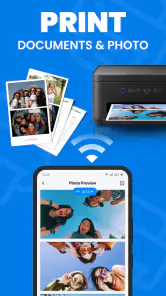
I tested Printer App: Print Documents as the kind of tool you open when a file is ready on your phone but the final step still has to happen on paper. That situation is more common than it sounds: a form arrives in a message, a PDF sits in cloud storage, or a photo needs to become a physical copy before leaving home. Instead of moving the file to a computer, I used this app as the bridge between the phone and the printer.
It is a free tools app from FIRE Ltd, aimed at connecting a printer with an Android device and sending documents or images to it. The app is rated for Everyone, which fits its straightforward purpose. Its overall average is 3.8 from around 12 thousand ratings, and it has passed 100 thousand installs. Those figures suggest that it has found a practical audience, although they also hint that the experience may depend heavily on the printer and phone involved.
My overall impression is that the app is most useful when speed matters more than a long list of advanced controls. I would recommend trying it if you regularly receive PDFs or photos on your phone and want a simple route to a nearby printer. I would be more cautious if you need professional page layout, detailed color management, or a guaranteed result for an important document.
From a file on the phone to paper in hand
The starting point: a document that is ready, but not yet usable
The best way to understand this app is to follow a normal task rather than judge it from the name alone. Imagine receiving a signed form as a PDF while you are away from your computer. You need a paper copy for an appointment, and the printer is already available at home. The file itself is not the problem; the awkward part is getting it from the phone into the printer without opening a desktop program.
I began with that kind of situation. The app sits in the tools category, so it does not try to be a document editor or a full office suite. That is an important distinction. I would prepare the file elsewhere, check that the pages look correct, and then use this app for the handoff to the printer. If you expect to crop a document, rewrite text, combine several files, or repair a badly scanned page, this is not the place to do that work.
The same applies to photographs. A picture saved on the phone can be a useful print source, but the quality of the final result still depends on the original image, the printer, and the paper. The app can help send the photo onward; it cannot turn a small, blurry image into a sharp enlargement. That sounds obvious, but it is an easy expectation to get wrong when a printing app promises convenience.
Choosing the source without creating another problem
My first practical tip is to prepare the source before opening the print screen. Rename or identify the correct file, close any unrelated document, and check whether the PDF contains the pages you actually need. This reduces the chance of printing an old attachment or sending a whole document when only one page matters.
For a photo, I would look at the image in the gallery first and decide whether it is portrait or landscape. That small check matters because an automatic fit can leave more blank space than expected or crop an edge. When the image includes a ticket, receipt, or ID-style document, preserving the complete border is usually more important than filling every part of the paper.
This is one of the app's less obvious trade-offs: convenience shifts some responsibility back to the user. A computer print dialog often gives a clearer overview of pages, margins, orientation, and scaling. On a phone, those choices can feel compressed into a smaller workflow. I found it better to make the visual decisions before sending the job rather than assume the app would interpret my intention perfectly.
The step-by-step connection flow
After opening the app, I treated the process as a sequence of handoffs. First comes the phone, where the file lives. Next comes the app, which acts as the route toward the printer. Finally, the printer receives the job and produces the result. Keeping those stages separate makes troubleshooting much easier than simply tapping through and hoping for paper.
The first handoff is selecting the document or image. For a PDF, I would use it when the file is already final and readable. For a photograph, I would choose the original image rather than a screenshot of a compressed preview. That distinction can make more difference to the printed result than any setting inside the app.
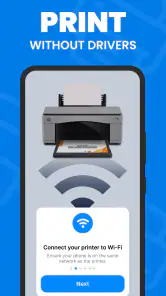
The second handoff is the printer connection. This is where patience matters. If the printer is not immediately visible, I would check the simple things first: the printer should be powered on, ready, and connected to the same local network when the setup depends on network discovery. I would also avoid starting with a large batch. A single test page reveals whether the connection works before paper and ink are wasted.
The third handoff is the print request itself. I recommend treating the first page as a proof. For a form, print one page and inspect the margins, text size, and orientation. For a photo, print a small or ordinary copy first if the image is important. This workflow is especially useful because a successful connection does not automatically guarantee that the layout will match what you saw on the phone.
What happens between the phone and the printer
The app's value is not only the final tap. It removes a transfer step that many people find annoying. Without it, the usual alternatives are emailing the file to yourself, opening a computer, copying it with a cable, or relying on a printer manufacturer's separate application. Those methods can work, but each introduces another device, account, or interface.
Compared with a manufacturer-specific printer app, this tool may be more appealing when you use different printers or simply want a general route from phone to paper. The trade-off is that a dedicated brand app can sometimes expose controls tailored to its own hardware. If you need ink status, maintenance routines, specialized paper presets, or model-specific finishing, the printer maker's software may be the better choice.
Compared with Android's built-in printing options, the main reason to try this app is convenience and focus. A system-level option can be enough for people who already have it configured and only print occasionally. This app makes more sense when you want a separate, recognizable place to begin the task. I would not install it merely to duplicate a setup that already works smoothly through the operating system.
There is also a privacy-minded workflow worth considering. If a document contains personal information, I would avoid passing it through unnecessary services and would print directly from the local device when possible. I would still review the app's current permissions and privacy details before using it for sensitive material, but the practical principle is simple: keep the file path as short as you can, and remove temporary copies from the phone afterward if they are no longer needed.
A realistic everyday handoff
Here is the scenario in full. I receive a PDF appointment form in a messaging app while standing in the kitchen. I open it first to make sure the pages are complete, then launch the printing app and select the document. The printer is already on, so I look for it, choose the available device, and send a single page as a test.
The first printed page becomes the decision point. If the text is centered and the edges are intact, I continue with the remaining pages. If the form is too close to an edge, I stop rather than print everything. I would then return to the available print choices, adjust the layout if the app presents that option, or prepare a better version of the PDF in another application before trying again.
This may sound slower than pressing print immediately, but it is faster than discovering a problem after wasting a complete set of pages. It also shows where the app fits best: as a quick final-mile tool, not as the place where a document's design is fixed.
Photos need a different kind of care
Printing a photo from the phone feels simpler than printing a document, but the risks are different. A document is judged mainly by legibility and completeness. A photo is judged by framing, color, and the relationship between the image shape and the paper shape.
I would use the gallery or an editing app to crop the photo before sending it. That gives me control over what gets removed. Automatic fitting can be helpful for casual snapshots, but it is less suitable for a picture where a person's head, a product label, or a handwritten note must remain visible.
Another useful habit is to avoid judging brightness only from the phone screen. Phones can make images look brighter and more vivid than paper will appear. The printing app can deliver the file, but it is not a substitute for editing the exposure or contrast beforehand. For an occasional family photo, that may be acceptable. For a portfolio image or a presentation, I would use a more capable photo workflow.
Where the flow breaks
The weakest part of any phone-printing workflow is usually the connection stage. A printer that is asleep, offline, connected to another network, or not discoverable can make a simple job feel mysterious. I would not immediately blame the app. I would first wake the printer, confirm its network status, and retry with a small file.
Another break occurs when the selected document is not truly print-ready. Some PDFs contain unusual fonts, complex graphics, or layouts designed for a particular program. A phone may display the file correctly while the printed interpretation differs. For those cases, exporting a simpler PDF or using the original document application may produce a more reliable result.
Large image files can also make the experience less comfortable, especially when the task is urgent. I would avoid sending a whole photo library or a long collection of high-resolution images in one go. Printing in small groups gives me a chance to catch a wrong orientation, duplicate image, or paper-size mismatch early.
The app is also not the right answer for every printer owner. If your printer already works perfectly through a built-in system service, adding another tool may create needless duplication. If your work involves booklets, labels, envelopes, duplex production, exact scaling, or color-critical output, a desktop application or the printer manufacturer's software will probably offer more dependable control.
Cost, version, and what to expect over time
The app itself is free to install, which makes testing it relatively easy. It includes in-app purchases ranging from $5.99 to $39.99 per item, so I would review any purchase screen carefully and decide whether the free workflow already covers my needs before paying for anything. For occasional printing, the free starting point may be enough; frequent users should compare the cost with the value of the controls they actually need.
The current version is 31.0, and it runs on Android 7.0 or later. That broad compatibility is useful for people keeping an older phone, although compatibility with the phone does not guarantee compatibility with every printer. The printer model, network arrangement, and document format still influence the result.
FIRE Ltd has positioned this as a focused utility rather than a broad productivity package. That focus is a strength when I want to get from a saved file to a print attempt quickly. It becomes a limitation when the task expands into editing, archiving, scanning, or managing a complete paper workflow.
Who should use it, and who should skip it
I think this app is a good fit for students printing assignments from a phone, households that occasionally need forms on paper, and anyone who receives PDFs through messages or email and does not want to involve a computer. It is also useful for quick photo prints when the exact finish is not critical.
I would skip it if printing is already handled cleanly by the phone's built-in tools, or if the printer requires a specialized manufacturer application for its important functions. I would also choose a desktop workflow for business documents where a misplaced margin, incorrect scale, or missing page could cause trouble.
For a first test, I would use a short PDF with ordinary text, print one page, and inspect it in daylight. Then I would try a photo separately, because success with a document does not prove that image framing will suit you. This two-part check gives a much clearer answer than relying on the app's name or a quick connection alone.
My final take after following the whole workflow
Printer App: Print Documents succeeds when the job is simple: a file is on the phone, a compatible printer is nearby, and I need a direct path to paper. I like that it keeps the task centered on the practical handoff instead of asking me to build a larger document-management system around it.
Its limits are just as important. Connection problems, layout surprises, image quality, and printer-specific controls still require user attention. The app can shorten the route, but it cannot remove the differences between printers or correct a poorly prepared file.
My recommendation is to try it if you want a convenient general-purpose printing route on Android and are comfortable checking a test page before committing to a larger job. For occasional home printing, it can be a useful time-saver. For demanding or high-stakes output, I would keep a dedicated printer utility or computer workflow available. In short, it is best viewed as a practical bridge from phone to printer, not as a complete replacement for every printing tool.
Pros
- Prints documents
- photos
- and PDFs directly from your mobile device.
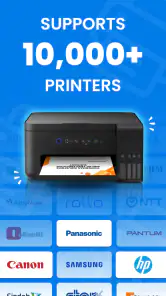
- Supports common printer brands and makes setup relatively straightforward.
- Useful preview options help check pages before sending a print job.
- Can access files from cloud storage and other apps for added convenience.
- Saves time by avoiding the need to transfer files to a computer first.
Cons
- Printer compatibility may vary
- especially with older or less common models.
- Some advanced printing features may require a premium upgrade.
- Wireless printing depends on a stable Wi-Fi connection.
- Large photos and documents can take time to load or process.
- The app may request broad file and device permissions during setup.
- Category
- Tools
- Version
- 31.0











