PDF Scanner - Reader
- 69.00
- 3.3
- Installs
- 1.00M
- Price
- Free
Screenshots
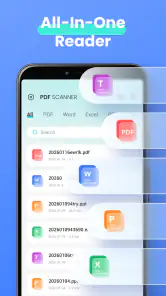
Analysis by Reviewed
My first useful test with PDF Scanner - Reader would be a document I already need to check, not a random file chosen just to explore. I’d install it, open a familiar PDF or office document, and see whether I can find the information I came for without turning a quick task into a setup project. That is the sort of small, practical win this Android tool is meant to support.
A sensible first test, not a whole new workflow
Before relying on any reader, I like to try the kind of file I expect to receive most often. A one-page form or itinerary is a better first test than a large spreadsheet: it makes it easy to tell whether the document opens and whether its text is comfortable to read. If that goes well, I’d then try an Excel or Docx file that resembles the material I actually use.
This app is best approached as a way to view existing documents on a phone. Its name may make a first-time user expect camera scanning, but I would not choose it on that assumption. The sensible first step is to treat it as a reader, then decide whether its handling of your real files is enough for your routine.
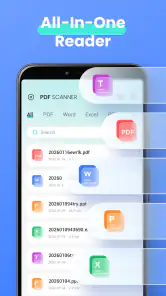
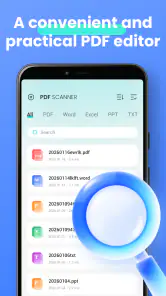
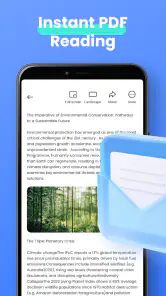
When I need to open a document quickly on my phone, I don’t want to spend time figuring out a complicated office suite. PDF Scanner - Reader is aimed at that simple moment: it is a lightweight Android tool for viewing PDF, Excel, and Docx files. My first impression is that it makes the most sense as a convenient reader for documents you already have, rather than as a full document-editing or scanning workspace.
What to expect from this reader
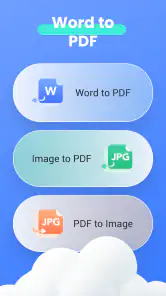
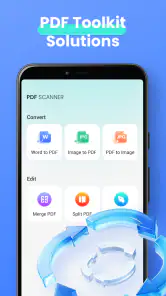
The name can suggest a scanning app, and the short store label reinforces that impression, but the practical focus described for the app is reading existing files. If you are choosing it because you need to view a PDF or check a Word or spreadsheet document while away from a computer, that distinction matters. I would approach it as a straightforward viewer, not assume it will scan paper, convert formats, or let me revise a document.
That narrower role is useful. A phone often becomes the place where a form, receipt, schedule, or work attachment needs a quick look. Keeping a dedicated viewer available can be simpler than opening a larger productivity suite for a one-minute task. The trade-off is that viewing and editing are different needs: if I must change wording, correct spreadsheet cells, or collaborate on a file, I would reach for an office app designed for those jobs.
PDF Scanner - Reader is a free tools app from Al Fayrouz. It is rated for Everyone, and its current version is 1.1.2. It has an average rating of 3.3 from around 1.6 thousand ratings, alongside 69 written reviews, so I would treat it as a practical option to try rather than assume every user will have the same experience. It has passed over a million installs, which suggests the basic use case is familiar to many Android users, but popularity alone does not tell me how well it will handle a particular file.
More From Our News Desk

Clash of Clans Is Won Between the Battles

Android Auto Makes the Case for Quieter Car Software

MobiOffice: Transforming Mobile Productivity with Seamless Integration

EA SPORTS FC™ Mobile Soccer: Redefining Mobile Sports Gaming
How Microsoft OneDrive Became a Mobile Productivity Giant
How Google Translate Breaks Language Barriers Effortlessly
Who is likely to find it useful?
I can see it suiting someone who mainly wants to open common office documents on a phone and values a compact, focused tool. It is especially reasonable if your files are already stored on the device or arrive through the usual sharing flow and your goal is simply to inspect them. For that person, the best measure of success is not a long list of extras; it is whether the document opens and remains readable when needed.
It is less suitable if your everyday work involves editing, tracked changes, spreadsheet calculations, or sending polished documents back to colleagues. A dedicated office suite is a better match for those workflows. Likewise, anyone looking for a camera-based scanner should check that the app’s actual capabilities fit that task before relying on its name. I would not plan a paper-scanning workflow around a product whose stated focus is document viewing.
Getting started without overcomplicating it
After installing it, I would begin with a file I already know I need to read, rather than trying to organize my whole document collection at once. Open the app and look for the route it provides to select or browse a document, then choose one PDF, Excel, or Docx file. This small test tells you more than a tour of menus: it confirms that the app can reach the file and that the content is legible on your phone.
For a first try, use a non-sensitive document if you have a choice. That is a sensible habit with any new file viewer, particularly before making it part of a work routine. You can also keep the original file where it is and treat the app as a way to read it, rather than assuming the viewer will become the place where you manage or modify the source document.
One useful preparation is to know where the document came from. A file downloaded from a browser, received in a message, or shared from another app may be presented differently by Android. If you cannot find it immediately inside the reader, try opening the file from the app that received it and using the phone’s available open-with choice. That gives you a second route without assuming the reader has a particular file-management feature.
Your first useful document check
A realistic first success might be opening a travel itinerary or a school form while you are waiting somewhere, then confirming the date, address, or instruction you came to check. With a spreadsheet, I would use the first session to inspect whether the needed sheet and information are readable on the phone; a mobile screen can make a wide table awkward even when the file opens correctly. In other words, “opened” and “comfortable to use” are separate tests.
For a PDF, start by checking that the text is clear at the default view and that you can move through the pages you need. If the document is dense, zooming in may help, though it can mean more panning across the page. For a Docx file, focus on whether the layout remains understandable rather than expecting a phone viewer to reproduce every detail exactly as a desktop editor would. Those checks help you decide whether the app is enough for your particular document, not just whether it launches.
A good first-session habit is to test the exact kind of file you expect to use most. Someone who mostly receives PDFs should not judge the app only by opening a spreadsheet, and the reverse is true as well. This is a simple but often overlooked way to avoid discovering a mismatch when a document is urgent.
Where confusion can creep in
The word “Scanner” is the most likely source of mismatched expectations. I would not read it as proof that the app turns a camera photo into a scanned PDF. Its stated role is viewing PDFs, Excel files, and Docx documents, so I would choose it for reading those formats and use a clearly scanning-focused app when capturing pages from paper is the main goal.
Another common point of confusion is the difference between viewing and editing. A document may display correctly without offering the tools needed to alter it. If you need to fill in a form, correct a figure, or save a revised copy, first establish whether the app supports that specific action; otherwise, use an editor and return here only if you want a simpler way to inspect the file. This distinction prevents an ordinary reader from becoming a frustrating substitute for a full office suite.
Files can also be hard to judge on a small screen. A wide Excel sheet may require careful horizontal movement, while a PDF designed for printing can make its text look tiny at phone scale. That is not necessarily a fault in the file viewer, but it affects whether this is the right place to do the task. I would use the phone for checking a value or reading a short document and switch to a tablet or computer for extensive comparison across columns or close layout review.
The app’s overall rating is a modest 3.3, so I would keep expectations measured and test it with ordinary files before depending on it for time-critical work. Ratings can reflect different phones, file types, and expectations; they do not tell me whether one specific document will open well. My practical advice is to keep another way to access important files until you know how this reader behaves in your own setup.
How it fits beside familiar alternatives
Compared with a full office suite, a focused reader is appealing when the task is only to look at a file. A larger suite may offer a more natural next step for editing, formatting, or sharing work, but it can feel like more than you need just to check a single page. PDF Scanner - Reader’s value is in that lighter purpose, provided you do not expect it to replace the broader tools.
Compared with using whatever document viewer is already installed on a phone, this app is worth considering if you want one place for these common document formats. The better choice depends on your routine: if your current viewer reliably opens everything you receive, switching may not improve much; if you often need to open PDFs alongside spreadsheets and Word documents, trying a dedicated option may be worthwhile. I would compare them using the same few everyday files rather than choosing based on names alone.
There is also a difference between a reader and a cloud-based workflow. If your work depends on shared editing or keeping a team’s changes synchronized, choose a service built around collaboration. If you mostly receive files and need to check them privately on your phone, a simple viewer can be a more comfortable fit. That is the clearest way to decide: match the app to the action you repeat, not to every feature you might someday want.
Making it part of a dependable routine
Once your first test works, use the app for a small, repeatable task: opening a document from a message, checking a PDF before leaving home, or reviewing a spreadsheet value during a quick pause. If the file matters, keep the original in its usual location and verify any important information before acting on it. A viewer helps you access content; it does not remove the need to check that you have the right version.
Android 8.0 is the stated minimum operating-system requirement, so a device on that version or later meets the listed baseline. The app is free, which makes it easy to try for this limited purpose, and its Everyone age rating makes it broadly suitable from a content-rating standpoint. I would still judge it by how it handles your own files, since compatibility with the operating system is only one part of a useful experience.
My recommendation is cautious but positive for first-time users who want a compact way to read PDF, Excel, and Docx files. Start with one familiar document, confirm that the format is comfortable to view, and keep your editing or scanning needs separate. If that first check goes smoothly, it can be a handy tool to have on hand; if you need a camera scanner, robust editing, or serious spreadsheet work, a more specialized alternative will serve you better.
A practical way to decide whether it earns a place
For a realistic everyday use, imagine a form arriving in a family message while you are away from your desk. I would open it, check the specific date or instruction, then leave any changes or responses to the app intended for that job. That separation is useful: a lightweight reader can answer “what does this say?” without becoming the place where I try to complete every step that follows.
It may also suit students who need to review a handout between classes, or someone who receives a spreadsheet with a single figure to verify. The trade-off is that document layout and interaction vary by file. A short text document is naturally easier to inspect on a phone than a dense table, so I would judge usefulness by the task rather than by assuming every supported format feels equally convenient.
If you are deciding between this and the viewer already on your phone, keep both in mind until you have tried the same files in each. A built-in viewer may be the simplest choice if it already handles your PDFs and office documents well. A dedicated reader is more appealing when you want a separate tool for this particular job, but installing another app is not automatically an improvement if your current routine is already smooth.
I would skip it if your main need is scanning paper into a shareable file, making substantial edits, or collaborating on documents with other people. In those cases, choose a scanner or office platform designed around that task instead of trying to stretch a reader beyond its natural role. For casual viewing, the path is reassuringly simple: install it, test one ordinary file, check the text and layout, and keep the original available until you know it suits you.
That modest approach is also the fairest way to assess a tool with an average rating of 3.3. The score gives me a reason to test before depending on it, not a reason to assume it will fail. If your first PDF, spreadsheet, or Docx opens in a way that is clear enough for the information you need, it may be all the phone-based reading you require; if it creates friction, returning to a familiar viewer or switching to a fuller suite is a reasonable choice.
PDF Scanner - Reader Frequently Asked Questions
What is PDF Scanner - Reader used for?
PDF Scanner - Reader is designed to help you turn paper documents into digital files and manage PDFs on your device. Depending on the features included in the version you download, you may be able to scan pages with your camera, crop and adjust the image, save scans as PDFs, and open or read existing PDF files. Check the app listing to confirm which tools are available.
How do I scan a document and save it as a PDF?
Open the scanning feature, position the document within the camera frame, and capture the page. Most scanner apps then let you adjust the detected edges, rotate or reorder pages, and review the result before saving. You can typically add more pages to a document and export the finished scan as a PDF. Camera access is required, and results depend on lighting and image clarity.
Is PDF Scanner - Reader free, and are there in-app purchases?
The app may be available to install without an upfront charge, but pricing and included features can differ by platform, region, and app version. Some functions may require a subscription or one-time purchase, and a free version may display advertisements or impose usage limits. Before downloading, review the current Google Play or App Store listing for pricing, trial terms, and in-app purchase details.
Can I share, print, or access scanned PDFs on other devices?
After saving a scan, you may be able to share its PDF through your device’s available apps, such as email or cloud storage, and print it if a compatible printing option is set up. Access on another device generally requires transferring or uploading the file; it does not necessarily happen automatically. Confirm the app’s export options and keep a separate copy of important documents.
Are my scanned documents private and secure in PDF Scanner - Reader?
Scanned files can contain sensitive information, so check the app’s privacy policy and store listing before using it for personal or confidential documents. Review whether scans remain on your device or may be processed or backed up online, and examine the permissions the app requests. Use your device’s screen lock, avoid sharing files unintentionally, and delete scans you no longer need.
Pros
- Scans can be saved as PDFs
- making them easy to share and archive.
- Automatic edge detection helps frame documents neatly.
- Useful for digitizing receipts
- notes
- and multi-page paperwork.
- A built-in reader lets you view scanned PDFs without another app.
- Portable scans can reduce the need to carry paper copies.
Cons
- Scan quality depends heavily on lighting and camera focus.
- Glare
- shadows
- or curled pages may require retaking a scan.
- Large
- high-resolution scans can take up considerable storage.
- Text recognition may be inaccurate with handwriting or unusual fonts.
- Some features or exports may require payment
- depending on the version.
- Category
- Tools
- Version
- 1.1.2