PDF Reader – Reader & Editor
- 319.00
- 4.1
- Installs
- 5.00M
- Price
- Free
Screenshots
Analysis by Reviewed
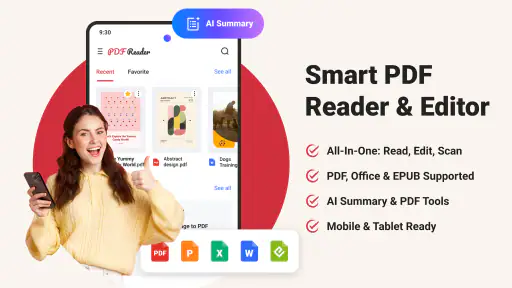
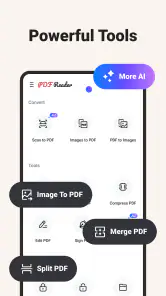
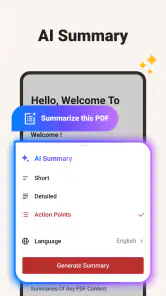
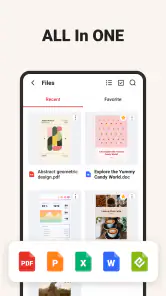
I spent time with PDF Reader – Reader & Editor as a practical document tool rather than treating it as just another viewer. Its main appeal is simple: it brings reading, editing, conversion, and scanning into one place. That combination matters when a PDF arrives in an awkward format and I need to do more than open it. Instead of moving between a reader, a scanner, and a separate conversion utility, I can keep the basic document job together.
That does not make it the perfect choice for every PDF task. I found its value depends heavily on how often I handle mixed document work. If I only open an occasional file, a basic phone viewer may be enough. If I regularly receive forms, scan paper pages, adjust documents, or turn files into something easier to reuse, this all-in-one workflow is the reason to consider it.
Why the all-in-one document workflow matters
The app comes from Ora Tools and sits in the tools category. Its store summary describes a broad job, but the important practical point is the reduced friction between separate steps. A document can begin as a paper page, become a scan, be reviewed on the phone, and then be prepared for another use without immediately reaching for several unrelated apps.
In my experience, the strongest capability is not any single button. It is the way the app connects common PDF chores. Reading is the starting point, but editing and conversion make the reader more useful when a file is part of a larger task. Scanning adds another entry point, which is especially handy when the document is not already digital.
That makes the app more relevant to students, freelancers, small-business owners, and anyone who deals with paperwork away from a computer. I would not describe it as a replacement for a full desktop publishing suite. I see it more as a capable mobile workbench for documents that need quick attention.
One app instead of a chain of utilities
The usual alternative is a collection of narrowly focused apps: one for opening PDFs, another for scanning, a third for changing formats, and perhaps a fourth for making small edits. That approach can work, but it creates extra decisions. Which app should open the file? Where did the scan go? Will the converted copy preserve the layout? Keeping those steps together is the real convenience here.
The advantage becomes clearer when I am working under time pressure. A paper receipt, signed page, or printed instruction sheet does not need to remain separate from the digital documents already on my phone. I can bring it into the same general workflow and continue from there. The trade-off is that a broad tool may feel less specialized than an app built around only one of those jobs.
What the scanning capability changes
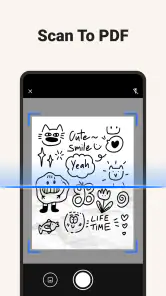
Scanning is more than a bonus feature in this kind of application. It changes where a PDF task can begin. Without it, I need a finished digital file before the reader becomes useful. With it, a physical page can become the first step in the process. That is valuable for forms, notes, invoices, classroom handouts, and documents shared in person.
I find this especially useful when I want a quick digital copy rather than a carefully designed archive. The phone becomes a bridge between paper and the rest of my document routine. The important judgement is knowing when a phone scan is appropriate: for everyday reference and sharing, it can be convenient; for demanding archival work or highly sensitive paperwork, I would still check the result carefully before relying on it.
How I use it in practice
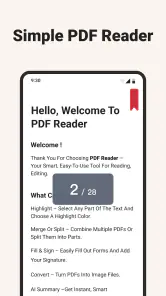
I normally begin by opening the document and checking its readability before trying to change anything. That sounds obvious, but it prevents a common mistake: assuming that a PDF is editable simply because text appears on the screen. Some files are effectively pictures of pages, while others contain selectable text. The distinction affects what I can do next and whether conversion will produce a useful result.
For ordinary reading, the app is most useful when I need a document to remain available while I move through other tasks. I can use it as a central place for reference material instead of repeatedly searching through a general file list. I also prefer reviewing the original before editing, because it gives me a clear comparison point if the adjusted version looks different.
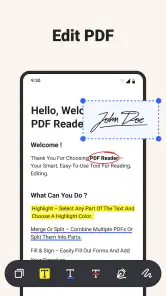
When I need to make a small change, I treat the editor as a practical correction tool rather than a design studio. That mindset helps. It is well suited to the kind of adjustment people make on a phone: preparing a document for sharing, correcting a minor issue, or making information easier to use. For complex page composition, extensive formatting, or precise layout control, I would rather work on a larger screen with a dedicated desktop application.
A realistic everyday example
Imagine I receive a multi-page form by email while I am away from my desk. I open it in the app to check the instructions, then use the editing side of the workflow to prepare the document for the next step. Later, I find a paper page that belongs with it. Instead of photographing that page and leaving it as an unrelated image, I scan it and keep the result within the same document routine. If the recipient needs a different format, conversion becomes the final step rather than a separate search for another utility.
The benefit is not that every stage becomes effortless. The benefit is that I spend less time switching context. I can focus on whether the document is complete and readable instead of managing a collection of tools. For occasional paperwork, that can be the difference between finishing the task immediately and postponing it until I have access to a computer.
Conversion deserves a careful check
Conversion is one of the features I would use with the most attention. Changing a document from one format to another can affect spacing, page breaks, fonts, images, and the position of important fields. A file may look acceptable at first glance while a line has moved or a table has become harder to read.
My practical advice is to inspect the converted file page by page when accuracy matters. Pay special attention to signatures, totals, dates, tables, and pages that combine images with text. If the document is only for casual reading, a quick check may be enough. If it is going to a client, school, employer, or official service, I would not assume that a successful conversion means a perfect reproduction.
Small workflow habits that improve results
I get better results when I separate “read,” “change,” and “share” into deliberate stages. First I confirm that I have the correct file. Then I make the required adjustment. Finally I reopen the output and check it as a recipient would see it. This simple habit reduces the chance of sending an unfinished or poorly converted copy.
For scans, I would also capture pages on a flat surface with even light and clear edges. The app can only work with the image it receives. A hurried scan with shadows, curled corners, or a tilted page may remain difficult to read even after processing. Taking a moment before pressing the scan button is often more useful than trying to repair a weak capture later.
Another useful habit is to keep the original separate from the working copy. That gives me a fallback if an edit or conversion does not preserve the document as expected. It also makes comparisons easier, especially when I am preparing a file for someone who needs the original layout intact.
Where it earns its place, and where it does not
The best scenario for this app is a mixed, mobile-first document routine. I would recommend it to someone who regularly receives PDFs, occasionally scans paper, and wants to make practical changes without opening a laptop. The combination is more compelling than any one function alone because the tasks naturally follow one another.
It is also a good fit for people who dislike maintaining several specialized utilities. A single document app can make the process easier to remember and reduce the number of places where files are handled. That simplicity is particularly useful for quick errands: scanning a page after a meeting, checking a form before submitting it, or preparing a document while travelling.
Students may appreciate the ability to keep reading and document preparation close together, especially when printed material enters an otherwise digital workflow. Independent workers can benefit when paperwork arrives in inconsistent forms. Families may find it useful for household records and forms. In each case, the value comes from reducing transitions, not from turning a phone into a complete office computer.
The limitations I would keep in mind
The broad feature set also creates a compromise. An app that reads, edits, converts, and scans may not offer the same depth as a specialist in every area. A dedicated scanner can be preferable when image quality and document cleanup are the priority. A full PDF editor may be better for elaborate forms, detailed annotations, or exact layout work. A simple reader may feel faster and less busy if all I want is to open a file.
I also would not use the app casually for every sensitive document without considering the situation. Scanning and converting important paperwork deserves the same care as handling the paper original. I would review the output, avoid unnecessary copies, and think about where the document is being stored or shared. The convenience of an all-in-one tool should not replace basic document hygiene.
The pricing model is another factor to consider. The app is free to install and use as a free product, but it includes in-app purchases ranging from $3.99 to $89.99 per item. That wide range means I would check which functions are available without payment and whether the features I actually need fit my budget before building a routine around it. Someone who only needs basic reading may not want to pay for a larger toolkit, while a frequent document user may find the broader access worthwhile.
Compatibility and everyday accessibility
On the platform side, the app supports Android devices running version 8.1 or later. That gives it a reasonably broad reach for people using older phones, although the experience will still depend on the device’s camera, screen, storage, and general performance. Scanning is naturally more comfortable on a phone with a clear camera and a screen large enough to inspect page edges and text.
The Everyone content rating makes it approachable for general household use. That does not mean every document task is equally easy for every person, but it does fit the app’s role as a general-purpose tool rather than a niche professional utility.
Who gets the most from it
I think the best audience is someone who wants a dependable mobile document hub, not a single-purpose PDF viewer. If your week includes a mixture of reading, paper capture, small edits, and format changes, the app’s combined workflow can save real effort. The more often those jobs overlap, the more meaningful the convenience becomes.
I would be more cautious if your priority is advanced document production. People who need highly exact typography, complex forms, professional publishing controls, or rigorous archival scanning should compare it with specialist software. The same is true for anyone who only reads PDFs and never scans or converts them. In that case, a lighter reader may be simpler and more economical.
Its public reception suggests that many people find the overall approach useful: the app holds a 4.1 average from around 20 thousand ratings and has passed 5 million installs. Those figures do not replace personal testing, but they do show that the concept has reached a substantial Android audience. Ora Tools has continued the app through version 4.10.8, and it was released on July 4, 2025.
My final view is that PDF Reader – Reader & Editor makes the most sense when the problem is not “How do I open this PDF?” but “How do I move this document through several steps without changing apps?” Its scanning capability gives paper a place in the workflow, while reading, editing, and conversion help carry the file forward. I would recommend trying it if you regularly handle mixed document tasks on Android, while keeping a specialist tool in mind for high-precision work.
For me, the deciding question is straightforward: will I use more than the reader? If the answer is yes, the app’s all-in-one design can be genuinely convenient. If the answer is no, its wider toolkit may simply be more than I need. That makes it a practical, flexible choice for everyday paperwork, provided I check scans and converted files before treating them as final.
Pros
- Opens PDFs quickly
- even when switching between several documents.
- Useful search tool helps locate words or phrases within long files.
- Supports bookmarks for returning to important pages more easily.
- Clean reading layout reduces distractions while viewing documents.
- Allows basic file organization for keeping PDFs easier to find.
Cons
- Some advanced editing tools may require a paid upgrade.
- Large or image-heavy PDFs can take longer to load on older phones.
- Free version may include advertisements during regular use.
- Cloud or sharing features may depend on external storage permissions.
- Text selection and formatting can be inconsistent in scanned documents.
- Category
- Tools
- Version
- 4.10.8











