

Lightleap by Lightricks
- 1.96K
- 4.0
- Installs
- 10.00M
- Price
- Free

Screenshots
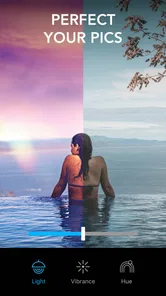
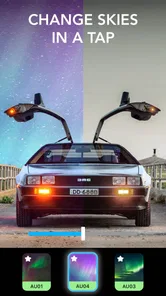
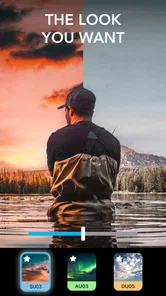
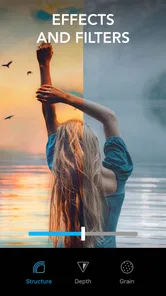
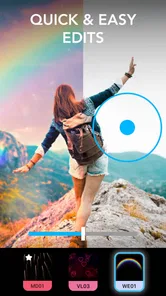

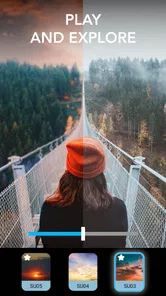
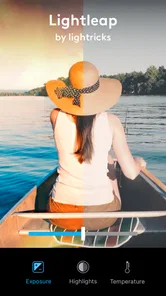
Analysis by Reviewed
I like photo editors that let me improve a picture quickly without forcing me into a full desktop-style workflow. Lightleap, a photography app from Lightricks Ltd., takes that approach. It is free to install, aimed at Everyone, and built around fast visual changes such as retouching, sharpening, blur, gradients, presets, filters, and effects. In my experience, its appeal is less about replacing a professional editor and more about helping me turn an ordinary phone photo into something more polished before sharing it.
The app is currently listed as version 1.6.1 and works on Android 8.0 or later. It has passed the point where I would treat it as an experimental newcomer: more than ten million installs, an average rating of 4.0 from roughly sixty-seven thousand ratings, and about two thousand written reviews give it a substantial user base. Those figures suggest a useful middle ground, although they also tell me to expect mixed experiences rather than perfection.
Where Lightleap Works Best and Where Users Get Stuck
The first thing I noticed is that Lightleap makes sense when the photo already has a good subject but lacks atmosphere. A dull sky, a distracting background, a portrait that needs a little cleanup, or a travel image that feels flat can all benefit from a few controlled adjustments. The app is especially comfortable for people who want a visually noticeable result without learning curves associated with advanced desktop software.
That convenience can also create the first point of friction. Presets and effects are tempting because they produce an immediate change, but the strongest-looking preview is not always the most natural result. I found it better to begin with a restrained edit, check the whole image, and only then add a stronger style. A filter that looks exciting on a bright phone screen may overpower skin tones or remove detail when viewed later.
The most useful habit is to treat every effect as a starting point, not a finished photograph. I usually compare the edited image with the original before saving. This catches the common mistake of increasing sharpness or contrast until edges look harsh. It also helps reveal whether a blur effect is hiding a genuine composition problem rather than solving it.
Another place people can get stuck is choosing between several tools that appear to solve similar problems. Retouching is appropriate for small distractions, while blur is better when I want to soften an area or create separation around a subject. Sharpening can restore some perceived clarity, but it cannot rescue a severely out-of-focus photograph. Knowing that distinction prevents a lot of wasted editing.
The app is not designed to make every picture look realistic. Its effects and gradients can push an image toward a more expressive, stylized result. That is a strength for social posts, mood boards, and creative experiments, but it may be the wrong direction for product documentation, identity photos, or images where accurate color matters more than atmosphere.
More From Our News Desk

 Gmail
GmailGmail in a Busy Inbox: Who Benefits Most?
From first account to crowded workday, Gmail earns its place through dependable search and flexible sorting—but its best fit depends on how much inbox maintenance you can tolerate.

 Prime Video
Switching to Prime Video: What Changes in Your Viewing Routine
Prime Video can make a compelling second home for streaming, but switching means learning a different catalog, rental layer, and route from browsing to playback.

 Universal TV Remote Control
Universal TV Remote Control Works Best as a Reliable Backup
A phone remote earns its place through quick setup and reliable habits. Here is how to get more from Universal TV Remote Control—and where its limits show.

 Weather - By Xiaomi
Weather by Xiaomi Review: Clear at a Glance, Less Clear Up Close
Xiaomi’s weather app makes everyday forecasts quick to scan, but its calm surface can leave useful details and recovery paths harder to find than they should be.

 X
XX Under Pressure: Can It Recover When Posting Goes Wrong?
A resilience-focused review of X, examining setup, mistaken posts, interruptions, weak connections, and the gaps that matter when recovery needs to be dependable.

 Clash of Clans
Clash of Clans Is Won Between the Battles
Its raids are quick; its community is a long-term project of coordination, teaching, rivalry, and shared responsibility—with all the friction that entails.
Latest News



Setup checks before editing a real photo
Before I start a serious edit, I check that the phone meets the Android requirement and that the app has enough room to work comfortably. I also make sure the source image is available in the device’s normal photo library and that I am not testing with a low-quality copy sent through a messaging service. A compressed image gives me less detail to work with, especially when I try to sharpen or retouch it.
Lightleap is free to download, but its in-app purchases range from $0.19 to $79.99 per item. I would therefore explore the editing workspace first and avoid assuming that every visible style or adjustment is included at no cost. The practical question is not simply whether the app is free to install; it is whether the particular tools I want fit within the free experience.
That matters when recommending it to a friend. If you only need occasional corrections, the free entry point makes it easy to try. If you expect a complete professional toolkit with unrestricted access to every creative option, you should inspect the available choices carefully before building your workflow around them.
My preferred setup is simple: I choose one original image, make a small change, and save or export only after checking the result at full size. Editing a batch of images immediately can make it harder to notice a subtle problem. Working one picture at a time also makes it easier to learn which combination of retouching, blur, gradients, and presets actually suits my style.
For portraits, I begin with the least aggressive correction. Faces are where over-editing becomes obvious fastest. For landscapes, I test a gradient or atmospheric effect separately from sharpening. For food or product photos, I am more cautious with color-heavy filters because a dramatic look can make the subject appear less accurate than it really is.
Recovering a workflow when an edit goes wrong
When an edit starts looking artificial, my first recovery step is not to keep adding effects. I return to the last change that clearly improved the image and remove the adjustment after it. This is particularly useful when a preset changes the entire mood and makes it difficult to see which individual choice caused the problem.
If the image becomes muddy after blur, I reduce the amount of blur or apply the idea more selectively rather than compensating with extra sharpening. Blur and sharpening can fight each other: one removes local detail while the other exaggerates remaining edges. Using both heavily often produces a processed appearance instead of a cleaner photograph.
Retouching also benefits from restraint. I use it for a small mark, an incidental object, or a minor distraction that pulls attention away from the subject. I would not rely on it to rebuild missing scenery or correct a badly composed frame. If the unwanted object occupies a large part of the picture, cropping or choosing another photo is often more convincing than repeatedly retouching the same area.
A useful recovery workflow is to create a neutral version first. I correct the most obvious distraction, check sharpness, and then decide whether the image needs a gradient or a more noticeable style. This order keeps the creative layer separate from the repair layer. If the final look feels wrong, I can remove the atmosphere without losing the basic cleanup.
I also avoid judging an edit solely by the preview. I look at faces, fine lines, text, and high-contrast edges because those areas expose excessive processing. A photo may look smooth and attractive at a glance while losing the details that made it believable. The extra inspection takes little time and is one of the easiest ways to get better results from Lightleap.
If the app appears to behave unexpectedly, I first try a different source photo. A very large image, a damaged file, or an image with unusual characteristics can make a problem look like an app failure. I also close other demanding apps, reopen Lightleap, and repeat the same action on a simple picture. These are ordinary checks, but they help separate a one-off file issue from a repeatable workflow problem.
When the app is not the cause
Not every disappointing result comes from the editor. A photo captured in poor light may contain too much noise for sharpening to improve gracefully. A moving subject may already have motion blur that no creative effect can truly remove. If the original has little usable detail, stronger processing usually makes the weaknesses more visible.
Screen brightness is another easy source of confusion. An edit that looks balanced on a bright display can appear dark elsewhere, while a vivid filter may seem less intense on another screen. I try to judge exposure and skin tone separately from the overall mood. If the subject is readable and the colors remain believable, the image is usually closer to finished than a dramatic preview might suggest.
Storage and photo-library organization can also create friction. If I cannot find an image, I check whether I am looking in the correct album and whether the file was actually saved locally. If a result seems missing after editing, I avoid immediately repeating the entire process. I first check the device’s photo app and recent items, then try a small test edit to see whether the issue affects all images or only one.
For anyone using an older Android phone, expectations should be realistic. The minimum operating system is Android 8.0, but a compatible system does not guarantee that every editing session will feel equally fast on every device. Large photos and layered visual changes can be more demanding than a simple filter. Closing background apps and working with a smaller test image can help identify whether performance is the limitation.
Lightleap is also not the right replacement for a dedicated retouching or professional color application. If I need precise masks, repeatable technical color correction, detailed typography, or deep control over individual image elements, I would choose a more specialized editor. A conventional basic photo editor may be better for simple cropping, rotation, and exposure changes because it keeps the interface focused and avoids creative options I do not need.
On the other hand, many basic editors feel too limited when the goal is mood. Lightleap sits in a useful space between a quick filter tool and a more involved creative editor. Its combination of retouching, sharpening, blur, gradients, presets, and effects means I can move from cleanup to styling without switching applications. That convenience is its clearest advantage, provided I am comfortable making the final judgment myself.
Everyday uses that justify keeping it installed
A realistic example is a weekend photo taken near a window. The subject is fine, but the background contains a small distraction and the overall image feels flat. I would remove or soften the distraction, apply only enough sharpening to restore definition, and use a gentle gradient or preset to guide attention toward the subject. The important part is doing these steps separately instead of applying a dramatic look immediately.
For travel photos, I find the app more useful after the trip than during a rushed moment. I can select a few representative images, give them a consistent mood, and leave the rest untouched. This prevents the common problem of editing every frame differently until an album feels visually disconnected. A restrained preset can establish a starting point, while manual adjustments keep skies, buildings, and faces from receiving the same treatment blindly.
For social content, the fast creative tools are more valuable than technical precision. A subtle blur can reduce background clutter, and a gradient can make a simple composition feel intentional. I would still keep an unedited original because effects are subjective. If I change my mind later, having the source image means I can create a cleaner version rather than trying to undo a saved result.
Lightleap can also help someone learn visual editing by making cause and effect easy to see. I can compare a photo before and after sharpening, then repeat the experiment with blur or a gradient. That makes it a friendly practice environment for understanding how local detail, atmosphere, and color mood change the viewer’s attention.
The trade-off is that creative freedom can encourage inconsistency. If I use every effect simply because it is available, the app becomes a source of visual noise. I get better results by deciding what the photo needs before opening a tool: remove a distraction, improve clarity, create separation, or establish a mood. One clear purpose per adjustment keeps the final image coherent.
Who should use it and who should skip it
I would recommend Lightleap to casual photographers, social creators, travelers, and anyone who wants more than a one-tap filter but less complexity than a full professional editor. It is particularly suitable for people who enjoy experimenting with atmosphere and want retouching and styling in the same photography app.
I would be more cautious recommending it to someone who only wants basic corrections. If cropping, straightening, and simple brightness changes are all you need, a simpler editor may feel faster and less distracting. I would also point professionals toward a tool with deeper control when accurate, repeatable results are essential.
The Everyone age rating makes it broadly approachable, but that does not mean every editing choice is automatically appropriate for every purpose. Younger users and beginners can learn from it, while adults should still encourage sensible judgment around retouching. Making small changes to a photo is one thing; presenting an unrealistic image as an everyday appearance is another.
Because the app is free to start and supported by optional purchases, it is easy to test without committing immediately. I would spend time with a few different photo types before deciding whether it deserves a permanent place on the phone. A portrait, a landscape, and a cluttered everyday snapshot reveal more about its usefulness than a single attractive image.
My practical verdict after using Lightleap
Lightleap succeeds when I use it as a flexible finishing tool rather than an automatic rescue service. Its mix of retouching, sharpening, blur, gradients, presets, filters, and effects gives me a compact way to clean up a photo and then add personality. The workflow is approachable, and the app’s large audience shows that it has become a familiar option for mobile photography.
My main reservation is the same reason it can be enjoyable: the creative tools make it easy to go too far. The best results come from checking the original, making one purposeful change at a time, and inspecting details before saving. Users should also keep the free installation separate from assumptions about unrestricted access, since in-app purchases range from $0.19 to $79.99 per item.
At an average of 4.0, Lightleap feels like a capable but not universally perfect choice. That matches my experience. It is more expressive than a basic editor and less technically demanding than professional software, but it cannot replace either one in every situation. I would keep it installed for quick creative edits, especially when a photo needs atmosphere as well as cleanup.
If you want a friendly way to experiment with visual style on Android 8.0 or later, I think it is worth trying. Start with your own everyday photos, use the smallest adjustment that solves the problem, and resist judging success by intensity alone. Lightleap is at its best when it helps your photo feel intentional without making the editing more noticeable than the subject.
Lightleap by Lightricks Frequently Asked Questions
Can I edit photos from my camera roll in Lightleap?
Lightleap is designed for mobile photo editing, so it can be useful when you want to work with pictures on your device. Its tools include retouching, sharpening, blur, gradients, presets, filters, and effects. Before editing, check the access permissions you grant and make sure you select the image you intend to change; you can then try adjustments and compare the results.
What kinds of photos work best with Lightleap?
Lightleap can be used with many everyday pictures, including travel photos, portraits, and images intended for social posts. Its editing options are suited to experimenting with color, lighting, blur, gradients, and effects, but the outcome depends on the original image and the changes you apply. Trying a few subtle adjustments first can help you find a look that complements rather than overwhelms your photo.
Can I undo edits or keep my original photo unchanged?
When editing a photo, it is sensible to compare the result with the original and avoid saving over an image you want to preserve. Lightleap offers editing tools for changing a picture’s appearance, including retouching, sharpening, blur, presets, filters, and effects. If you are unsure about a particular adjustment, experiment on a copy of the photo or keep the original separately on your device.
Who develops Lightleap, and which devices can run it?
Lightleap is a photography app from Lightricks Ltd. It is available for Android and iOS, making it an option for editing photos on a phone or tablet. On Android, it requires version 8.0 or later. Check that your device meets the relevant system requirements and has enough available storage before downloading and installing the app.
What can I do with Lightleap’s editing tools?
Lightleap’s editing options include retouching, sharpening, blurring, gradients, instant presets, filters, and effects. These tools let you adjust the look of a picture, from making details appear sharper to applying a more stylized finish. The range of effects makes the app useful for quick creative changes, while the result depends on the image and the adjustments you choose.
Pros
- Quickly enhances photos with atmospheric lighting effects.
- Includes creative overlays for skies
- clouds
- and light leaks.
- Simple interface suitable for beginners and casual editing.
- Offers tools for adjusting brightness
- contrast
- and color.
- Edited images can be saved and shared directly from the app.
Cons
- Many premium effects and tools require a subscription or purchase.
- Some edits may look artificial if effects are applied too heavily.
- High-resolution exports can take longer on older devices.
- The app may use considerable storage for downloaded effect packs.
- Advanced photographers may find its editing controls limited.











