Learn To Draw Step By Step
- 144.00
- 4.6
- Installs
- 1.00M
- Price
- Free

Screenshots
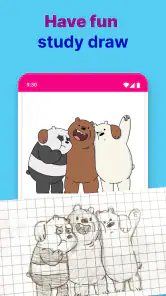
Analysis by Reviewed
I usually reach for a guided drawing app when I have a blank page in front of me and no clear idea how to begin. Learn To Draw Step By Step is aimed at that exact sticking point: it turns a subject into a sequence of approachable stages instead of asking you to invent the whole drawing at once. I’d treat it as a practice companion, not a substitute for learning every part of art from scratch. Its value is in helping you get started, keep moving, and finish a picture without feeling that you need to know all the answers beforehand.
Who benefits from a guided starting point
This is an Art & Design app from Firehawk, and its audience is easy to understand: new drawers, younger artists, or anyone who wants a low-pressure activity they can pick up for a short session. The age rating is Everyone, so it can suit a family setting, though I’d still expect a child to benefit from an adult helping with patience and pencil control rather than assuming the app does the teaching for them.
It is free to install, with in-app purchases ranging from $0.99 to $99.99 per item. I’d keep that in mind before handing over a device or letting a child explore purchase screens. The app has a 4.6 average from around 9,000 ratings and more than a million installs, which suggests it has found a broad audience, but popularity alone does not tell me whether its teaching style will suit every learner.
Choosing a subject and setting up your session
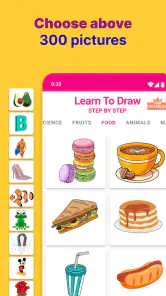
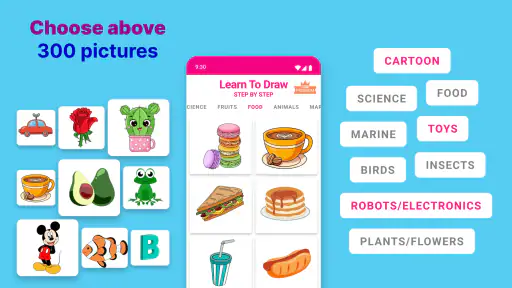
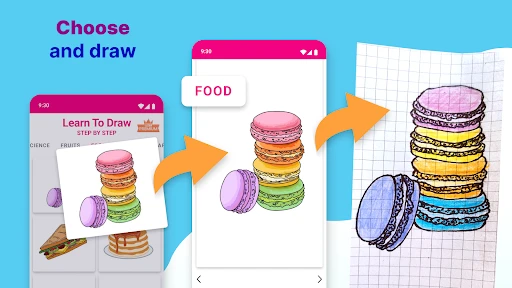
The first useful decision is not how carefully to draw, but what kind of subject will keep you interested long enough to practice. The available choices include animals, cartoons, and fantasy creatures, which gives a beginner a more inviting starting point than a blank page or a technical exercise. I’d choose one subject that feels fun rather than jumping between several: finishing a simple drawing can teach more about following a sequence than browsing a large collection ever will.
A practical setup is a pencil and ordinary paper, with a phone or tablet positioned where you can glance at it without losing your place. A stylus may feel natural if you prefer drawing on a screen, but the basic learning loop also works as a paper exercise: look at one stage, copy it, then move to the next. Keeping the screen visible beside your page makes it easier to compare proportions without repeatedly switching apps or relying on memory.
Following the stages without copying blindly
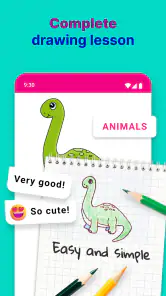
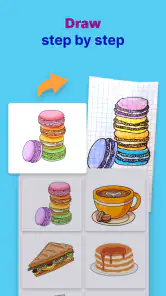
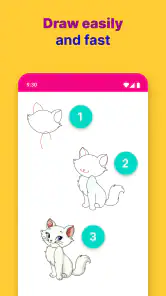
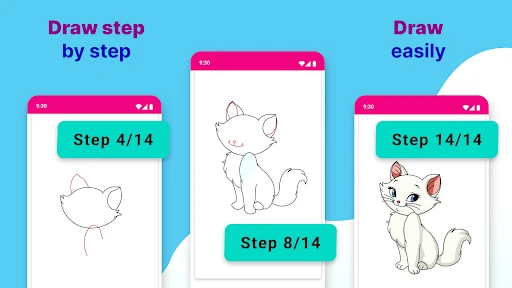
Each tutorial breaks a drawing into manageable steps, beginning with basic shapes and adding detail as you go. I find that sequence especially useful when a subject looks complicated at first glance. Instead of trying to reproduce the finished image immediately, I can focus on one decision at a time: where the main forms sit, how they relate, and which lines need to be added later.
One small but useful habit is to pause after each stage and check the drawing’s overall placement before adding details. If the first shapes are too large or sit too far to one side, careful shading will not fix the underlying balance. The zoom function can help when a line or detail is difficult to inspect, but I would use it selectively; spending too long enlarging tiny parts can distract from the proportions of the whole picture.
More From Our News Desk

Weather by Xiaomi Review: Clear at a Glance, Less Clear Up Close

X Under Pressure: Can It Recover When Posting Goes Wrong?

Clash of Clans Is Won Between the Battles

Android Auto Makes the Case for Quieter Car Software

MobiOffice: Transforming Mobile Productivity with Seamless Integration

EA SPORTS FC™ Mobile Soccer: Redefining Mobile Sports Gaming
Undo and redo are helpful when experimenting, especially if you are drawing directly on a screen. On paper, the same forgiving attitude can come from using light marks for the early shapes and pressing harder only when the structure feels right. That is a useful distinction between a guided app and a traditional class: the app can show you what comes next, but you still have to judge pressure, spacing, and how confidently to make each mark.
Turning a tutorial into a result you can keep
Finishing a drawing is a worthwhile goal, but I would not judge progress only by whether the picture looks like the example. Try choosing one thing to notice each time: whether the main shapes line up, whether the face or body has the right balance, or whether you remembered to leave room for details. That turns a short activity into a small, repeatable practice session rather than a one-off attempt to produce a perfect copy.
The in-app gallery gives you a place to save and showcase creations, making it easier to look back at work you have completed. A useful routine is to keep a few drawings made from different subjects and compare them after some practice. Look for a specific change, such as cleaner outlines or more confident placement, instead of expecting every new picture to be dramatically better than the last one.
Where the guided approach fits—and where it doesn’t
For the price of free entry, this can be an approachable way to try drawing without first choosing a course or buying specialist supplies. It was released on December 14, 2022, and version 3.1.5 supports Android 5.0 and later. Those details make it a practical option for compatible older Android devices as well as newer ones, though I would still check that the device feels comfortable for viewing the stages and making marks.
A sensible alternative to a blank canvas
Compared with opening a general drawing or painting app, a guided lesson removes the first hurdle: deciding what to draw and how to break it down. A blank-canvas app gives you more freedom and may offer a broader creative workspace, but that freedom can be frustrating if you are still learning to observe shapes. A video tutorial can demonstrate motion and technique, while this kind of step sequence is easier to follow at your own pace because you can stop between stages and copy what you see.
That trade-off also defines its limits. A sequence can show an example, but it cannot automatically tell you why your version looks different or tailor feedback to your hand, materials, or personal style. If you want critique, perspective lessons, anatomy practice, or a structured path toward original illustration, a class, a book, or an art program with more room for independent work may serve you better. I would use this app to build confidence and drawing habits, then gradually try changing a pose, expression, or detail instead of relying on exact copying.
A realistic routine, with room for choice
Imagine having a quiet stretch after school or work and wanting to do something more satisfying than scrolling. I’d pick one animal or cartoon, place paper beside the device, and follow the stages until the main outline is complete. If time is short, I would stop at a clean outline rather than rush the details; the next session can be about finishing. That makes the app useful for brief, ordinary moments, not only for someone planning a long art session.
It can also work as a shared activity: one person follows the steps while another draws from the same screen, then both compare how they interpreted the shapes. The point is not to make identical copies. Comparing where the drawings differ can prompt a useful conversation about scale and placement, while keeping the activity light enough for a beginner who might otherwise feel self-conscious.
Small choices that make practice more useful
For a first attempt, I would avoid trying to make every line perfect. Light construction marks are easier to adjust, and they make it clearer how a finished subject grows from simple forms. On a second pass, try drawing the same subject without looking at every stage after the first few; that reveals which shapes you actually understand and which ones you have only traced by following along.
Another helpful trade-off is deciding when to use zoom. It is valuable for checking a small feature, but the whole image matters more than a tiny detail while the basic structure is being built. I’d zoom in only when a particular instruction is hard to read, then return to the full view before continuing. This keeps the drawing coherent and avoids spending most of a beginner session polishing one small area.
If you are choosing this for a child, I would make the first session about completing one picture rather than browsing every subject or purchase option. For an adult beginner, it may be more satisfying to keep a separate sketchbook and use the app as a prompt, so the drawings remain yours rather than just a record inside the app. In either case, saving selected work in the gallery can make progress visible, while the paper itself gives you a tangible record to revisit.
When I would choose something else
I would skip this as a primary tool if my goal were to create polished digital artwork with layers, brushes, or a flexible canvas. Its guided format is centered on following drawing stages, not on providing a complete professional illustration workspace. I would also look elsewhere if I needed personalized corrections or a deep curriculum: the learner still has to assess their own proportions and decide how to adapt the example.
Someone who already draws confidently may find the step-by-step structure restrictive, especially when they want to develop a distinctive style or invent subjects from imagination. In that case, a freeform sketching tool, reference-based practice, or a human instructor offers more room to make decisions. But for a person who freezes at the blank page, the narrower path can be a strength rather than a flaw.
Getting started with ease
One of the things I absolutely love about Learn To Draw Step By Step is how user-friendly it is. The app is designed to make you feel at home right from the start. With a clean and intuitive interface, it doesn’t overwhelm you with too many options. Instead, it guides you gently through the learning process. When you open the app, you’re greeted with a wide range of categories, from animals to cartoons, and even some cool fantasy creatures.
Step-by-step guidance
Now, here's where the magic happens. The app provides step-by-step instructions that are so clear, even a total newbie can follow along without a hitch. Each drawing is broken down into simple, manageable steps. You start with basic shapes, and before you know it, you’re adding details and shading like a pro! It’s like having a personal art teacher right in your pocket.
What I find particularly helpful is the way the app encourages you to practice regularly. It’s all about building those skills, one step at a time. And let me tell you, the sense of accomplishment when you finish a drawing is incredibly rewarding.
Features that stand out
Aside from the step-by-step tutorials, the app also includes some fantastic features that enhance your learning experience. There’s a handy zoom function that lets you get up close and personal with your artwork, ensuring you don’t miss a single detail. Plus, the undo and redo options are lifesavers for those little mistakes (trust me, we all make them!).
Another feature I adore is the in-app gallery where you can save and showcase your creations. It’s like having your own mini art exhibit, and it’s a great way to track your progress over time. You’ll be amazed at how much you improve!
And for those of you who like a bit of variety, there’s a diverse range of drawing styles and subjects to choose from. Whether you’re into realistic portraits or cute cartoon characters, there’s something for everyone.
Final thoughts
In conclusion, Learn To Draw Step By Step is a fantastic app for anyone looking to explore their artistic side. Whether you’re just starting out or looking to refine your skills, this app offers a supportive and engaging environment to nurture your creativity. So, why not give it a try? You might just discover a hidden talent you never knew you had!
Happy drawing, and remember, every great artist was once a beginner too!
Learn To Draw Step By Step Frequently Asked Questions
Is Learn To Draw Step By Step free to download, and are there optional costs?
Learn To Draw Step By Step is a free Art & Design app from Firehawk, so you can download it without paying upfront. It also offers in-app purchases, with prices ranging from $0.99 to $99.99 per item. Consider this if you prefer to avoid optional spending, and check purchase details before confirming anything in the app.
What devices and age groups is Learn To Draw Step By Step intended for?
The app is rated Everyone and is suitable for a broad audience, including people who are just starting to draw. It runs on Android devices with version 5.0 or later. That minimum requirement is worth checking before downloading, especially if you use an older phone or tablet; the app is designed for mobile drawing instruction.
What is 'Learn To Draw Step By Step' and who is it suitable for?
'Learn To Draw Step By Step' is a mobile application designed to teach users how to draw various objects, characters, and scenes in a structured manner. It is suitable for beginners and intermediate artists who want to improve their drawing skills. The app provides a variety of tutorials, from basic shapes to complex figures, making it ideal for art enthusiasts of all ages.
Does 'Learn To Draw Step By Step' require an internet connection to function?
While 'Learn To Draw Step By Step' offers offline access to many of its tutorials, certain features such as downloading new content, accessing community forums, or receiving updates require an internet connection. Users can enjoy the core functionalities without internet, but for a full experience, occasional connectivity is beneficial.
Are there any in-app purchases or ads in 'Learn To Draw Step By Step'?
Yes, 'Learn To Draw Step By Step' includes in-app purchases that allow users to unlock additional tutorials and features. There might also be advertisements displayed within the app, which can sometimes be removed through a one-time purchase. This setup helps support the developers while offering users a broad range of content.
Pros
- Easy-to-follow drawing tutorials.
- Wide variety of drawing subjects.
- Suitable for all skill levels.
- Interactive user interface.
- Offline access available.
Cons
- Limited free content.
- Occasional app crashes.
- Ads in free version.
- No community features.
- Some tutorials too basic for advanced users.
- Category
- Art & Design
- Version
- 3.1.5