Game Booster 4x Faster Pro
- 2.03K
- 4.4
- Installs
- 1.00M
- Price
- $0.49

Screenshots
Analysis by Reviewed
I’d start by setting one expectation: a booster can help you manage a phone’s resources, but it cannot turn older hardware into a newer gaming device. That distinction matters with Game Booster 4x Faster Pro. It is a paid Android tools app from G19 Mobile, built around preparing a phone for gaming and letting players experiment with graphics adjustments. It has a 4.5 average from around 145,000 ratings and more than a million installs, which shows it has found a sizable audience, but those figures do not promise the same result on every phone or game.
What to expect from a booster
The app is aimed at players who notice stutters, slow loading, or an overloaded phone and want a convenient place to try performance-oriented settings. Its current store summary points to compatibility with a newer game update, which is useful if you are returning to a game after it changes. Still, compatibility does not guarantee a particular frame rate or visual result. To me, the appeal is having a booster and a GFX tool together, not expecting a dramatic hardware upgrade.
There is a trade-off worth considering before you start: changing graphics settings may make a game easier for your phone to run, but lower visual quality can be the cost. If your game already runs smoothly, leaving its own settings alone may be better. I would not change graphics just because the option is there. I’d make one adjustment at a time and keep track of the original choice so I can undo it.
Who is likely to get something from it
I can see this being most useful for someone who plays the same demanding game regularly and has a specific, repeatable problem: an uneven frame rate, long waits before play, or a phone that seems burdened when a game is open. That person can compare a familiar session before and after a small adjustment. Someone whose games already feel smooth, or who mainly wants better online response, is less likely to benefit. Connection lag and device performance are different problems, and a graphics tool cannot repair a weak or unstable connection.
It is also a better fit for curious players than for people who want to install an app and never think about it again. The controls are presented as approachable, but choosing a setting still involves judgment. If you dislike testing, prefer the game’s original look, or find troubleshooting tedious, built-in game settings are likely the calmer option. I would skip this app if I expected a guaranteed speed boost without any trade-offs.
Getting started and finding a useful change
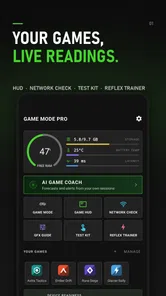
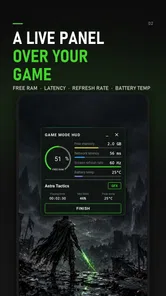
So, what’s the deal with Game Booster 4x Faster Pro? Essentially, it’s like having a personal trainer for your phone. It optimizes your device by clearing out unnecessary processes and boosting RAM, which in turn, enhances gaming performance. Imagine your phone as a car, and this app is the turbocharger. I noticed an immediate difference in loading times and frame rates, especially when playing graphics-intensive games.
Features That Pack a Punch
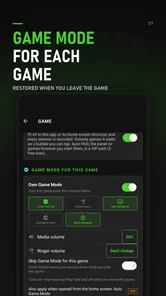
Let’s dive into the features. First off, the Auto Game Mode is a lifesaver. As soon as I launched a game, the app automatically kicked into high gear, optimizing CPU and RAM usage. It was like having a backstage crew making sure everything runs smoothly while you’re on stage.
More From Our News Desk

Weather by Xiaomi Review: Clear at a Glance, Less Clear Up Close

X Under Pressure: Can It Recover When Posting Goes Wrong?

Clash of Clans Is Won Between the Battles

Android Auto Makes the Case for Quieter Car Software

MobiOffice: Transforming Mobile Productivity with Seamless Integration

EA SPORTS FC™ Mobile Soccer: Redefining Mobile Sports Gaming
For a first session, I’d begin with one game that reliably gives your phone trouble, rather than changing settings across several titles at once. Launch it in the usual way and note whether the problem is slow loading, choppy play, heat, or battery use. Then test the booster against that same situation. This makes it easier to judge whether a change helped. If the game behaves differently after an update, check that it still appears in your setup and retest before assuming the old configuration remains suitable.
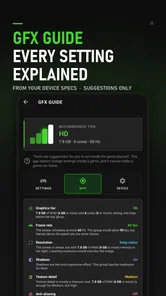
Another feature that caught my eye is the GFX Tool. For those who love tweaking settings, this tool lets you adjust the graphics to your liking, from resolution to FPS settings. It’s particularly handy if you’re trying to squeeze out every last drop of performance from your device.
How to approach graphics tweaks
For a practical first adjustment, I’d prioritize stable play over the sharpest image. If a demanding game offers a choice between clearer visuals and smoother motion, try a modest change and play long enough to see whether it improves the part you care about. Avoid changing several graphics options together: if the result gets worse, you will not know which setting caused it. This matters especially in games where visual detail helps you spot objects or read small interface elements.
Here is a useful way to make that test more reliable: pick a familiar section of the game and compare like with like, rather than judging one setting during a quiet menu and another during a crowded match. Keep the original choices in mind, and change only one item before you play again. If the game looks less clear or controls feel no better, restore the earlier setting. This small routine is more informative than repeatedly changing several options and hoping one combination happens to work.
The GFX Tool is not the right route for everyone. If you prefer a game’s default presentation, or do not want to troubleshoot settings after updates, the game’s own graphics menu is simpler. A built-in menu is also the more direct option when the game already handles performance well. I’d use this tool when I have a specific issue to test, not as a routine step before every match.
Easy to Use, Hard to Beat
One of the things I absolutely love about this app is its user-friendly interface. You don’t need to be a tech wizard to navigate through the settings. Everything is laid out in a straightforward manner, which is refreshing for anyone who just wants things to work without a hassle.
That simplicity is helpful, but it does not remove the need to compare results. A short, repeatable test is more useful than relying on a general impression: use the same game, similar settings, and a familiar section of play. If performance does not improve, return to the previous graphics choices rather than stacking on more adjustments. I’d also avoid treating a booster as a fix for a weak network connection; online lag can come from the connection rather than the phone’s graphics or memory.
A realistic first try
Imagine you have a few minutes before leaving home and want to play one match of a title that sometimes stutters. I would first make sure the phone is in its normal state, open the game I know causes trouble, and pay attention to one symptom rather than trying to diagnose everything at once. If the issue is choppy motion, I would focus on graphics choices that could affect how demanding the game is. If the main complaint is online delay, I would check the connection instead of expecting a booster to solve it.
After making a single adjustment, I would play the same kind of match and decide whether the change made a practical difference. A small improvement that keeps the game readable may be more useful than a visually dramatic setting that makes play less comfortable. If nothing changes, I would undo the adjustment and stop there rather than treating more tweaking as automatically better. That gives a first-time user a clear success condition: keep the change only if it improves the problem that prompted the install.
Battery expectations and everyday use
Another thing worth mentioning is the Battery Saver mode. While boosting performance, it also manages to keep an eye on battery consumption. This is a huge plus, as I didn’t experience any significant battery drain even during extended gaming sessions. Truly, a blessing in disguise for those long commutes or lazy afternoons.
For example, if I were playing during a commute, I’d first decide whether smoother play or longer battery life mattered more that day. A demanding game can still use substantial power, so I would not assume a booster makes a long session harmless to battery life. Starting with a charged phone and checking how the device behaves after a normal-length session gives a more useful guide than switching several modes at once. If the phone becomes uncomfortably warm, taking a break is more sensible than pushing it harder.
There is a practical trade-off here: performance-oriented play and battery-saving priorities do not always point in the same direction. I would not judge the app by a single short session, because battery use can depend on the game and how long I play. Instead, I’d compare two ordinary sessions under similar conditions and decide which matters more for my routine. For a quick game at home, smoother play may be worth trying; when I need the phone to last through a commute, restraint is more sensible than chasing every available adjustment.
How it compares with simpler options
Compared with using only a game’s own settings, this app brings boosting and graphics adjustments into one place, which may be convenient when you are willing to experiment. The game’s built-in menu is still the more straightforward choice if it already offers the controls you need and performance is acceptable. Phone-level gaming tools can also be a better fit for someone who wants a simple, device-integrated option rather than another app to manage. I would choose based on the problem: use the game menu for a specific visual preference, try this app when you want to test its combined tools, and avoid both if the issue is clearly your network or a hardware limit.
The app costs $0.49, with optional in-app purchases ranging from $0.99 to $6.99 per item. It is rated for Everyone, runs on Android 5.0 or later, and its current version is 1.3.2. I’d check the purchase choices before paying for anything extra and decide whether the basic tools address your particular problem first. If you are looking for a free, no-adjustment option, the game’s built-in settings or your phone’s own game tools may suit you better.
Final Thoughts
In conclusion, Game Booster 4x Faster Pro is a must-have for any mobile gamer who wants to elevate their gaming experience. It’s got all the right tools to turn your phone into a gaming beast without the need for complex configurations. If you’re tired of laggy gameplay and want to see what your device is truly capable of, give this app a try. It might just become your new best friend in the gaming world.
My recommendation is more measured: it is worth considering if you are comfortable testing performance and graphics options on an Android phone, especially when one particular game is giving you trouble. It is less compelling if your games already run well, you only want a guaranteed speed increase, or you would rather leave every setting untouched. Start with one title, make a single change, and keep the original settings in mind so you can reverse course. That approach gives you the clearest answer about whether this booster is helping your own device.
For a first-time user, the least confusing path is to start with the game that prompted the download, establish what feels wrong, and make just one testable change. If it helps, keep that setup for that title; if it does not, restore the previous choice and rely on the game’s own controls or your phone’s built-in tools instead. I would treat the app as an experiment with a clear purpose, not as something every player needs running before every session.
Game Booster 4x Faster Pro Frequently Asked Questions
Does Game Booster 4x Faster Pro require special access or permissions?
Before installing any performance tool, it is sensible to review the permissions Android requests and consider whether they make sense for the features you plan to use. Game Booster 4x Faster Pro is a Tools app for gaming, so read each permission prompt rather than approving it automatically. You can also review your device’s app-permission settings after installation and change access where Android allows.
Can Game Booster 4x Faster Pro improve every game’s graphics or frame rate?
Game Booster 4x Faster Pro is intended to help with mobile gaming performance, but results can depend on the game, device hardware, and software configuration. A booster cannot make a phone’s physical capabilities exceed their limits, so improvements are not guaranteed in every title. If you try it, compare gameplay under similar conditions and keep expectations realistic, especially on older or less powerful devices.
Will I need an internet connection to use Game Booster 4x Faster Pro?
Whether you need internet access may depend on how you use the app and the game you want to play. Online games generally need a connection for their own multiplayer or account features, while a booster’s role is separate from those game services. Check the game’s requirements and your connection before starting; installing a tool does not replace any network access the game itself needs.
Is Game Booster 4x Faster Pro free to download, and what does it cost?
Game Booster 4x Faster Pro is a paid Tools app from G19 Mobile. It costs $0.49, so it is worth checking the price shown for your region before installing. The app is rated for Everyone and runs on Android 5.0 or later, which gives users a quick way to check whether both the cost and basic requirements suit them.
What does the app’s compatibility update mean for players?
The app’s store summary says that Game Booster and GFX Tool are now compatible with a newer game update. That may be useful if you use the tool alongside a recently updated game, but compatibility can still depend on your device and software. Check that your Android version meets the minimum requirement and that the game itself works on your device before relying on the app.
Pros
- Enhances gaming performance significantly.
- Easy to use with a clean interface.
- Improves device speed for smoother gameplay.
- Compatible with most Android devices.
- Offers advanced settings for tech-savvy users.
Cons
- May consume additional battery life.
- Some features require in-app purchases.
- Occasional ads in free version.
- Not all games show noticeable improvement.
- Limited support for older devices.