Fly Go 4: Drone Camera Remote
- 446.00
- 4.5
- Installs
- 1.00M
- Price
- Free
Screenshots
Analysis by Reviewed
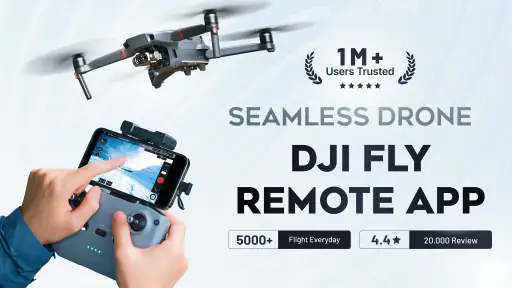
Anyone who has used a small drone knows the recurring problem: the aircraft may be ready, the camera may be charged, and the weather may finally look right, yet the phone still has to become the missing remote. That is the gap Fly Go 4: Drone Camera Remote tries to fill. It is a free tools app from Smart Remote Application, built around controlling a drone, UAV, or camera from a mobile device rather than treating the phone as a separate viewing screen.
I approached it as a practical utility, not as a replacement for a dedicated flight system in every situation. The useful question is whether it reduces the small delays between deciding to fly and actually getting control on screen. In my experience, that is where this app makes the strongest case. It can be a convenient starting point for compatible equipment, especially when carrying a physical controller is inconvenient, but it is not the sort of installation I would trust blindly before an important flight.
The app has earned a 4.5 average from around 22 thousand ratings, with more than a million installs. Those figures suggest that it has reached a substantial audience, but they should not be confused with proof that every drone or camera will work with it. Remote-control apps are highly dependent on the hardware, connection method, and control protocol involved. My recommendation is to treat compatibility as the first practical test, not as an assumption made after installation.
Getting from phone to first useful control
The first useful setup is less about exploring every screen and more about establishing a repeatable order. I would begin with the drone or camera powered off, the phone sufficiently charged, and any original controller nearby. That last item matters: for a first test, a backup control method gives you a safer way to stop experimenting if the phone connection does not behave as expected.
After opening the app, I would look for the connection flow rather than tapping through settings at random. The store summary presents it as a remote controller for drone, UAV, and camera use, while the short description calls it “Fly Go 4.” That wording points toward a focused control purpose, but it does not remove the need to match the app with the particular device in front of you. A phone can recognize a nearby network or accessory without necessarily having full control over the aircraft.
A sensible first session should happen indoors only if the device can be safely kept still, or outdoors in a wide, empty area with the propellers removed when that is practical for your equipment. The goal is not to fly immediately. It is to confirm that the app can establish the expected connection, that the live controls respond in the right direction, and that the camera view behaves as you expect. This simple check saves more time than trying to diagnose a connection problem after takeoff.
I also recommend holding the phone in the same orientation you expect to use during a real flight. Touch controls can feel very different when the screen is rotated, when a protective case changes your grip, or when sunlight makes small controls harder to see. If you normally fly with both hands, rehearse the basic actions without looking away from the aircraft. A remote app is only useful when the interface can be used quickly enough to keep your attention where it belongs.
The current version is 1.7.0 and it supports devices running Android 5.0 or later. That broad operating-system requirement makes the app accessible to people using older Android phones, although an older phone may still provide a less comfortable experience if its screen, battery, wireless hardware, or performance is limited. I would choose a reasonably responsive spare phone over my primary phone when possible, but I would not use an unreliable old handset simply because it meets the minimum software requirement.
One practical setup tip is to remove avoidable interruptions before connecting. Close demanding apps, disable notifications that could cover controls, and make sure the phone will not lock during the session. These are not special features of the application; they are habits that make any phone-based controller less frustrating. The important distinction is that a dedicated controller is designed around this job, while a phone has many other responsibilities competing for attention.
The app is free to install, with in-app purchases ranging from $4.49 to $59.99 per item. That makes the initial trial relatively easy, but I would still pay attention to what is available before committing to a purchase. A free download is not automatically the cheapest long-term solution if your equipment already includes a dependable controller or if you need advanced flight functions that a general remote utility does not provide. For a casual owner, testing the basic workflow first is the sensible approach.
Where it saves time in ordinary use
The most convincing everyday scenario is a short flight that happens spontaneously. Imagine taking a compact drone to a park for a few photographs. With a separate controller, you have another device to charge, pack, and remember. With a phone-based option, the control surface is already in the object most people carry. If the connection works with your equipment, that can remove the “where did I put the controller?” delay and make a quick session feel less like a full production.
It can also be useful when the original remote is misplaced but the aircraft remains available. I would not describe the app as a guaranteed emergency replacement, because compatibility is still the deciding factor. However, having a possible phone-based route is better than discovering the problem only when you arrive at a location. Installing and testing it at home turns a last-minute hope into a known option.
For camera-oriented use, the value is slightly different. A phone can be easier to keep nearby than a dedicated remote when the main task is framing or checking a shot from a short distance. In that situation, the app may reduce the need to switch between a camera interface and a separate control device. The trade-off is that the phone becomes both the controller and the screen, so battery use, visibility, and accidental interruptions matter more.
I found the app’s strongest use case to be lightweight, non-critical sessions where convenience is more important than a large collection of specialist controls. It suits someone learning the basic relationship between a mobile interface and a small flying camera. It is also a reasonable option for an owner who wants a backup control path and is willing to verify it before relying on it.
There is a less obvious workflow benefit in using the same phone for preparation and control. Before leaving, you can check the app, confirm the device connection, and keep your camera-related activity in one place instead of searching for a separate controller. That sounds minor, but repeated small searches are exactly the friction this kind of utility is meant to remove. The time saved is not measured only during flight; it starts when you decide to take the equipment out.
At the same time, I would avoid using a phone-based controller for a flight where losing control would have serious consequences. A crowded location, strong wind, unfamiliar aircraft, or valuable footage calls for a more deliberate setup. In those cases, the usual dedicated controller is often the better choice because its controls are purpose-built, easier to operate by touch, and less exposed to ordinary phone distractions.
The friction that remains
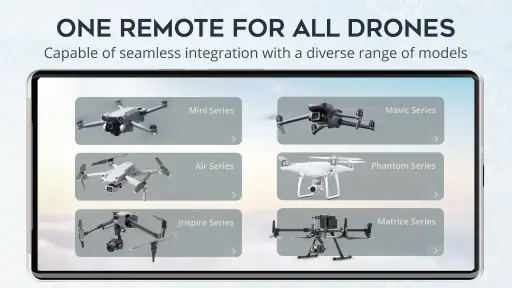
The biggest remaining source of friction is compatibility. A remote-control app is not like a flashlight that behaves almost identically on every phone. The drone, UAV, or camera has to communicate in a way the app can understand, and even a successful connection may not mean that every function is available. I would therefore judge the app in two stages: first, whether it connects; second, whether the controls you actually need respond reliably.
This is also why I would not make the rating alone the deciding factor. A 4.5 average is encouraging, and around 446 written reviews give prospective users more context than a single score, but another person’s successful setup may involve different hardware from yours. Reviews can help reveal common experiences, yet your own controlled test remains more valuable than a general impression.
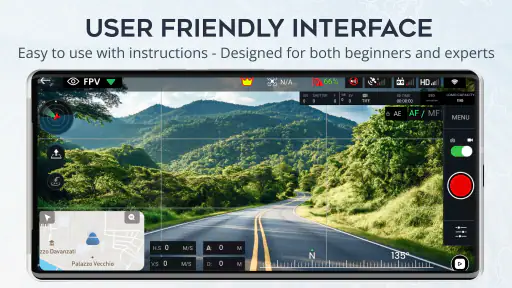
Touch controls create a different kind of limitation. Physical sticks can be located by feel, while a phone screen usually asks you to look down or remember exact positions. That difference becomes important when you are trying to maintain a steady flight path or make a small adjustment. I would spend time learning the control layout at low risk rather than assuming that familiarity with smartphone gestures will translate directly into confident piloting.
Screen visibility is another practical concern. A phone that looks bright indoors may be difficult to read under direct sunlight. Reflections can hide a live camera image or make a small control hard to identify. If your planned use is mostly outdoors, test the app in outdoor light before deciding that it is suitable. A controller that saves packing space but forces you to squint at the screen may not actually save time once you are on location.
Battery planning deserves equal attention. The phone is handling communication, displaying the control interface, and possibly showing a camera feed at the same time. That can make a device’s charge more important than it would be during ordinary messaging or browsing. I would start with a full battery and carry a power bank for longer outings, while remembering that charging a phone does not solve a depleted drone battery or a weak connection.
Notifications are a surprisingly serious nuisance. A call, message, or system prompt can pull your attention away at exactly the wrong moment. Airplane mode may not be appropriate if the app depends on a particular wireless connection, so I would use the phone’s available interruption controls carefully and test them before flying. The goal is to preserve the connection while reducing anything that can cover the interface or distract the pilot.
There is also a learning curve that a store description cannot show. The app may put the controls on a familiar phone screen, but safe operation still depends on understanding the aircraft’s behavior, the camera’s response, and the difference between a command being sent and the aircraft actually reacting. I would never use the app as a substitute for learning local flight rules or for checking the condition of the drone itself.
Who should use it and who should skip it
I would recommend trying it if you own a compatible small drone or camera and value a lighter travel setup. It is particularly appealing when the physical controller is bulky, easy to forget, or needed only for occasional short sessions. The free entry point also makes it practical to test the idea before buying another accessory, provided you perform that test in a safe environment.
It may also suit beginners who want to understand whether mobile control fits their habits. Starting with a phone can feel approachable, and the familiar screen may reduce the intimidation of handling another dedicated device. Still, beginners should not interpret an easier setup as permission to skip practice. The app can reduce equipment friction; it cannot remove the need for attention and judgment.
I would skip it as a primary solution if you regularly fly in demanding conditions, need precise physical controls, or depend on a stable workflow for professional footage. A dedicated remote is usually better when control accuracy, tactile feedback, and uninterrupted operation matter more than reducing the number of devices in your bag. The same is true if you dislike using your personal phone for equipment control or cannot tolerate interruptions during a session.
People using iPhones should also make their decision based on the actual platform availability and compatibility they see when searching for the app, rather than assuming that an Android-focused minimum operating-system requirement describes every device. Android users have a clearly stated minimum of version 5.0, but the more important question for either platform is whether the app supports the specific drone or camera model. That check should happen before travel, not at the launch site.
The age rating is Everyone, which fits the app’s role as a general-purpose control utility. That does not mean every flight situation is suitable for every user. Younger or inexperienced users still need supervision, a safe practice area, and an understanding that the aircraft can cause damage if operated carelessly. The rating describes access to the app, not the skill required to use a flying device responsibly.
My verdict after weighing convenience against control
Fly Go 4: Drone Camera Remote is most valuable when it turns a forgotten or inconvenient controller into a problem you can solve with the phone already in your hand. Its appeal is practical rather than flashy: fewer items to pack, a quicker route to a connection, and a possible backup when the original remote is unavailable. For casual owners, that can be enough to make more short sessions realistic.
My honest reservation is that the app’s usefulness depends heavily on the hardware pairing and on how comfortable you are with touch controls. I would not buy in-app items until the basic connection and the functions you need have been tested. I would also keep the original controller whenever the flight matters, because convenience should not be confused with redundancy or professional-grade reliability.
Smart Remote Application has positioned this as a tools app rather than a broad photography suite, and that focus is appropriate. It is not trying to replace every part of a drone owner’s workflow. Instead, it addresses one recurring obstacle: getting a mobile device into the control role quickly enough to make a small flight less cumbersome. That narrow purpose is where it makes the most sense.
After using it as a practical option rather than a universal answer, I would suggest it to Android users on version 5.0 or newer who are prepared to test their equipment carefully. The app is free, rated for Everyone, and available in current version 1.7.0, but those convenient entry points do not remove the need for a compatibility check. If your priority is saving space and avoiding a forgotten remote, it is worth trying. If your priority is maximum precision and dependable tactile control, stay with the dedicated alternative.
Pros
- Simple controls make basic drone operation easy for beginners.
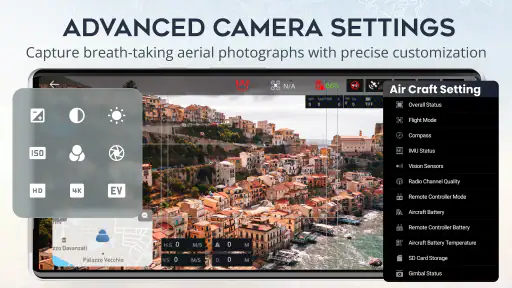
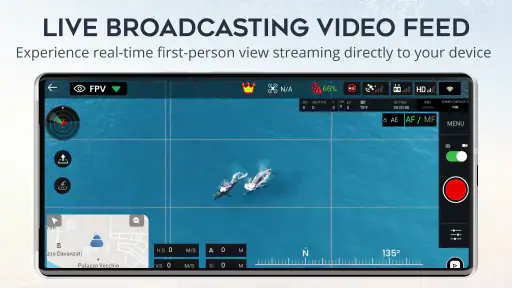
- Live camera preview helps frame photos and videos while flying.
- Virtual joystick controls offer an alternative to physical remotes.
- Compact interface keeps essential flight functions easy to find.
- Useful for casual aerial photography and short recreational flights.
Cons
- Compatibility may vary considerably between drone models and phones.
- Video preview can lag when the Wi-Fi connection becomes unstable.
- Requires strong phone permissions and a reliable wireless connection.
- Advanced pilots may find the flight controls and settings limited.
- Battery use can increase during extended live video and flight sessions.
- Category
- Tools
- Version
- 1.7.0











