FileRecover: Restore & QR
- 15.00
- 4.2
- Installs
- 100.00K
- Price
- Free

Screenshots

Analysis by Reviewed
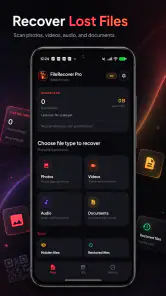
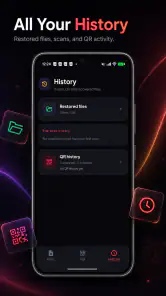
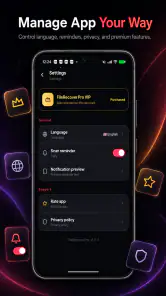
I approached FileRecover: Restore & QR as a practical toolbox rather than a single-purpose utility. It brings file recovery, storage cleanup, QR and barcode scanning, and file protection into one app from notStudio. That combination is useful because these jobs often appear together: a phone runs short on space, an important image seems to have disappeared, or you need to scan a code while handling documents. My overall impression is that it is most appealing to people who want a compact set of everyday tools instead of several separate downloads.
The app is free, aimed at Everyone, and available for devices running Android 8.0 or later. Its current version is 1.0, so I would approach it as a straightforward utility with room to mature rather than as a long-established file-management platform. It has reached over 100 thousand installs and holds a 4.2 average from around 1.2 thousand ratings, which suggests that the basic idea is connecting with users. I still found that its value depends heavily on how carefully you use the recovery and cleaning functions.
How FileRecover: Restore & QR feels in everyday use
I find that the app’s value shows up most clearly when a small phone task turns into a sequence: scan a code, tidy a folder, or protect a document before sharing the device. I’d start with one simple goal rather than explore every tool at once; that makes the first result easier to judge and helps keep a cleanup decision separate from a recovery attempt.
Quick tasks are where the app makes the best impression
The first thing I noticed is how naturally the four functions fit a common phone routine. Storage cleanup is something I might do before taking a trip, file recovery becomes relevant after an accidental deletion, scanning is useful when opening a product page or joining a service, and file protection matters whenever private documents are stored locally. Having those actions close together reduces the need to remember which app handles which job.
For a quick scan, I would expect the experience to feel immediate because QR and barcode reading is a focused task. The useful advantage here is not that scanning is radically different from a camera app, but that it sits beside file tools. If I am organizing downloaded documents and need to scan a code from packaging or a printed page, I can stay within the same utility instead of switching between unrelated apps.
Storage cleanup is also a task where perceived speed matters more than visual polish. A cleaner is valuable when it quickly helps me identify material that is safe to remove. I would not treat a fast scan as permission to delete everything suggested, though. Temporary-looking files can still be useful, and duplicate-looking items may not be identical in purpose. My preferred workflow is to inspect the results, keep anything important, and only then approve a cleanup.
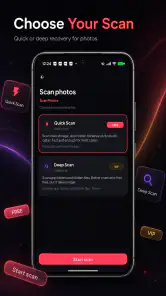
Recovery is naturally more demanding. A scan that searches for deleted material may take longer than opening a QR reader, especially when the device contains many files. That is not a weakness unique to this app; it is part of the task itself. The important expectation is to start recovery when the phone is not already busy with downloads, video playback, or a large backup.
More From Our News Desk

Weather by Xiaomi Review: Clear at a Glance, Less Clear Up Close

X Under Pressure: Can It Recover When Posting Goes Wrong?

Clash of Clans Is Won Between the Battles

Android Auto Makes the Case for Quieter Car Software

MobiOffice: Transforming Mobile Productivity with Seamless Integration

EA SPORTS FC™ Mobile Soccer: Redefining Mobile Sports Gaming
What happens during heavier jobs
The most demanding moments are likely to come from broad storage scans and file recovery rather than barcode reading. A phone with years of photos, downloads, messaging attachments, and application leftovers gives any utility more material to examine. I would run those operations while the device is connected to power and not needed for an urgent call, especially if the search covers a large area.
There is also a practical trade-off between convenience and resource use. A single app that combines cleanup and recovery saves installation space and reduces app switching, but a scan still has to examine the phone’s storage. On an older or nearly full device, the process may feel less responsive than a simple QR scan. I would avoid running a recovery search while recording video or playing a demanding game, because the phone has less room to handle several active tasks comfortably.
One useful habit is to separate maintenance into small sessions. I would scan for unwanted files first, review the results, and leave recovery for another moment. This makes it easier to understand what changed and avoids confusing a cleanup action with a restoration attempt. It also gives the phone a chance to finish one storage-heavy operation before beginning another.
When protecting files, I would prepare the material before starting. Instead of selecting an entire cluttered folder, I would first gather the documents or images that genuinely need extra protection. That creates a smaller, clearer set to manage and avoids turning the protection area into another disorganized archive. This is a simple workflow improvement, but it makes a multi-tool app much easier to live with.
Recovery needs realistic expectations
The recovery feature is the reason many people will install this app, but it is also the area where careful expectations matter most. A deleted file is not automatically guaranteed to return in its original condition. The longer a phone continues writing new data, the greater the chance that storage space associated with an old file will be reused. For that reason, I would stop unnecessary downloads and avoid taking new photos immediately after noticing an accidental deletion.
I would also recover files to a different location when possible rather than repeatedly writing over the same area being examined. Even without turning the process into a technical exercise, this is a sensible precaution. It reduces the chance that a restored item interferes with material the app has not finished checking.
The result may also depend on the type of file and how it disappeared. A recently removed image is a more promising case than an old document from a heavily used phone. If a file was deleted from a service that keeps its own trash or backup area, that service may be the better first place to check. FileRecover is most useful as a practical additional route, not as a promise that every lost item can be reconstructed.
My advice is to preview or inspect recovered material before treating it as complete. A file with the right name is not necessarily intact, and an image that opens may still have missing detail. After recovery, I would copy important results to a computer or another safe location instead of leaving the only restored version on the same phone.
Stability matters more than flashy presentation
For a utility like this, reliability means predictable behavior: scans should finish without making the phone confusing to use, cleanup should require deliberate confirmation, and protected files should remain easy for the owner to find. The app’s focused purpose helps because each function has a clear job. I prefer that kind of directness to a tool that fills the screen with unrelated recommendations or complicated dashboards.
At the same time, the version number makes me cautious about relying on it as my only safeguard for irreplaceable files. I would use it for recovery attempts and routine organization, but I would still maintain a separate backup habit for family photos, work documents, and other material that cannot be recreated. A recovery tool is a useful safety net; it is not a substitute for a copy stored somewhere else.
The same principle applies to cleaning. If an app helps identify unnecessary material, the final decision should remain mine. Before confirming removal, I would check file names, locations, previews, and dates where available. This is especially important when a folder contains both disposable downloads and information I may need later.
Android compatibility and device limitations
Support for Android 8.0 and later covers a broad range of phones, including some older devices that may benefit most from storage maintenance. That is a meaningful strength for households with mixed-age phones. However, compatibility does not mean that every device will offer the same recovery possibilities. Storage design, manufacturer software, encryption, and the way an item was deleted can all affect what a tool can locate.
Older devices may also have slower storage and less available memory. On those phones, I would avoid starting the largest scan when the battery is low or when the device is already warm. A smaller, targeted task is easier to manage than repeatedly launching broad scans without a clear goal.
Very full storage creates a second problem: the phone may already be struggling before the app begins. In that situation, I would first remove clearly unnecessary videos or move personal files to another location, then perform a more focused recovery attempt. If the missing item is extremely important, a desktop recovery service or professional option may be more appropriate than experimenting on the only copy.
Who will get the most from this combination
I think the app suits people who want a simple Android utility for occasional maintenance and unexpected file loss. It is particularly practical for someone who does not want separate applications for scanning codes, cleaning space, and handling private files. Families sharing advice about phone upkeep may also appreciate having one recognizable tool to discuss.
A realistic example would be a user preparing for a flight. They scan a barcode from a travel document, remove obvious clutter from the downloads folder, and protect a copy of an identification document. Later, if a photo is accidentally deleted while organizing the phone, the same app provides a place to begin looking. The benefit is not that every task is best-in-class; it is that the transition between these small jobs is convenient.
I would be less enthusiastic for someone who needs advanced desktop-grade recovery, detailed storage analytics, or a carefully documented backup system. In those cases, a dedicated recovery product, the phone’s built-in file manager, or a cloud backup service may be better suited. Likewise, users who only need QR scanning can probably choose a lighter option and avoid installing a broader toolbox.
How it compares with the usual alternatives
The built-in file manager is usually the first place I would look for ordinary copying, renaming, and folder organization. It may be more familiar and less crowded, but it does not necessarily bring recovery, cleaning, scanning, and protection together. FileRecover’s advantage is convenience across those jobs, while the built-in manager remains preferable for precise everyday file handling.
Dedicated cleaner apps often provide more elaborate visual reports, while dedicated recovery software may offer deeper controls. A separate QR reader can also be quicker if scanning is your only requirement. The trade-off here is breadth: this app is attractive when you want several practical functions in one place, but less compelling when you need the deepest possible treatment of one specific task.
Cloud storage and automatic backup are a different kind of alternative. They help prevent permanent loss by keeping another copy, whereas recovery operates after something has already gone wrong. I would use backup for prevention and FileRecover for an occasional rescue attempt or local maintenance. Treating those as interchangeable would leave an avoidable gap in your file-safety routine.
Small habits that improve the experience
I would begin with a clear objective instead of pressing every tool in sequence. If storage is the concern, identify large or disposable items first. If a file vanished, stop writing new data and attempt recovery promptly. If privacy is the concern, select only the files that need protection and keep a separate backup of anything essential.
I would also avoid judging the app solely by how quickly its first screen opens. The meaningful performance test is how comfortably it handles the task I actually need. QR scanning should be a short interaction; cleanup and recovery deserve patience and a review step. Expecting all four functions to behave identically would create an unfair impression of the product.
Finally, I would make a habit of checking recovered files outside the app. Open an image, read a document, or play a restored clip before deleting any remaining copy. This catches incomplete recovery early and prevents a user from assuming that a successful-looking result is automatically usable.
My performance verdict
FileRecover: Restore & QR is a sensible free toolbox for Android users who value convenience over specialization. I like the way it brings several related needs into one place, and the Everyone rating makes it approachable for general household use. Its strongest moment is the ordinary, slightly messy phone-maintenance routine where scanning, cleaning, protecting, and recovering can all become relevant.
My recommendation comes with a clear boundary: use the app thoughtfully, especially when deleting or restoring files. Recovery should begin quickly after an accidental deletion, but important data should still have an independent backup. On older or crowded phones, run heavier searches when the device is idle and powered, and do not mistake a broad toolset for unlimited recovery power.
For someone who wants one free utility covering several practical jobs, I think notStudio’s app is worth trying on a compatible Android phone. For advanced recovery, detailed storage management, or prevention through automatic backups, I would choose a more specialized alternative. The best reason to install it is its useful combination of tools, not the expectation that it can replace every dedicated file service.
FileRecover: Restore & QR Frequently Asked Questions
Is FileRecover: Restore & QR compatible with my Android device?
FileRecover: Restore & QR is an Android tools app that requires Android 8.0 or later. Check your device’s Android version before downloading, and make sure you have enough available storage for the app and any files you hope to recover. Compatibility with a particular phone can also depend on its manufacturer and how it handles storage access.
What is FileRecover: Restore & QR used for?
FileRecover: Restore & QR is designed to help users look for deleted or missing files on an Android device and, where possible, restore recoverable items. It may also include QR-code scanning or generation tools, making it a combination of file-recovery utilities and QR features. Its effectiveness depends on the device, storage location, file type, and whether new data has overwritten the deleted files.
Can FileRecover: Restore & QR recover every deleted photo, video, or document?
No recovery application can guarantee that every deleted file will be restored. The best results usually come when you scan the device soon after deletion and avoid downloading, recording, or moving large amounts of data beforehand. Files permanently removed by secure deletion, overwritten storage, unsupported formats, or certain system restrictions may not be recoverable through the app.
Does FileRecover: Restore & QR require special permissions or root access?
The application may request access to storage, media, photos, or other device features so it can scan for recoverable content and use its QR tools. Android permission behavior can vary by operating-system version and manufacturer. Some basic scans may work without root access, while deeper searches or access to protected locations may be limited unless the device is rooted, which carries security risks.
Can I use FileRecover: Restore & QR for QR codes and storage cleanup, as well as file recovery?
Yes, its feature set brings together file recovery, storage-cleaning tools, and QR or barcode scanning. This can be convenient if you want several practical utilities in one app rather than separate downloads. Before using a cleanup feature, review what it proposes to remove; deleting files to free space could affect items you still want to recover.
Pros
- Simple interface makes file recovery easy for beginners.
- Supports QR scanning for quick access to recovery tools.
- Can help locate recently deleted photos and videos.
- Previewing files before recovery reduces unnecessary restores.
- Useful for checking recoverable media without technical knowledge.
Cons
- Recovery success depends heavily on how long ago files were deleted.
- Deep scans may take time and consume considerable battery power.
- Some recovered files may have missing names or incomplete metadata.
- Advanced recovery features may require in-app purchases.
- Results can include duplicates or unrelated cached media.
- Category
- Tools
- Version
- 1.0