Dzees Home
- 382.00
- 4.7
- Installs
- 100.00K
- Price
- Free

Screenshots
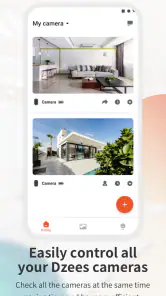
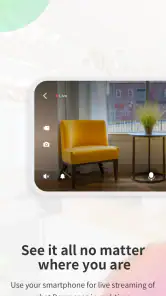
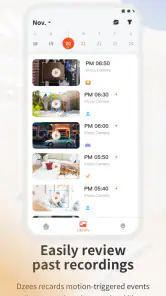
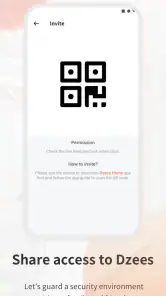
Analysis by Reviewed
I started using Dzees Home with a simple question in mind: would it make a connected camera easier to live with, or would it become another app I only open when something goes wrong? In daily use, its value depends less on flashy extras and more on how smoothly the phone, camera, and network work together. That makes it a practical tools app for people who want a straightforward way to interact with a compatible smart camera from a mobile device.
The app comes from yuanxi creation tech and is available free of charge, with optional in-app purchases ranging from $1.99 to $158.99 per item. It is rated for Everyone, so the interface is aimed at general household use rather than a specialist audience. The current version is 2.0.10, and it runs on Android 7.0 or later. Those details matter because an older phone may meet the operating-system requirement while still feeling less responsive during live camera use.
What the connected-camera experience feels like
The first thing I noticed is that Dzees Home is not useful in isolation. Its job is to connect a phone to a Dzees smart-camera setup, so the quality of the experience is shaped by several links at once: the camera’s own connection, the home network, the phone’s connection, and the service handling communication between them. When all of those cooperate, checking a camera feels quick and natural. When one link struggles, the app can appear to be the problem even when the real delay is elsewhere.
This is the central trade-off. A traditional camera with a local screen can feel immediate because it does not ask a phone to establish a remote viewing session. Dzees Home is more flexible for people who want to check in while moving around, but that flexibility comes with dependence on connectivity. I would choose it for convenient mobile access, not for a setup where every view must remain available regardless of network conditions.
The app’s store summary refers to a smart camera and uses the names Dzeeshome and Dzees Home, which can be useful when searching for the correct companion app. That naming overlap also means I would check the developer name carefully before installing, especially if several camera-related results appear in the app store.
When the network is doing the heavy lifting
A realistic example is checking the living room while I am away from home. I open the app, wait for the camera session to connect, and look for a current view rather than relying on a memory of what was happening earlier. In a strong connection, that process is reassuringly simple. The important point is that the app is not just displaying a saved picture; it is coordinating a live interaction across connected devices.
That same scenario becomes more complicated if the phone is moving between Wi-Fi and mobile data. A session that begins on one connection may take longer to establish after the phone changes networks. I would not treat a delayed image as proof that nothing is happening at home. Instead, I would give the connection time, retry once, and then check whether the phone itself has stable internet access.
This is one of the less obvious habits that improves the experience: separate a camera problem from a connection problem before changing settings. If other online apps are also slow, restarting or repositioning the camera may be unnecessary. If the rest of the phone works normally but the camera remains unreachable, then the camera or its home connection deserves closer attention.
Using it around the house and on the move
Dzees Home makes the most sense for people who do not want to stay beside a dedicated monitor. I can imagine using it while preparing food, working in another room, or checking a property during a short trip. The phone becomes the viewing point, which is convenient because it is already the device most people carry.
There is a practical limitation, though: a phone is a shared tool. A call, a weak signal, low battery, or a busy background task can interrupt the moment when I need to check the camera. For that reason, I would not make the app the only layer of awareness for a situation where a missed connection could have serious consequences. It is useful for routine checking, but it should not replace appropriate supervision or a dedicated monitoring arrangement.
On a smaller screen, I also prefer short, purposeful sessions. Opening the app to confirm what is happening is comfortable. Keeping a live view open for a long time is less appealing because it ties up the phone and makes the experience more sensitive to battery and network conditions. A tablet or dedicated display may be better for continuous viewing, while Dzees Home is strongest as a mobile check-in tool.
Another useful workflow is to decide what I need before opening the app. If I only want to confirm whether a room is occupied or whether a familiar area looks normal, I can check quickly and close the session. If I need to investigate a changing situation, I allow more time for the connection to settle rather than repeatedly opening and closing the app. That reduces frustration and avoids turning a brief check into a string of failed connection attempts.
What to do when a session fails
Connected-camera apps are judged most harshly when they fail, and that is fair. A smooth view is expected; a failed view creates uncertainty. My approach with Dzees Home would be methodical. First, I check whether the phone has working internet access. Next, I retry the connection once. If that does not help, I consider whether the camera may have lost power, moved out of reliable network range, or become unavailable after a router change.
I would avoid repeatedly tapping every control at once. Multiple retries can make it harder to tell whether the original request was still processing or whether a new request has started. Waiting briefly between attempts gives a clearer picture of the situation. This is especially important when using mobile data, where an apparently frozen screen may reflect a slow connection rather than a completely disconnected camera.
If the app has recently been updated, I would also remember that the current version is 2.0.10 and that behavior can vary between phones and operating-system versions. The minimum supported Android release is 7.0, but meeting that baseline does not guarantee identical performance on every device. On an older handset, I would close demanding apps before trying a live view and keep the phone’s system software in a stable condition.
Recovery is easier when the camera’s physical setup is sensible. I would place it where the home network is dependable, avoid hiding it behind dense objects, and make sure its power connection is not easily disturbed. These are not special app settings, but they directly affect what the app can show. A camera companion application cannot compensate for a camera that is poorly positioned or intermittently powered.
The same thinking helps after a home router restart. I would not assume that reinstalling the app is the first answer. I would confirm that the home network is back, check whether other devices reconnect, and then try the camera again. Reinstalling should be a later troubleshooting step, because it can create extra setup work without fixing the underlying connection.
Using the app without wasting mobile data
Live camera viewing naturally uses more communication than simply opening a settings screen, so I would be selective when away from Wi-Fi. Short checks are more sensible than leaving the view open while travelling. If I am on a limited mobile plan, I would avoid repeatedly refreshing a session just because the first attempt took a little longer.
This is also where the app’s free entry point needs context. Downloading it costs nothing, but optional purchases can range from $1.99 to $158.99 per item. I would review any purchase screen carefully and decide whether the offered function is genuinely necessary for my use before confirming it. The presence of a free app does not mean every connected-camera capability is automatically included.
I would also pay attention to the difference between a useful alert and unnecessary checking. If I open the camera every few minutes out of habit, the app becomes more demanding on both connectivity and battery. A better routine is to use it when there is a clear reason: checking a room, confirming a familiar routine, or investigating something that needs attention. That makes the phone experience calmer and keeps the app in its proper role.
Privacy is another reason to be deliberate. A connected camera can show parts of a home, workplace, or another private space. I would avoid sharing account access casually, keep the phone protected, and think about who can physically see the screen during a live session. These are everyday precautions, but they matter more than an attractive interface when the app is connected to a real environment.
Who will get the most from it
I think Dzees Home is a good fit for someone who already uses a compatible Dzees camera and wants mobile access without adding a separate monitoring screen. It suits people who value quick checks, move between rooms, and are comfortable with the idea that a connected device depends on a working network.
It is also approachable for a household where several people have different levels of technical confidence. The app belongs to the tools category rather than a professional surveillance suite, and its Everyone age rating reflects that broad audience. Still, the easiest experience comes from setting expectations correctly: the app is a control and viewing companion, not a substitute for good camera placement, reliable power, or a stable connection.
I would be more cautious about recommending it to someone who wants a completely local setup, a permanent wall-mounted display, or a system designed around advanced security administration. A conventional monitor may be better for uninterrupted observation. A more specialized camera platform may be preferable when detailed access controls, extensive integrations, or a broader security ecosystem are the main priorities.
I would also skip it if the intended camera location has unreliable internet and there is no practical way to improve that situation. The app can be perfectly reasonable while the overall setup remains disappointing. In that case, the limiting factor is not the phone interface but the communication path between the camera and the person trying to view it.
How its reputation fits the experience
The app has an average rating of 4.7 from around 3.3 thousand ratings, with over 100 thousand installs. I see those figures as a sign that many users find the basic camera-companion role worthwhile, but not as a promise that every home network or phone will behave identically. Connected hardware is unusually sensitive to local conditions, so one person’s smooth experience can differ sharply from another’s.
There are also around 382 written reviews, which suggests that users have had enough experience to comment beyond the first launch. I would still read recent comments with a specific question in mind: are complaints about the app itself, the camera hardware, setup, or connectivity? That distinction is more useful than simply counting positive and negative reactions.
My connectivity verdict
After looking at the app as a daily tool rather than a store-page promise, I see Dzees Home as a convenient bridge between a Dzees smart camera and a mobile lifestyle. Its strongest quality is access: I can check a connected camera from the device already in my hand instead of staying beside a dedicated screen. Its main weakness is inseparable from that strength, because every remote check depends on a chain of network conditions.
I would recommend it to a friend who owns compatible Dzees equipment, has dependable connectivity, and wants occasional or practical mobile viewing. I would explain that the best results come from sensible camera placement, patient troubleshooting, and restrained use of mobile data. I would also mention the in-app purchase range before they commit to any optional feature.
My final take is simple: choose Dzees Home for convenient connected checks, not as a guarantee against connection failures. With that expectation, it can be a useful everyday companion. Without it, even a minor network interruption may feel like a flaw in the whole system. The app earns its place when mobile access is the priority and the surrounding camera setup is reliable enough to support it.
Pros
- Clear live video helps monitor pets
- children
- or rooms remotely.
- Motion alerts can notify you quickly when activity is detected.
- Two-way audio makes it easy to communicate through compatible cameras.
- Cloud and local recording options may provide useful playback flexibility.
- Remote camera access is convenient while traveling or away from home.
Cons
- Some features may require a subscription or additional cloud-storage fees.
- Performance depends heavily on a stable Wi-Fi connection.
- Notifications can become frequent when motion sensitivity is set too high.
- Compatibility may be limited to Dzees-branded cameras and accessories.
- Background video streaming can noticeably increase battery and data usage.

- Category
- Tools
- Version
- 2.0.10











