Cloud Storage Drive Backup app
- 146.00
- 3.9
- Installs
- 500.00K
- Price
- Free

Screenshots
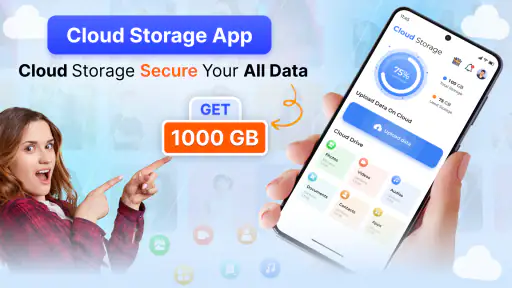

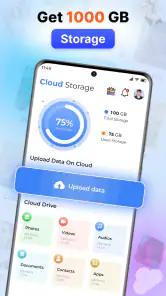
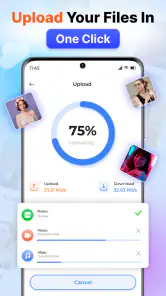
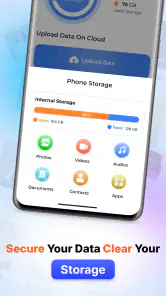
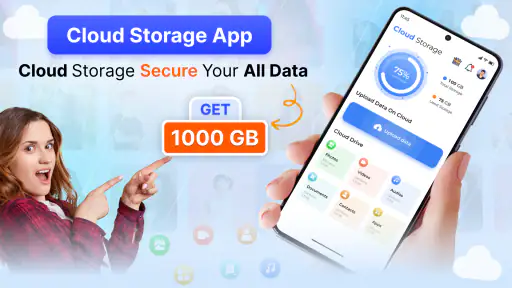

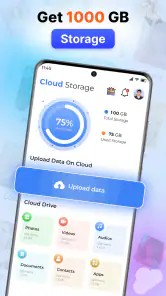
Analysis by Reviewed
Cloud Storage Drive Backup is the kind of Tools app I would look at when my phone has become the accidental home for every photo, video, and contact I cannot afford to lose. Developed by MINDBYTE STUDIOS, it focuses on a straightforward job: moving important personal files into cloud storage, giving them a secure drive, and making restoration available when needed. I found that narrow purpose more useful than a crowded app that tries to be a photo editor, file manager, social feed, and backup service at the same time.
The central appeal is convenience. Instead of treating backup as something to remember only after a broken phone, the app encourages a separate online copy of everyday information. It is free to install and suitable for Everyone, although optional in-app purchases range from around ten dollars to around one hundred eighty dollars per item. That makes the first decision simple, but it also means I would check the available storage and upgrade terms carefully before making it the only home for a large media library.
How Cloud Storage Drive Backup feels in everyday use
My first impression is that this is a practical utility rather than an app designed to entertain. The useful question is not whether it has the most elaborate interface, but whether I can understand the backup task quickly and return to my day. The current release is version 1.67, and the app is available on devices running Android 9 or later. That operating-system requirement is reasonable for many phones, but owners of older hardware should check compatibility before planning a migration.
The most sensible starting point is to decide what actually needs protection. A camera roll may contain years of memories, while contacts can be rebuilt only with difficulty. I would begin with a small, meaningful batch instead of immediately sending every large video to the cloud. That approach makes the first session easier to understand and gives me a chance to see how the app behaves on my particular connection and device.
There is also a useful distinction between backup and recovery planning. Uploading a file is only half the job. I would want to know which items are safely present before deleting local copies, changing phones, or resetting a device. The app’s restore purpose makes it more valuable when used deliberately: protect important material first, then test the recovery path with a few non-critical items rather than assuming that every future restoration will feel identical.
Speed depends more on the workload than the button
Cloud backup speed is naturally affected by the amount and type of content involved. A contact list is a much lighter task than a collection of long videos, so I would not judge the app’s performance from one small upload alone. The app’s design is best suited to gradual protection of personal content, where I can start a backup and allow it to continue instead of expecting a large archive to finish instantly.
For a realistic example, imagine returning from a family trip with hundreds of images and several videos. I would start with the photos, leave the largest videos for a later session, and avoid making other major changes to the phone until the transfer is complete. This staged workflow reduces confusion and makes it easier to identify whether a particular item still needs attention. It is less dramatic than pressing one large backup button, but it is a more sensible way to manage a busy phone.
I would also avoid judging speed while the phone is already struggling with several demanding tasks. Opening games, editing video, downloading large files, and backing up at the same time can make any storage workflow feel sluggish. A calmer session, preferably when I am not relying on the phone for navigation or an urgent call, gives the utility a fairer test. The app is not a magic shortcut around connection limits or the size of the files being moved.
What happens during heavy use
The demanding moments are easy to predict: the first large backup, a phone containing many recordings, or a recovery session after changing devices. These are the situations in which I would pay attention to battery use, available local space, and whether I can continue using the phone comfortably. I would not start a major transfer just before leaving home with a low battery, because the backup itself is only one part of the phone’s workload.
Large videos deserve special handling. They are usually the files most likely to make a backup feel slow and the files most painful to replace. My practical method would be to prioritize irreplaceable clips, keep the phone connected to power when appropriate, and confirm that the cloud copy is present before removing the original. This is a more cautious workflow than treating the service as an instant mirror of the entire device.
A second heavy-use case is recovery. Restoring everything at once may be convenient, but it can also leave the new phone busy when I need to configure other essentials. I would restore contacts and the most important photos first, then bring back less urgent media in stages. That gives me a usable device sooner and makes it easier to spot a problem with a particular file rather than sorting through one enormous recovery process.
One trade-off is that a cloud drive is not the same as a local cable transfer or a computer backup. A direct transfer can be quicker when two devices are beside each other and the goal is simply to move data once. Cloud storage becomes more attractive when I want an off-device copy that remains useful even if the original phone is lost or damaged. I see this app as stronger for that separation than for replacing every kind of migration tool.
Stability and the value of a recovery test
Reliability matters more to me here than visual polish. A backup tool earns trust when I can use it repeatedly and understand what has already been protected. Cloud Storage Drive Backup has reached over half a million installs, with an average rating of 3.9 from around two thousand ratings. Those figures suggest a reasonably established utility, but they are not a substitute for my own recovery check, especially when the files are personally important.
I would perform that check early. After uploading a small group of photos and a contact backup, I would try restoring them to the same device or another suitable device when possible. The point is not to create unnecessary work; it is to confirm that the process makes sense to me before an emergency. A backup that has never been restored is an assumption, while a tested recovery routine is something I can rely on with much more confidence.
There are several simple habits that improve reliability without requiring advanced technical knowledge. I would use clear organization before uploading, avoid deleting local originals immediately, and keep particularly valuable files in a second location if losing them would be serious. The app can be a useful layer of protection, but I would not treat one cloud account as an invulnerable archive. Accidental deletion, account access problems, or an interrupted transfer are reasons to keep a broader plan for truly irreplaceable material.
The developer, MINDBYTE STUDIOS, presents the product as a secure drive as well as a backup tool. That wording makes privacy and access important considerations in my personal workflow. I would use a strong account password, avoid sharing access casually, and think carefully before uploading sensitive material. The app’s usefulness grows when the cloud copy is both available and handled responsibly; convenience should not replace basic account security.
Older phones, operating-system limits, and storage pressure
Android 9 is the minimum operating system, so this is not aimed at every older Android phone. If I were helping someone with an aging handset, I would check the system version first rather than assuming that a free app will install. Compatibility is especially important in a backup situation because discovering a limitation after a phone failure is the worst possible time to learn it.
Device age also affects the experience beyond installation. An older phone may have less free space, a slower camera library, or a battery that cannot comfortably support a long upload. In that situation, I would prepare the phone before starting: remove obvious temporary clutter, charge it, and choose a manageable first batch. I would not confuse a device bottleneck with a failure of the cloud service itself.
Users with a very large media collection should think about cost as well as capacity. The app is free to download, but optional purchases can reach around one hundred eighty dollars per item. That is a meaningful range, so I would not upgrade simply because a first upload feels convenient. I would estimate how much content I genuinely need online, compare the ongoing value with alternatives I already use, and make sure the selected plan fits a long-term routine rather than a single emergency.
This is also where the app may not be the right choice. Someone who already has a dependable computer backup, a direct device-to-device transfer habit, and no interest in accessing files away from home may prefer a local solution. Likewise, a person who needs advanced collaboration, detailed file versioning, or a highly specialized business workflow should compare dedicated services instead of assuming that a backup-focused drive will cover every professional requirement.
How it compares with familiar alternatives
The usual alternatives fall into three groups: automatic photo services, manufacturer backup tools, and manual copies to a computer or external drive. Automatic photo services can feel more invisible once configured, especially for people who mainly care about images. Manufacturer tools may fit neatly into one phone ecosystem. Manual copies provide physical control and can be useful when internet access is limited.
Cloud Storage Drive Backup has a clearer appeal when I want photos, videos, and contacts considered together in one utility. Its secure-drive approach also feels more intentional than simply hoping that individual apps have synchronized themselves. On the other hand, a dedicated photo service may offer a smoother experience for someone whose entire priority is browsing and organizing pictures, while a local copy may win for speed during a one-time phone upgrade.
The important trade-off is convenience versus independence. Cloud access helps when the phone disappears, but it depends on account access and a working connection during restoration. A computer or external drive avoids some online dependence, but it is easier to leave disconnected or forget entirely. I would use this app when I value an off-device copy and want a relatively direct recovery option, not because it eliminates the need to think about backup strategy.
Who will benefit most from it
I think the best match is someone who keeps important memories and contacts on an Android phone but does not maintain a regular backup routine. It is also a sensible option for people preparing to replace a device, travelers who want a separate copy of new photos, and families who would rather protect personal material before a cracked screen or lost phone creates pressure.
The app is less convincing for someone who wants completely hands-off behavior without checking progress, someone using an unsupported older operating system, or someone with a huge archive who has not considered the possible purchase cost. It is also not my first recommendation for a user who needs a full computer-style backup of every device setting and application state. Its strongest role is personal content protection, especially photos, videos, and contacts, rather than a universal image of the entire phone.
For a new user, I would follow a simple sequence. Install it on a compatible phone, begin with a small group of important items, review the cloud copy, and test restoration before expanding the workload. Then create a repeatable habit around new photos and contacts. This process turns the app from a one-off panic button into a practical safety net, while still leaving room for a second backup method when the files matter greatly.
My performance verdict
After considering speed expectations, heavy-use moments, device limits, and recovery, I see Cloud Storage Drive Backup as a focused and approachable tool rather than a complete answer to every storage problem. Its performance should be judged by how comfortably it handles a sensible backup routine, not by whether it can make a large video archive appear instantly. The staged approach is important, particularly on older or busy phones.
The free entry point makes it easy to try, and the Everyone age rating keeps it broadly accessible. The 3.9 average from roughly two thousand ratings gives it a mixed but credible reception, while the install base shows that it is not an obscure experiment. I would still spend time testing restoration and reviewing purchase choices before trusting it with my entire digital life.
My recommendation is practical rather than unconditional: use it if you want a dedicated cloud layer for photos, videos, and contacts and are willing to verify your backups. I would choose a local transfer or another specialized service when speed, advanced organization, or offline control matters more. For the right user, the app’s real strength is not flashy performance; it is the chance to build a simple recovery habit before a lost phone turns ordinary memories into a crisis.
Pros
- Automatic backup keeps photos and files protected without manual uploads.
- Files can be accessed across phones
- tablets
- and computers.
- Sharing links make it easy to send large files to others.
- Search and folder tools help organize stored documents efficiently.
- Offline access lets you view selected files without an internet connection.
Cons
- Free storage space may be limited
- requiring a paid upgrade over time.
- Uploading large files can consume significant mobile data.
- Backup performance depends heavily on internet speed and connection stability.
- Some advanced sharing and security features may require a subscription.
- Background syncing can increase battery usage on older or budget devices.

- Category
- Tools
- Version
- 1.67











