Cleaner: Junk Cleanup
- 19.00
- 3.7
- Installs
- 100.00K
- Price
- Free

Screenshots
Analysis by Reviewed
When a phone starts warning me about low storage, I want a cleanup tool that feels straightforward rather than another project to manage. Cleaner: Junk Cleanup is a free Android tools app from HANFU GIRL, built around that simple need: clearing unwanted files and making room. My impression is that its appeal is less about fine-grained control and more about offering a focused place to start when storage feels crowded. That simplicity can help, but it also means the app is best approached as a helper—not as a substitute for deciding what I actually want to keep.
A simple starting point for a crowded phone
Readability and navigation: less to learn, fewer clues to rely on
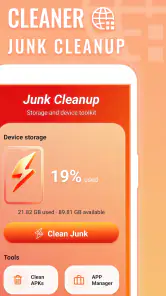
The name and purpose set a clear expectation. This is a cleaner, not a broad device-management suite, so I would come to it with one practical goal: inspect what may be removable and reclaim space. That narrow focus is useful if complicated settings menus usually put you off. The app is aimed at everyone, and its current release is version 1.0.0, so the sensible expectation is a basic cleaning experience rather than a mature toolbox with a long list of specialist controls.
There is a trade-off in keeping a tool simple. A concise interface can make the next step easier to find, but a cleanup screen is only truly easy to understand if it explains what it has identified and what will happen when something is removed. I would treat each suggested cleanup as a decision point: pause, read the label, and make sure it describes material you are comfortable losing. A large-looking storage figure is not, by itself, a reason to tap a removal button.
That is especially important for people who rely on clear, predictable instructions. If a file category is unfamiliar, or the app’s wording does not make the consequence obvious, the safer move is to leave it alone and use Android’s own storage controls to inspect the item. A cleaner should lower the effort of housekeeping, not ask users to guess what a category means. I value a tool like this most when it supports cautious choices rather than encouraging a one-tap sweep.
Cleaner has an average rating of 3.7 from 387 ratings, alongside 19 written reviews. I read that as a reason to set realistic expectations, not as proof that the app will work the same way on every phone. It has passed 100K+ installs, so it has reached a meaningful group of Android users, but popularity cannot tell me whether a particular cleanup suggestion will suit my habits. The useful test is whether the app makes its recommendations understandable on your own device.
Motor and sensory considerations: keep the cleanup deliberate
Cleanup is often done in a hurry, perhaps while a phone is nearly full or someone is trying to download something. In that moment, prominent actions can be tempting to tap without much thought. I recommend slowing the process down: open the app when you have a few quiet minutes, review one category at a time, and avoid treating any “clean” action as automatically harmless. That workflow is useful for anyone, and especially for people who need extra time to read screens or make precise selections.
I would also avoid running a cleanup while juggling another task, such as navigating a station or helping someone on a call. A storage tool is easier to use when attention is available for checking what it proposes to remove. If you have difficulty with small touch targets, hand tremors, or fatigue, using the phone’s built-in accessibility settings to adjust interaction and display preferences may make the overall task more comfortable. Those settings are part of the device, not a capability I can attribute to this app.
More From Our News Desk

Clash of Clans Is Won Between the Battles

Android Auto Makes the Case for Quieter Car Software

MobiOffice: Transforming Mobile Productivity with Seamless Integration

EA SPORTS FC™ Mobile Soccer: Redefining Mobile Sports Gaming

How Microsoft OneDrive Became a Mobile Productivity Giant

How Google Translate Breaks Language Barriers Effortlessly
The app’s purpose may reduce the number of decisions compared with a full file manager, but that does not automatically make it suitable for every sensory or motor need. Some people benefit from high-contrast text, larger interface elements, screen readers, or reduced visual clutter; the experience depends on how the app behaves alongside their device settings. If an important label is hard to distinguish or an action is difficult to reach, do not push through a risky deletion. Use the system storage screen or a file manager that you already know how to operate.
One practical tip is to begin with a small, low-stakes cleanup rather than trying to recover a large amount at once. Check whether the phone behaves as expected afterward, then decide whether you are comfortable using the cleaner again. This makes it easier to notice whether an item you care about has disappeared and gives you a chance to adjust your approach before relying on the app during a more urgent storage crunch.
Situational access: when a cleaner helps, and when it does not
A realistic use case is a phone that has accumulated temporary clutter after weeks of ordinary use and now needs room for an important download. I would open Cleaner: Junk Cleanup at home or somewhere I can give the screen my attention, review the cleanup choices, and then check the phone’s available storage using the device’s own settings. That final check matters: it tells me whether the task actually helped, rather than leaving me to assume that a completed animation or message means the problem is solved.
Another useful situation is helping a family member who is uncomfortable exploring storage menus. A dedicated cleaner may offer a less intimidating first stop than browsing folders manually, but I would sit beside them and explain each choice instead of tapping through on their behalf. That keeps the person in control of their own files and creates a chance to ask whether a photo, download, or other item should stay. For someone who depends on a support person, that shared review can be more valuable than speed.
It is less suitable when you need to find a particular large file, sort personal documents, or decide precisely what to archive. A file manager gives more direct control over individual items; Android’s built-in storage tools are often the better starting point when you want to understand what is occupying space before removing anything. Cleaner is most relevant when you want help with a focused tidy-up, not when you need a detailed audit or a carefully organized backup plan.
It is also not a fix for every “storage full” message. If the space is mostly taken by photos, videos, downloaded media, or apps you still use, a junk-cleaning pass may not address the main cause. In that case, reviewing large personal files, moving items using a method you trust, or uninstalling apps you no longer need is likely to be more effective. The key trade-off is convenience versus control: a cleaner may simplify the first step, while manual review makes it easier to protect specific files.
Remaining barriers: trust and control matter more than speed
The biggest limitation I see in this kind of app is not the idea of cleaning; it is the risk of treating “junk” as a universal category. What one person considers disposable may be useful to another, and a rushed decision can be more frustrating than a full storage warning. I would never remove a category I do not understand just to make the screen look tidy. When in doubt, back out and inspect storage through the phone’s own tools before proceeding.
There is also a practical limit to what a cleaner can accomplish. Removing temporary or unnecessary files can help, but it cannot create lasting room if the phone’s storage is continually filled by content the user wants to keep. A better routine is to pair an occasional cleanup with a quick review of large downloads and apps, rather than repeatedly expecting a cleaner to solve a growing storage problem. This app can be one part of that routine, not the whole routine.
For users who prefer a transparent, item-by-item workflow, the app may feel too limited if its suggestions do not provide enough context. For users who want a hands-off button, it may invite more trust than I think is wise. My middle ground is to use it as a prompt to review storage, not as permission to delete blindly. If the explanation for a proposed action is unclear, the safest and most accessible choice is to stop and use a tool that presents the information in a way you can confidently understand.
Its free price lowers the barrier to trying it, and its Everyone age rating makes it broadly positioned for general use. Still, a free cleaner is not automatically the right choice for every user. Someone with sensitive files, limited confidence navigating cleanup prompts, or a strong need for precise file management may be better served by Android’s built-in controls or a familiar file manager. I would choose the option that makes consequences clearest, even if it takes a little longer.
Who I would recommend it to
I would suggest giving Cleaner: Junk Cleanup a try if you use Android, want a focused tool for storage housekeeping, and are comfortable reviewing cleanup choices before confirming them. Its simple purpose may suit people who do not want to learn a large file-management app just to begin addressing clutter. It is also a reasonable option for a guided first look at a crowded phone, provided you check the result afterward and keep important files out of any action you do not understand.
I would steer away from it if you expect detailed control over every file, need a dependable way to organize or back up personal content, or find unfamiliar cleanup labels stressful. In those situations, built-in storage settings or a file manager are more appropriate because they put inspection and selection at the center of the process. The better choice is not necessarily the fastest one; it is the one that lets you make a decision with confidence.
An inclusive verdict: useful when the user stays in control
My overall view is cautiously positive. Cleaner: Junk Cleanup has a clear, approachable role as an Android storage-cleanup tool, and the fact that it is free makes it easy to consider for a modest housekeeping task. Its usefulness depends on how clearly its prompts communicate what can be removed and how comfortably each person can review them. I would use it deliberately, not as a one-tap cure for every storage warning.
For different abilities and situations, the most important question is whether the app lets you understand and control each step on your own device. Try a small cleanup when you are not rushed, compare the available space afterward, and stop if the choices are unclear or difficult to use. If that process feels comfortable, this can be a handy first stop. If it does not, Android’s own storage tools or a familiar file manager are the better route. That distinction makes the app worth considering without pretending it will suit everyone.
A calmer way to decide what to remove
I would make the first session a short assessment rather than a full spring clean. Before opening the cleaner, note what you are trying to accomplish: free room for one download, stop a low-storage warning, or simply understand whether temporary clutter is a factor. A specific goal makes it easier to judge whether the result helped and reduces the temptation to keep removing items just because the app presents them as possible candidates.
If the phone is shared, I would also ask the person who uses it most before clearing anything. A download that looks old may be a ticket, a document needed for work, or something saved for a trip. This is a small but meaningful distinction between a cleaner and a personal file organizer: the app can help surface a housekeeping task, but it cannot know the value an item has to its owner. Keeping that conversation in the workflow is especially useful when assisting an older relative or someone who finds storage terminology confusing.
Choosing the right tool for the actual storage problem
For a quick, guided attempt at tidying, a dedicated cleaner can be less intimidating than manually browsing folders. For a precise search, an item-by-item file manager is the stronger option; for understanding broad storage use, the phone’s own settings are usually a sensible first comparison. I would not install or open a cleaner simply because a warning appeared: first consider whether the space is tied up in wanted media or apps, since those call for a different decision than clearing disposable clutter.
One useful habit is to compare the available storage before and after a cleanup, then stop if the change does not address the problem. Repeating the same sweep is unlikely to solve a phone that is full of content you intend to keep. In that situation, choosing a few large items to review, archiving them through a method you trust, or removing an unused app gives you more control over the lasting result than relying on a general cleaning pass.
What I would check before making it part of a routine
The app is free, but I would still treat the first use as a trial of the workflow rather than a commitment to use it regularly. Is each proposed action understandable? Can you comfortably review it at your own pace? Does the phone show more available room afterward, and did anything you rely on become harder to find? Those are more useful questions than whether a cleaner looks busy or reports a large amount of material.
For anyone who needs extra time, clear language, or a support person nearby, there is no need to complete the task in one sitting. Review one choice, pause, and return later if that makes the process easier. If the interface or labels create uncertainty, switching to Android’s storage screen is not a failure; it is a practical way to keep control. The strongest reason to use a cleanup app is that it makes a task easier without making the consequences harder to understand.
Cleaner: Junk Cleanup Frequently Asked Questions
What does Cleaner: Junk Cleanup do?
Cleaner: Junk Cleanup is designed to help organize and free up storage on a mobile device by identifying files that may be unnecessary, such as cached data, temporary files, or duplicate items. Its exact tools can vary by app version and device. Review the files it selects before confirming any cleanup, since deleting an item may be difficult to undo.
Can Cleaner: Junk Cleanup improve my phone’s speed or battery life?
Removing clutter can make storage space easier to manage, but a cleaner app cannot guarantee a faster phone or longer battery life. Android and iOS already manage many temporary files and background tasks, and closing apps repeatedly may not help performance. Treat speed and battery claims as potential benefits rather than promises, and check whether your device’s built-in storage settings meet your needs first.
Is Cleaner: Junk Cleanup safe to use, and what permissions might it request?
Safety depends on the specific app publisher, version, and permissions requested. Before installing, check the store listing, developer information, privacy policy, and recent user reviews. A cleanup tool may need access to files or photos to find items, but permissions should make sense for the feature you want to use. Avoid granting access you are uncomfortable with, and inspect selected files before deletion.
Is Cleaner: Junk Cleanup free, or does it include subscriptions or ads?
Pricing and available features may differ by platform, region, and app version. Some cleaner apps offer basic functions at no cost while presenting advertisements, optional purchases, or a subscription for additional tools. Check the current Google Play or App Store listing and the in-app purchase screen before starting a trial or entering payment details. Also review renewal terms and cancellation instructions to avoid unexpected charges.
Does Cleaner: Junk Cleanup work on both Android and iPhone, and should I back up my files first?
Availability and features are not necessarily identical on Android and iOS, because each operating system restricts how third-party apps can access and clean device data. Confirm that the version in your device’s official app store supports your model and operating system. Before removing photos, downloads, or other personal files, make a backup and verify what the app plans to delete; built-in system cleanup options may be preferable for some tasks.
Pros
- Quickly identifies common junk files to free up storage space.
- Simple interface makes cleanup tasks easy to find.
- Lets you review selected files before deleting them.
- Useful for spotting large files that take up device space.
- Can help organize a cluttered phone storage area.
Cons
- Some cleanup results may require manual review to avoid removing wanted files.
- Cleaning cannot replace uninstalling apps or deleting personal files.
- Features and cleanup options may vary by device and operating system.
- Ads or upgrade prompts may interrupt the cleanup experience.
- Storage scans can take time on devices with many files.
- Category
- Tools
- Version
- 1.0.0