Cleaner Guard
- 997.00
- 4.2
- Installs
- 1.00M
- Price
- Free

Screenshots

Analysis by Reviewed
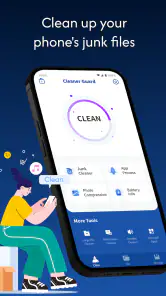
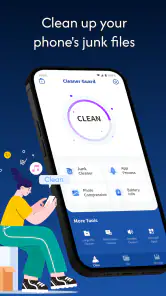
I tried Cleaner Guard as a straightforward Android tool for dealing with unwanted files, and my first impression was that it is aimed at people who want a simpler cleaning routine rather than a complicated maintenance dashboard. Its purpose is easy to understand: scan for junk, review what has been found, and remove items that are no longer useful. That narrow focus can be a strength when your phone feels cluttered, but it also means you should not expect it to solve every storage or performance problem.
The app comes from Sanfro Workteam and is available free of charge for Android devices running version 7.0 or later. It is listed for everyone, so the presentation is accessible even if you are not comfortable with technical phone settings. The current release is version 1.1.3, and the app has passed the one-million-install mark with an average rating of 4.2 from around 8,700 ratings. Those figures suggest that it has found a sizeable audience, although popularity alone is not a reason to delete files without checking them first.
Getting past the first points of friction
The place where many cleaning tools become frustrating is the first scan. A user taps the main action, waits, and then sees a collection of files grouped under labels that may not immediately explain their importance. With Cleaner Guard, I would approach that screen as a review step, not as permission to remove everything in one tap. The safest habit is to inspect categories carefully and treat unfamiliar items as undecided rather than automatically disposable.
This matters particularly when a phone contains downloaded documents, images saved from messaging apps, offline media, or files created by work applications. A cleaner can identify material that looks temporary while the user still considers it valuable. Before confirming a cleanup, I would check whether the suggested items are genuinely replaceable and whether another app may still need them. That small pause is more useful than chasing a larger number on the scan result.
Another common sticking point is expecting the first scan to make the phone feel dramatically faster. Cleaner Guard is designed around junk file cleaning, so its most direct result is reclaimed storage. Removing unnecessary files can help when storage is nearly full, but it will not automatically repair a weak battery, improve a poor network connection, or turn an older processor into a newer one. If the phone is slow because of demanding apps, background activity, heat, or a failing battery, the cleaner is only one part of the diagnosis.
I also recommend giving the scan time to finish instead of repeatedly closing and reopening the app. Storage checks can take longer when the device contains many folders or when the phone is busy with another task. If the screen appears inactive, first make sure the process has not simply been interrupted by leaving the app, locking the device, or running out of available space for normal system operations. Repeating the same scan immediately is rarely the best first response.
Simple checks before the first cleanup
Before using the removal action, I would make three quick checks. First, confirm that the phone has a recent backup of anything important. Second, open the device's own storage view so you have a second opinion about what is consuming space. Third, close apps that are actively downloading or editing files. This gives Cleaner Guard a cleaner snapshot and reduces the chance of treating an in-progress file as disposable clutter.
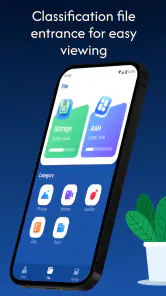
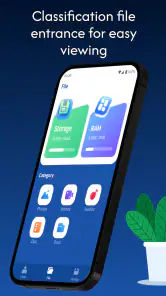
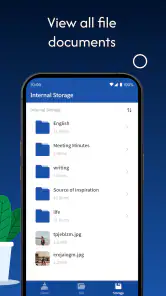
The built-in storage screen is an especially useful companion. It may show that videos, photographs, or a single large application are responsible for most of the space problem. In that situation, a junk cleaner may find only a small portion of what you need to remove. I prefer using Cleaner Guard to handle temporary clutter, then using Android's storage controls to manage large personal files and application data directly.
If the scan does not show the result you expected, do not assume the app is broken. The device may simply have little removable junk, or the largest files may be personal content rather than temporary material. A clean result can be useful information: it tells you to look elsewhere instead of repeatedly running the same cleanup.
When the app asks you to review a result, I would avoid rushing through unfamiliar categories. The practical question is not “Can this be deleted?” but “Would I notice if this disappeared?” A cached image may be downloaded again, while a locally saved document or an offline file may not be so easy to recover. That distinction is more important than the label used by the cleaner.
A safer routine for everyday use
My preferred workflow is deliberately conservative. I begin with a scan, sort the findings mentally into obvious temporary material and uncertain material, and remove only the first group. Then I check the phone's free space and open the apps that matter most. If messaging, photo, or document apps still behave normally, I leave the uncertain group alone until I understand it better.
This approach is helpful on a family phone shared by several people. Imagine a device used for school messages, photos, and downloaded travel documents. The owner notices that storage is almost full before leaving for a trip. Cleaner Guard can be used to look for disposable clutter, but the travel documents should be checked separately and kept. After cleaning, the owner can review large videos and duplicate photographs manually rather than trusting a broad deletion action with irreplaceable files.
That example also shows a less obvious trade-off: freeing space is not the same as organizing space. A cleaner may reduce the immediate pressure while leaving the phone full of old recordings and repeated images. If you want long-term control, pair the app with a monthly review of personal files. I would use Cleaner Guard as the quick maintenance step, not as a replacement for deciding what deserves to stay.
Another useful habit is to avoid cleaning immediately before an important task. If you need a messaging app, navigation, or an offline document during the next few minutes, finish that work first. A cleanup is better performed when you have time to reopen key apps and confirm that everything behaves as expected. This is a simple recovery measure if an app later needs to rebuild temporary files.
When a cleanup seems to change nothing
Sometimes a user completes a scan and removal process but sees no obvious improvement. That can happen because the deleted material was small, because the phone's storage display has not refreshed yet, or because the real problem is unrelated to junk files. I would restart the device only after checking the storage screen again and giving it a moment to update. If the available space remains nearly unchanged, inspect large applications, media folders, and downloads through Android's own tools.
If one application is misbehaving after a cleanup, the first step is to reopen it and check whether its content is still present. Do not immediately repeat the cleaning action. If the app needs to download temporary content again, allow it to complete on a stable connection. For a work or school application, I would also verify that the account is synchronized before making further changes.
A useful recovery technique is to keep a record of what you removed during the first session, at least mentally or in a note. If something unusual happens afterward, you have a clearer idea of what changed. This is more practical than blaming every later problem on the cleaner, especially when several apps were updated or the phone was already behaving unpredictably.
Cleaner Guard is most comfortable when the user remains in control. Its value is not that it makes every decision for you; its value is that it brings possible clutter into one place so you can decide faster. That may sound less dramatic than an automatic “boost,” but it is a safer way to handle storage when the contents of the phone matter.
Problems that may have another cause
If your phone is slow only when it is hot, the cause is probably workload or thermal protection rather than junk files. If the battery disappears quickly, review screen brightness, location use, wireless connections, and applications that run frequently. If downloads fail, check the network and the destination storage. Cleaner Guard can be useful alongside those checks, but removing temporary files will not correct a weak signal or a damaged charging cable.
Storage warnings also deserve careful interpretation. Android may reserve space for system operations, and a phone can feel constrained even after a modest cleanup. Large videos, offline maps, camera folders, and messaging attachments often matter more than small temporary files. In that case, the better option may be moving personal content to another safe location or removing files manually after reviewing them.
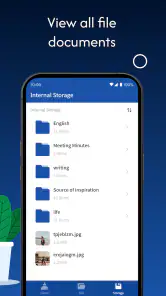
I would also skip this app if you want a full device-management suite with detailed battery analysis, application permission controls, duplicate-photo organization, or advanced file browsing. Cleaner Guard's identity is narrower. For someone who wants a focused junk-cleaning tool, that can make it easier to use. For someone looking for an all-in-one diagnostic center, Android's built-in settings or a broader utility may be a better fit.
Privacy-conscious users should apply the same caution they would use with any tool that examines storage. Keep the cleanup limited to files you understand, avoid granting attention to a result merely because it is presented as removable, and use the phone's own file and storage views as a cross-check. The app's free price makes it easy to try, but free does not mean every suggested deletion is automatically right for your device.
Who will benefit most from Cleaner Guard
I think it suits people who regularly run out of space because of temporary clutter and want a single, approachable place to begin. It can also help less technical Android users who do not know where cached or leftover files may be located. The everyone age classification matches that accessible positioning, although younger or inexperienced users should still ask before deleting shared family files.
It is less suitable for someone whose main issue is a collection of huge personal files. If your storage is dominated by camera videos, music, downloaded films, or offline documents, the most effective solution is careful file management rather than repeated junk scans. It is also not the right choice for anyone expecting a guaranteed speed boost after every run.
The app's one-million-plus installs and 4.2 average show that many people find this type of focused utility worthwhile, but I would judge it by your specific problem. If your phone has a clear storage shortage and you want a simple first pass, it is a reasonable free option. If your device is already comfortable on space, regular cleaning may add little value and can create unnecessary uncertainty.
My practical verdict after using it
Cleaner Guard works best when treated as a cautious storage assistant rather than a magic performance button. I like the focused purpose, the approachable feel, and the fact that it can give a cluttered phone a clear starting point. The strongest result is practical: it helps separate likely junk from the broader storage problem so you can decide what to do next.
My main reservation is not about the idea of cleaning; it is about user expectations. A scan result should begin a review, not end one. The safest workflow is to back up important content, compare the result with Android's storage view, remove only obvious temporary material, and then test the apps you rely on. That routine makes the tool more useful and reduces the risk of deleting something you meant to keep.
In the end, I would recommend it to a friend who wants a free, focused way to inspect junk files on a compatible Android phone, especially when storage is getting tight. I would not recommend relying on it alone for performance troubleshooting or personal-file organization. Used with restraint, Cleaner Guard is a sensible first step; used as an automatic cure-all, it is likely to disappoint.
Pros
- Simple interface makes core cleaning tools easy to find.
- Can help identify unused files and free up storage space.
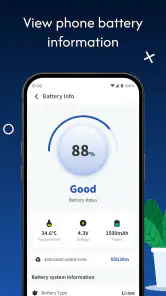
- Useful battery and device status information in one place.
- Quick scans save time compared with checking files manually.
- Privacy-focused tools may help users review app permissions.
Cons
- Some features may require a premium subscription or extra payments.
- Cleaning recommendations can require careful review before deletion.
- Results may vary depending on the device and Android version.
- Background tools could use additional battery or system resources.
- Advertising may interrupt the experience in the free version.

- Category
- Tools
- Version
- 1.1.3











