All Document Reader: PDF/Word
- 131.00
- 4.0
- Installs
- 1.00M
- Price
- Free
Screenshots
Analysis by Reviewed
I tried All Document Reader: PDF/Word as a practical tool for opening the files that tend to get scattered across a phone: PDFs, Word documents, spreadsheets, and EPUB books. My first impression was that it aims to be a single reading and document-handling app rather than a full replacement for every specialist office tool. That distinction matters. It is convenient when I need to open several file types quickly, but users who spend their day building complex spreadsheets or editing long documents will still want dedicated software.
Developed by Eternal Mobile Labs, this free Android tools app has a broad purpose and an accessible age rating of Everyone. It has reached over one million installs and holds a 4.0 average from around fourteen thousand ratings, which suggests a useful level of adoption without making the app look flawless. The current release is version 4.12.0, and it requires Android 8.1 or later. In everyday use, I found its strongest appeal in reducing app switching: one place for reading, scanning, making quick changes, and handling signatures.
How All Document Reader feels in current everyday use
The main experience is straightforward. I open the app, locate a document, and choose whether I want to read it, make an adjustment, scan something, or work with a signature. That sounds simple, but it solves a familiar phone problem: receiving a PDF in a messaging app, finding a Word attachment in storage, and opening an EPUB without knowing which application will handle each file.
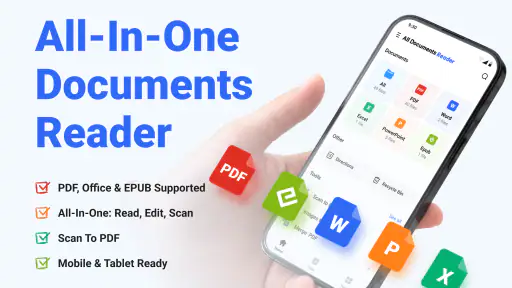
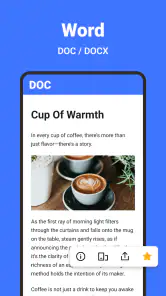
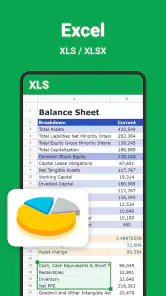
The reader is most convincing when I treat it as a mobile document hub. PDFs are naturally the center of attention, but the ability to handle Word and Excel files gives it a wider role than a basic PDF viewer. EPUB support also makes it more useful for people who keep manuals, public-domain books, or study material on their phone. I would not describe the interface as a substitute for a desktop file manager, yet it is easier than maintaining a separate app for every format.
One practical habit improved my experience: I used the app for reviewing and signing, but kept original files untouched until I was satisfied with the result. Mobile document editors can make it easy to overwrite a file accidentally, especially when moving between reading and editing. Keeping a clean original is a small step, but it matters when the document is an invoice, a form, or a work attachment.
The current feature mix also makes the app suitable for short tasks. I can imagine using it while commuting, in a waiting room, or at a meeting where I need to inspect an attachment rather than produce a polished document from scratch. Its value is less about advanced creation and more about being ready when several document formats arrive at once.
Reading PDFs, Word files, spreadsheets, and EPUB books
Reading is where I found the least friction. A combined reader is useful because the action is usually the same: open a file, check its contents, search visually, and decide what to do next. With All Document Reader, I do not have to think first about whether the file is a PDF, a Word document, an Excel workbook, or an EPUB. That makes it a sensible choice for students, freelancers, office workers, and anyone who receives mixed attachments.
There is an important trade-off, though. A universal reader usually prioritizes breadth over deep format-specific control. Someone comparing formulas, building a complicated worksheet, or carefully adjusting a document layout may prefer Microsoft’s dedicated apps or another specialist editor. I would use this app to inspect a spreadsheet or make a small correction, not as my only tool for serious financial modeling.
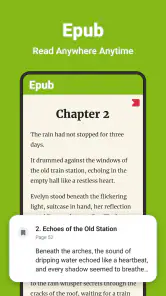
EPUB support gives the app a different kind of usefulness. A dedicated ebook reader may offer richer reading controls, library organization, and long-session comfort. All Document Reader is more appealing when EPUB is one format among many and I want it beside office files rather than in a separate reading ecosystem. For occasional reading, that convenience can outweigh the lack of a specialist reader’s focus.
AI summaries: useful as a starting point, not a final answer
The smart AI summary feature is potentially valuable for long documents, especially when I need to decide whether a file deserves a full read. A summary can help me identify the broad subject of a report, review a meeting document before opening every page, or create a quick mental map of a study file. The best workflow is to use it as a first pass, then verify important details in the original.
I would not rely on an automatic summary for contracts, medical information, financial conditions, or instructions where a missed qualification changes the meaning. Summaries can compress context, and a short sentence may hide an exception that matters. My advice is to use the feature for orientation: find the sections worth reading, then return to the source document before acting.
A less obvious benefit is time management. Instead of asking whether I have enough time to read a file, I can use the summary to decide how to divide that time. For example, I might skim the overview, jump to the sections that affect me, and leave background material for later. That is more realistic than expecting AI to replace careful reading.
Scanning paper documents and preparing them for sharing
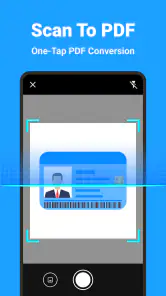
The PDF scanner broadens the app beyond downloaded files. I can see it being useful for turning a receipt, signed form, classroom handout, or printed notice into a document I can keep with my digital files. The important advantage is the workflow: scan first, review the result, then edit or sign it without immediately moving to another application.
Scanning is not automatically the same as producing a perfect archival copy. Lighting, shadows, page curvature, and camera angle can affect readability. I found that placing the paper on a flat, contrasting surface and checking every page before sharing is more important than rushing through the capture. A scanner app can save time, but it cannot repair a badly framed page reliably.
For a multi-page form, I would scan all pages in one session, check their order, and only then add a signature or make edits. This prevents a common mobile mistake: signing one page, exporting it, and later discovering that another page was missing. The combined workflow is one of the app’s more practical strengths.
Editing and e-signing on a phone
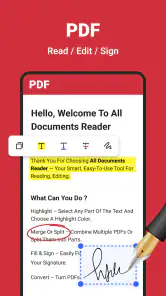
The editor is aimed at the moments when I need to do something small and immediate. Correcting a detail, preparing a document for return, or adding a signature is much more convenient on a phone than sending the file to a computer for a minor action. The e-sign feature is especially relevant for forms that do not justify a full desktop workflow.
Still, phone editing has natural limits. A small screen makes precise placement harder, and long documents can become tiring to review. I would zoom in before signing, check that the signature sits inside the intended field, and inspect the exported file afterward. That final check is essential because the document I send is what matters, not merely what looked correct in the editor.
For formal business processes, I would also confirm that the recipient accepts the type of electronic signature produced by the app. A visual signature placed on a document may be perfectly adequate for an informal approval, but some organizations require a more specific signing process. The app can make signing convenient; it does not decide the legal or administrative requirements of the other party.
What has changed, who benefits, and where the app still falls short
Version 4.12.0 and the product’s direction
The current version, 4.12.0, shows that All Document Reader is being maintained as a multi-purpose document tool rather than a narrowly focused viewer. The product direction is clear from the combination of reading, AI assistance, scanning, editing, and e-signing. Instead of asking users to install several unrelated utilities, it tries to connect the stages of a document task.
I would describe that as evolution in scope rather than proof that every part is equally mature. A broad feature set can make an app more useful, but it can also create a busier experience and leave specialist users wanting more control. The current release is best understood as a practical all-rounder: convenient for common jobs, less compelling when one document type becomes a serious daily discipline.
For existing users, the main benefit of this direction is continuity. A scanned page can remain in the same general workflow as an edited or signed file, and a report can be read before its contents are summarized. That reduces the mental overhead of remembering which app handled which step. The cost is that users may need to spend a little time learning where each function lives.
A realistic everyday workflow
Imagine receiving a rental form as a PDF while away from home. I would open it in All Document Reader, read the important sections, and use the summary only to get a quick overview of the longer text. If a printed identity-related page or supporting receipt were needed, I could scan it, check that the image was readable, and keep the pages together. I would then add my signature, review the final file from beginning to end, and share it through the phone’s normal file or messaging options.
That scenario shows why the app feels more useful than a plain reader. The task is not simply “open a PDF.” It is receive, understand, capture, prepare, sign, and return. Having those steps close together saves time. It also shows why I would not skip the final review: a summary can miss detail, a scan can be unclear, and a signature can land in the wrong place.
Who should use it and who should choose something else
I recommend it to people who regularly receive mixed documents and want a single starting point. Students can use it for course PDFs, Word notes, spreadsheets, and EPUB material. Freelancers can use it for quick client paperwork. Families may appreciate having a scanner and signature tool available without searching through several apps. It is also a reasonable option for anyone whose document needs are occasional rather than highly specialized.
I would steer heavy office users toward dedicated alternatives when precision matters more than convenience. Microsoft Word and Excel remain better choices for advanced editing and spreadsheet work. A specialist PDF editor may be preferable for complex page rearrangement, detailed annotations, or professional document production. A dedicated ebook reader can offer a more comfortable long-reading environment. All Document Reader makes sense when variety is the problem; it is not automatically the best answer when depth is the problem.
Storage and privacy habits also deserve attention. Before opening sensitive paperwork, I would review the app’s current permissions and privacy information in the relevant store, particularly because documents can contain personal, financial, or workplace details. I would avoid treating an AI summary as a secure substitute for reading the original, and I would keep confidential files organized carefully rather than leaving multiple temporary copies on the phone.
Free access, optional spending, and the value question
The app is free to install, which makes it easy to test against your normal document routine before deciding whether it deserves a permanent place on the phone. Optional in-app purchases range from $3.99 to $94.99 per item, so I would look closely at what a particular purchase unlocks and whether I actually need it. The broad range means the cost decision should be based on your workflow, not simply on the fact that the download itself costs nothing.
For occasional reading, the free experience may be enough to judge whether the combined approach suits you. If you only need a PDF viewer once a month, a simpler tool could be sufficient. If scanning, summaries, editing, and signatures replace several separate utilities in your routine, paid options may be easier to justify. I would test the functions I expect to use most before spending money, especially if my needs are limited to opening files.
Remaining gaps and what I would watch next
The biggest remaining challenge is balance. The more capabilities All Document Reader brings together, the more important navigation, file organization, and clear editing feedback become. I would like future updates to keep the everyday path obvious: find a file, understand it, change only what is necessary, and export a result I can trust.
I would also watch how the AI summary feature develops in real use. Its value will depend on whether it helps readers locate meaningful sections without encouraging overconfidence. Better explanations, careful handling of document structure, and clear separation between original text and generated interpretation would make the feature more useful for serious work.
Scanning and signing deserve the same attention. Small improvements in page checking, signature placement, and final-file review could have a bigger effect than adding another headline feature. These are the points where a minor mistake can cause a document to be rejected or sent back, so reliability matters more than novelty.
My final view is positive but measured. All Document Reader: PDF/Word is a capable general-purpose companion for mixed document tasks, and its current version brings together enough tools to be genuinely convenient. I like it most when I need to move from reading to scanning, editing, or signing without changing apps. I would skip it as my only office suite, specialist PDF editor, or dedicated ebook reader. For everyone in between, especially people who want one free place to handle everyday files, the strongest reason to try it is the connected workflow rather than any single feature.
Pros
- Opens PDF
- DOC
- DOCX
- XLS
- XLSX
- PPT
- and TXT files in one place.
- Quickly finds documents stored on your phone with useful file sorting options.
- Supports pinch-to-zoom and smooth page navigation for comfortable reading.
- Lets you share documents directly from the app through other installed services.
- Compact interface makes basic document viewing easy for casual users.
Cons
- Some advanced editing and conversion features may require a paid upgrade.
- Ad interruptions can make browsing or reading less comfortable.
- Large or image-heavy documents may take longer to load on older phones.
- Formatting may not appear perfectly when viewing complex Word or Excel files.
- The app may request broad storage access to scan and manage local documents.
- Category
- Tools
- Version
- 4.12.0











