AI Chat - Personal Assistants
- 132.00
- 3.8
- Installs
- 1.00M
- Price
- Free
Screenshots
Analysis by Reviewed
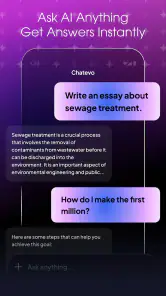
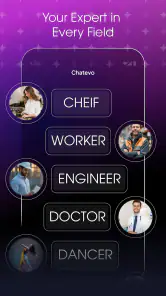
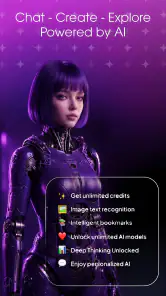
I opened AI Chat - Personal Assistants expecting a straightforward chat utility and found a broader tools app built around three connected ideas: conversation with AI assistants, text-to-image creation, and AI photo generation. That combination makes it more useful than a basic question-and-answer bot, especially when I want to move from an idea to something I can actually use. It is free to install, suitable for Everyone, and developed by Invoker Apps.
My overall impression is positive but measured. The app is easy to understand, and its appeal comes from keeping writing and visual experimentation in the same place. At the same time, it is not a replacement for a specialist writing suite, a full image editor, or a carefully managed professional research tool. I found it most convincing when I treated it as a quick creative assistant rather than an authority or a complete production platform.
From a rough idea to something usable
The best way to understand this app is to follow a realistic task. Imagine I need a short invitation for a casual weekend event and a simple image to share with it. I might begin with only a vague thought: the tone should be friendly, the wording should not sound formal, and the picture should feel warm without looking overly polished.
That starting condition suits an AI chat app well. Instead of opening a notes app and staring at a blank page, I can describe the situation in ordinary language. I would tell the assistant who the message is for, what information must be included, and what kind of voice I want. The important point is to give the assistant a job, not just a topic. “Write an invitation” is less useful than explaining the audience, purpose, length, and mood.
I also found that the first response works better as a draft than as a finished answer. The app can help me get past the initial block, but I still need to check names, times, wording, and implied promises myself. That is not a flaw unique to this product; it is the normal trade-off of using AI. Speed improves, while responsibility for the final result remains with me.
Starting with the chat assistant
The chat side is the natural entry point for planning. I can ask for several versions of a message, request a shorter rewrite, or change the tone after seeing the first attempt. This back-and-forth is more practical than trying to write a perfect instruction immediately. I prefer giving one clear request, reviewing the answer, and then correcting one issue at a time.
A useful workflow is to separate content from style. First, I ask for the essential information to be organized. Then I ask for a version that sounds more personal. Finally, I request a compact format suitable for the place where I intend to use it. This reduces the chance that the assistant will make the message sound attractive while quietly leaving out an important detail.
For everyday writing, that can save real effort. I could use it to turn scattered notes into a polite message, outline a small project, prepare questions before a meeting, or simplify a paragraph that feels too technical. I would not use it to make unchecked medical, legal, financial, or safety decisions. The conversational format can make uncertain information sound confident, so important facts need independent checking.
Turning the written idea into an image
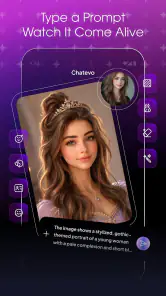
Once the wording is in reasonable shape, the text-to-image feature provides a second stage in the same workflow. I can reuse the central idea from the chat, but I should not assume that a long conversational answer is automatically a good image prompt. Image generation usually benefits from a cleaner description: subject, setting, mood, composition, and any visual details that matter.
For example, instead of pasting an entire invitation into the image request, I would describe the scene I want to accompany it. I might specify a relaxed outdoor table, soft evening light, a friendly atmosphere, and enough empty space for text to be added later. This is one of the more useful practical lessons with the app: the chat assistant helps me think, while the image tool needs a visually focused handoff.
The handoff is not completely automatic in my workflow. I have to decide which parts of the conversation are useful for the image and which parts are merely logistical. That extra step is worthwhile because it gives me control. It also prevents irrelevant details from shaping the generated picture.
Using the AI photo generator for a different kind of result
The AI photo generator is better suited to requests that should feel photographic rather than illustrated. I would use it when I want a person, object, or scene presented with a realistic visual character. The distinction matters because a generated photo and a text-to-image artwork can communicate the same idea while producing very different results.
I recommend deciding on the intended use before generating anything. A playful social post can tolerate unusual details and a more artificial look. A profile image, product concept, or event graphic needs more careful review. I pay particular attention to faces, hands, readable text, logos, and small background details, because generated images can look convincing at first glance while still containing visible mistakes.
Another practical tip is to generate with the final crop in mind. A picture that looks fine as a full scene may lose its subject when used in a square avatar or a narrow story layout. Asking for a clear focal point and leaving some breathing room around it makes the result easier to reuse. This is a small workflow decision, but it often matters more than adding decorative adjectives to the prompt.
How the handoffs work in everyday use
The app’s strongest idea is not any single feature; it is the movement from language to visuals. I can begin with a problem stated in plain English, use the assistant to clarify it, then carry a refined concept into an image request. That makes the experience feel more connected than switching between an ordinary chatbot and a separate image service.
Still, the handoffs require judgment. The chat may suggest a concept that is too broad for image generation. The image tool may produce an attractive result that does not match the original message. The photo generator may create a polished scene that is unsuitable for the audience. I get the best results when I treat each stage as a checkpoint rather than pressing forward automatically.
For a small business owner, one possible workflow is to ask the assistant for three tones for a short announcement, choose one, and then create a supporting visual with a prompt based only on the announcement’s theme. The owner can review the wording separately from the image and decide whether both pieces communicate the same thing. This is faster than starting from nothing, but it still leaves room for human editing and brand judgment.
For a student, the app can help turn a broad presentation topic into an outline and then suggest a visual concept for a title slide. I would use it for brainstorming and structure, not for submitting unverified generated text as original research. The value is in getting a clearer starting point and seeing alternative approaches, not in avoiding the work of understanding the subject.
For personal use, I can imagine creating a birthday message, refining it into something that sounds like me, and generating a themed image to accompany it. This is where the app feels most approachable. The task is low risk, the desired outcome is clear, and small imperfections are usually acceptable.
What happens after generation
The result is only useful if it can leave the app and fit into the next step of my routine. I might copy the final text into a message, save an image for a post, or use the generated concept as a starting point in another editor. I prefer checking the output in its actual destination rather than judging it only inside the app. Line breaks, image cropping, and text length can change how polished the result feels.
This is also where I notice the difference between assistance and completion. The app can produce a draft quickly, but I still need to remove awkward phrases, confirm factual details, and make sure the visual does not contain distracting artifacts. If I need precise typography, layered editing, brand templates, or detailed retouching, a dedicated design app remains the better tool.
The free entry point lowers the barrier to trying the workflow, but the app includes in-app purchases ranging from $0.99 to $89.99 per item. I would therefore check the purchase flow carefully before relying on it for frequent generation. Casual users may be comfortable experimenting without spending, while heavy users should think about how quickly repeated creative requests could become an ongoing cost.
Where the experience breaks down
The first weak point is factual reliability. A fluent answer can still be incomplete or wrong, and a generated image can still contain visual errors. I would never copy an important claim without checking it, and I would not treat a realistic-looking generated photo as evidence that an event, person, or product exists.
The second weak point is precision. If I need exact dimensions, consistent characters across a series, reliable text inside an image, or repeatable brand styling, a specialist tool may serve me better. AI generation is enjoyable when variation is acceptable; it becomes frustrating when every detail must remain fixed.
The third issue is editing depth. This app is designed around creating and refining through prompts, not around giving me the same hands-on control as a traditional editor. I can use the generated result as a starting asset, but I should expect to finish elsewhere when the task involves detailed composition or professional cleanup.
There is also a learning curve hidden behind the simple interface. The app is easy to try, but good results depend on describing the request clearly and evaluating the response critically. Users who expect one vague sentence to produce a perfect final design may be disappointed. Users willing to iterate will get more from it.
Who will get the most from it
I think this app is a good match for people who want one convenient place for quick AI-assisted writing and visual ideas. It suits casual creators, students working through early concepts, social media users preparing simple posts, and anyone who regularly faces a blank page. Its broad toolkit is more appealing when the task moves between words and images.
It is less suitable for someone who needs a dependable research assistant, a full photo-editing environment, or strict control over every visual output. I would also suggest caution for families discussing sensitive topics, even though the content rating is Everyone; an age label does not turn generated information into expert guidance, and younger users may need supervision when interpreting AI responses.
The app is available for Android devices running version 7.0 or later, which makes it accessible on a wide range of phones. Its current version is 1.1.0, and the app has passed one million installs. Those figures suggest that it is not an obscure experiment, although the average rating of 3.8 from around 1.8 thousand ratings points to a mixed experience rather than universal satisfaction. I read that as a reason to approach it with realistic expectations.
My final workflow recommendation
If I were showing this app to a friend, I would suggest starting with a small, low-stakes project. Ask the assistant to organize a real need, revise the result in two or three focused passes, and then create an image prompt that describes the visual outcome separately. Before sharing anything, inspect the wording and image as if you were the recipient, not the person who generated them.
That method exposes both the app’s strength and its limitation. It can shorten the distance between a vague idea and a usable draft, but it does not remove the need for taste, checking, or editing. The most satisfying results come from using the app as a flexible collaborator rather than a button that promises finished work.
In the end, I would recommend AI Chat - Personal Assistants for experimentation, everyday drafting, and quick visual concept work. The combination of personal assistants, text-to-image creation, and AI photo generation gives it a wider role than a plain chat app. Just keep a specialist editor, a reliable information source, or a more controlled creative tool in your workflow when accuracy and precision matter more than speed.
Pros
- Handles follow-up questions naturally within the same conversation.
- Useful for brainstorming
- drafting
- and rewriting everyday content.
- Can explain complex topics in simpler language on request.
- Available anytime without needing to schedule human assistance.
- Helps organize ideas
- plans
- lists
- and routine tasks quickly.
Cons
- May provide confident answers that are inaccurate or outdated.
- Some advanced features may require a subscription or usage credits.
- Responses can feel generic when prompts lack specific context.
- Should not be trusted with highly sensitive personal information.
- Heavy use may consume considerable mobile data and battery life.
- Category
- Tools
- Version
- 1.1.0











