Weather Scope NOAA Live Radar
- 313.00
- 4.5
- Installs
- 100.00K
- Price
- Free
Screenshots
Analysis by Reviewed
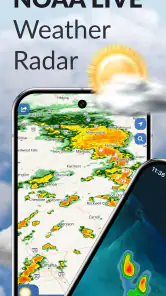
I like weather apps that help me make a decision rather than simply cover the screen with numbers. Weather Scope NOAA Live Radar takes that practical approach by bringing radar, forecasts, hurricane tracking, and customizable snow alerts into one weather-focused app. I found it most useful when I wanted to check what was moving toward my area and decide whether to leave now, wait a little, or change plans.
It is a free app from Aviator Assistant, with optional in-app purchases ranging from $7.99 to $69.99 per item. The app is rated for Everyone, works on Android 8.0 and newer, and its current version is 3.11.3. It has reached over 100 thousand installs and holds a 4.5 average from around 6.2 thousand ratings, which gives it a solid presence without making it feel like an unavoidable mainstream utility.
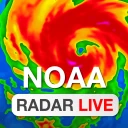
My main impression is that Weather Scope is strongest as a radar-first companion. It is not the kind of tool I would open only to see a single temperature. Its value appears when the sky is changing, a storm is approaching, snow may affect travel, or a longer forecast needs to be checked alongside live conditions.
Where the first-use experience can become confusing
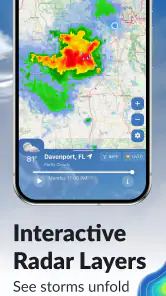
The first hurdle with a weather radar app is usually not the forecast itself. It is getting the map to show the right place, the right layer, and the right time frame. Weather Scope combines several kinds of information, so a new user may need a moment to understand what the screen is communicating. A radar view can look impressive while still being unhelpful if the map is centered on the wrong location or the animation is mistaken for a prediction.
I recommend beginning with one simple question: “What do I need to know right now?” If the answer is whether rain is approaching, start with the radar and avoid changing several settings at once. If the concern is a possible snow event, move directly to the snow-alert options instead of trying to interpret every color on the map. This small habit makes the app feel less busy and helps separate immediate conditions from longer-range planning.
Location handling is another place where users can get stuck. A radar app is only useful when the selected area matches the place that matters to you. Before relying on it for a commute or outdoor plan, check that the map is focused on your current location or the destination you actually care about. If you are traveling, do not assume that the last viewed location has automatically changed simply because your phone has moved.
There is also a difference between seeing a weather pattern and knowing exactly what will happen at your front door. Radar can show movement and intensity across an area, but local effects vary with terrain, distance, and the timing of the system. I treat the map as a decision aid, not a promise. That mindset prevents one of the most common mistakes: reading a colored band as though it guarantees the same conditions everywhere underneath it.
More From Our News Desk

Clash of Clans Is Won Between the Battles

Android Auto Makes the Case for Quieter Car Software

MobiOffice: Transforming Mobile Productivity with Seamless Integration

EA SPORTS FC™ Mobile Soccer: Redefining Mobile Sports Gaming

How Microsoft OneDrive Became a Mobile Productivity Giant

How Google Translate Breaks Language Barriers Effortlessly
What I would check before trusting an alert
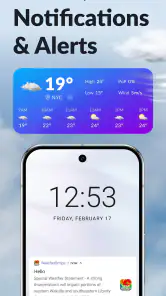
Customizable snow alerts are useful for people who need advance notice, but customization only helps when the alert matches the situation. I would review which location the alert applies to, what kind of snow-related condition it is intended to flag, and whether the alert is appropriate for a home address, workplace, or travel route. A notification designed for one place can be irrelevant if your day regularly moves between several areas.
I would also avoid treating an alert as a substitute for checking the map. Alerts are convenient because they bring attention to a change, but the radar and forecast provide the surrounding context. A notification may tell you that snow deserves attention; the map and forecast help you decide whether that means leaving earlier, changing a route, or simply keeping an umbrella and extra time available.
Another point worth remembering is that weather information changes. If you opened the app hours ago and left it running in the background, do not assume the old view still represents the current situation. When conditions matter, reopen the relevant screen and look again. This is especially important before driving, flying, attending an outdoor event, or making a decision during a fast-moving storm.
Setup checks that prevent most avoidable problems
My preferred setup is deliberately modest. I would first install Weather Scope on a compatible Android device, open it, choose the location that matters most, and spend a minute learning how the radar and forecast views relate to each other. I would then configure snow alerts only if I genuinely need them. Turning on every available notification at the start can make the app feel noisy and makes it harder to tell which alert is useful.
The app supports Android 8.0 and newer, so compatibility is reasonably broad. Still, an operating system that meets the minimum does not guarantee a perfect experience on every phone. Older devices may feel less comfortable with animated map content, especially when other demanding apps are open. If the map feels slow, I would close unused apps, restart Weather Scope, and test it again before assuming the weather service is unavailable.
Network quality matters more than many people expect. Radar imagery and updated forecasts need a working connection, and a weak signal can make a map appear incomplete or slow to refresh. If the display seems frozen, I would first check whether other online apps are loading normally. Switching between mobile data and Wi-Fi, when safe and practical, is a basic but worthwhile test.
Location accuracy deserves its own check. If the app shows conditions for the wrong area, I would confirm the phone’s location setting and then verify the selected place inside the app rather than repeatedly refreshing the same screen. This is a useful distinction: refreshing cannot correct an incorrect location choice. It only requests updated information for whatever place is already selected.
For snow alerts, I would take a cautious approach to notification settings. If the phone blocks notifications, limits background activity, or uses an aggressive battery-saving mode, an alert may not arrive when expected. I would review the device’s notification controls and battery settings for Weather Scope, then send myself into normal use for a while before depending on it for an important morning. The goal is not to change every phone setting, but to make sure the alert path is not being silently blocked.
The free entry point is helpful for trying the app without committing money. At the same time, the optional purchases mean I would pay attention to which functions are available before deciding whether the app fits my routine. The listed purchase range is broad, from $7.99 to $69.99 per item, so I would not buy anything simply because a feature looks attractive on the first day. I would use the free experience long enough to identify a real need and then judge whether the upgrade solves it.
A sensible first-day routine
Open the app when you have a reliable connection and identify the location currently shown.
Look at the radar before exploring additional views, so you understand the immediate weather picture.
Compare the moving pattern with the forecast instead of relying on a single visual layer.
Set a snow alert only for a location and situation that genuinely affects your plans.
Reopen the app later and confirm that the map, location, and notifications behave as expected.
This routine sounds simple, but it avoids a surprisingly common failure: configuring an alert or interpreting a map without first confirming the basic setup. Weather Scope becomes easier to use once the user treats location, connection, and notification behavior as part of the workflow rather than as invisible background details.
Recovering when the normal workflow breaks
When the radar does not load, I would resist the temptation to reinstall immediately. First, I would check whether the rest of the phone has internet access. Then I would close and reopen the app, confirm the selected location, and try again. If the problem appears only on one network, the connection is a more likely suspect than the app itself.
If the map loads but does not seem current, I would look for a way to refresh the view and then compare it with the forecast screen. I would also note whether the issue is constant or temporary. A brief delay during poor connectivity is different from a repeatable failure every time the app opens. That distinction helps you choose the next step instead of making random changes.
For a missing snow notification, I would check four points in order: the alert is enabled, the correct location is selected, the phone allows notifications, and the device is not restricting the app in the background. I would then wait for normal use and test whether other notifications from the phone arrive. If all notifications are delayed, the issue may be at the device level rather than specific to Weather Scope.
There is a practical recovery method for travel as well. Before leaving home, select or confirm the destination and inspect the radar around the route’s important points. Do not wait until you are already moving and trying to operate the app under pressure. If the connection may become unreliable, check the latest view before departure and keep a second source available for critical travel decisions. Weather Scope can support the decision, but it should not be the only thing you consult when conditions are dangerous.
Another useful habit is to separate a display problem from a weather interpretation problem. If the colors or animation are unclear, the solution may be learning what the view represents rather than restarting the phone. Spend a little time watching how the radar changes and compare it with what you can see outside. That makes the app more trustworthy because you are building your own understanding of its presentation instead of reacting to isolated colors.
I would also be careful with purchases during troubleshooting. If a feature does not behave as expected, paying for an optional item is unlikely to repair a network issue, a blocked notification, or an incorrect location. Diagnose the basic workflow first. Only consider an in-app purchase after you know which capability you want and why it improves your actual use.
When Weather Scope is not the cause
Weather apps are often blamed for conditions they cannot control. A forecast can change because the weather system changes, not because the app is broken. Radar can appear different from what you see outside because precipitation may be developing, weakening, or missing your exact position. A notification can arrive later than expected because the phone, network, or background restrictions interrupted delivery.
This is particularly important with severe weather. Weather Scope’s hurricane tracking and radar tools can help you follow a developing situation, but no app should replace official emergency instructions. If authorities issue evacuation guidance or other urgent directions, follow those instructions rather than waiting for a map animation or a personal alert to settle the question.
Similarly, I would not use the app to justify risky driving during heavy rain, snow, or poor visibility. The best workflow is to check conditions before leaving, allow extra time, and change plans when the situation warrants it. A detailed radar view is valuable because it can reveal a worsening pattern, but it should encourage caution rather than create false confidence.
There are also cases where a conventional weather app may be the better choice. If you only want a quick temperature and a simple daily forecast, Weather Scope may offer more information than you need. Someone who prefers a minimal widget or a glanceable home-screen summary may find a simpler alternative less distracting. Likewise, if you need a specialized aviation, marine, agricultural, or emergency-management tool, a general weather app should not be treated as a replacement for that dedicated equipment or service.
Where this app makes more sense is for people who actively use radar. Commuters dealing with changing precipitation, families planning outdoor activities, travelers watching storms, and anyone who wants customizable snow alerts can get more from it than from a basic forecast screen. The hurricane-tracking focus also gives it a clearer purpose during major weather events than an app built only around daily temperatures.
Everyday situations where the extra detail pays off
Imagine that I am preparing to cycle home after work and the forecast says rain is possible. A simple forecast may not tell me whether the rain is already moving toward my route or still far away. I would open the radar, check the direction of the approaching pattern, and decide whether leaving immediately is better than waiting. If the band is already close and strengthening, I might choose public transport instead. If it is moving away, I may continue with the original plan while carrying suitable clothing.
For a family event, I would use the app differently. I would check the broader forecast for planning, then use radar nearer to the start time to see whether a shower is likely to affect setup or arrival. The non-obvious benefit is not simply knowing that rain exists; it is timing the decision. That can prevent canceling too early or committing to an outdoor plan too confidently.
Snow alerts are most useful when they connect to a real action. I might use one to remind myself to check school transport, prepare a commute, or allow more time for clearing a car. I would not treat the alert as an exact measurement of what every street will experience. Local roads, elevation, and timing can make conditions differ substantially, so I would still inspect the current forecast before making a final decision.
Hurricane tracking has a similar trade-off. The feature can help me maintain awareness of a storm’s movement, but the responsible workflow is to combine that awareness with official updates and local instructions. In my view, the app is best at keeping the weather picture visible, not at replacing the more authoritative decisions made by emergency agencies.
How it compares with ordinary weather alternatives
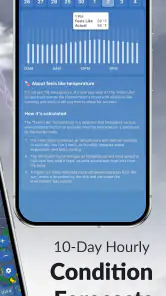
Compared with a basic phone weather app, Weather Scope offers a more active way to investigate conditions. A standard app is often faster for a quick glance, while this one is more useful when I need to understand movement, precipitation timing, snow-related changes, or a hurricane’s progress. The trade-off is that the additional detail asks more from the user. You need to look at the map intelligently instead of accepting one large number as the whole story.
Compared with a general forecast website, the app is more convenient when I want a focused radar workflow on a phone. I can check a location, follow a changing pattern, and return to the same kind of information without navigating a full website. However, a website may be preferable when I want to compare several sources side by side or read broader local coverage. Weather Scope is not automatically better; it is better for the person who values an integrated radar and alert experience.
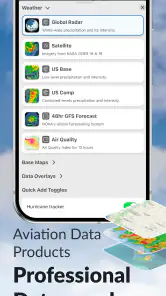
Compared with a highly specialized storm or aviation tool, Weather Scope appears easier to approach for everyday users. Its combination of NOAA radar, forecasts, hurricane tracking, and snow alerts gives it a practical middle ground. The compromise is that users with professional or highly technical requirements may need a more specialized product. I would choose Weather Scope for personal planning and situational awareness, not as the sole instrument for high-stakes operational work.
The optional purchase model is another comparison point. A free app with paid additions lets you explore before spending, which I appreciate. But the wide purchase range means the total value depends on the specific function you want. I would compare the benefit of an optional feature with how often I actually check radar or rely on alerts. Occasional users may be satisfied without paying, while frequent storm watchers may find a paid capability easier to justify.
My practical verdict after using the workflow
Weather Scope NOAA Live Radar is a good fit when weather movement matters more than a quick temperature check. I would recommend it to someone who wants radar, forecasts, hurricane tracking, and customizable snow alerts in one place and is willing to spend a little time learning the map. The free starting point makes it easy to test, and the Everyone rating keeps it suitable for a broad audience.
I would skip it if I wanted nothing beyond a tiny daily forecast, disliked map-based information, or needed a professional-grade specialist service. I would also avoid depending on any weather app alone during dangerous conditions. The most reliable results come from confirming the location, checking the connection, allowing notifications to work, and using the radar as context rather than certainty.
The developer, Aviator Assistant, has kept the app’s identity focused on weather observation rather than turning it into a general-purpose utility. That focus is its main strength. It gives me a reason to open the app when rain, snow, or storms are part of a real decision. The main friction is the learning curve: users must understand what they are viewing and take responsibility for interpreting it carefully.
With its release on May 23, 2023 and its current version at 3.11.3, Weather Scope has had time to establish a clear role as a weather app centered on radar and alerts. I would install it for commute planning, outdoor timing, snow preparation, and storm awareness. I would keep a simpler alternative for quick glances, and I would pair both with official emergency guidance whenever the weather becomes serious.
My final recommendation is therefore conditional but positive: try Weather Scope if you want to make better timing decisions from radar and changing forecasts. Set it up carefully, test alerts before relying on them, and do not confuse a detailed screen with guaranteed local certainty. Used that way, Weather Scope NOAA Live Radar is a practical tool rather than just another forecast icon.
Weather Scope NOAA Live Radar Frequently Asked Questions
Is Weather Scope NOAA Live Radar available for my device?
Weather Scope NOAA Live Radar is available for Android devices running version 8.0 or later. Before installing, check your device’s operating system and make sure you have enough storage and a reliable internet connection for viewing radar maps and forecasts. The app is rated for Everyone, making its stated age classification suitable for a general audience.
Who develops Weather Scope NOAA Live Radar, and what do users think of it?
Weather Scope NOAA Live Radar is developed by Aviator Assistant. It has an average rating of around 4.5 from roughly 6,200 ratings, with about 313 written reviews and over 100,000 installs. Those figures can offer a quick sense of its reception, but individual experiences may differ depending on location, device, connectivity, and which features a person uses.
What is Weather Scope NOAA Live Radar?
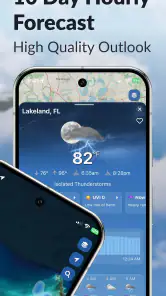
Weather Scope NOAA Live Radar is a weather application designed to provide live radar imagery, current conditions, forecasts, and severe-weather information. It is particularly useful for tracking rain, snow, thunderstorms, and approaching weather systems. The app combines radar views with location-based forecasts, helping users monitor conditions around their home, workplace, travel route, or any other selected area.
Does Weather Scope NOAA Live Radar provide real-time weather information?
The app offers radar and weather data that is updated regularly, but it should not be interpreted as an instant, second-by-second broadcast. Updates can depend on NOAA data availability, internet connection quality, regional coverage, and the time required to process weather observations. For dangerous conditions, users should also check official alerts from local authorities and the National Weather Service.
Can I use Weather Scope NOAA Live Radar to track storms and severe weather?
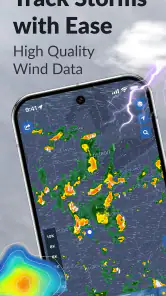
Yes, storm tracking is one of the app’s most useful purposes. Radar imagery can help you observe precipitation movement and identify developing rain or thunderstorm areas. However, radar alone does not replace official warnings, emergency notifications, or professional forecasts. When a tornado, hurricane, flash flood, or other serious threat is reported, follow local emergency instructions rather than relying only on the app’s map.
Pros
- Live NOAA radar provides detailed precipitation tracking.
- Useful forecast layers help monitor storms and changing conditions.
- Location search makes it easy to check weather in different areas.
- Radar animations offer a clearer view of approaching weather systems.
- Helpful for planning outdoor activities around severe weather.
Cons
- Some advanced radar features may require a paid upgrade.
- Radar data can be delayed during rapidly developing storms.
- The interface may feel crowded for users wanting a simple forecast.
- Weather coverage and detail can vary by region.
- Frequent animations may consume extra battery and mobile data.
- Category
- Weather
- Version
- 3.11.3