Revive: Animation & AI Photos
- 6.60K
- 4.5
- Installs
- 10.00M
- Price
- Free

Screenshots

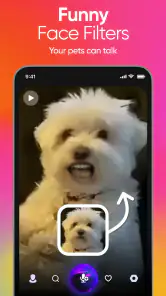
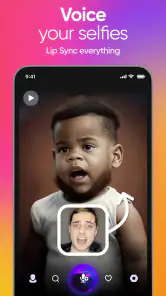
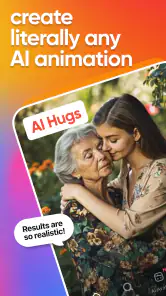
Analysis by Reviewed
I find Revive most appealing when I want a quick, playful result rather than a carefully edited video. It turns a still portrait into a short piece of moving content, which can make an old family picture feel newly shareable or give a friend an unexpected greeting. The effect is meant to entertain, and it works best when I treat it as a small creative experiment rather than a replacement for thoughtful photo or video editing.
Decide what you want from a photo app
Before choosing an animation tool, I’d ask whether I want a polished edit with precise control or an amusing result made with minimal effort. Revive, from REFACEAI LIMITED, is an entertainment app focused on making portraits move, dance, or appear to lip-sync. That narrow purpose is a strength if I have a specific image in mind and want to see it animated without learning a full editing workflow.
It is free to install and has an Everyone age rating. The app has a 4.5 average from around 118,000 ratings, and it has passed 10 million installs. Those figures suggest a widely used format, but they don’t guarantee every animation will suit every photo. I’d still judge the output on the image I choose and the style I want.
Choose the source image with care
A useful, easily missed step is to prepare the photo before opening the app. A clear, front-facing face with little obstruction gives the animation a better starting point than a tiny face in a crowded group shot. For a family picture, I’d crop a copy around the person I want to animate and keep the original untouched. That makes it easier to compare the result and avoids turning a meaningful photograph into a one-shot experiment.
For example, if I wanted to send a birthday message to a relative, I might pick a well-lit portrait, try a restrained movement first, and only then choose a more comic treatment. A subtle result can feel affectionate; a big expression or dance is more likely to land as a joke. I would also ask before animating or sharing someone else’s face, especially if the result could be mistaken for a real recording.
Bringing Photos to Life
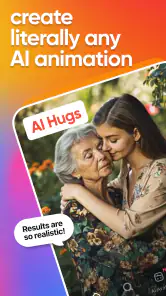
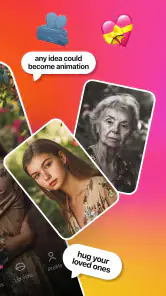
One of the standout features of Revive: Animation & AI Photos is its ability to transform static images into dynamic animations. Imagine taking an old family photo and watching your relatives smile and wave at you! The app uses cutting-edge AI technology to detect faces and animate them in a lifelike manner. It's almost like stepping into a scene from a Harry Potter movie — pure magic!
Easy to Use Interface
The user interface of the app is incredibly intuitive. Even if you're not tech-savvy, the step-by-step guidance will have you animating photos in no time. Simply select a photo, choose an animation style, and let the app do its magic. The results are astonishingly realistic, and you'll find yourself experimenting with different photos just to see the outcomes.
More From Our News Desk

Weather by Xiaomi Review: Clear at a Glance, Less Clear Up Close

X Under Pressure: Can It Recover When Posting Goes Wrong?

Clash of Clans Is Won Between the Battles

Android Auto Makes the Case for Quieter Car Software

MobiOffice: Transforming Mobile Productivity with Seamless Integration

EA SPORTS FC™ Mobile Soccer: Redefining Mobile Sports Gaming
Fun Features Galore
Revive: Animation & AI Photos isn't just about bringing photos to life; it's about having fun while doing it. The app offers a variety of animation styles, from subtle movements to exaggerated expressions, allowing you to tailor the animation to fit the mood of the photo. Plus, you can add voiceovers or background music to enhance the whole experience. It's perfect for creating personalized messages or just having a laugh with friends.
Know what kind of control you need
The trade-off with an automated animation app is that speed and simplicity matter more than frame-by-frame control. I’d use Revive for a quick social post, a playful greeting, or a private laugh with friends. If I needed precise timing, detailed cuts, captions, or a carefully consistent visual style across a longer project, I’d choose a conventional video editor instead. Those tools take more hands-on work, but they are better suited to shaping the whole clip rather than applying an effect to a portrait.
It also helps to make one small change at a time when testing a photo: start with a different crop or source image before judging the animation style itself. That way, if a face looks awkward, I can tell whether the image was the problem or the chosen effect. This is a practical way to avoid spending time polishing a source photo that is simply a poor fit for face animation.
Share selectively, and check the cost
Once you've created your animated masterpiece, sharing it with the world is a breeze. The app integrates seamlessly with social media platforms, so you can post your creations directly to Instagram, Facebook, or even send them via WhatsApp. It's a great way to engage with your followers and share a bit of joy and creativity.
Revive is free to start, while in-app purchases range from $0.99 to $74.99 per item. I’d explore the experience before paying and check what an offered purchase covers at the moment I’m considering it. If I only want to make an occasional greeting, a paid option may not be worthwhile; someone who regularly creates animated portraits may feel differently. The current version is 4.12.0, and the app requires Android 8.0 or later.
When another option makes more sense
For a quick, face-centered effect, this is more direct than opening a general-purpose editor and assembling movement by hand. But it is not the right choice for every image or every audience. A landscape, an object, or a group portrait where faces are small is unlikely to be the ideal starting point for a portrait animation. And if I want a natural-looking documentary record, I’d use an actual video rather than present an AI-made animation as though it captured a real moment.
People who prefer still-image improvements, such as careful retouching or color correction, may be happier with a photo editor. People who want full control over music, transitions, and pacing should look at video-editing tools. Revive makes most sense when the central idea is simply to make a face move and enjoy the result without building a larger production around it.
Endless Possibilities
What I love most about this app is the endless possibilities it offers. Whether you're looking to add a touch of magic to your wedding photos or create a funny birthday greeting, the app delivers in spades. It’s like having a mini animation studio in your pocket. The creative potential is vast, and each animation feels like a personalized work of art.
My recommendation is to try it with a copy of a photo you’re comfortable experimenting with, then decide whether the style fits the person and occasion before sharing. It is best for people who enjoy lighthearted, face-based creativity and want a low-effort way to make a still image more expressive. I’d skip it if I needed precise editing, guaranteed realism, or a tool for every kind of photo. For its particular job, though, it can turn a familiar portrait into a small, memorable surprise.
In conclusion, if you're looking to add a dash of magic to your photo collection, Revive: Animation & AI Photos is a must-try. The app's user-friendly interface, coupled with its impressive AI capabilities, makes it a standout choice for anyone looking to explore the world of animated photos. So go ahead, download it, and watch your photos come to life in ways you never imagined!
A practical way to test it before committing
I’d begin with a portrait that has one clearly visible face and a simple background, then make a short test for myself before sending anything to a group chat. This gives me a low-stakes way to see whether the app’s interpretation feels charming or uncanny. If the mouth movement or expression distracts me, I’d try another picture rather than repeatedly applying different effects to the same unsuitable image.
For a family occasion, a useful workflow is to keep the animation as an optional extra, not the whole greeting. I might send a warm written message alongside it so the joke or gesture has context. That matters because a face animation can read differently to different people: one relative may find it funny, while another may prefer the original photograph to remain untouched. The best results are often the ones chosen with the recipient in mind.
What to expect from the result
Although the app aims to animate a portrait, I wouldn’t treat the output as proof of how somebody really moved, spoke, or felt. A generated expression is an effect applied to a still image, not a recovered moment from the past. That distinction is especially important with old photographs, pictures of children, or images of people who are not present to approve the joke. I’d label or introduce the clip plainly when there’s any chance a viewer might misunderstand it.
There is also a useful distinction between novelty and repeat use. The first animation from a familiar picture can be surprising; the appeal may depend on having new faces, occasions, or ideas to try. If I only want to animate one photo once, I’d be cautious about paying for access before I understand what a purchase includes. If I expect to make these clips regularly, I’d compare the available purchase options with how often I’ll actually use them, rather than assuming that a larger package is automatically better value.
Who will enjoy it most
I can see this working particularly well for someone who regularly makes informal messages for friends, enjoys playful social content, or wants an easy creative activity that doesn’t require learning editing controls. It can also give a person who is curious about AI imagery a simple first project: choose a face, select a treatment, and decide whether the transformation suits the picture. Its entertainment focus is clear, so it makes more sense for a quick laugh than for a professional presentation or a serious family archive.
On the other hand, I’d steer away from it if I were looking for reliable likeness in every result, detailed control over motion, or a way to animate scenery and objects. A traditional photo editor is a better fit for refining the image itself, while a video editor is the more flexible choice when I need to build a complete piece with deliberate pacing and multiple elements. Those alternatives ask more of the user, but that effort buys control Revive’s quick portrait approach is not designed to provide.
Making a sensible choice
For me, the key decision is whether a face animation is the main thing I want to create. If it is, Revive offers a direct route from a still portrait to a playful clip, and its entertainment-first approach keeps the task approachable. If the animation is only one part of a larger edit, I’d rather start in a tool built around editing the whole video, so I’m not forced to move between apps just to finish the project.
I’d also keep the original image and the animated version separate, and share the latter only where the tone is welcome. That small habit protects a valued photograph from accidental edits and makes it easier to choose a different source if the first attempt misses the mark. It’s a simple way to get the fun of experimenting without treating every picture as suitable material.
My recommendation
Revive is worth trying if you want a low-effort way to make a portrait move and you’re happy to judge the result as playful digital entertainment. I’d start with a copy of a photo, test a modest effect, and only pay if the experience proves useful enough to return to. People who need precision, natural documentary footage, or broad editing tools should choose something else. For everyone else, it can be a light, memorable way to give the right still image a little more personality.
Revive: Animation & AI Photos Frequently Asked Questions
What can I create with Revive: Animation & AI Photos?
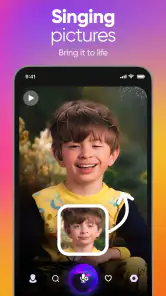
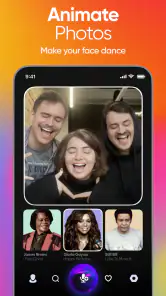
Revive is an entertainment app for turning images into animated video creations. Its features include AI kiss videos, face-dance animations, and lip-sync effects, which can give a still photo a lively, playful feel. It may suit anyone looking for a quick way to make expressive content to enjoy or share, rather than a full video-editing workspace.
What is Revive: Animation & AI Photos and how does it work?
Revive: Animation & AI Photos is an innovative application that allows users to bring their photos to life. Using advanced AI technology, it can animate static images, making them move and express emotions. Users simply upload their photos, and the app applies its animation algorithms to create lifelike movements and expressions. This feature is particularly popular for creating animated portraits and fun social media content.
Is Revive: Animation & AI Photos free to use?
Revive: Animation & AI Photos is free to download, and it also offers in-app purchases for users who want to access paid options. Purchases range from $0.99 to $74.99 per item, so check the purchase details in the app before confirming anything. This gives you the chance to try the app first and decide whether its paid features are worthwhile for your needs.
What devices are compatible with Revive: Animation & AI Photos?
Revive: Animation & AI Photos is available for both Android and iOS devices. It supports a wide range of smartphones and tablets running on the latest operating systems. Users can download the app from the Google Play Store for Android devices or the Apple App Store for iOS devices. It is optimized for performance on various devices, ensuring a smooth user experience.
Is Revive suitable for children and families?
Revive is rated Everyone, so its content rating makes it broadly suitable for general audiences. Since the app animates photos and creates playful videos, families may still want to guide younger users on which images to upload and where to share finished creations. As with any app that handles personal photos, it is sensible to use images thoughtfully and review sharing choices together.
Pros
- User-friendly interface for seamless navigation.
- High-quality animation effects for photos.
- Wide range of AI filters for customization.
- Supports both Android and iOS platforms.
- Regular updates with new features.
Cons
- Can be resource-intensive on older devices.
- Some features require in-app purchases.
- Occasional glitches during photo processing.
- Limited free version capabilities.
- Requires internet for optimal performance.
- Category
- Entertainment
- Version
- 4.12.0