

Mosa AI: Collage & AI Video
- 36.00
- 4.6
- Installs
- 10.00K
- Price
- Free

Screenshots
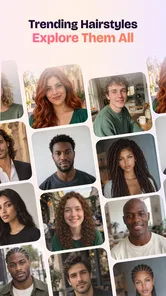
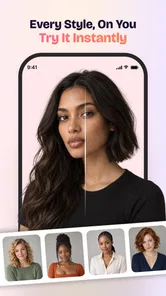
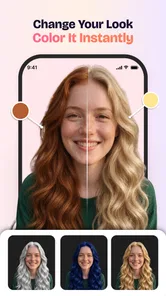
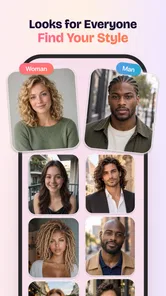
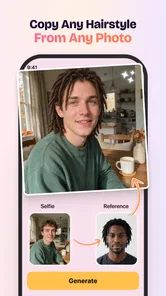
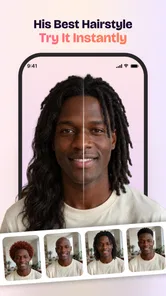
Analysis by Reviewed
I would approach Mosa AI as a creative workshop for turning photos into more polished, shareable pieces, rather than as a full photo-editing suite. Its focus is a mix of collage-making and AI-assisted video creation, which makes it appealing if you want to do something more with a portrait or a handful of pictures without building a project from scratch. The key is to start with one clear goal: make a collage, or experiment with a photo-based video. Trying to judge both at once can make the first session feel less straightforward than it needs to be.
What to expect from a photo-to-video app
Mosa AI: Collage & AI Video is a free photography app from Mor Tosbaa Mobile. It is presented as a way to work with individual photos, portraits, and clips, so its appeal is broader than arranging still images in a grid. I’d consider it when I want a visual result that feels ready to share, but don’t want to spend time learning a desktop editor or assembling every detail manually.
The app’s strongest idea is the pairing of two different creative jobs. A collage is a deliberate layout: you choose what belongs together and how the images relate. An AI-generated video is more about giving a still image a sense of motion or turning selected material into a short visual piece. That distinction matters. If you know whether you want a neat collection of memories or a more animated presentation, you can pick a direction before exploring and avoid getting lost in options.
It is rated 4.6 on average, with around 3.3 thousand ratings, and has passed 10 thousand installs. Those figures suggest it has found an audience, but they do not tell me whether its particular style will match yours. I’d treat them as a reason to give it a fair try, not as a guarantee that every output will look right without adjustment.
The app is rated for Everyone, and version 1.1 is listed for devices running Android 7.0 or later. It is free to install, with in-app purchases shown at $9.99 to $14.99 per item. I’d explore the basic creative flow before paying for anything: first decide whether the collage or video result is useful to you, then consider whether a paid item genuinely improves the way you plan to use it.
Choose a small, specific first project
For a first attempt, I would not begin with a large camera roll or a complicated theme. Pick one portrait that has a clear subject, or a small set of photos that already belong together, such as a birthday meal or a weekend walk. This is a practical way to judge the app’s style without confusing the result with inconsistent lighting, unrelated scenes, or too many competing subjects.
A useful everyday example is making something to send to a family group after a get-together. A collage can bring several moments into one image, while a photo-based video may feel more personal when one strong portrait is the focus. Decide which outcome would be easier for your recipients to view. If they are likely to glance at a message quickly, a clean collage may be more immediately readable than a more elaborate moving image.
More From Our News Desk

 Weather - By Xiaomi
Weather by Xiaomi Review: Clear at a Glance, Less Clear Up Close
Xiaomi’s weather app makes everyday forecasts quick to scan, but its calm surface can leave useful details and recovery paths harder to find than they should be.

 X
XX Under Pressure: Can It Recover When Posting Goes Wrong?
A resilience-focused review of X, examining setup, mistaken posts, interruptions, weak connections, and the gaps that matter when recovery needs to be dependable.

 Clash of Clans
Clash of Clans Is Won Between the Battles
Its raids are quick; its community is a long-term project of coordination, teaching, rivalry, and shared responsibility—with all the friction that entails.

 Android Auto
Android Auto Makes the Case for Quieter Car Software
The car interface is no longer judged by how much it can do, but by how quietly it helps. Android Auto shows what drivers now expect—and what still gets in the way.

 MobiOffice: Word, Sheets, PDF
MobiOffice: Transforming Mobile Productivity with Seamless Integration
MobiOffice: Word, Sheets, PDF is redefining mobile productivity with a surprising blend of functionality and innovation.

 EA SPORTS FC Soccer Mobile 26
EA SPORTS FC™ Mobile Soccer: Redefining Mobile Sports Gaming
Dive into EA SPORTS FC™ Mobile Soccer, where immersive gameplay and strategic depth transform mobile sports gaming.
Latest News



Getting started without overthinking setup
Once installed, I’d keep the first session deliberately simple: open the app, choose the kind of creation you want, and select only the images needed for that one result. I wouldn’t start by importing every candidate or trying to make a collage and video from the same collection. A narrow first choice makes it easier to see what the app is doing with your material and to decide what to change.
Before selecting photos, take a moment to compare them. For a collage, images with a shared subject or occasion usually make a stronger set than pictures chosen only because they are recent. For a portrait-led video, a face that is easy to see and not crowded by other people is a sensible starting point. This is not a promise about how an AI process will interpret a picture; it is simply a way to give the tool a clearer source image.
One helpful workflow is to make a “best of” selection outside the creative session first. Choose a few images you would be happy to share, and leave near-duplicates out. This makes it easier to notice whether the composition feels balanced instead of spending your attention deciding which of several almost identical shots to keep. It also reduces the chance that the final piece feels like a camera-roll dump rather than a considered memory.
If you are using an older Android device, check that it runs Android 7.0 or newer before expecting to install the current version. The app’s version is 1.1, so I’d also keep expectations measured: it is a young release, and I would focus on whether its current creative approach suits my needs rather than assuming it offers the depth of a mature, professional editing package.
Your first meaningful result: make one thing worth sharing
For a first success, I’d start with a collage from one occasion. Select a few photos that tell a simple story: the people, the setting, and one detail that makes the day memorable. After the layout is created, look at it as someone else would. Can they tell what the pictures have in common at a glance? Is one image visually overpowering the others? If the answer is yes, simplify the selection rather than trying to rescue every photo.
That last point is a small but useful trade-off. More images can make a collage feel comprehensive, but they can also shrink the details that make each photo worth keeping. A smaller set often reads better on a phone screen. If you want to preserve a full album, keep the original photos as the archive and use the collage as a quick highlight, not as a replacement for every image.
For an AI video, I’d use one portrait or a short, coherent selection rather than mixing unrelated pictures on the first try. Watch the result once for overall feeling, then again for anything that seems distracting or unlike the person in the image. AI-assisted motion can be fun, but it is not automatically the best choice for a formal portrait or a memory where accurate, natural appearance matters more than novelty. In those cases, a still collage or a conventional slideshow may feel more dependable.
My practical tip is to keep the source image intact and think of the generated piece as a separate interpretation. That way, if the animation feels odd or the composition doesn’t land, you have not lost the original photo or committed the whole project to one effect. It also makes the app easier to use experimentally: try an idea, judge it honestly, and keep only the version you’d actually send.
Where first-time users may get confused
The biggest potential confusion is expecting collage and AI video to behave like two versions of the same editor. They solve different problems, so a result that works well as a still arrangement may not be the right source for motion. If a set of pictures feels busy in a video, reduce the selection or switch to a collage. If one portrait feels too plain as a still, a video experiment may be worth trying instead.
It is also easy to mistake a surprising AI result for a mistake in the source photo, or to assume that every image will produce equally natural output. I would test with a photo whose subject is clear and whose background is not visually chaotic, then compare the result with the original. If the effect changes the mood too much, that is a useful signal to choose a more restrained format, not a reason to keep rerunning the same image in search of a perfect interpretation.
Another point to keep in mind is the difference between trying the app and buying into it. Installation is free, while some in-app items cost between $9.99 and $14.99 each. I’d avoid making a purchase just because a first experiment is entertaining. First work out whether you are likely to create these pieces regularly, and whether the item you are considering addresses a real limitation in your own workflow.
Because the app is focused on quick creative output, it is not the option I’d choose for precise retouching, careful color correction, or a tightly controlled video timeline. A traditional photo editor gives more direct control over individual image adjustments; a dedicated video editor is a better fit when timing, clips, and detailed sequencing are central. Mosa AI makes more sense when the starting point is a photo and the goal is to create something expressive with less manual assembly.
Who will get the most from it—and who may prefer another tool
I can see this working well for someone who often shares portraits, family moments, or themed collections and likes the idea of turning those images into a more finished-looking visual. It may also suit a casual creator who wants to test AI video without committing to a complex editing process. The collage side is especially practical when you want to send several related moments together while keeping the message easy to scan.
I would skip it if your main need is professional-level image control, dependable results for every source photo, or a detailed video editor with hands-on control of each stage. It may also not be the best choice if you prefer completely predictable edits and do not enjoy seeing an AI system reinterpret a portrait. In those situations, a standard collage tool or a conventional editor is likely to feel more comfortable.
The most useful way to evaluate it is to compare outcomes, not feature labels. Make one collage from a small set of related photos, then try one portrait-based video if that style interests you. Ask which result you would actually share and whether the process felt easier than your usual alternative. If the collage is the clear winner, you may have found a convenient occasional tool without needing to use every part of the app.
My next step after the first try
After getting one result I like, I’d save a simple personal rule for future projects: use a collage when the story depends on several moments, and try AI video when one image deserves the attention. That distinction helps me choose quickly instead of opening the app without a plan. It also prevents the common trap of adding effects just because they are available.
My overall impression is that Mosa AI is worth exploring if you want an approachable route from photos to a collage or an AI-assisted video, especially for informal sharing. Its appeal is the chance to create something more distinctive than a plain group of pictures without turning the task into a full editing project. I’d begin with a small, well-chosen set, judge the result against the original photos, and keep expectations realistic about AI interpretation.
If you enjoy the output and can see yourself using it again, the free starting point makes that first experiment easy to justify. If you need precise controls or natural-looking results every time, I’d choose a more traditional editor instead. For a first-time user with a portrait or a handful of related memories ready to go, though, Mosa AI offers a clear creative direction: make one small piece, see whether it feels like you, and build from there only if the result earns a place in your sharing routine.
Mosa AI: Collage & AI Video Frequently Asked Questions
What can you create with Mosa AI: Collage & AI Video?
Mosa AI is designed for making photo collages and AI-assisted videos from images. Depending on the features available in your version, you can choose a layout or template, add your photos, and customize the result before saving or sharing it. The exact selection of tools and effects may change with app updates, so check the current app listing for details about supported formats and features.
Is Mosa AI: Collage & AI Video free to use?
The app may be available to download without an upfront charge, but some tools, templates, effects, or export options can require a paid subscription or in-app purchase. Before confirming a purchase, review the price, billing period, trial terms, and cancellation instructions shown in the app store or subscription screen. Availability and pricing can vary by region and may change over time.
Do I need an internet connection to use Mosa AI?
Some basic editing tasks may work on your device, while AI-powered features can require an internet connection to process photos or generate video effects. An active connection may also be needed to load templates, sign in, or access purchased content. If you plan to use the app while traveling, test the tools you need beforehand and check whether any offline options are provided.
How do I save or share a collage or video made in Mosa AI?
After editing, look for the app’s export, save, or share controls and follow the prompts to choose an available quality or destination. Your device may ask for permission to access photos or save files. Export resolution, formats, and any watermark restrictions can depend on the feature, your device, and your plan, so review the preview and export details before sharing your creation.
What privacy should I consider before uploading photos to Mosa AI?
Creating a collage or AI video may require access to selected images, and online AI processing could involve sending media to the service for generation. Review the app’s privacy policy and permission requests to understand how photos, account details, and usage data are handled, including retention and deletion options. Choose only the images you intend to use, and avoid uploading sensitive personal material unless you are comfortable with the terms.
Pros
- Combines collage-making and AI video tools in one app.
- Useful for turning personal photos into shareable visual content.
- Offers a creative alternative to manually assembling short videos.
- Can help users experiment with AI-powered effects and styles.
- Suitable for casual projects that do not require professional editing tools.
Cons
- AI results may vary in quality depending on the photos provided.
- Some features or exports may require a paid plan or in-app purchase.
- Processing AI effects can take time
- especially on older devices.
- AI-generated content may not match the style or details you expect.
- Check privacy settings before uploading personal photos for processing.











