Cast to TV - Screen Mirroring
- 527.00
- 4.5
- Installs
- 1.00M
- Price
- Free

Screenshots
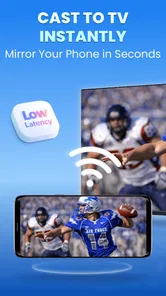
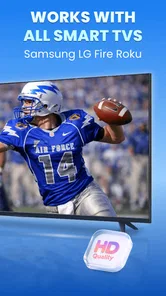

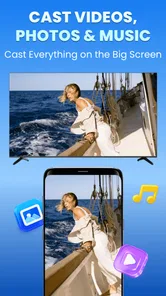
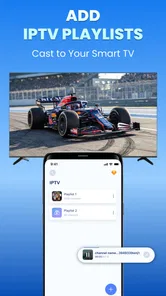
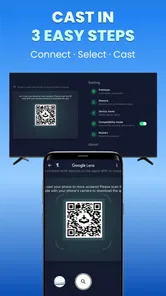
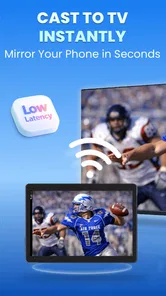
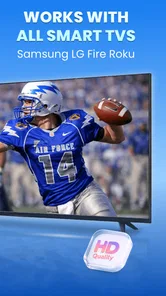
Analysis by Reviewed
I like Cast to TV - Screen Mirroring best as a practical bridge between a phone and a larger screen. It is a video-player and editing-category app from BoostVision, but its central job is not to edit footage or build a polished presentation: it helps you show mobile content on a compatible television. That distinction matters. If you want to share a clip, photos, or a page with people nearby, casting can be more comfortable than passing a phone around. If you need a full production suite, this is the wrong tool.
My overall impression is that the app is aimed at ordinary, immediate sharing rather than elaborate creative work. The useful question is not whether it replaces every TV’s built-in casting option, but whether it gives you a straightforward route from something on your phone to the room’s screen. Its appeal is that simple handoff; its trade-off is that successful mirroring depends on the devices and network around you, not just the app.
From a phone idea to a shared screen
I find it useful to begin with the moment that makes a shared screen appealing: a photo, clip, or page is already on my phone, but everyone would rather see it together. This section looks at that starting point and the app’s role as a viewing bridge, not a place to produce finished media. From there, I’ll turn to the practical choices that make a casting session feel less improvised.
A useful starting point for casual viewing
When I want to show someone a short video, a set of holiday photos, or a page that is easier to read on a television, screen mirroring is a natural starting point. It keeps the content on the phone while making it visible to a group. That is different from preparing a finished video: the app is better understood as a viewing and sharing tool than as a place to create or refine media.
A realistic use is a family gathering where one person has pictures on their phone and everyone else is seated across the room. Rather than handing the device from person to person, you can try casting to a television and talk through the images together. The same approach can help when showing a clip to a friend or using a larger display for content you would otherwise watch on a small screen.
The app’s store summary points to HD mirroring and casting with devices such as Chromecast, Samsung and Fire TV. That gives it a broad, practical focus, but it should not be read as a promise that every television model or every home setup behaves identically. Before relying on it for a meeting or a planned event, I would test the actual phone, TV and network combination you intend to use.
What the app is—and what it is not
Cast to TV - Screen Mirroring sits among video players and editors, yet it does not function like a timeline-based editor. There is no reason to choose it for trimming clips, adding titles, mixing audio or preparing a final social-media export. Its role is closer to a wireless display handoff: bring phone content to a television, then use the larger screen to watch or share it.
More From Our News Desk
 Instagram
Instagram’s Power Comes From Its Place in Your Phone
A close look at how Instagram turns Meta’s reach, recommendation systems and everyday camera habits into durable platform power—and what that costs users.

 Gmail
GmailGmail in a Busy Inbox: Who Benefits Most?
From first account to crowded workday, Gmail earns its place through dependable search and flexible sorting—but its best fit depends on how much inbox maintenance you can tolerate.

 Prime Video
Switching to Prime Video: What Changes in Your Viewing Routine
Prime Video can make a compelling second home for streaming, but switching means learning a different catalog, rental layer, and route from browsing to playback.

 Universal TV Remote Control
Universal TV Remote Control Works Best as a Reliable Backup
A phone remote earns its place through quick setup and reliable habits. Here is how to get more from Universal TV Remote Control—and where its limits show.

 Weather - By Xiaomi
Weather by Xiaomi Review: Clear at a Glance, Less Clear Up Close
Xiaomi’s weather app makes everyday forecasts quick to scan, but its calm surface can leave useful details and recovery paths harder to find than they should be.

 X
XX Under Pressure: Can It Recover When Posting Goes Wrong?
A resilience-focused review of X, examining setup, mistaken posts, interruptions, weak connections, and the gaps that matter when recovery needs to be dependable.
Latest News



That narrow purpose is a strength if your need is simple. A dedicated casting app can be easier to approach than navigating through several menus on a TV, especially when you are trying to share something quickly. On the other hand, many phones and televisions already include screen sharing or casting controls. If those built-in tools connect reliably and cover your usual devices, adding another app may not improve your routine.
I would treat the app as an alternative route, not an automatic replacement for the TV manufacturer’s own software. The built-in option may be preferable when it is already dependable, while this app may be worth trying when you want a focused casting interface or need to connect to one of the device types it supports. The best choice is the one that works consistently in your room.
Making the connection part of the workflow
For a smoother session, I would prepare the connection before opening the content I plan to show. Check that the TV is on and ready, then give the phone a moment to identify the display. This small change in order can prevent the awkward situation of having everyone wait while you switch between a video, device settings and the casting screen.
One non-obvious trade-off is that mirroring shares more than a single chosen clip: depending on how you use the phone, notifications or other on-screen activity may also become visible. Before casting in front of other people, I would silence alerts and close anything private. That is a general screen-sharing precaution, but it matters especially when the goal is casual viewing rather than a controlled presentation.
Another practical point is that a large display makes connection quality more noticeable. A minor delay or interruption that is easy to ignore on a phone can become distracting when everyone is watching the TV. For a short photo viewing session, that may be acceptable; for a fast-paced video or a presentation that depends on tight timing, I would test playback first and keep a direct cable or the TV’s native casting method as a backup if reliability is essential.
Iterating when the first attempt is not smooth
Wireless casting is not just a matter of tapping once and assuming the result will be perfect. If the television does not appear, or the picture does not feel steady, I would troubleshoot the setup before concluding that the app itself is at fault. Confirm that the TV supports the intended casting route, check that both devices are connected in a way that lets them find each other, and retry after reopening the connection. These are sensible checks for any phone-to-TV casting workflow.
For a more dependable home routine, I would note which connection method works with each display rather than improvising every time. A living-room television might be easy to reach through one route, while another screen could require its own setup. Keeping that distinction in mind saves time and prevents the assumption that one successful connection guarantees the same experience everywhere.
There is also a content-choice trade-off. Mirroring is convenient when the material lives on the phone or when you want to move between different apps. If you are watching a service that already has a native TV app, using that app on the television may be cleaner: it avoids keeping the phone involved and can make playback controls more natural. I would use mirroring for flexible sharing, and a native TV app for a long, uninterrupted viewing session when available.
The app has an average rating of 4.5 from around 61,000 ratings, and it has passed one million installs. Those figures suggest that many people have tried it, but they do not remove the need to check compatibility in your own setup. Casting apps are unusually sensitive to the combination of phone, television and home network, so I would judge it by a real test rather than by popularity alone.
From viewing to handoff
For a creator, the most relevant handoff here is not a finished file exported from an editor; it is presenting existing work on a shared display. You might review a phone-recorded clip with a colleague, show draft images to a small group, or let relatives see a photo collection without moving the files to another device first. That can make feedback more conversational, because everyone is looking at the same screen.
For feedback sessions, I would decide in advance whether people should see the whole phone screen or only the material being discussed. Mirroring can be flexible, but that flexibility also makes accidental interruptions easier: a call, notification or app switch can break the flow. A simple sequence—prepare the content, quiet alerts, connect, then begin—helps keep the handoff focused without pretending the app is a presentation editor.
If your aim is to publish a finished video, this is not the final delivery step. You will still need an editing or export tool suited to the destination, and possibly a direct upload workflow. Cast to TV is useful for watching or reviewing on a television; it should not be confused with producing a file in a format ready for publication.
Cost, access and who should try it
The app is free to install, is rated for Everyone, and includes in-app purchases ranging from $3.99 to $25.99 per item. I would start with the free experience and only consider a purchase if the app solves a recurring need for me. Occasional photo sharing does not necessarily justify paying; regular use across compatible displays may make extra paid options more relevant, depending on what you actually need from the app.
It was released on October 21, 2022, and its current version is 2.0.9. The minimum operating-system requirement is Android 7.0, so anyone using an older Android device should check compatibility before planning around it. If you are comparing alternatives, start with the phone’s built-in casting controls and the television’s own apps. Those may be all you need, while this app is an option to test when you want a separate way to initiate screen sharing.
I would recommend it to someone who often shows phone content to other people, prefers a larger viewing surface, and is willing to test the connection before an important session. It is less compelling for someone who only watches streaming services already installed on the TV, needs precise editing tools, or cannot tolerate wireless interruptions. In those cases, native TV playback, a dedicated editor or a wired display connection is likely a better fit.
Choosing the right screen-sharing route
For a quick decision, I would start by asking where the content lives and how long I plan to watch it. If it is a photo set or a short clip already on my phone, mirroring keeps the source close at hand and makes it easy to move between items. If I am settling in for a full film or a long streaming session, I would usually open the service directly on the television instead. That keeps the phone free and avoids making a wireless mirror responsible for the entire viewing experience.
There is a useful distinction between showing and controlling. When I share photos with relatives, I may want to keep the phone in my hand so I can choose the next image and explain the context. For a group reviewing a draft, though, I would keep the sequence simple and avoid hopping between unrelated apps. That reduces the chance of exposing private content and makes it easier for everyone to focus on the work being discussed.
Someone deciding whether to install it may also wonder if the phone and television need to be tested together first. In practice, I would do exactly that before making the app part of a regular routine. A brief trial tells you whether the display is found and whether the type of material you care about looks acceptable in your room. This is a more useful test than assuming that support for a familiar TV brand guarantees the same result with every model and network.
Small habits that make sharing easier
I would also think about the room, not just the app. If people are gathered around the television, position yourself where you can see both the phone and the display; it makes it easier to notice a stalled image or an accidental screen change without repeatedly asking others whether they can see it. For photos, it helps to have the collection ready before connecting, rather than searching through unrelated albums while the mirrored screen is visible.
When sharing a page or a draft, I would check how legible it looks from the seats where people will be viewing. A television gives content more space, but it does not automatically make small text comfortable to read from across a room. If the purpose is close inspection of fine details, a tablet or computer monitor may be more useful than a television. That is a practical limitation of the viewing context, not a reason to expect the casting app to behave like a design or editing tool.
For anyone worried about whether the app is suitable for a child or a shared family device, its age rating is Everyone. I would still use ordinary care with what is mirrored: the TV shows whatever is on the phone, so the person casting remains responsible for choosing suitable content and keeping private notifications out of view. That simple distinction is easy to overlook when the phone is usually treated as a personal screen.
My verdict for everyday use
For me, Cast to TV - Screen Mirroring makes sense as a focused convenience app rather than a complete media workspace. Its value is the quick transition from private phone viewing to shared television viewing. The strongest use cases are casual group sharing, checking how mobile content looks on a larger screen, and showing existing material without first moving it to another device.
The main caveat is that “easy casting” still depends on a compatible setup and a stable connection. I would not make it the sole plan for a time-sensitive presentation without testing beforehand, and I would choose a television’s native app for routine streaming when that is simpler. But if your everyday problem is that good content is stuck on a small screen, this is a reasonable free app to try. Think of it as a practical display bridge, not an editor or a guaranteed one-tap solution.
Cast to TV - Screen Mirroring Frequently Asked Questions
What does Cast to TV - Screen Mirroring do?
Cast to TV - Screen Mirroring is designed to display content from your phone on a compatible television or streaming device. Depending on the app’s features and your setup, you may be able to mirror your phone screen or cast supported videos and photos. It does not automatically make every TV compatible: the phone and receiving device generally need to support a compatible casting method and be connected to the same Wi-Fi network.
How do I connect the app to my TV?
First, check that your TV or streaming device supports the casting method used by the app, and connect both it and your phone to the same Wi-Fi network. Open the app, allow any requested local-network permissions, and select the TV or receiver shown in its device list. The exact menus can vary by device. If the TV does not appear, check its network connection, restart the devices, and consult the TV’s instructions.
Can I mirror any app or stream any video to my TV?
Not necessarily. Screen mirroring may show much of what is displayed on your phone, but some apps restrict mirroring or casting because of copyright protection or technical limitations. Other services may require you to cast from their own app instead. Video quality, sound, playback controls, and compatibility can also vary by phone, TV, Wi-Fi connection, and the content source, so check the app and device requirements before relying on it.
Does Cast to TV - Screen Mirroring work without Wi-Fi, and will it use mobile data?
Most TV-casting setups depend on a shared local Wi-Fi network, so the phone and TV or receiver usually need to be connected to the same router. Some devices offer other connection methods, but availability depends on the hardware and the app. Casting a file already stored on your phone may not use much mobile data, whereas streaming online content can use data through your network or mobile connection. Check your device settings and data plan.
Is Cast to TV - Screen Mirroring free, and what permissions or privacy considerations should I know about?
Availability, pricing, advertisements, and optional in-app purchases can differ by platform and app version, so review the current store listing before downloading. The app may request access such as local-network discovery or media permissions to find TVs and display your content; grant only permissions you understand and need. Avoid entering sensitive information into unfamiliar prompts, and review the app’s privacy information in the relevant app store for details about data handling.
Pros
- Works with many smart TV brands and streaming devices.
- Lets you mirror your phone screen for photos
- videos
- and presentations.
- Simple setup makes connecting to a compatible device straightforward.
- Useful for sharing content with a group on a larger display.
- Can cast media without needing to transfer files to the TV.
Cons
- Screen mirroring may lag
- especially over a weak Wi-Fi connection.
- Some features or devices may require a paid upgrade.
- Compatibility depends on your TV and phone supporting the same casting method.
- Mirroring can drain your phone’s battery during longer sessions.
- Notifications and other phone activity may appear on the TV while mirroring.