Cast to TV, Chromecast & Roku
- 12.32K
- 4.5
- Installs
- 50.00M
- Price
- Free

Screenshots
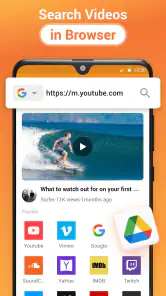
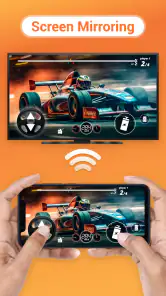
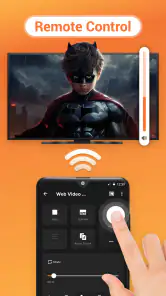

Analysis by Reviewed
When a phone refuses to find the television, the casting app can seem like the obvious culprit. In my experience, that is often the first moment to slow down rather than repeatedly tapping the device list. Cast to TV, Chromecast & Roku is designed to send media from a mobile device to a larger screen, but a successful session still depends on the devices being able to see each other and on the home network behaving properly. That distinction matters: the app can make casting convenient, but it cannot smooth over every weak spot in a Wi-Fi setup.
Where casting can get stuck
The most frustrating snag is usually a connection that starts and then falters. If the picture pauses or the receiver does not appear, I would first check whether the phone and TV device are connected to the same home network, then give the app and receiver a moment to discover one another. A guest network or a router with separate network names can complicate discovery, even when both devices seem to have internet access. That is a useful check before assuming the app itself is broken.
It also helps to separate two different problems: finding the screen and playing the chosen media. If the TV is missing from the list, focus on network visibility and whether the receiver is awake. If it appears but playback struggles, try a shorter clip or another file to see whether the issue follows one particular item. That simple comparison can save time and makes it easier to identify whether the trouble is with discovery, the connection, or the media source.
A few sensible setup checks
Before settling in for a film, I would open the receiving device’s usual casting interface and make sure it is ready, then launch the app on the phone. Keeping the phone close to the router during the first connection is a practical test if the signal is unreliable. Once the devices connect, you can move back to your usual spot and see whether playback remains stable. These are basic checks, but they are more useful than changing several settings at random.
For subtitles, I would test the exact file and language before guests arrive or a movie night begins. Support for subtitles is helpful, but subtitle behavior can depend on the media itself and the receiving screen. If text is missing or out of sync, trying another file is a sensible way to narrow down the cause rather than assuming every video will behave identically.
Getting Started
First things first, the setup was a breeze! I downloaded the app, and within a couple of minutes, I was ready to stream. The interface is super user-friendly, which means you don’t have to be a tech wizard to navigate through it. Right from the get-go, Cast to TV, Chromecast & Roku impressed me with its intuitive layout. It’s like the app was reading my mind, predicting my next move. Pretty cool, right?
Seamless Streaming Experience
Now, when it comes to the streaming part, I must say – it’s smooth sailing all the way. Whether you’re casting to a Chromecast or a Roku device, the connection holds steady, sparing you from those annoying buffering circles. I tried casting a high-resolution documentary, and the quality was top-notch, as if I had plugged my device directly to the TV. Kudos to the developers for ensuring such a flawless experience!
More From Our News Desk
Weather by Xiaomi Review: Clear at a Glance, Less Clear Up Close

X Under Pressure: Can It Recover When Posting Goes Wrong?

Clash of Clans Is Won Between the Battles

Android Auto Makes the Case for Quieter Car Software

MobiOffice: Transforming Mobile Productivity with Seamless Integration

EA SPORTS FC™ Mobile Soccer: Redefining Mobile Sports Gaming
Versatility at Its Best
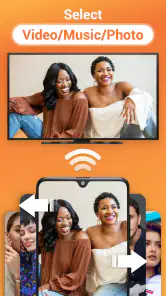
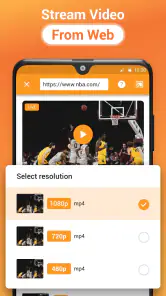
One of the things that stood out for me was the versatility of this app. Not only does it support a wide range of file formats, but it also allows you to cast from various sources. Be it local files on your phone or content from the web, Cast to TV, Chromecast & Roku handles it all like a champ. Plus, it even supports subtitles! For someone who watches a lot of foreign films, this feature is an absolute gem.
Choosing the right workflow
A practical use is sharing a phone-stored video with family without passing the handset around: connect before everyone sits down, choose the clip, and keep the phone available for playback controls. For a web video, I would first make sure the page itself loads and plays on the phone; casting cannot fix a source that is already failing there. If you often watch long films, starting with a brief test is a small step that can prevent interruptions once you are settled.
This is most appealing if you regularly move personal videos or web media from a phone to a TV and want one casting tool to try across different receivers. It is less compelling if you only watch through the apps already installed on a smart TV, or if you expect casting to improve a weak wireless network. In those cases, the TV’s own player or a wired connection may be the simpler choice. Compared with relying on a single receiver’s built-in app, a general casting app can be handy when your viewing habits span more than one screen, though it also adds another point in the connection chain to troubleshoot.
When the app may not be the cause
If the same video has trouble on the phone before casting, I would investigate the source or file first. If playback works on the phone but not on the television, I would compare a different video and recheck the receiving device and network. Restarting the app and receiver is a reasonable next step when discovery gets stuck; changing multiple network settings at once is not, because it makes the result harder to understand. These small, reversible checks keep troubleshooting straightforward.
Who will get the most from it
For a household that shares clips, home videos, or web viewing on a larger screen, the convenience is easy to understand. It can also suit someone who watches subtitled films and prefers a TV-sized picture, provided the particular file and receiver cooperate. On the other hand, viewers who need precise control over a complex home-media setup may prefer a dedicated media server or the native player made for their television. Those alternatives can be a better fit when organizing a large library matters more than quickly sending something from a phone.
What to expect from the app
InShot Inc. makes this free video-player and editing-category app, which has an Everyone age rating. Its average rating is 4.5 from around 470,000 ratings, and it has over 50 million installs, so it is a well-established option rather than an obscure experiment. The current version is 2.4.5, and it runs on Android 7.0 or later. The basic download costs nothing, while optional in-app purchases range from $2.49 to $13.99 per item. I would start with the free experience and only consider a purchase if a limitation you actually encounter makes it worthwhile.
What’s the Catch?
Okay, let’s be real. No app is perfect, right? While I loved most of what this app offers, there were a few moments where the app seemed to lag, especially when my Wi-Fi was acting up. However, this wasn’t a deal-breaker for me, as it didn’t happen frequently enough to disrupt my overall experience. Just something to keep in mind if your internet connection tends to be a bit moody.
All in all, if you’re on the hunt for an app that makes streaming straightforward and enjoyable, give Cast to TV, Chromecast & Roku a shot. It’s like having a magic wand for your media files, bringing them to life on the big screen. So grab your popcorn, dim the lights, and let the streaming session begin! Happy casting!
Cast to TV, Chromecast & Roku Frequently Asked Questions
Does Cast to TV, Chromecast & Roku support more than one kind of streaming device?
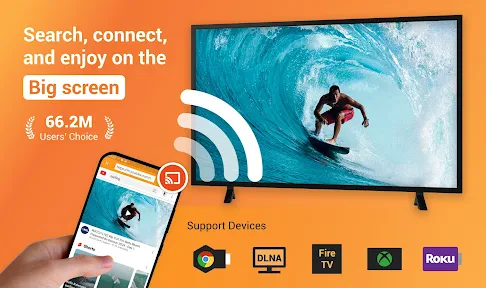
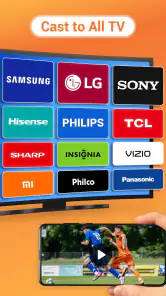
The app is presented as a casting option for several types of screens and streaming devices, rather than being limited to a single receiver. The store summary names Chromecast, Xbox, Fire Stick, Roku, DLNA, and Smart TV. Before downloading, consider which receiver you plan to use and whether it is part of this range, since the casting experience depends on the device and network setup.
Can I cast videos from my phone’s local storage, or does the app only work with online content?
Cast to TV, Chromecast & Roku is described as a tool for casting media, so it may suit people who want to send content from a mobile device to a larger screen. The kind of media you plan to watch is worth considering before installing, along with whether your phone and receiving device can communicate over the same network. Check the app’s on-screen options for the available sources.
Does the app require a recent phone or tablet to run?
The app supports Android devices running version 7.0 or later. If your phone or tablet meets that minimum, it can meet the stated operating-system requirement; compatibility with a particular model may still depend on the device and the receiving screen you want to use. Checking your system version before installing is a simple way to avoid downloading an app your device cannot run.
Is Cast to TV, Chromecast & Roku free to download?
Cast to TV, Chromecast & Roku is free to download, and optional in-app purchases are available. The listed purchase range is about $2.49 to $13.99 per item. You can start by considering the free download, then review the details for any optional purchase in the app before confirming it, so you can decide whether it fits the features and use you want.
Can I use Cast to TV, Chromecast & Roku without a Wi-Fi connection?
Casting generally depends on a connection between your phone and the receiving device, so check that both are connected to the same Wi-Fi network before you begin. This is especially useful when you are setting up a new TV or streaming device, since a shared network helps the app find the screen. If you often watch while away from home, consider whether your usual setup provides a suitable network.
Pros
- Easy to connect with various TV brands
- Supports multiple media formats
- User-friendly interface
- Fast streaming with minimal buffering
- No ads in premium version
Cons
- Free version has frequent ads
- Limited features without subscription
- Occasional connectivity issues
- Some formats may not cast properly
- Requires stable Wi-Fi for best use
- Category
- Video Players & Editors
- Version
- 2.4.5