Aqua - Adobe for Kids
- 20.00
- 3.1
- Installs
- 100.00K
- Price
- Free

Screenshots
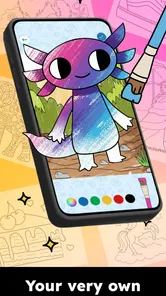







Analysis by Reviewed
Creative apps for children often look simple at first, but the real test is whether a child can begin drawing without constant help and whether an adult can understand what the experience is trying to teach. I spent time with Aqua - Adobe for Kids, a free education app from Adobe built around drawing and coloring games. My first impression was that it is best approached as a calm creative activity rather than a full art course or a professional drawing tool.
That distinction matters. A child who wants an easy place to experiment with color may enjoy it, while an older learner looking for layers, detailed brushes, or structured lessons will probably outgrow it quickly. The app’s age rating is Everyone, and that fits its approachable purpose. It is aimed at casual, family-friendly use, with the emphasis on making marks and playing with color instead of producing polished illustrations.
In the store, it appears as an app in the Education category, and its short description is simply “Aqua.” That gives very little practical guidance, so this review focuses on how I would actually use it, where it fits into a child’s routine, and where a parent should choose a different kind of creative app.
How I would use Aqua in a normal creative routine
The most useful starting point is to treat the app as a short activity with a clear beginning and end. I would open it with a child, let them explore the drawing and coloring options, and avoid turning the first session into a lesson. The value is in giving the child room to make choices: which color to try, where to draw, and whether to follow a playful prompt or simply experiment.
For a younger child, that freedom can be more important than a large collection of tools. Too many controls make a creative app feel like a puzzle about buttons. Aqua - Adobe for Kids feels more suitable when the goal is to lower that barrier. I would keep the first activity brief, then ask the child to explain what they made. That conversation adds an educational layer without forcing the app to behave like a classroom worksheet.
A realistic everyday use would be a quiet ten-minute activity after school. A child could use it while an adult prepares dinner, with the adult checking in afterward rather than directing every stroke. Another good moment is during travel or a waiting period, provided the device is already set up and the child knows how to return to the main drawing area. The app works best as a repeatable creative break, not as something that needs a long setup each time.
I also found that the adult’s role changes with age. A preschool child may need help understanding where to begin and how to undo an unwanted mark. An older child can usually take ownership faster, but may become dissatisfied if the toolset feels too limited. The same app can therefore be useful for different children for different reasons: exploration for one, relaxation for another, and a first step toward digital drawing for a third.
More From Our News Desk

 Instagram
Instagram’s Power Comes From Its Place in Your Phone
A close look at how Instagram turns Meta’s reach, recommendation systems and everyday camera habits into durable platform power—and what that costs users.

 Gmail
GmailGmail in a Busy Inbox: Who Benefits Most?
From first account to crowded workday, Gmail earns its place through dependable search and flexible sorting—but its best fit depends on how much inbox maintenance you can tolerate.

 Prime Video
Switching to Prime Video: What Changes in Your Viewing Routine
Prime Video can make a compelling second home for streaming, but switching means learning a different catalog, rental layer, and route from browsing to playback.

 Universal TV Remote Control
Universal TV Remote Control Works Best as a Reliable Backup
A phone remote earns its place through quick setup and reliable habits. Here is how to get more from Universal TV Remote Control—and where its limits show.

 Weather - By Xiaomi
Weather by Xiaomi Review: Clear at a Glance, Less Clear Up Close
Xiaomi’s weather app makes everyday forecasts quick to scan, but its calm surface can leave useful details and recovery paths harder to find than they should be.

 X
XX Under Pressure: Can It Recover When Posting Goes Wrong?
A resilience-focused review of X, examining setup, mistaken posts, interruptions, weak connections, and the gaps that matter when recovery needs to be dependable.
Latest News



One habit makes the experience smoother: decide the purpose before opening it. If the goal is color recognition, encourage the child to choose a small group of colors and compare them. If the goal is imagination, avoid correcting the picture. If the goal is hand control, suggest slow lines, repeated shapes, or coloring inside a defined area. The app itself does not need to carry the entire educational burden.
Settings and preparation that are worth checking
Before handing over the device, I would check the device’s general sound, brightness, and notification settings. These are not glamorous details, but they affect whether a child can concentrate. A sudden notification can interrupt a drawing session, while excessive brightness can make a short activity tiring. Preparing the device first also means the child is less likely to leave the app by accident while looking for a control.
I would also make sure the app runs comfortably on the device’s operating system. Its minimum operating system is iOS or Android version 11, so older phones and tablets may not be suitable. That requirement is especially relevant in families that keep an older device for children. Checking compatibility before planning a shared activity avoids the frustrating situation where the app cannot be installed or does not run as expected.
The current version is 26.08.18.1807. I would keep the app updated through the normal store process, especially when an adult manages several children’s apps on one device. Updates can change the feel of an app, so after an update I would spend a moment checking the opening screen and basic controls before giving the device to a child. That small habit prevents a child from being stuck because a familiar button has moved.
Because the app is free, it is easy to try without making it a financial commitment. I still would not assume that “free” means it should be installed automatically on every family device. Storage, screen size, and the child’s existing interests matter more than price. A larger tablet is likely to make finger drawing more comfortable than a small phone, while a child who prefers physical paint may gain more from a paper activity.
The Everyone content rating makes it a reasonable candidate for a shared family device, but supervision still has value. The best setup is not simply handing over the device and walking away. I would show the child how to start, how to recover from an accidental action, and how to finish. These habits reduce frustration and help the child feel capable rather than dependent on an adult for every small problem.
Faster patterns for children who use it often
Once a child understands the basic drawing routine, repetition becomes useful. I would encourage a simple pattern: choose a subject, select colors, draw or color, then pause to look at the result. This prevents endless tapping without a clear idea and gives the child a natural way to notice decisions. It also makes the activity easier to repeat on another day without needing a new explanation.
A helpful variation is to give the child one constraint at a time. For example, ask for a picture using only warm colors, or ask them to make a scene with three recognizable objects. The point is not to impose adult standards; it is to turn the open canvas into a small creative challenge. This approach makes the app more educational than simply filling the screen with random color.
I would avoid correcting technique too early. Children often use digital drawing differently from adults, and a strict focus on neatness can remove the fun. Instead, I would ask questions such as “What happens if you use a slower movement?” or “Which color stands out most?” Those prompts encourage observation while keeping ownership with the child.
Another practical habit is taking a short break between creations. If a child immediately starts another picture every time, the activity can become repetitive tapping. A pause to describe the first drawing, choose a favorite part, or decide what to change next time makes the session more reflective. This is one of the ways I would use an app categorized under Education without pretending that it replaces a teacher.
For siblings, I would give each child a separate turn rather than expecting them to share the same drawing space at once. Digital art can become competitive very quickly, especially when one child works faster. A turn-based routine keeps the focus on creativity and lets each child make decisions without another person taking over.
Experienced use is less about finding secret tricks and more about building repeatable habits around the available tools. I would keep the device in the same place, use a consistent session length, and let the child choose the theme whenever possible. That routine makes the app easier to return to and helps reveal whether the child is genuinely interested or merely responding to a novelty effect.
Where the simple approach becomes a limitation
The same simplicity that helps a beginner can frustrate a more advanced user. Aqua is not the app I would choose for detailed illustration, serious practice with digital painting, or a project that needs professional organization. A child who wants precise control, complex compositions, or a broader set of art techniques will eventually need a more capable drawing application or a structured art-learning platform.
It is also not the right substitute for physical materials in every situation. Paper, crayons, and paint provide texture, resistance, and a different kind of hand movement. If the aim is to develop comfort with real tools, a screen cannot provide the same experience. I see Aqua as complementary: useful for quick digital experimentation, but not a replacement for making art away from the device.
Parents should also consider the child’s tolerance for open-ended activities. Some children enjoy choosing what to make; others need clear instructions and visible progress. If a child repeatedly asks what to do next, the adult may need to provide prompts or select a different app with more explicit lessons. Aqua can support guided play, but I would not present it as a complete curriculum.
Another trade-off is the difference between convenience and depth. A free app that starts quickly is attractive for short sessions, but a specialized paid or more advanced alternative may be better for a child who has developed a serious interest in drawing. The right choice depends on whether the priority is low-pressure access or a richer creative toolkit. In my view, Aqua earns its place at the beginning of that journey, not necessarily at the end.
The public response is mixed. It has an average rating of 3.0 from 722 ratings, with 19 written reviews, and it has passed 100K+ installs. I would read those figures as a reason to try it personally rather than assuming it will suit every child. Ratings do not capture the difference between a toddler using a tablet for five minutes and an older student expecting advanced art controls.
Who should try it and who should skip it
I would recommend trying it if you want a free, family-friendly way to introduce digital drawing without immediately placing a child in a complicated creative suite. It is particularly suitable for short activities, relaxed experimentation, and adults who are willing to add their own prompts. The Education category makes sense when the app is used to encourage color choices, imagination, focus, and discussion.
I would be more cautious if the child already uses sophisticated drawing software. In that case, the limited scope may feel like a step backward. I would also skip it as a primary choice if your main goal is formal instruction in perspective, anatomy, lettering, animation, or other specific art skills. A dedicated course or more advanced creative tool would provide a clearer path.
For a family deciding whether to install it, the practical questions are straightforward. Does the child use a device running at least Android or iOS 11? Is the screen comfortable for drawing? Can an adult give the first few minutes of guidance? If the answer to those questions is yes, the free price makes experimentation easy. If the child dislikes unstructured play or needs detailed lessons, the app may not hold attention for long.
Adobe is a familiar developer in creative software, but that name should not lead anyone to expect a miniature professional studio here. I judge this app by its intended role: a simple doorway into drawing and coloring. On that basis, it is more appealing for beginners than for experienced creators.
My verdict after building a repeatable routine
I see Aqua - Adobe for Kids as a gentle starting point for children who want to draw on a phone or tablet. Its strongest quality is accessibility: the activity can fit into a short break, a family routine, or an informal learning moment without requiring a large commitment. The best results come when an adult supplies a little structure and then steps back.
My main reservation is the ceiling. Children who become enthusiastic about digital art may soon want more control than this app is designed to provide. That is not necessarily a flaw, but it is important to recognize before treating it as a long-term art program. I would use it as an introduction, a casual creative outlet, or a low-pressure option for younger users.
With a minimum operating system of 11, an Everyone rating, and a free installation, it is easy to test on a compatible device. I would begin with a short session, check how independently the child can navigate, and then decide whether the experience deserves a regular place in the routine. The most effective way to use Aqua is as a small creative habit, not as a replacement for art class or a full drawing studio.
Aqua - Adobe for Kids Frequently Asked Questions
What devices can run Aqua - Adobe for Kids?
Aqua - Adobe for Kids is an education app for drawing and coloring, and it requires Android 11 or later. Before downloading, check the operating system on the device your child will use and make sure there is enough room for the app and any artwork. This can prevent compatibility surprises and helps you choose a device that is comfortable for a child to use.
What does the Everyone age rating mean for families?
Aqua - Adobe for Kids has an Everyone content rating, which indicates that its content is considered suitable for a broad audience. That rating is a useful starting point, but it does not replace a parent’s judgment about whether the app fits a particular child. The app is focused on drawing and coloring, so families can also consider whether its creative activities match the child’s interests and abilities.
What is Aqua - Adobe for Kids, and who is it designed for?
Aqua - Adobe for Kids is an educational creativity app intended to introduce children to digital drawing, design, and visual expression through a simplified Adobe-style experience. Its tools and interface are generally aimed at younger users, beginners, and families looking for a more approachable creative activity. Parents should still check the recommended age range and available features before downloading, since suitability can vary depending on a child’s reading ability and creative experience.
What can children create with Aqua - Adobe for Kids?
The app is designed to let children experiment with colorful drawings, illustrations, shapes, and other simple visual projects. Depending on the version and supported tools, children may be able to combine brushes, colors, stickers, backgrounds, and basic editing elements to create artwork. It is best viewed as a beginner-friendly creative playground rather than a full professional Adobe design suite, so advanced editing and complex project management may be limited.
Is Aqua - Adobe for Kids safe and suitable for children?
Aqua - Adobe for Kids appears to focus on creative, child-friendly use, but parents should review the app’s privacy information, permissions, advertising policy, and any communication or sharing options before allowing independent access. Check whether the app collects usage data, includes external links, or offers in-app purchases. Younger children may also need supervision when saving, exporting, or sharing artwork outside the application.
Pros
- Simple drawing tools are easy for young children to understand.
- Colorful interface makes creative activities feel inviting.
- Works well for short
- screen-time-friendly art sessions.
- Encourages imagination without requiring artistic experience.
- Suitable for children who enjoy experimenting with colors and shapes.
Cons
- Some children may outgrow the limited creative options quickly.
- The app may feel too basic for older or experienced young artists.
- Parents should review privacy and permission settings before use.
- Creative results may be difficult to save or organize over time.
- Requires a compatible device and enough storage for smooth performance.