Adobe Premiere: Video Editor
- 45.00
- 4.3
- Installs
- 1.00M
- Price
- Free

Screenshots
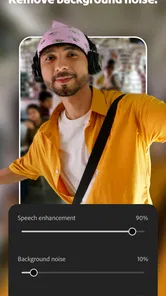
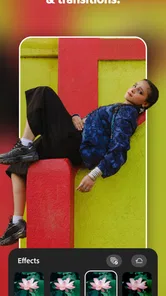
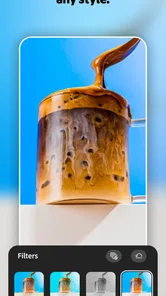
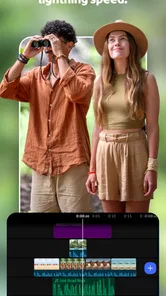


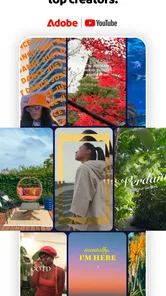
Analysis by Reviewed
I find Adobe Premiere most appealing when I have a clear little story to tell and want to turn phone footage into something watchable without moving straight to a desktop editor. It is a video-editing app from Adobe, aimed at the practical middle ground between an automatic clip maker and a full professional timeline. That makes it a sensible place to assemble a short social post, a family recap, or a simple explainer, especially if adding a considered title or a music bed matters as much as trimming the footage.
My main reservation is that a mobile editor can feel cramped when a project grows. The screen is fine for deciding what belongs in a short sequence, but less comfortable for careful, frame-by-frame work or for managing a large collection of clips. I would approach it as a tool for focused edits rather than assume it will replace every desktop workflow.
Who gets the most from a phone-based edit
I see this as a good fit for creators who regularly need a finished, understandable video but do not want every post to become a production. A teacher assembling a short class recap, a hobby seller showing one useful product detail, or a family member collecting clips from an outing can benefit from having the main creative choices close at hand. The key is to arrive with a modest goal and a manageable amount of footage.
It is less suited to someone whose working style depends on long sessions, a wide view of many edits at once, or exact adjustments across a complicated sequence. I would also look elsewhere if I wanted an automatic montage with almost no decisions: the point here is to shape the result, not simply hand the material over to a template. That distinction is worth considering before importing a large camera roll and expecting the app to decide what matters.
From a rough idea to a usable cut
I start with the brief rather than the effects: a short clip needs one clear point before I decide what footage belongs. This section looks at how a modest goal makes a phone-based edit easier to shape and review, especially when the source material is a handful of everyday moments. From there, I turn to the practical choices involved in building a cut that feels intentional.
Start with the moment, not the effects
For a useful first project, I would begin with a specific outcome: a quick recap of a weekend walk, a product demonstration, or a short announcement. That decision helps keep the edit manageable. Pick only the clips that support the point, then work out the order before spending time on filters and sound effects. In my experience, a simple sequence with a clear beginning and ending feels more polished than a busy edit that uses every option.
The app’s role is straightforward: it lets me shape video and add text, audio, visual treatments, and sound effects. Those ingredients cover many everyday creative needs. A title can orient someone who sees a clip without context, while a music layer can make a collection of unrelated shots feel like one piece. I would use effects to support the subject, not to disguise shaky choices in the edit.
More From Our News Desk
 Instagram
Instagram’s Power Comes From Its Place in Your Phone
A close look at how Instagram turns Meta’s reach, recommendation systems and everyday camera habits into durable platform power—and what that costs users.

 Gmail
GmailGmail in a Busy Inbox: Who Benefits Most?
From first account to crowded workday, Gmail earns its place through dependable search and flexible sorting—but its best fit depends on how much inbox maintenance you can tolerate.

 Prime Video
Switching to Prime Video: What Changes in Your Viewing Routine
Prime Video can make a compelling second home for streaming, but switching means learning a different catalog, rental layer, and route from browsing to playback.

 Universal TV Remote Control
Universal TV Remote Control Works Best as a Reliable Backup
A phone remote earns its place through quick setup and reliable habits. Here is how to get more from Universal TV Remote Control—and where its limits show.

 Weather - By Xiaomi
Weather by Xiaomi Review: Clear at a Glance, Less Clear Up Close
Xiaomi’s weather app makes everyday forecasts quick to scan, but its calm surface can leave useful details and recovery paths harder to find than they should be.

 X
XX Under Pressure: Can It Recover When Posting Goes Wrong?
A resilience-focused review of X, examining setup, mistaken posts, interruptions, weak connections, and the gaps that matter when recovery needs to be dependable.
Latest News



Adobe is the developer, and that name may make the app familiar to people who already use its creative tools. Familiarity is useful, but I would still judge this mobile editor on the job at hand. If the goal is a quick, readable video, a compact workflow can be an advantage; if the goal is detailed post-production, the phone itself may become the limiting factor before the software does.
A practical workflow for short videos
One realistic scenario is making a short clip about a café visit. I would select a few shots that show the arrival, a detail of the drink, and the atmosphere, then arrange them so the viewer understands the place without needing a long explanation. A brief text card can identify the subject, and a restrained audio choice can tie the shots together. Keeping the sequence selective also makes later revisions easier.
A useful habit is to add text only after the visual order makes sense. Otherwise, a title can end up covering the most important part of a shot or feeling disconnected from the scene it introduces. I would also review the video with sound on and off: the first check catches clashes between music and effects, while the second tells me whether the story still reads for someone watching quietly.
Filters are best treated as a finishing choice rather than a starting point. Applying a look early can make mismatched clips more obvious, not less, and may push the whole video toward a style that does not fit the subject. I would first check whether the shots belong together, then choose a light touch if a consistent visual mood improves them.
Where the editing feels rewarding—and where it asks for patience
The central strength is that the creative ingredients sit within reach of a short-form project: picture, words, sound, and visual treatment. That is a useful combination for someone who wants more control than an automatic template usually offers, but does not want to build a complex production from scratch. It also makes the app a reasonable option for trying out an idea before deciding whether it deserves a more involved edit.
The trade-off is attention. Each extra layer creates another decision, and a small display makes it easier to overlook how those decisions interact. Text may compete with the image, a sound effect may draw attention away from dialogue, or a filter may make one shot feel unlike the next. I would keep a short edit deliberately spare and watch it through once before calling it done.
Another non-obvious tip is to make a rough version before polishing anything. First settle the sequence and its overall pace; then add titles and audio; only after that decide whether filters or effects help. This order reduces the temptation to protect an effect simply because time has already been spent on it. It is especially useful when making a clip for a particular audience, since clarity should survive even if the decorative choices change.
Planning around the viewing context
Before settling on a title or sound, I would think about where the video is likely to be watched. A clip shown casually on a phone may need a more direct opening than one shared in a setting where the audience already knows the subject. Text should carry only the information a viewer needs at that moment; if it becomes a paragraph, it competes with the footage rather than helping it.
That context also changes how I judge the soundtrack. Music can give a sequence cohesion, but it should not be treated as a substitute for a clear edit, and sound effects work best when they have a specific purpose. If spoken audio is central to the clip, I would make that the priority during review and remove decorative sound that distracts from it. The useful question is not whether every available layer has been used, but whether the viewer can follow the piece comfortably.
Revising without losing the point
Iteration is where I would be most disciplined. If a video feels too long, I would remove a shot that repeats information before adding faster effects to make the same material feel lively. If the message is hard to follow, I would change the order or simplify the title. That kind of edit often improves the result more than adding another sound or visual treatment.
For a small business owner, for example, a short product clip can be drafted around one detail a customer needs to see. The first pass might include several angles; on review, I would keep the clearest ones and make sure any text explains rather than repeats what is obvious on screen. This approach makes the video easier to watch and easier to update later if the emphasis changes.
I would also keep alternate ideas modest. Rather than making several elaborate versions at once, try one change at a time: a different title, a quieter music choice, or a simpler look. That makes it easier to tell which decision actually helped. The benefit is not a hidden shortcut; it is a reliable way to avoid ending up with a polished edit that has drifted away from the original purpose.
Making a quick review pass useful
When I revise, I try to watch once as an ordinary viewer rather than pause to admire individual choices. That pass reveals whether the opening gets to the subject promptly and whether the ending feels intentional. A second pass can focus on a single issue, such as whether the title is readable or whether one shot disrupts the rhythm. Separating those checks keeps small tweaks from turning into aimless tinkering.
There is also a practical stopping point: if a change does not make the message clearer, the pacing more natural, or the presentation more coherent, I would leave it out. Mobile editing makes it tempting to keep trying little variations because they are immediately available. For a short clip, restraint is often the better quality-control tool.
Getting the finished video ready to share
For delivery, I would watch the complete edit from beginning to end and check the opening, final moment, text legibility, and audio balance. A title that looked fine while editing can be easy to miss when viewed at normal speed, and a sound effect that seemed subtle in isolation may become distracting in context. This last review is worth making part of the workflow, even for a casual post.
If you are asking whether this is suitable for a quick video you plan to publish, I would say yes when the project is short and the editing decisions are modest. If you need exacting control over a complicated sequence, a larger-screen editor is likely the more comfortable choice. Likewise, someone who only wants a one-tap slideshow may prefer a simpler automatic tool; Adobe Premiere makes more sense when you want to make choices about the cut and its presentation.
The app is free to start using, with in-app purchases ranging from $7.99 to $69.99 per item. I would treat that as a reason to decide what you need before buying anything, rather than assuming a paid option is necessary for every basic edit. The current version is 26.3.0, and the app carries a Teen content rating, so it is not presented as a children’s app.
What to decide before you begin
A sensible first test is to use a small set of clips with one clear purpose, then see whether the editing process feels comfortable on your device. That answers a more useful question than judging the app by how many creative options it appears to offer: can you arrange your material, make the presentation clear, and finish without the screen becoming a nuisance? If the answer is yes, it may fit your regular short-video routine.
For a project that needs repeated revisions or particularly careful timing, I would make a rough plan before starting and keep the source clips organized outside the edit as well. That way, a change in emphasis does not force you to rethink every shot from scratch. It is a simple safeguard for anyone using a mobile tool in a real publishing workflow, where the brief can shift after the first draft.
How it fits beside other mobile editors
Compared with template-led video apps, this is a better fit for someone who wants to arrange footage and make deliberate choices about text, sound, and appearance. Templates can be faster when the format is already decided, but they may steer a creator toward a familiar look. Here, the appeal is the chance to shape a piece around its own subject, provided the user is willing to spend time reviewing the details.
Compared with a professional desktop editor, a phone-based workflow is naturally less suited to intricate projects and long sessions. I would not choose it for a production that depends on extensive fine adjustments or a crowded timeline. But for a short edit made from a handful of clips, keeping the work close to the footage can be more convenient than opening a larger setup. The right choice depends less on prestige than on how much control the project genuinely needs.
Adobe Premiere has a 4.3 average from around 6,700 ratings, and it has passed over 1 million installs. Those figures suggest that it has found an audience, but they do not tell me whether it suits a particular creator; the workflow is the better test. If you want a mobile editor that brings together video, titles, audio, filters, and effects without forcing an automatic template, it is worth trying on a small project first.
My creator verdict
I would recommend Adobe Premiere to people who want to turn everyday footage into a more intentional short video and are willing to make a few editing decisions along the way. It is especially useful for quick recaps, simple announcements, and social clips where a clear order, readable text, and controlled sound matter. My best advice is to keep the first project small, finish the cut before decorating it, and judge every effect by whether it helps the viewer.
I would skip it if your priority is either complete automation or deep, meticulous editing. A template-first app can get a basic montage out faster, while a desktop editor is more comfortable when precision and project complexity take over. For the middle ground, though, Adobe Premiere offers a practical way to move from a rough idea to a shareable edit without losing sight of the story you meant to tell.
For me, the clearest reason to try it is the gap it fills: I can make a deliberate short video without turning a small creative task into a desktop session. Adobe Premiere is free to start, and its 4.3 average reflects a substantial audience, but neither popularity nor familiarity is a substitute for testing the workflow against your own material. I would begin with one modest clip, keep the editing choices purposeful, and decide from that experience whether it earns a place in my regular toolkit.
Adobe Premiere: Video Editor Frequently Asked Questions
What is Adobe Premiere: Video Editor?
Adobe Premiere: Video Editor is Adobe’s mobile video-editing app for creating and refining clips on a phone or tablet. It is designed for tasks such as arranging footage, trimming shots, adding text or visual effects, and preparing videos to share. Available features can vary by device, app version, region, and subscription, so check the current store listing before downloading.
Is Adobe Premiere: Video Editor free to download and use?
The app may be available to download without an upfront charge, but that does not necessarily mean every feature is free. Some tools, assets, or usage limits may depend on a paid plan or in-app purchase, and Adobe’s offerings can change over time. Review the App Store or Google Play listing and any subscription details before starting a trial or confirming a purchase.
Can I use Adobe Premiere: Video Editor without an internet connection?
Some editing work may be possible offline after the app and any required media or assets are available on your device. However, features involving cloud storage, online resources, account syncing, or sharing may require an internet connection. Offline behavior can also differ between versions and devices, so if you expect to edit while traveling, test the specific tools you need before relying on them.
What devices and operating systems support Adobe Premiere: Video Editor?
Compatibility depends on your device model, operating-system version, and the requirements of the current app release. Editing video can also demand substantial storage, memory, and processing power, particularly when working with large or high-resolution files. Before downloading, check the app’s official store page for the latest iOS or Android requirements, supported regions, and any device restrictions.
Can I export and share edited videos from Adobe Premiere: Video Editor?
The app is intended to help you prepare videos for sharing, but available export options—such as resolution, file format, or other settings—may depend on the version, device, and account plan. Exporting can require free storage and may take longer for larger projects. Check the export controls in the app and confirm any plan-related limits before building a project around a particular output setting.
Pros
- Offers a familiar Adobe-style editing workflow for users of its other creative apps.
- Useful tools for trimming
- splitting
- and arranging clips on a mobile device.
- Supports adding titles and other visual elements to help personalize videos.
- Lets you preview edits as you work
- making small adjustments easier.
- Suitable for quick social-media videos as well as more polished projects.
Cons
- Editing on a phone can feel cramped for detailed timeline work.
- Some features or assets may require a paid plan or in-app purchase.
- Large projects can take up considerable storage space.
- Export times may vary depending on video length and device performance.
- The range of options can take time to learn for first-time video editors.