TurboScan™: PDF scanner
- 2.76K
- 4.8
- Installs
- 1.00M
- Price
- Free
Screenshots
Analysis by Reviewed
I found TurboScan™ most useful when I needed a paper document turned into a clean digital file quickly, without opening a full office suite or dealing with a desktop scanner. It is a business app from Piksoft Inc. that focuses on scanning documents with a phone, and its simple purpose is also its main appeal: point the camera at a page, capture it, check the result, and keep moving.
After using it as a practical document tool rather than treating it like a general productivity platform, I came away with a fairly clear impression. It is approachable for everyday paperwork, especially receipts, forms, notes, and pages that need to be shared as a PDF. It also has a strong reputation, with a 4.8 average from around 29 thousand ratings and more than a million installs. Those figures suggest that many people find its basic workflow dependable, although popularity alone does not remove the small accessibility and usability compromises that appear during longer scanning sessions.
How the scanning workflow feels in everyday use
The first thing I noticed is that the app does not make me search through a crowded business dashboard before reaching the camera. That matters for anyone who finds dense interfaces tiring or difficult to navigate. The central task is visually obvious: capture the page, review it, and continue with the document. I do not need to understand accounting, cloud storage, or office terminology to get started.
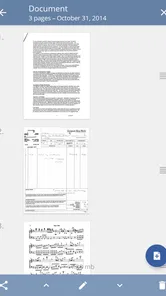
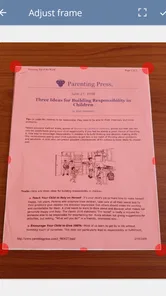
For a quick job, the sequence feels natural. I can place a page on a contrasting surface, frame it with the phone, and inspect the result before adding another page. That review step is important because a scan can look acceptable in the camera preview while still cutting off a signature or softening small print. I recommend checking the edges and the smallest text before leaving the original document aside.
The interface is best suited to people who prefer a direct visual workflow. Someone who already understands how phone cameras and PDF documents work will probably adapt quickly. A first-time scanner user may still need a few attempts to learn where capture, retake, page order, and saving actions appear. The app is not difficult, but scanning is a sequence of small decisions, and the screen does not replace good physical setup.
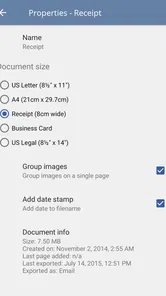
One useful habit is to scan a short document as a complete file instead of creating a separate file for every page. This keeps a form, invoice, or school handout together and reduces the chance of sending pages in the wrong order. I also found it sensible to pause after each page rather than rushing through several sheets. A little attention at that point prevents the more frustrating task of finding a missing corner later.
Readability depends on the original page as much as the app
TurboScan can make a phone capture look far more organized than an ordinary photograph, but it cannot rescue every poor original. Faded ink, glossy paper, deep shadows, handwriting over printed text, and pages folded near the margin all create problems before the app has a chance to process them. I get better results when the page is flat, the light is even, and the phone is held parallel to the paper.
More From Our News Desk

Weather by Xiaomi Review: Clear at a Glance, Less Clear Up Close

X Under Pressure: Can It Recover When Posting Goes Wrong?

Clash of Clans Is Won Between the Battles

Android Auto Makes the Case for Quieter Car Software

MobiOffice: Transforming Mobile Productivity with Seamless Integration

EA SPORTS FC™ Mobile Soccer: Redefining Mobile Sports Gaming
That is also where the app’s usefulness for different abilities becomes practical rather than theoretical. A person with reduced vision may benefit from a clean, high-contrast digital page that is easier to enlarge than a loose sheet. However, a scan is still an image-based representation unless the resulting document contains usable text recognition, and I would not assume that every scan becomes searchable or screen-reader friendly. If selectable text is essential, I would test a sample document before relying on it for accessibility.
For readers who struggle with visual clutter, the focused purpose is a strength. There are fewer unrelated tasks competing for attention than in a full document-management application. On the other hand, small controls, subtle icons, or a preview that requires close inspection may still be uncomfortable for someone with low vision. Increasing the phone’s system text size or display magnification may help where the app follows those settings, but I would not treat that as a guaranteed solution for every screen.
Motor demands are easy to underestimate
Scanning looks like a one-handed activity, yet the best results often require two hands: one to hold the phone steady and another to keep the document flat. People with tremors, limited grip strength, joint pain, or difficulty making precise movements may find the camera stage more demanding than the menus. A stable table, a document holder, or another person placing the page can make a noticeable difference.
I prefer using a surface rather than holding a sheet in the air. It reduces movement, keeps the edges visible, and gives me time to align the phone without fighting the paper. For a stack of pages, I would prepare the whole pile first and leave space around it. That avoids repeated reaching and makes the workflow less tiring for anyone who has limited range of motion.
There is a trade-off between speed and control. Automatic-looking capture behavior can feel convenient when the page is positioned perfectly, but a person who needs extra time may prefer to frame carefully and trigger the capture deliberately. If the app’s response feels too quick for your movements, slowing down the physical setup is usually more reliable than trying to correct several imperfect pages afterward.
Another important point is that a phone camera has physical limits. A user who cannot comfortably hold the phone above a page may need a stand or an improvised support. This is not a defect unique to TurboScan, but it affects whether the app is genuinely usable in a particular home, workplace, or classroom. The software can simplify document capture; it cannot remove the need to position the camera.
When the app works well outside an ideal desk setup
The most convincing everyday scenario for me is a person leaving a medical appointment, school office, rental meeting, or small business counter with several papers that should not be lost. Instead of carrying loose pages home and hoping they remain readable, I can scan them immediately while the information is still organized. A clean PDF is easier to send to a family member, colleague, or adviser than a collection of angled camera photos.
It also suits freelancers and small business owners who receive paper receipts or signed forms during the day. I would scan each document while the context is fresh, use a meaningful file name, and keep the original until I have checked the digital copy. That workflow is more dependable than photographing paperwork randomly and trying to identify it weeks later.
For students, the app can be useful when a library book, handout, or notice needs to be kept for later reference. The limitation is the same one found in many phone-scanning workflows: long academic material can become tedious, and a dedicated scanner or a document feeder is better for large batches. TurboScan is strongest when the task is occasional or moderate, not when someone must digitize an entire archive in one sitting.
Situational access also includes lighting and privacy. A dim room, a reflective desk, or a crowded public counter can make a scan harder to frame. I would avoid scanning sensitive documents where other people can easily see the screen, and I would review the destination before sharing anything. The app makes capture convenient, but convenience can encourage people to process private paperwork too quickly.
What I would check before choosing it
The app is free to install, with in-app purchases listed at $7.99 per item. That makes it easy to try the basic workflow before deciding whether it fits your needs. I would spend a few minutes scanning the exact kind of document I handle most often rather than judging it only with a clean printed page. A small receipt, a form with a signature, and a page with fine text reveal different weaknesses.
I would also decide whether I need a scanner or a complete document-management system. Compared with taking ordinary photos, TurboScan is more purposeful because it treats the result as a document rather than a casual image. Compared with a large office app, it is less distracting and quicker to open for a single page. But someone who needs advanced collaboration, extensive filing, automated text extraction, or a high-volume paper workflow may be better served by a broader tool or dedicated hardware.
The developer is Piksoft Inc., and the app has been available since July 23, 2015. Its age suggests a product with a long presence in the category, but it also means I would not assume that every modern accessibility expectation is covered simply because the app is established. I look for practical behavior: whether controls are understandable, whether the preview is easy to inspect, and whether the finished file works in the apps I already use.
The Everyone age rating makes it suitable in principle for a wide range of users, including households and general workplace settings. That rating does not mean every person will find the physical scanning process comfortable. A child, older adult, or user with limited dexterity may still need help positioning pages or checking the final result. Inclusive use often depends on the surrounding setup as much as the software.
Remaining barriers in the workflow
My main reservation is that document scanning combines visual judgment with physical precision. I have to recognize whether all corners are present, notice blur or glare, hold the phone steadily, and then confirm that the saved document is correct. Anyone who has difficulty with one of those steps may need a slower routine or assistance from another person.
There is also a difference between a readable scan and an accessible document. A page can look excellent while remaining inconvenient for a screen reader, text search, or reflow. If I were scanning material for someone who cannot use visual PDFs comfortably, I would confirm whether the recipient needs an alternate text-based format instead of assuming that a polished scan solves the problem.
Long sessions may expose more friction than occasional use. Repeatedly lifting a phone, aligning pages, and checking previews can cause fatigue. For that reason, I would divide a large job into shorter batches and label each finished file immediately. This is a simple organizational measure, but it also reduces the cognitive load of returning to a pile of nearly identical documents.
Sharing is another point where I would slow down. A scan may contain addresses, account details, signatures, or other private information. Before sending it, I would open the finished file, verify the page order, and confirm the recipient. The app helps create the document, but safe handling still depends on the user’s choices after capture.
Finally, people who need guaranteed hands-free operation, extensive keyboard control, or a fully voice-driven process should test the app in their own environment before committing to it. I would not describe TurboScan as an accessibility specialist. I see it as a straightforward scanner whose usefulness can be improved with stands, good lighting, system accessibility settings, and a careful checking routine.
My inclusive verdict
I recommend TurboScan for people who want a focused way to turn occasional paper documents into PDFs and who can comfortably manage the camera positioning. Its uncluttered purpose, quick capture workflow, and strong adoption make it a sensible first app to try for receipts, forms, notes, and small business paperwork. I especially like it when the alternative is leaving important pages as poorly framed camera photos.
I would be more cautious for users who need fully searchable text, screen-reader-ready documents, hands-free operation, or high-volume scanning. In those situations, a dedicated scanner, a document feeder, or a tool built around text recognition may be the better choice. The right decision depends less on how impressive the scan looks and more on what the recipient must do with the file afterward.
For most everyday users, the best results come from treating the app as one part of a workflow: prepare a stable surface, use even light, capture slowly, inspect every page, name the file clearly, and keep the original until the digital copy is confirmed. The most important accessibility advantage is not speed alone, but the ability to create a cleaner document without adding unnecessary software complexity.
Overall, I see TurboScan as a practical and approachable business app rather than a complete answer to every document or accessibility need. If your goal is to digitize a few pages at a time and share them in a tidy format, it is easy to recommend. If your needs involve large archives, essential text extraction, or significant motor and sensory barriers, I would test it with real documents first and compare the result with hardware or software designed specifically for those demands.
TurboScan™: PDF scanner Frequently Asked Questions
What kinds of documents can I scan with TurboScan™: PDF scanner?
TurboScan™ can turn paper items such as receipts, forms, contracts, notes, and business cards into digital copies using your phone. It is handy when you need to keep paperwork accessible without using a traditional scanner. After capturing a page, review the result before saving or sharing it, especially if the document contains small text or important details.
Can I use TurboScan™ to keep paperwork organized on my phone?
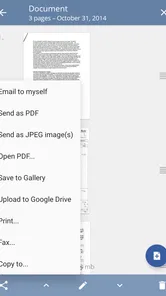
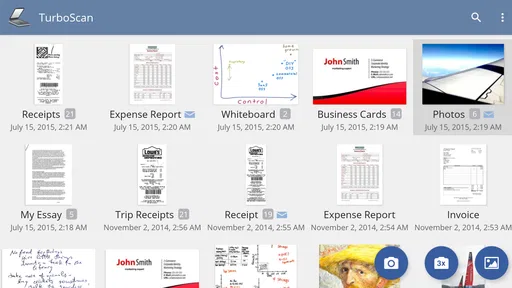
TurboScan™ is designed to create digital copies of paper documents, which can make everyday paperwork easier to keep on your device. You can scan items such as receipts, forms, and notes, then save them as PDF or image files. A sensible workflow is to check each scan and give it a recognizable name so you can find it again when needed.
Is TurboScan™: PDF scanner suitable for business paperwork?
Yes. TurboScan™ is a business app that turns your phone into a document scanner, making it useful for digitizing paperwork while you are away from an office scanner. It can help keep receipts, forms, contracts, and notes in digital form for later use. Its appeal is straightforward: capture a paper document with your phone and create a digital copy that is easier to store or share.
What is TurboScan™: PDF scanner used for?
TurboScan™: PDF scanner turns your Android or iOS device into a portable document scanner. You can capture receipts, contracts, notes, forms, business cards, and other paper documents with the phone camera, then save them as PDF or image files. It is especially useful when you need a quick digital copy without access to a traditional scanner.
Does TurboScan™ produce clear and readable scans?
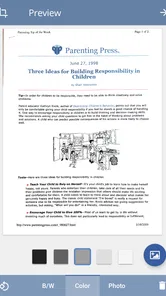
In testing, scan quality depends mainly on lighting, camera focus, and how flat the document is placed. The app provides tools for detecting page edges, correcting perspective, and improving contrast, which generally makes text easier to read than an ordinary camera photo. For the best results, use bright, even lighting, avoid shadows, and keep the phone steady while capturing each page.
Pros
- Scans documents quickly with clear
- readable results.
- Automatic edge detection helps crop pages accurately.
- Supports multi-page documents and PDF creation.
- Can export scans to email
- cloud storage
- or other apps.
- Useful filters improve contrast for faded or uneven pages.
Cons
- Some advanced features require a paid upgrade.
- OCR and text editing options may be limited.
- The free version may include restrictions on saved documents.
- High-resolution scans can use considerable storage space.
- Camera quality strongly affects the final scan clarity.