Turbo Fax: send fax from phone
- 2.02K
- 4.6
- Installs
- 100.00K
- Price
- Free
Screenshots
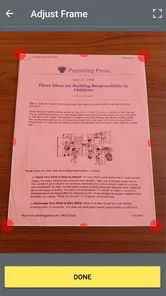
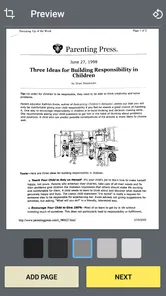
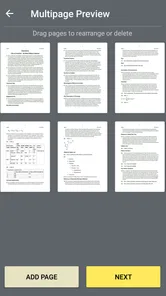
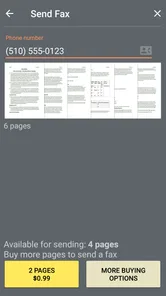
Analysis by Reviewed
When I need to send a fax but do not have access to a traditional machine, Turbo Fax gives me a practical route from my phone. It is a free business app from Piksoft Inc. that focuses on turning a phone camera or an existing PDF into a fax workflow. That sounds simple, but the real value is avoiding the usual chain of printing, scanning, and standing beside a dedicated fax machine.
I see it as a useful tool for occasional office tasks rather than a complete replacement for every professional fax setup. The experience depends heavily on the quality of the document, the phone’s camera, and the strength of the connection at the moment I send something. Still, for a person who receives a last-minute form or needs to return a signed page while away from work, it can remove a surprising amount of friction.
How the app feels in everyday use
The app belongs to the business category, but it is approachable enough for people who rarely send faxes. The basic idea is easy to understand: prepare a document, enter the destination details, and send it from the phone. I do not have to plan around a physical machine, find a printer, or convert a PDF through another application before starting.
That convenience matters most in ordinary situations. Imagine receiving a form by email while travelling, signing it on paper, and needing to return it before the end of the day. With this app, I can work from the phone instead of waiting until I get back to an office. It is also handy for a small business owner who visits clients, a freelancer handling administrative paperwork, or a family member helping with a document from home.
The app’s short store description is “Turbo Fax,” while its longer purpose is sending a fax from a phone or using an existing PDF. I found that distinction important because the best workflow is not always taking a new picture. If I already have a clean document file, using that file should normally give a more predictable result than photographing a screen or a wrinkled sheet.
Choosing the right source before sending
A useful decision is whether to start with a digital file or a paper original. If the document arrived as a PDF, I would use that instead of printing it just to photograph it again. That avoids adding blur, shadows, or perspective distortion to a file that may already be ready to send. If the only copy is on paper, a careful camera capture is the practical route, but it deserves a moment of attention before I move on.
For a form that needs a handwritten signature, I would print and sign it only if that is what the recipient requires, then check that the signature and any nearby instructions remain legible in the phone’s preview. A photo can make a page look fine at a glance while reducing the clarity of small fields. The most useful habit is to inspect the details that matter to the recipient, not just confirm that the whole sheet fits on screen.
More From Our News Desk

Weather by Xiaomi Review: Clear at a Glance, Less Clear Up Close

X Under Pressure: Can It Recover When Posting Goes Wrong?

Clash of Clans Is Won Between the Battles

Android Auto Makes the Case for Quieter Car Software

MobiOffice: Transforming Mobile Productivity with Seamless Integration

EA SPORTS FC™ Mobile Soccer: Redefining Mobile Sports Gaming
What affects perceived speed
The process feels quick when the source document is ready and the destination information is at hand. Preparing a single, clear page is naturally less demanding than dealing with several pages that need checking. The app itself is not the only factor in how fast the task feels; document preparation, camera capture, and transmission all contribute to the experience.
I would not judge its speed solely by how rapidly the first screen opens. A fax workflow is successful only when the document is readable and the transmission reaches the intended destination. Rushing through the preparation stage can create a bigger delay later if I have to correct a blurry page or resend an incomplete document.
For the quickest routine, I recommend keeping the original PDF in an easy-to-reach location before opening the app. When using the camera, I place the page on a flat, contrasting surface, avoid shadows, and check the preview carefully. This small habit is more useful than simply trying to tap through the screens faster.
Handling a larger or more urgent batch
Heavy use is where I would be more cautious. Sending several pages in one sitting creates more opportunities for problems: a page can be captured at the wrong angle, a signature can become hard to read, or a document can be sent before I notice that something is missing. The app is convenient, but convenience does not remove the need for a page-by-page review.
For a longer document, I would prepare everything first rather than alternating between document hunting and faxing. Naming or grouping the source files clearly helps prevent sending the wrong version. If the pages are physical, I would arrange them in order before opening the camera workflow. That makes the phone a tool in a controlled process instead of the place where every decision happens at once.
There is also a practical trade-off between mobile freedom and office-scale efficiency. A traditional fax machine or a dedicated business service is usually better when a team sends documents continuously throughout the day. Turbo Fax makes more sense when the problem is access: I need to send something now, but I am not near the normal equipment.
Reliability depends on preparation
My view of reliability here is tied to the entire chain, not just the app interface. A clear PDF is a strong starting point. A poorly lit photograph, a cropped corner, or a page with tiny text puts the result at risk before transmission even begins. The phone’s connection also matters, especially when I am working away from a stable office network.
I would always inspect the final document before sending sensitive paperwork. This is particularly important for forms with small boxes, handwritten notes, signatures, or numbers that could be confused if the image is soft. A quick zoomed-in check can catch a missing page or an unreadable line while correction is still easy.
Another useful habit is keeping the original file until the recipient confirms that the fax is acceptable. The app can simplify sending, but it should not become the only copy of an important document. If a recipient reports that a page is unclear, having the source ready lets me correct the problem without recreating the document from memory.
Recovery is therefore partly a user workflow issue. If a transmission does not go as expected, I would first check the document, destination details, and connection before assuming the phone or app is at fault. Retrying the same poor scan will not improve the outcome. Replacing it with a cleaner PDF or a better-lit capture is usually the more sensible second attempt.
Phone limitations and document quality
The minimum operating system is Android 5.0, which makes the app accessible on a broad range of Android phones. That does not mean every older device will feel equally comfortable for document work. Screen size, camera quality, storage condition, and general system responsiveness can all affect how easy it is to prepare a fax.
On a phone with a basic camera, I would avoid photographing pages in dim rooms or under uneven lighting. A newer camera can help, but it cannot fix a folded page, glare, or text that is too small in the original. For important paperwork, an existing digital document remains my preferred source whenever possible.
Resource demands are also worth considering in practical terms. A single-page task should be relatively straightforward, while a phone already struggling with several open apps may make the overall process feel less fluid. Before sending a larger document, I would close distractions, make sure the source file is available locally, and avoid switching repeatedly between applications.
This is not an app I would choose for someone who dislikes handling documents on a small screen. Entering details, checking pages, and confirming the right file can be less comfortable on a phone than on a desktop. Likewise, people who need formal office controls, shared queues, or a highly structured team workflow may be better served by a dedicated business fax platform.
Costs and the practical value of free access
The app is free to install, which makes it easy to try for an occasional need. It also includes in-app purchases ranging from $1.49 to $8.99 per item. I would treat that as an important part of the decision: the initial download does not necessarily mean every possible use is covered without additional spending.
For someone who sends a fax only when a particular office requires one, the convenience may justify paying for the needed action. For frequent users, the costs can become more significant over time, so I would compare the expected usage with a regular fax service before making it part of a daily business process.
The best value comes from matching the app to the situation. If I need one document sent while away from a machine, paying for mobile convenience can be reasonable. If I send many documents every week, a service designed around recurring business use may offer a clearer overall arrangement, even if it feels less immediate.
What the alternatives do better
The usual alternatives solve different parts of the problem. A physical fax machine is a natural fit if I am already in an office with one and send documents regularly; it avoids managing the task on a small screen. A desktop-based fax service may suit a team that needs a more organized shared workflow. By contrast, a phone app is strongest when I am away from both and need to act on a specific document without setting up a larger system.
Email is simpler when the recipient accepts it, but it is not interchangeable with fax if an organization specifically asks for a faxed form. I would first confirm whether email or a secure electronic submission is acceptable, since avoiding an unnecessary fax can be easier than choosing between fax tools. When fax is required, this app’s appeal is mobility, not a promise to replace every office process.
Who will appreciate it most
I think Turbo Fax is a good fit for people who need occasional mobility rather than constant fax volume. It can help independent workers, travelling professionals, small offices without a dedicated machine, and anyone who receives PDFs but still has to communicate with an organization that accepts fax.
It is especially useful when the document already exists as a clean PDF. That workflow avoids unnecessary printing and rescanning, and it reduces the chance that camera movement or lighting will affect the result. A person who routinely receives forms electronically may find this more useful than someone who mostly handles paper documents.
A realistic example is a freelancer finishing a client visit and receiving a signed form that needs to go back to an office before the day ends. If the page is already a PDF, the phone can bridge the gap between being away from a desk and completing the administrative task. If the document is a stack of delicate originals or a large set of forms, I would slow down and consider a scanner or office service instead.
I would skip it if my main requirement is a full office fax system with shared access, predictable high-volume handling, or centralized administration. I would also look elsewhere if I need a broader document-management environment rather than a focused way to send paperwork from a phone.
Reaching a sensible performance verdict
After using it as a mobile business utility, I see the main strength as flexibility. The app lets me respond to a fax request without being tied to a traditional machine, and the PDF option makes it more practical than a camera-only approach. Its performance feels best when I prepare the document carefully and use it for a focused task.
The limitations are equally clear. A phone is not the most comfortable place to manage a large batch, and the quality of the final fax depends on more than the app. Camera conditions, document layout, connection quality, and user checking all matter. The purchase model also deserves attention if occasional use turns into regular use.
Piksoft Inc. has kept the idea focused, and the app’s audience response suggests that many people find that focus useful: it holds a 4.6 average from around 3.6 thousand ratings, with over 100 thousand installs. It is rated for Everyone, and the current version is 1.0.13. Those figures do not change my practical advice, but they do indicate that this is an established option rather than an obscure experiment.
My final recommendation is straightforward: use it when mobile access solves a real problem, particularly when you already have a clean PDF and only need to send a document now and then. Before pressing send, verify every page, inspect small text, and keep the original file. The app is most dependable when it is part of a careful document workflow, not when it is expected to rescue a poor scan or replace a busy office fax system.
Turbo Fax: send fax from phone Frequently Asked Questions
Can I use Turbo Fax on my phone, and what does it need to run?
Turbo Fax is a mobile app for sending faxes from a phone, and it is listed for Android and iOS. The Android version requires Android 5.0 or later, so check your device’s operating system before installing. You will also need an internet connection to prepare and submit documents, since the app generally processes fax transmissions online.
Who makes Turbo Fax, and is it suitable for everyday users?
Turbo Fax is developed by Piksoft Inc. and belongs to the Business category, though its scan-and-fax approach may also suit personal paperwork. It has an Everyone content rating, making it broadly suitable for users of all ages. The app has a 4.6 average from around 3.6K ratings, which can offer a useful snapshot of how other users rate it.
What is Turbo Fax: send fax from phone, and how does it work?
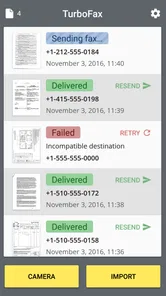
Turbo Fax is a mobile faxing app designed to let you send documents directly from an Android or iOS phone. After opening the app, you can import a file, scan pages with the camera, or select an image from your gallery, enter the recipient’s fax number, and submit the transmission. The app generally processes the document online, so a stable internet connection is required.
What types of documents can I send with Turbo Fax?
Turbo Fax is intended for common business and personal documents, including PDFs, scanned paperwork, photos, forms, and image files. Before sending, it is worth checking that every page is readable, correctly oriented, and included in the right order. Large files or unsupported formats may need to be converted to PDF or reduced in size before they can be uploaded successfully.
Is Turbo Fax free to use, or does it require payment?
Although the app may be free to download, fax transmission is commonly handled through credits, subscriptions, or in-app purchases rather than being completely free. The exact price can depend on the number of pages, destination, and current offer shown in the app. Review the checkout screen carefully, especially renewal terms, before confirming a purchase or subscription. In-app purchases are listed from $1.49 to $8.99 per item.
Pros
- Send faxes directly from your phone without needing a physical fax machine.
- Useful for sending documents while traveling or working remotely.
- Supports common file formats for attaching documents to a fax.
- Provides a straightforward workflow for entering fax numbers and recipients.
- Can be convenient for occasional faxing when traditional services are unavailable.
Cons
- Fax credits or subscriptions may become expensive for frequent users.
- Delivery can depend on mobile data or Wi-Fi availability.
- Sensitive documents may require extra care when uploaded to the service.
- International faxing may involve additional fees or restrictions.
- Some advanced options may be limited to paid plans.