ReArty: AI Photo, Video Maker
- 48.00
- 4.4
- Installs
- 10.00K
- Price
- Free

Screenshots
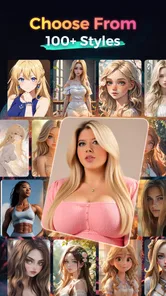
Analysis by Reviewed
ReArty: AI Photo, Video Maker is the kind of AI art and photo editing app I would suggest to someone who wants quick creative results without learning a full desktop editor. I found its appeal in the way it brings several popular ideas into one place: AI-generated images, AI-assisted video creation, portrait work, headshot styling, and playful visual filters. It is free to install, aimed at Teen users, and developed by BlazeTech LTD.
My first impression was that ReArty is designed for experimentation rather than painstaking manual retouching. You start with an image or an idea, choose a visual direction, and let the app do much of the heavy lifting. That makes it approachable for social posts, profile pictures, mood boards, casual invitations, and personal projects where speed matters more than pixel-perfect control.
The important expectation to set is this: ReArty is not a replacement for a professional design suite. It is better understood as a creative shortcut. When the source photo is clear and the requested style is simple, the result can feel surprisingly useful. When the image is complicated, heavily cropped, or very specific in its requirements, the AI may need several attempts before it produces something worth keeping.
Getting from installation to a useful first result
I’d use the first session to learn how ReArty treats one image, rather than trying every creative route at once. Starting with a clear portrait and a simple goal makes it easier to judge whether the result is genuinely useful or merely striking at thumbnail size. That gives a practical foundation for choosing the right tool next.
What the app is best at when you first open it
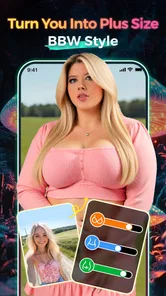
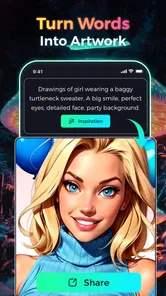
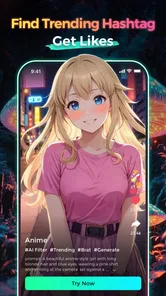
The store summary presents ReArty as an AI photo and video generator with an AI headshot tool, a BBW filter, and an AI image editor. In practice, I would approach those options as different creative routes rather than expecting one button to solve every editing task. A headshot workflow is about presenting a person cleanly; an art workflow is about changing mood or style; a video workflow is about turning visual material into something more dynamic.
That distinction helps avoid a common beginner mistake: choosing the most dramatic effect before deciding what the final image is for. If I need a professional-looking profile picture, I would begin with a well-lit, front-facing photo and keep the styling restrained. If I am making a humorous post or a fantasy image, I can accept more variation and use the process as a form of visual play.
The app currently carries a 4.4 average from around one hundred ratings, with roughly fifty written reviews, and has passed ten thousand installs. Those figures suggest a modest but active user base rather than a long-established editing giant. I see that as useful context: ReArty feels like an app to explore for its particular AI tools, not an all-purpose editor with years of mature workflow features behind it.
More From Our News Desk

 Gmail
GmailGmail in a Busy Inbox: Who Benefits Most?
From first account to crowded workday, Gmail earns its place through dependable search and flexible sorting—but its best fit depends on how much inbox maintenance you can tolerate.

 Prime Video
Switching to Prime Video: What Changes in Your Viewing Routine
Prime Video can make a compelling second home for streaming, but switching means learning a different catalog, rental layer, and route from browsing to playback.

 Universal TV Remote Control
Universal TV Remote Control Works Best as a Reliable Backup
A phone remote earns its place through quick setup and reliable habits. Here is how to get more from Universal TV Remote Control—and where its limits show.

 Weather - By Xiaomi
Weather by Xiaomi Review: Clear at a Glance, Less Clear Up Close
Xiaomi’s weather app makes everyday forecasts quick to scan, but its calm surface can leave useful details and recovery paths harder to find than they should be.

 X
XX Under Pressure: Can It Recover When Posting Goes Wrong?
A resilience-focused review of X, examining setup, mistaken posts, interruptions, weak connections, and the gaps that matter when recovery needs to be dependable.

 Clash of Clans
Clash of Clans Is Won Between the Battles
Its raids are quick; its community is a long-term project of coordination, teaching, rivalry, and shared responsibility—with all the friction that entails.
Latest News



The first setup should be treated as a creative decision
After installing the app, I recommend taking a moment to decide whether you are starting from a photo or from an idea. A photo-based task is usually the gentler introduction because you can immediately judge whether the transformation has preserved the person, pose, and overall composition. An idea-based task gives more freedom, but it also makes the result harder to evaluate because there is no original image for comparison.
Choose the cleanest source you have. A face that is visible, reasonably sharp, and not hidden by sunglasses, a heavy shadow, or another person gives the AI a better starting point. This is especially important for headshot-style work. A low-quality original can make the final image look polished at first glance while still producing subtle problems around eyes, hair, teeth, or facial proportions.
I also suggest keeping the first prompt or creative request uncomplicated. Instead of combining several moods, locations, outfits, and artistic references in one attempt, begin with one clear direction. For example, a simple portrait mood is easier to assess than a request that simultaneously asks for a cinematic background, a formal outfit, a fantasy atmosphere, and a specific lighting setup. Once the basic result works, add one change at a time.
ReArty is free to use in the sense that the app itself costs nothing to download, but it includes purchases ranging from $4.99 to $29.99 per item. That matters before you start generating repeatedly. I would inspect which creative actions are available without payment and which ones may lead toward a purchase, especially if you are testing many variations. The free entry point is convenient, but AI processing can encourage casual, repeated experimentation.
Your first meaningful success: make one practical image
For a first result, I would not begin with the most unusual filter. I would use a portrait that already has decent lighting and try to create a cleaner, more intentional version of it. The goal is not merely to produce something flashy; it is to learn how ReArty handles your face, the background, and the requested style.
Once the image is loaded, choose a style that matches the intended use. A restrained headshot can be useful for a profile or personal introduction, while a more expressive AI art treatment may work better for a social post. Keep the first request narrow, generate the result, and inspect the details at full size rather than judging only the thumbnail.
That last step is one of my most useful tips. AI images often look excellent when viewed small because the overall color and composition are convincing. At a larger view, you may notice a hand that does not look natural, jewelry that changes shape, lettering that is unreadable, or hair blending into the background. ReArty can still be valuable, but the final check should happen before you share the image.
If the first attempt is close but not right, change the source before changing everything else. A different crop, a more direct pose, or a photo with a simpler background can improve the outcome more than adding increasingly complicated instructions. This is a practical trade-off: the app gives you speed, but the quality of that speed depends heavily on what you feed it.
How I would use the portrait and body-focused tools
The AI headshot function is most appealing when you need a presentable portrait quickly and do not want to arrange a formal photo session. I would use it for a personal profile, a creator introduction, a casual portfolio page, or a visual identity experiment. I would not treat the generated portrait as an official identity document or as a substitute for a photograph that must represent you with strict accuracy.
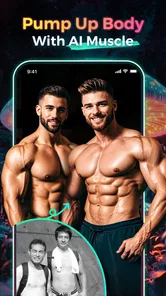
The BBW filter deserves a thoughtful approach. Body-focused transformations can be entertaining or affirming when used with consent and a clear personal purpose, but they can also produce awkward proportions or reinforce unrealistic expectations. I would use it as a creative effect, not as a measurement tool or a judgment about someone’s body. If another person appears in the source image, ask permission before transforming or sharing it.
A useful workflow is to keep the original photo untouched, create one edited version, and compare the two before deciding what to publish. This protects you from losing the natural reference and makes it easier to spot changes that look attractive at first but do not actually resemble the person. It also helps when you are trying several styles and want to return to the version that feels most authentic.
Turning still images into a more purposeful video
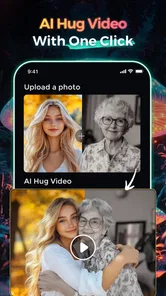
ReArty’s video-generation angle is worth exploring when a static image feels too limited for the platform where you plan to use it. A short animated visual can work for a story post, a mood clip, a simple announcement, or a personal montage. I would begin with one strong image rather than a crowded collage, because a single subject gives the motion or transformation a clearer focus.
The key is to decide what the video is meant to communicate. If it is a portrait reveal, the face should remain the visual anchor. If it is an art experiment, color and atmosphere may matter more than realism. This decision prevents the common problem of adding movement simply because the tool allows it. A moving image is not automatically more effective than a still one.
I would also save a copy of the original before trying video treatments. AI transformations can change the feeling of a photograph in ways that are difficult to reverse. Keeping the source lets you compare versions and reuse the image for a different purpose. For a small social project, that simple habit is more useful than generating many variations without a plan.
Common confusion during the first session
The biggest source of confusion is the difference between editing an existing photo and generating a new visual direction. An editor is expected to preserve more of the original, while generative AI may reinterpret important details. If you ask for a major style change, do not be surprised when clothing, background elements, or facial details shift along with the mood.
Another point to remember is that an attractive preview is not the same as a finished asset. Check faces, fingers, text, logos, edges, and repeated patterns. These areas tend to reveal mistakes more clearly than broad backgrounds. If the image includes words, I would add the final text in a separate design app rather than relying on AI to render exact spelling.
It can also be unclear which option to choose when several tools appear to overlap. My rule is simple: use the headshot route for a personal portrait, the image-editing route when you want to preserve a source photo while changing its appearance, and the video route when motion itself is part of the idea. Use the playful filters only after you know what you want the result to do.
Version 2.9.0 is the current version, and the app supports Android 7.0 or later. That makes it accessible to many Android users, including people who are not using a recent phone. Still, AI creation can feel less comfortable on older hardware or slower connections, so I would avoid starting a large batch when I need an immediate result. Patience is part of the experience when the processing is more demanding.
Three practical workflows that make ReArty more useful
My first recommended workflow is a profile refresh. Select one clear portrait, try a conservative headshot treatment, inspect the face at full size, and keep the version that still looks recognizably like you. This is better than choosing the most glamorous result automatically, because a profile image needs consistency and trust as well as visual polish.
The second is a small content kit for a personal project. Create one main AI art image, then use a related treatment for a second visual instead of asking the app to produce completely unrelated designs. Keeping the subject or mood consistent can make two separate images feel connected, which is useful for a post series, event announcement, or simple presentation.
The third is a before-and-after experiment. Use the same source image with a restrained style and then a more dramatic one. Compare not only which image looks better, but which one communicates your purpose more clearly. This reveals an important trade-off: the most technically transformed result may be less useful if it hides the subject or makes the image feel generic.
For users who enjoy body-positive creative expression, a fourth workflow is to make a private set of variations before sharing anything publicly. Try the BBW filter or another transformation, review the results calmly, and choose only images that feel comfortable and respectful. This reduces the pressure to accept the first output and keeps the creative process personal rather than performative.
Where the app fits among familiar alternatives
Compared with a traditional photo editor, ReArty asks you to make fewer manual decisions. That is its strongest advantage when you want a fast transformation and do not want to spend time adjusting masks, curves, layers, or individual retouching controls. A conventional editor remains the better choice when you need exact placement, reliable typography, detailed color correction, or repeatable brand templates.
Compared with a dedicated AI image generator, ReArty may feel more convenient for people who want portrait and photo work alongside artistic experimentation. Its appeal is the combination of use cases in one app. The trade-off is that a specialized generator may offer deeper control over prompts or styles, while a professional video editor will usually provide more dependable timing, sound, transitions, and export control.
For everyday social content, I would use ReArty to create the visual starting point and another editor to finish a layout when necessary. That two-step workflow is not a failure of the app; it is a realistic way to use AI tools. ReArty is strongest at inspiration and transformation, while conventional tools remain stronger at precise finishing.
Who should try it, and who should skip it
I think ReArty is a good fit for first-time AI creators, casual photographers, social media users, and anyone who wants to test several visual directions without committing to a complicated editing program. It is also useful for people who have an ordinary portrait and want to explore a more polished or artistic presentation quickly.
I would be more cautious if you need exact likeness preservation, professional retouching, strict control over every object, or dependable text inside generated artwork. Designers working with fixed brand rules may prefer a layered editor. People who dislike iterative experimentation may also find the AI approach frustrating, because a result that is nearly right can still require a new source image or another attempt.
Privacy and consent should guide how you use any portrait tool. I would avoid uploading someone else’s face without permission and would think carefully before turning a private photograph into a public post. The ability to transform an image quickly does not remove the responsibility to use it respectfully.
My next-step advice after the first successful image
Once you have one result you genuinely like, do not immediately generate ten more. Save the successful source, note what made it work, and make one controlled variation. You may discover that a particular crop, expression, or level of styling suits your face better than the most dramatic preset. That personal knowledge is more valuable than collecting random outputs.
If you plan to pay for additional creative actions, decide what you are trying to finish before spending. A single useful headshot or a small set of coherent visuals is a better reason to purchase than endless browsing through effects. Because individual in-app items range from $4.99 to $29.99, setting a limit in advance can keep experimentation from becoming an accidental expense.
ReArty is free to begin with and has enough variety to make the first session feel rewarding, especially if you arrive with a clear photo and a modest goal. Its limitations are tied to the same AI freedom that makes it fun: results can vary, details may need inspection, and precise professional work still belongs in a more controlled editor. My recommendation is to treat ReArty as a fast creative studio for discovering possibilities, then keep only the images that remain convincing when you look closely.
ReArty: AI Photo, Video Maker Frequently Asked Questions
What devices and operating systems can run ReArty: AI Photo, Video Maker?
ReArty is an Art & Design app for Android, and its minimum operating system requirement is Android 7.0. Before downloading, check your device’s Android version and available storage, particularly if you plan to work with photos or videos. The app is developed by BlazeTech LTD and is rated for Teen users.
Who makes ReArty, and how established is it?
ReArty: AI Photo, Video Maker is developed by BlazeTech LTD. It has reached over 10,000 installs and has an average rating of 4.4 from 138 ratings, with 48 written reviews. Those figures can offer a quick sense of its presence and user feedback, but your own experience may depend on the features you use and how well the app suits your creative needs.
What is ReArty: AI Photo, Video Maker used for?
ReArty: AI Photo, Video Maker is a creative editing app designed for turning ordinary photos and videos into stylized visual content. It typically combines AI effects, artistic filters, templates, animations, and editing tools in one place. You can use it to create profile pictures, social media posts, short videos, slideshows, and other personalized designs without needing advanced photo or video editing experience.
Does ReArty require any editing skills or technical knowledge?
No advanced editing knowledge is generally required. ReArty is built around ready-made effects, presets, templates, and automated AI tools, so most users can begin by selecting a photo or video and choosing a visual style. More experienced users may also appreciate the ability to adjust elements such as intensity, timing, cropping, or other available settings, depending on the feature being used.
Is ReArty: AI Photo, Video Maker free to download and use?
ReArty is free to download, but some of its content can be restricted to paid purchases. In-app purchases range from $4.99 to $29.99 per item, and certain AI styles, effects, templates, export options, or advanced editing features may require payment. Before confirming a purchase, check the price and terms shown in the app so you know what is included.
Pros
- Creates artistic photo effects quickly with minimal editing skills.
- Offers creative AI styles for portraits
- landscapes
- and everyday images.
- Useful for generating social media content and profile pictures.
- Simple interface makes experimenting with different effects convenient.
- Can turn selected photos into short
- stylized video creations.
Cons
- AI results may vary noticeably depending on the original image quality.
- Some advanced styles or exports may require a paid subscription.
- Processing can take longer when creating videos or high-resolution effects.
- Results may include unnatural details
- especially in faces or backgrounds.
- Frequent creative use may require a stable internet connection and extra data.