

Pic Stitch: Collage Maker
- 3.14K
- 3.4
- Installs
- 5.00M
- Price
- Free

Screenshots
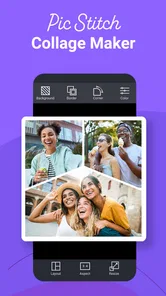
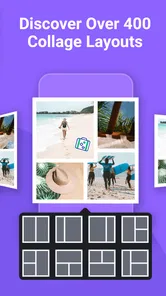
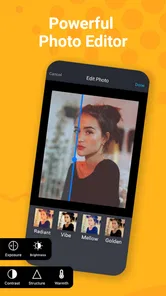
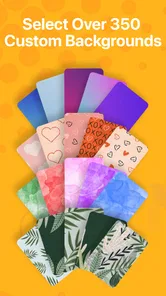

Analysis by Reviewed
I like photo apps that solve one clear problem without turning a simple task into a design project. Pic Stitch: Collage Maker takes that approach: it is a photography app for arranging several pictures into a single framed collage. I tested it with the kind of images people usually want to combine—family moments, travel snapshots, product photos, and quick social posts—and found that its appeal is strongest when speed and structure matter more than detailed graphic design.
Developed by Maple Media, the app is free to install and aimed at Teen users. It has been available since October 15, 2014, and its current Android version is 8.0.0(876), with Android 6.0 or later required. The basic idea is easy to understand, which is probably why it has passed five million installs. Still, the experience is not perfect, and whether it suits you depends heavily on how much control you expect from a collage editor.
How quickly can you make a collage?
The first thing I noticed is that Pic Stitch is built around reducing decisions. Instead of starting with a blank canvas and manually placing every image, I could focus on choosing a layout, adding photos, and adjusting the result. That makes it a practical choice when I want something finished in a few minutes rather than an elaborate composition.
For a normal four-photo arrangement, the workflow feels direct. I choose a frame pattern, fill its spaces with images, and then make small corrections to cropping and positioning. The app’s main strength is not artistic freedom; it is the way a group of unrelated pictures can quickly become a tidy, shareable image.
That speed is especially useful for everyday situations. Imagine returning from a weekend trip with dozens of pictures but wanting to send one image to a family chat. Rather than selecting a single favorite or sending a long sequence, I can combine a landscape, a meal, a group portrait, and a small detail into one collage. The result gives the viewer context without requiring a separate album.
There is also a useful distinction between choosing photos quickly and finishing them well. The initial arrangement is fast, but I still need to inspect faces, horizons, and important objects after the images are placed. Automatic cropping can make a person look too close to an edge or remove the detail that made a photo worth including. My advice is to treat the first layout as a starting point, not the final design.
The best speed improvement comes from selecting photos with the same visual purpose. A collage made from four portraits usually needs different spacing than one made from a portrait, a wide landscape, a receipt, and a product shot. If I pick images with similar orientation and subject scale, I spend less time correcting awkward crops.
More From Our News Desk

 Gmail
GmailGmail in a Busy Inbox: Who Benefits Most?
From first account to crowded workday, Gmail earns its place through dependable search and flexible sorting—but its best fit depends on how much inbox maintenance you can tolerate.

 Prime Video
Switching to Prime Video: What Changes in Your Viewing Routine
Prime Video can make a compelling second home for streaming, but switching means learning a different catalog, rental layer, and route from browsing to playback.

 Universal TV Remote Control
Universal TV Remote Control Works Best as a Reliable Backup
A phone remote earns its place through quick setup and reliable habits. Here is how to get more from Universal TV Remote Control—and where its limits show.

 Weather - By Xiaomi
Weather by Xiaomi Review: Clear at a Glance, Less Clear Up Close
Xiaomi’s weather app makes everyday forecasts quick to scan, but its calm surface can leave useful details and recovery paths harder to find than they should be.

 X
XX Under Pressure: Can It Recover When Posting Goes Wrong?
A resilience-focused review of X, examining setup, mistaken posts, interruptions, weak connections, and the gaps that matter when recovery needs to be dependable.

 Clash of Clans
Clash of Clans Is Won Between the Battles
Its raids are quick; its community is a long-term project of coordination, teaching, rivalry, and shared responsibility—with all the friction that entails.
Latest News



What the editing process feels like
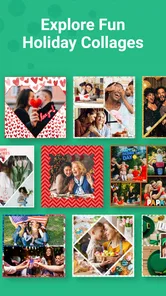
Pic Stitch is most comfortable when I want a framed grid rather than a poster-style composition. The frame gives the collage a clear structure, and that makes it suitable for memory keeping, simple announcements, before-and-after comparisons, or a compact visual update. The trade-off is that the finished image can feel more template-driven than individually designed.
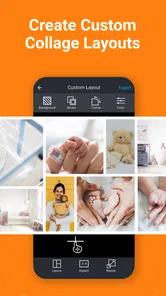
I would not choose it first for a carefully branded social campaign or a complex invitation. Those projects usually need precise typography, layered graphics, custom spacing, and exact control over every element. A dedicated design app is better for that kind of work. Pic Stitch makes more sense when the photographs themselves are the main content and the frame simply needs to organize them.
The app is free, but in-app purchases range from $0.99 to $99.99 per item. That matters because a person looking for a completely unrestricted editor should check the available options before building a regular workflow around it. I can use the free starting point to judge whether the editing style suits me, but I would not assume that every desirable customization is included without charge.
Where it fits among familiar alternatives
The usual alternatives fall into two groups. Gallery apps may offer basic photo combinations, but they often provide less control over the visual arrangement. Full design tools provide more control, but they also introduce more panels, settings, and opportunities to overwork a simple image. Pic Stitch sits between those extremes.
Compared with a general-purpose design editor, it feels easier to approach when the goal is specifically a photo collage. Compared with a basic gallery function, it gives the task more visual intention through framed layouts. The compromise is flexibility: users who want freeform positioning, elaborate text treatment, or extensive retouching may quickly feel confined.
I also prefer it over manually assembling images in a document when I need a quick result. Manual assembly gives me more control but creates extra work around alignment and spacing. Here, the frame handles much of that structure. The app earns its place when convenience is more important than creating something completely unique.
What happens during heavier use?
A single collage is an easy assignment for this kind of app, but heavier use reveals a different set of concerns. Working through many photos can make the process feel less immediate simply because there are more choices to review. I found that the main source of friction is not the concept of combining images; it is keeping track of which pictures belong together and checking whether each crop still communicates the intended story.
For a larger event, I would not try to make one enormous collage that contains everything. A better workflow is to create several smaller collages with a clear purpose: arrivals, group portraits, food, scenery, or a chronological section. Smaller groups are easier to read and easier to correct. They also avoid the crowded look that appears when too many photos compete for attention.
There is a practical resource consideration here. Collage work involves multiple image previews and a final combined file, so older or less capable phones may feel less comfortable with large source photos than with ordinary snapshots. I cannot promise identical responsiveness across every device, but I would keep the working set focused and close other demanding apps if the phone begins to feel sluggish.
A useful habit is to make a rough selection before opening the editor. I remove near-duplicates, blurry shots, and pictures with very different lighting unless that contrast is intentional. This reduces browsing time and helps the app’s layout serve a coherent group instead of becoming a random contact sheet.
Recovering from mistakes
Collage editing is often more forgiving than single-photo editing because the original pictures remain separate in the gallery. If I dislike the arrangement, I can usually rethink the selection rather than feeling that I have damaged the source images. That makes experimentation relatively low-risk.
Even so, I recommend saving or exporting a satisfactory version before making a major change. This is especially helpful when I have spent time adjusting several crops. A small change to the frame can affect the balance of the whole image, and recreating a pleasing arrangement is annoying if I have not kept a usable result.
When a collage looks wrong, I check three things in order: whether the layout suits the image orientations, whether important subjects are near a crop boundary, and whether one picture is visually much brighter or darker than the others. These checks solve more problems than repeatedly switching templates. The issue is often the source selection rather than the editor itself.
For everyday sharing, I would also inspect the final image at its intended size. A collage can look balanced while editing but become difficult to read when reduced inside a message or social feed. Faces, signs, and small details need enough space, so I avoid placing several tiny subjects into one crowded frame.
Stability and day-to-day confidence
Pic Stitch has the advantage of a very focused purpose. I am not navigating a large suite of unrelated tools before reaching the collage workflow, and that helps the app feel understandable from the start. The long availability of the product and its current version suggest an established app rather than a brand-new experiment, although that does not guarantee identical behavior on every Android phone.
The public response is mixed, with an average rating of 3.4 from around 24 thousand ratings and roughly 3.1 thousand written reviews. I read that as a reason to keep expectations realistic. The concept is useful and easy to grasp, but individual satisfaction will depend on layout preferences, device behavior, and how much customization a person wants.
My own reliability standard for a collage app is simple: it should let me return to a project, correct a crop without confusion, and produce a result I can use without rebuilding everything. Pic Stitch generally makes sense for short sessions. I am more cautious about treating it as a full production tool for repeated, high-volume work where every export and adjustment needs to be perfectly predictable.
If the app closes or a session is interrupted, recovery depends on what was saved and where I was in the workflow. I would not leave a complicated collage unfinished for a long time without preserving a usable version. That is not a criticism unique to this app; it is a sensible habit whenever several edits are being combined into one image.
Device limits worth considering
The minimum requirement of Android 6.0 makes Pic Stitch accessible to a broad range of Android devices, including phones that are not recent. That is helpful for people who keep an older handset as a backup or do not replace their phone frequently. At the same time, minimum compatibility does not mean every device will offer the same comfort with large images or long editing sessions.
On a phone with limited storage, I would keep an eye on the number of original photos and exported collages rather than assuming the editor itself is the only factor. Collages are easy to create in batches, and duplicate exports can quietly accumulate. A small cleanup routine after finishing a project keeps the gallery easier to manage.
Screen size also affects the experience. On a compact display, adjusting a crop precisely can require more care because the preview gives less room for judging edges. A larger phone makes visual balancing easier, but Pic Stitch remains more practical on a phone than a tablet-style design workflow when the goal is a quick share.
People using iPhones or other platforms should also confirm that the version they plan to use offers the same workflow they expect. The Android requirements and version information describe the Android release; I would not assume that every platform has identical controls, purchase behavior, or performance.
Small techniques that improve the final result
One technique I found valuable is assigning each slot a visual role before filling the frame. For example, I might reserve the largest area for a person, use a second space for the setting, and place detail images in smaller sections. This prevents the common mistake of giving equal space to pictures that do not have equal importance.
Another is matching the order of the images to the way someone will look at them. A collage can tell a tiny story if the first image establishes the scene and later images show people or details. Random placement may be acceptable for a casual snapshot, but intentional order makes the same layout feel much more finished.
I also avoid using a busy image beside another busy image when the frame is narrow. Two photographs filled with text, patterns, or crowds can compete so strongly that neither is easy to understand. Pairing a detailed image with a calmer one creates visual breathing room without needing extra decoration.
Finally, I use the frame as a boundary rather than trying to force every picture to show everything. If a landscape loses its edges, I choose a different image or a different arrangement instead of shrinking the entire composition. A collage works best when each photo still has a clear subject after cropping.
Who should use it, and who should skip it?
I would recommend Pic Stitch to someone who wants a straightforward photo collage maker for family memories, travel recaps, simple product comparisons, or quick social sharing. It is also a good fit for people who find full design apps intimidating and would rather start with a frame than learn layers, guides, and complex export settings.
It is less suitable for a professional designer who needs exact brand rules, advanced typography, or unrestricted canvas control. I would also skip it if my main goal were detailed retouching, because arranging photos and improving individual images are different jobs. A dedicated photo editor would be the better first tool in that situation.
Parents and families should note the Teen content rating when deciding whether the app is appropriate on a shared device. The rating does not change the collage workflow, but it is part of the practical decision for households managing app access.
For me, the deciding question is not whether Pic Stitch can create a collage—it clearly can—but whether its guided approach matches the project. If I want a neat visual summary with minimal setup, it is convenient. If I want to control every pixel, I will outgrow it quickly.
My performance verdict
After using it as a focused photography tool, I see Pic Stitch as a practical middle ground: quicker than building a collage manually and simpler than opening a full design suite. Its framed approach helps me finish ordinary photo combinations without a long learning curve, while its limitations become clear when I ask for unusual layouts or detailed visual branding.
The free entry point makes it easy to try, but the in-app purchase range means I would explore the workflow before committing to frequent use. I would also keep projects organized, work with sensible groups of photos, and save good versions before making major changes. Those habits improve the experience more than endlessly searching for a perfect template.
Maple Media’s app has earned a substantial audience, yet the 3.4 average rating shows that it is not universally loved. That feels fair to me. Pic Stitch is not trying to replace every photography and design tool; it is most useful when I need a clean, framed combination of several images with as little fuss as possible.
My final recommendation is positive for quick, structured collages, but conditional for demanding editors. Install it if your usual task is turning a handful of photos into one readable image. Choose a more flexible alternative if your work depends on custom canvas layouts, advanced text, detailed retouching, or production-level consistency. For casual memories and fast visual updates, Pic Stitch remains an approachable tool with a clear purpose.
Pic Stitch: Collage Maker Frequently Asked Questions
How much space should I have available before downloading Pic Stitch: Collage Maker?
Pic Stitch is a photography app for combining several pictures into framed collages, so it helps to leave room not only for the app but also for the images and finished projects you plan to keep on your phone. Photo files can take up space quickly. If your device is nearly full, consider clearing room first so you can download the app and save your work comfortably.
Can Pic Stitch: Collage Maker help me make collages for social media?
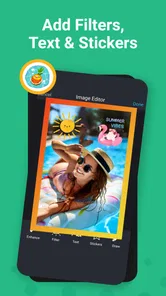
Yes. Pic Stitch is designed to bring multiple photos together in one collage, which can be useful for sharing travel highlights, celebrations, everyday moments, or before-and-after images. You can arrange pictures in a layout and add visual touches such as borders, backgrounds, text, or stickers. Check the final image before sharing, since each social platform may display or crop photos differently.
Is Pic Stitch: Collage Maker available for iPhone and Android?
Pic Stitch: Collage Maker is an app in the Photography category, developed by Maple Media. If you are choosing a version for your device, check the relevant app store for compatibility and installation details. Android users should also confirm that their operating system meets the app’s minimum requirement before downloading. The app is free to download, with optional in-app purchases.
Does Pic Stitch: Collage Maker work on my phone?
Pic Stitch: Collage Maker is available for Android devices running Android 6.0 or later. Before downloading, check your phone’s operating system version and make sure you have enough storage for the app and the photo projects you want to create. The app is a photography tool for putting multiple pictures together, so access to the images you choose will be part of using its editing features.
What is Pic Stitch: Collage Maker used for?
Pic Stitch: Collage Maker is a photo-editing app designed to combine several pictures into one finished collage. It offers a selection of layouts, borders, spacing controls, backgrounds, filters, text tools, stickers, and other adjustments. It is useful for creating social media posts, travel recaps, birthday memories, before-and-after comparisons, and simple photo projects without needing advanced editing experience.
Pros
- Combines photos quickly with many ready-made collage layouts.
- Supports adding text
- stickers
- frames
- and simple photo adjustments.
- Easy-to-use interface suitable for beginners and casual editing.
- Lets you create collages in formats suited to social media posts.
- Offers sharing options for saving or publishing finished designs.
Cons
- Many layouts and editing tools require a premium subscription.
- Free exports may include watermarks or promotional elements.
- Ads can interrupt the editing experience in the free version.
- Advanced customization is more limited than in professional photo editors.
- Large collages may take longer to process on older devices.











