PDF Reader - All PDF Scanner
- 368.00
- 4.3
- Installs
- 1.00M
- Price
- Free
Screenshots
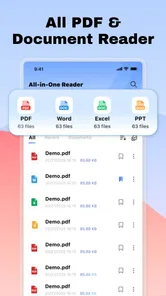
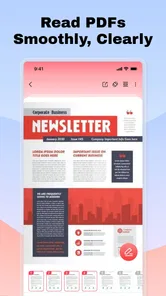
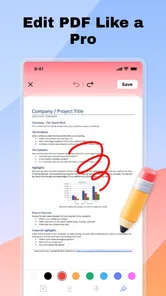
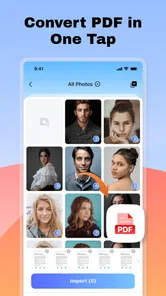
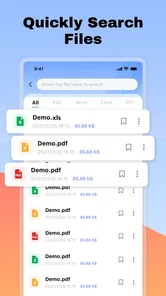
Analysis by Reviewed
PDF Reader - All PDF Scanner is best approached as a practical tool for opening and working with PDF files already on your device. I like that its focus is easy to understand: it is a productivity app for local documents, rather than a promise to replace every document service or office suite. That makes it potentially useful for everyday reading, though it also sets a clear boundary. If your main need is editing complex documents or coordinating files across a team, a dedicated office or cloud workflow may suit you better.
That local-first focus is also a useful way to judge whether it belongs on your phone. Think about where your PDFs come from, how often you reopen them, and whether your current method makes those small tasks harder than they need to be. A dedicated reader is worthwhile when it removes friction from a repeated routine, not simply because it offers another icon to tap.
What you get without paying
The app is free, so the basic decision is whether a straightforward PDF workflow is useful enough to install—not whether an upfront purchase is justified. I would treat that as a low-commitment way to try it with ordinary files, while avoiding assumptions about optional charges or paid upgrades. Free access is a confirmed part of its offer; it does not, by itself, tell you what every feature or future version will include.
That distinction matters when comparing it with alternatives. Some people already have a PDF viewer bundled into a file manager, browser, email app, or cloud-storage service. If one of those opens your documents reliably, installing another tool may not add much. The case for trying this one is stronger if you want a dedicated place for local PDFs and your existing apps make it awkward to find or return to them.
Dev Globeg publishes the app, which sits in the productivity category. It has a 4.3 average from around 7,500 ratings, with more than 1 million installs. Those figures suggest that many Android users have tried it, but they cannot tell you whether it fits your particular documents or habits. I would use your own files as the real test: open a long document, a form you need to inspect, and a PDF you return to often.
The age rating is Everyone, and the current version is 1.1.8. It was released on September 28, 2025, and supports Android 8.0 and later. Those details help with basic compatibility and expectations, but they are not a substitute for checking how it behaves on your phone. A reader that feels fine with a short handout can become frustrating if your usual documents are large, dense, or awkwardly formatted.
A sensible job for a focused PDF tool
PDF Reader - All PDF Scanner is most appealing when your files are already stored locally and you want one place to open and manage them. That scope can be a benefit: you do not need to turn a simple reading task into a larger cloud or office setup. For someone who receives documents by email or downloads them for later, a dedicated reader can make routine access feel less scattered.
More From Our News Desk

Weather by Xiaomi Review: Clear at a Glance, Less Clear Up Close

X Under Pressure: Can It Recover When Posting Goes Wrong?

Clash of Clans Is Won Between the Battles

Android Auto Makes the Case for Quieter Car Software

MobiOffice: Transforming Mobile Productivity with Seamless Integration

EA SPORTS FC™ Mobile Soccer: Redefining Mobile Sports Gaming
The useful distinction is between viewing a PDF and changing its contents in a substantial way. The app is presented as a viewer and editor, but I would not equate that description with the deep layout control of a desktop publishing tool. Editing can mean different things to different readers. If you need to rewrite paragraphs, preserve intricate formatting, or collaborate through tracked changes, confirm that the app supports your exact task before relying on it.
For a quick decision, ask what “edit” means in your own routine. If you only need to inspect a document and occasionally make a modest change, a phone-based tool may be enough. If you are responsible for a form that must retain exact spacing, a report with complex tables, or a document that colleagues will revise in sequence, treat a mobile reader as a convenient checkpoint rather than the authoritative editing environment.
That caution is especially relevant for official forms. A PDF may look editable but still contain fixed fields, scanned pages, or formatting that shifts when modified. I would keep an untouched copy before making changes and reopen the saved version to check that the result remains legible. That simple habit is valuable with any mobile PDF editor, and it matters even more when the document is something you plan to submit.
How it fits into an ordinary day
Imagine you download a travel itinerary before leaving home and later need to check a departure detail while waiting in line. A local-file reader is a sensible choice for that moment: you can open the saved document without needing to build a whole document-management routine around it. The same pattern works for a class handout, a product manual, or a bill you want to inspect on your phone.
One small but useful test is to try the whole trip a document makes: save it from the app where you received it, locate it in the reader, then return to it later. This reveals more than simply opening a sample file. It shows whether the handoff from email, a browser, or a messaging app fits your habits, and whether you can recognize the correct copy when similar downloads accumulate.
A small workflow improvement is to give downloaded files clear names before they pile up. “April statement” is easier to recognize later than a string of digits from an attachment. Since this app is oriented around local files, organization on the device matters: a reader can help you access documents, but it cannot compensate for a chaotic folder full of indistinguishable scans. Naming and filing documents as you save them makes repeat visits much quicker.
Another useful habit is to separate reading from editing. First, open the original and check that every page is present; then make changes only if the app offers the kind of editing you need. Finally, reopen the saved copy and compare key details with the original. This is not busywork. It catches accidental changes and helps you avoid sending a file that appears complete in the editor but was saved incorrectly.
For occasional reference, a phone screen is convenient, but it is not always the best place to review dense pages. If you are comparing several contracts or inspecting a document where tiny print matters, a larger display can be easier on your eyes. I would use the app for quick checks and straightforward edits, then move to a tablet or computer when precision, side-by-side comparison, or extensive revisions become important.
That gives the app a practical role between a basic preview and a full computer workflow. You can use your phone to check whether a file is the right one, find a page, or confirm a detail while away from your desk, then postpone close proofreading until you have a larger screen. For people who travel or study, that division of labor is often more sensible than expecting a phone to be the best tool for every stage.
Where the trade-offs show up
The main trade-off is focus. A PDF-centered app can be simpler than a broad office suite, but local-file management may feel limited if your documents live across several cloud services or need to stay synchronized between devices. If you already depend on a particular storage provider, its own PDF viewer may make more sense because it keeps opening and organizing files within the system you already use.
There is also a difference between a convenient mobile editor and a full document-production environment. If the job involves rebuilding layouts, handling complex tables, or making extensive text changes, I would start with software designed for those tasks. PDF Reader - All PDF Scanner is a more natural candidate when the document is mostly finished and your need is to read it, manage it locally, or make modest adjustments.
A useful way to avoid choosing the wrong tool is to identify the part of the workflow that causes trouble. If the problem is opening a downloaded PDF, a dedicated reader could help. If it is finding the current version across several devices, synchronized storage is the more important feature. If it is changing the document’s structure, a full editor is likely the better fit. These are different problems, and no single label such as “PDF app” guarantees that one tool handles all of them well.
One practical point is that “local files” makes file location part of the experience. If you cannot find a download, the problem may be where the browser or messaging app saved it rather than the reader itself. When a document seems missing, check the source app’s download location and the phone’s file manager before assuming the PDF reader has lost it. That distinction can save time and prevent needless duplicate downloads.
I would also be cautious about choosing any mobile PDF tool solely because its name includes “scanner.” The confirmed description centers on local PDF viewing and editing; the name alone should not be treated as proof of a particular scanning workflow. If scanning paper into searchable, neatly cropped PDFs is your main requirement, look for clear evidence of those capabilities before making this app your primary scanner.
That is an important distinction for anyone replacing a paper-based routine. A document viewer and a paper-capture workflow solve related but separate jobs. Before relying on this app to turn receipts or signed pages into digital records, check whether the specific capture steps you need are available and whether the resulting files are suitable for your records. If scanning is the main goal, a scanner-focused app may be a more direct choice.
Who is likely to get the most from it
I would consider it if you regularly open PDFs on Android, prefer keeping files on your device, and want a dedicated productivity app rather than a broad suite. It may be especially convenient for students checking lecture notes, people reviewing downloaded receipts, or anyone who needs to consult instructions while away from a computer. In those situations, quick access matters more than advanced document design.
A realistic everyday example is a student who downloads a reading before class, opens it on the bus to check a section, and later returns to the same local file at home. The app’s focused role makes sense in that routine because the document is already on the phone and the immediate task is reference, not collaborative editing. If notes or annotations are essential to that student, however, they should verify that the app’s editing tools match that requirement before depending on it for a whole course.
It can also suit someone who keeps household paperwork on a phone: a manual to check while assembling furniture, a receipt to consult during a return, or a statement to review away from a computer. These are short, practical visits rather than long editing sessions. Keeping those documents in a clearly named folder and testing them in the reader gives a better sense of everyday usefulness than relying on a one-time launch.
It is less compelling if you rarely work with PDFs, already have a reader that handles your files comfortably, or need automatic access to the same documents across multiple devices. It is also not my first recommendation for a professional workflow that depends on precise revision control, extensive collaboration, or dependable conversion between file formats. Those needs call for tools whose central purpose is the specific work you do.
If you are unsure whether local access or synchronization matters more, try following one document across your normal devices. If you frequently need the latest copy on a phone, tablet, and computer, a cloud-based workflow may save more effort than another local reader. If you mostly open files on one Android device and want to keep the process uncomplicated, this app’s narrower focus is more likely to feel like an advantage.
For a fair trial, use three documents that represent your real routine: a short file, a longer one with several pages, and a document you may want to edit. Check that you can locate each file, read it comfortably, and preserve a clean copy after any changes. This test is more useful than trying a random sample PDF because it reveals whether the app fits your storage habits as well as your reading needs.
I would add one more check before making it your regular reader: revisit a document after closing the app, rather than judging only the first opening. That helps you see whether your naming and filing approach makes repeat access straightforward. For an edited file, compare a few important details with the untouched original. A short trial based on your own routine is more informative than expecting a rating or install count to predict your personal experience.
My verdict on the value
At no upfront cost, PDF Reader - All PDF Scanner is worth considering as a focused way to handle everyday PDFs stored locally. Its value is strongest when you want a simple mobile stop between downloading a document and reading or lightly working with it. I would not choose it on the assumption that it replaces a cloud library, a desktop editor, or a specialist scanning tool.
Because there is no upfront price, trying it with a few ordinary files is a reasonable way to decide whether its local approach suits you. I would still judge value by the time it saves and the tasks it handles well, rather than treating free access as a reason to keep every app installed. If it makes your usual PDFs easier to find and read, it has a clear role; if another app already does that without friction, switching may bring little benefit.
My recommendation is conditional but straightforward: try it if local PDF access is a recurring nuisance and your tasks are modest. Keep your original files before editing, and test the documents that matter to you rather than relying on a general impression. Skip it if your current viewer already does the job or if your work depends on advanced editing and synchronization. For the right routine, the strongest reason to install it is uncomplicated access to local PDFs without an upfront price; for demanding document work, a more specialized alternative is the better use of your time.
PDF Reader - All PDF Scanner Frequently Asked Questions
What can you do with PDF Reader - All PDF Scanner?
PDF Reader - All PDF Scanner is designed to help you open and read PDF files on your device, with document-scanning tools for creating digital copies of paper pages. Depending on the version and device, it may also offer options such as organizing documents, searching within files, or sharing PDFs. Check the app’s listing and permissions to confirm which features are available in your region before downloading.
Can PDF Reader - All PDF Scanner scan paper documents into PDFs?
The app’s name indicates that it includes a scanner for capturing paper documents with a device camera and saving the results as PDF files. Scan quality can depend on your camera, lighting, and how steadily you hold the phone, so clear, evenly lit pages tend to work best. Before relying on it for important documents, test whether the available cropping and image-adjustment options meet your needs.
Is PDF Reader - All PDF Scanner free to use?
The app may be available to download without an upfront charge, but that does not necessarily mean every feature is free. Some versions of document apps include advertisements, optional purchases, subscriptions, or limits on scanning and other tools. Review the current Google Play or App Store listing for pricing details, in-app purchase information, and any trial terms before you install or start using paid features.
Does PDF Reader - All PDF Scanner work offline?
Opening PDF files already stored on your device and scanning pages with your camera may work without an internet connection, but availability depends on the app’s design and version. Features involving cloud storage, online sharing, account access, or advertisements may require connectivity. If you need to read or scan documents while traveling, try the relevant functions in airplane mode first and keep important files saved locally.
Is it safe to use PDF Reader - All PDF Scanner for private documents?
A scanner and PDF reader may handle sensitive material, so check the app’s requested permissions and privacy policy before importing documents. Camera access is relevant for scanning, while other permissions should make sense for the features you plan to use. Avoid assuming that files are encrypted or stored only on your device unless the developer states this clearly, and consult the store listing for current privacy disclosures.
Pros
- Supports multiple PDF files
- making it easier to manage documents in one place.
- Built-in search helps locate specific words or phrases in a document.
- Can open PDFs received through other apps using the Android share menu.
- Page thumbnails make it quicker to jump to a particular section.
- Useful for reading documents offline after they have been saved on the device.
Cons
- Large or image-heavy PDFs may take longer to load and navigate.
- The app may request access to files and media to find documents on your device.
- Frequent ads can interrupt browsing or document-management tasks.
- Advanced editing and annotation tools may be limited or require payment.
- Scanned pages may not support text search unless OCR is available and enabled.












