ID.me Authenticator
- 11.33K
- 3.5
- Installs
- 5.00M
- Price
- Free

Screenshots
Analysis by Reviewed
I think trust in an authenticator starts with a simple question: does it help me complete a sign-in without making me guess what I’m approving? ID.me Authenticator is a free productivity app from ID.me, built around two-factor authentication. Its purpose is narrower than a password manager’s: it provides an extra step when a supported sign-in asks you to verify yourself, rather than organizing all your passwords or accounts in one place.
Where it fits in a security routine
That distinction matters when choosing between this and familiar alternatives. A password manager can help create and store unique passwords; an authenticator handles a separate verification step. Using one does not replace the other. I’d consider this app when a service you use specifically offers ID.me authentication, rather than assuming it will work with every email, bank, or social account. Check the sign-in page’s available verification choices before relying on it for an important account.
The everyday benefit is easiest to see when you’re logging in away from your usual device. Imagine needing to reach an account while traveling: a password alone may not complete the sign-in if a second check is required. Having the relevant authenticator available can make that step more manageable, but it also makes access to your phone part of the routine. I’d keep that dependency in mind before making it the only way I can get into an essential service.
Small habits that reduce sign-in friction
A useful habit is to set up the verification method while you still have ordinary access to the account, not during a rushed login. I’d also check the service’s own recovery options and keep them current; an authenticator is most helpful when the rest of the account-access plan is clear. If a prompt appears unexpectedly, pause and verify that you were the one who started the sign-in before approving anything. Convenience should not turn a security check into an automatic tap.
Those are practical precautions, not special functions I’m attributing to the app. The available experience can depend on the service you’re signing into, so the key question is whether its verification flow matches the way you use that account. People who want a broad toolkit for managing many kinds of authentication may prefer a general-purpose authenticator that suits those services. People already using ID.me-supported sign-ins may value having a focused option instead.
What’s the Buzz About?
First things first, the ID.me Authenticator is all about security. In this digital age, where everything from our bank accounts to social media profiles is online, having a secure way to manage your identity is crucial. This app promises just that with its two-factor authentication feature. And let me tell you, it delivers.
Easy Peasy Setup
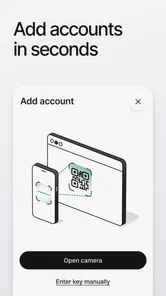
Setting up the app is as easy as pie. Once you download it, you’re guided through a simple process to link your accounts. I was pleasantly surprised by how intuitive the interface is. No tech jargon or complicated steps—just straightforward instructions that even your grandma could follow.
More From Our News Desk

Weather by Xiaomi Review: Clear at a Glance, Less Clear Up Close

X Under Pressure: Can It Recover When Posting Goes Wrong?

Clash of Clans Is Won Between the Battles

Android Auto Makes the Case for Quieter Car Software

MobiOffice: Transforming Mobile Productivity with Seamless Integration

EA SPORTS FC™ Mobile Soccer: Redefining Mobile Sports Gaming
Sleek and User-Friendly Interface
The design of the app is sleek, with everything laid out neatly. No clutter, no confusion. You can easily navigate through the app, and all the essential features are just a tap away. It’s all about making your life easier while keeping your information safe.
Security That Packs a Punch
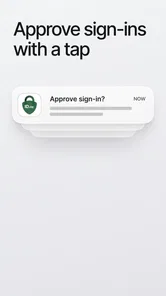
Now, let’s talk security. The app uses a two-factor authentication system that adds an extra layer of protection. It’s like having a bouncer at the door of your digital life. Whenever you log into an account, you’ll get a notification to approve the access. This means even if someone gets hold of your password, they can’t get in without your say-so. Pretty neat, huh?
Seamless Integration
One of the best things about this app is how well it integrates with other services. Whether it’s your email, social media, or banking apps, ID.me Authenticator plays well with others. This seamless integration makes it a must-have for anyone looking to shore up their online defenses.
Conclusion: Is It Worth It?
In a word, yes. If you’re serious about protecting your online identity, the ID.me Authenticator is worth every megabyte. It’s user-friendly, secure, and integrates seamlessly with your digital life. So why not give it a try? After all, in today’s world, you can never be too careful.
Who should take a closer look
The app has a 3.5 average from around 71,000 ratings, with about 11,000 written reviews and over a million installs. That gives me a useful sense of its reach, but it isn’t a guarantee that every setup will feel smooth. It’s free, rated for Everyone, and its current version is 1.12.0-2025082916; Android support starts at version 6.0. It was released on December 11, 2018, so it has been available for years, though I’d still make sure the app and the service I’m accessing are both up to date.
I’d put it on the shortlist if an account I rely on explicitly uses ID.me and I want a dedicated second step rather than another password tool. I’d skip it if I’m looking for a universal vault, broad account-management features, or a verification method that works across services regardless of their support. The best fit is specific: the service must accept this route, and I must be comfortable having my phone involved when I sign in.
What I would check before trusting it with access
Trust also means knowing what choices are visible at the moment they matter. I would read each approval prompt rather than treating every notification as routine, and I’d avoid approving one I didn’t initiate. If I change phones or lose access to the current one, the next step depends on the account’s recovery process, so I’d review that process with the service before I need it. That is a sensible precaution for any second-factor app, not a claim about a particular recovery feature here.
The app is developed by ID.me, and I would judge its role by what I can actually see during setup and sign-in: which account I’m linking, what action a prompt requests, and whether I can recognize the login attempt. I wouldn’t treat the word “authenticator” as a blanket promise about every privacy or account-control detail. For sensitive accounts, take a moment to review the service’s own choices and explanations before enabling a method, and don’t approve an unfamiliar request just to clear a notification.
A measured recommendation
My strongest recommendation is conditional: use it when a service you need supports this verification flow and the app behaves clearly in your own setup. The extra sign-in check can be worthwhile, but it adds a step and creates a practical reliance on your device. If that trade-off suits your routine, the focused approach may be easier than adopting a larger tool you don’t need. If you need wide compatibility or want to keep authentication separate from one particular service ecosystem, compare other authenticators first.
Overall, I see ID.me Authenticator as a focused option, not a complete security plan. Pairing a second factor with careful prompt-checking and a recovery plan is more useful than installing an app and assuming the job is done. I’d try it for a supported account, pay attention to the choices shown during setup, and keep another route to account recovery in mind. That makes the decision less about hype and more about whether this particular sign-in method genuinely fits your day.
Making the phone part of the routine
A detail worth thinking through before setup is what happens on an ordinary day when your phone is inconvenient to reach. You might be at work with it in a bag, have a low battery, or be using a borrowed computer while away from home. None of those situations makes an authenticator a poor choice by itself, but they turn a quick sign-in into a small coordination task. I’d test the flow once when I’m calm, so I know what the prompt looks like and where I need to look when I’m in a hurry.
For example, if I’m trying to access an ID.me-supported account while checking in for an appointment, I’d want the phone charged and nearby before I begin. I’d also make sure I’m signing into the expected service rather than responding to an unsolicited request. That simple sequence—start the login myself, inspect the prompt, then approve only the matching action—makes the extra step feel deliberate instead of disruptive. It is a useful habit whether the account is being accessed at home or from a public place.
Choosing it over a general-purpose authenticator
The main comparison is not that one kind of app is automatically safer than another; it is whether it fits the services you actually use. A general-purpose authenticator may be a better match if you want one tool for verification across a range of unrelated accounts. A password manager with authentication features may also suit someone who prefers fewer separate apps, provided the services they use support its approach. I’d choose this focused app when the sign-in I need points me toward ID.me and I value a direct, purpose-built route.
That choice has a trade-off: a narrow fit can keep the job clear, but it does not make the app a universal answer. Before depending on it, I’d check each important account individually instead of assuming that support for one service means support for another. If you manage several accounts across different providers, write down which verification method belongs to each one in a secure place. That small inventory can prevent confusion later, especially if you have more than one authenticator installed.
What to do before switching devices
People often ask whether they can simply move an authenticator when changing phones. I wouldn’t assume that the move is automatic. Before replacing a device, I’d look at the account’s own instructions for changing or recovering its verification method, and I’d make that change while I still have access to the old setup. The important point is to avoid wiping or trading in a phone until I know how the supported service will let me sign in afterward.
The same preparation helps if a phone is lost, damaged, or temporarily unavailable. Keep the service’s recovery route in mind, and make sure any contact or account details it relies on are current. I would not wait until I’m locked out to learn what the recovery process involves. That preparation is particularly worthwhile for an account tied to important personal tasks, where being unable to sign in could create more trouble than a brief delay.
Reading prompts without rushing
Approval notifications are convenient because they bring the verification step to the device I already carry, but convenience can encourage reflexive tapping. My rule is to approve only when I have just started the matching sign-in and understand which account I’m trying to reach. If a request arrives when I’m not logging in, I’d leave it alone and check the account through a trusted route rather than treating the alert as a harmless interruption.
This is also where user agency matters. An approval prompt is a decision point, not a reason to surrender attention. I’d take a moment to compare the request with the action I initiated, and I’d stop if anything feels out of place. That caution does not require technical expertise; it just means keeping the final decision in your hands instead of letting a notification dictate your next tap.
When a different approach makes more sense
I would hesitate to rely on this app as my sole method if I frequently lose access to my phone, need a single authenticator for many unrelated services, or cannot confirm that a particular account supports the ID.me route. Someone who values a wider mix of supported sign-ins may be happier comparing general-purpose options. Someone who wants password storage and account organization should look at a password manager for those jobs, then decide separately how to handle second-factor verification.
There is also a difference between an app being easy to navigate and every account’s setup being effortless. The service you’re signing into controls which options it offers and how its recovery process works, so some of the friction can sit outside the authenticator itself. I’d judge the complete sign-in experience—not just the first launch—and choose based on whether the method remains understandable when I need it under ordinary, slightly rushed conditions.
A practical decision before installing
Before downloading, I’d ask three plain questions: does the account I care about accept this method, can I keep my phone available when I sign in, and do I understand how I would recover access if that phone were unavailable? If the answers are yes, trying the app for that specific account is a reasonable next step. If one answer is uncertain, I’d resolve it with the service first rather than discovering the limitation during an urgent login.
That is why I see the app as useful for a defined job rather than as a general-purpose security upgrade. It can make sense for someone who already uses supported ID.me sign-ins and wants a dedicated verification step, while a person seeking broad compatibility should compare alternatives. My recommendation remains cautious but positive: understand the account’s choices, test the flow at a convenient time, and keep a recovery route in view. The best authenticator is the one you can use confidently without mistaking convenience for a complete plan.
ID.me Authenticator Frequently Asked Questions
Does ID.me Authenticator require an ID.me account to use?
ID.me Authenticator is intended to provide an extra sign-in security step for services that use authentication codes. Before installing it, consider which account or service you plan to protect and whether that service supports the app’s codes. The app is most useful when you already have a compatible sign-in process set up, rather than as a standalone way to access accounts.
What happens if I lose or replace my phone?
Because an authenticator app is used during sign-in, it is wise to think about access to your accounts before changing or losing your phone. Check the recovery options offered by the service you are protecting and follow its instructions for setting up authentication on a replacement device. Keep any recovery information somewhere safe, so a missing phone does not leave you without a way to regain account access.
Can ID.me Authenticator work without an internet connection?
Authenticator codes are meant to be available from the app when you need to complete a sign-in, but the service you are logging into still controls how verification works. Before relying on the app in a situation where connectivity may be limited, test the sign-in process for your account and understand its recovery options. This helps you avoid discovering a problem only when you need to log in.
Is ID.me Authenticator suitable for beginners?
The app is presented as a simple, free two-factor authentication solution, so its main purpose is straightforward: provide an additional verification step when signing in. Beginners should be comfortable following the setup instructions provided by the account or service they want to protect. Once configured, the app’s role is to help with authentication, rather than to manage everyday tasks or replace the protected account’s own sign-in system.
How should I choose between ID.me Authenticator and another authenticator app?
Start with the account or service you want to protect, since compatibility with its sign-in process matters most. ID.me Authenticator is designed as a focused two-factor authentication app, while your preferences may also depend on how you manage codes across devices and accounts. Review the setup steps and available recovery options for the services you use, then choose an app that fits those needs.
Pros
- Easy to set up and use.
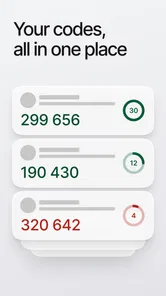
- Supports multiple accounts.
- Enhances security with 2FA.
- Free to download.
- Minimalist and user-friendly design.
Cons
- Limited customer support options.
- Occasional syncing issues.
- No desktop app available.
- Requires internet for verification.
- Drains battery quickly.












